Silhouette Tutorial Filling Shapes with Digital Prints by Brigit

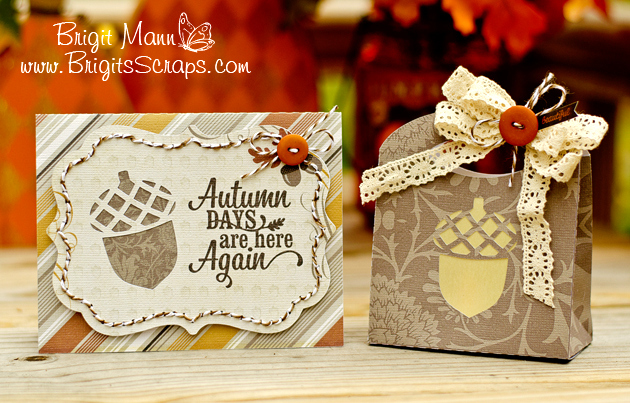
Hi everyone Brigit here with another SSDE Tutorial.  I love to fill my shapes with digital paper and then do a print n cut with my Silhouette Cameo.  It does such an awesome job cutting out the pattern filled shapes as you can see in the card below.

For this project I used one of the cards from the Christmas Card Set 2 and Lori’s digital paper collection Sweet Life.  I only used the card and the two front layers, you can delete the other pieces.

If you need help with ungrouping and making compound paths check out my tutorial here.

I do not import my digital paper into SSDE, I have it all organized by designer in a folder on my computer.  You can see in the photo how I have the folder opened onthe right-hand side next to my program.

I just dragged the pattern paper from the folder and dropped it into the shape.

Notice on the card the owl design is to the left and cutoff.

Select the card, go to the Fill Pattern and Advanced Options, click on the Pan Pattern, a circle with crosshairs will appear in the middle of the card, click on it and move the paper around.

I wanted my owl on the opposite side with the white swirls to the right so I clicked on the Horizontally under the Mirror Pattern.

I line up the card fronts so when panning I can see exactly where I’d like the owl to be.  I used the Scale Pattern and enlarged the paper to 110% so the edge of the paper wouldn’t show.  The scale pattern is great to make your pattern paper designs larger or smaller I use it all the time.

Lori has a cute owl and tree cut file that matches this collection in the owls set, I used the eyedropper under the Fill Color and selected colors from the collection so everything would match or you can fill them also with the digital paper.  The sentiment is an element from the Sweet Life collection, to cut that out you need to first do a trace, that will be covered in another tutorial.

All my pieces fit on one 12″ x 12″ piece of cardstock, registration is checked under the Registration Marks and I make sure all my cuts are selected under the Cut Style.  Now I’m ready to do a print n cut.

Other Supplies Used: AC White Textured Cardstock, In the Navy Trendy Twine, Brads

Thanks for stopping by, I hope this tutorial has helped!!  You can visit me at http://www.brigitsscraps.com.

Silhouette Tutorial Welding Shapes by Christine

If there is one thing that I love about digital die cuts, it’s that you can have fun manipulating them to make something very different than they might have been intended for.  I took one of Lori’s 4×6 Life Card files and made a mini album from it.  I only used one of the shapes but using the directions that I am going to give you, it will be very possible to make a mini book with different shaped pages.
Here is the file that I used.  Once I had my shape on my mat, I actually resized it to a 3×4 size for a mini, mini album, but you can create it in any size that you would like.
Here are some pictures of my finished mini book.  I used Lori Whitlock’s Here & Now for Echo Park paper and embellishment collection to create my mini book.  I’ll have more up close pictures of my mini on my blog if you want to pop on over there.
So now for the tutorial.  How do you take a 4×6 Life card and make it into this ticket shaped accordion mini album?  Let me show you!
Pick the shape that you want to use.  I picked the ticket stye.  Ungroup the file and delete the shapes that you don’t want to use for this project.  Replicate your shape so that you have a row of three.
Move each shape to the left so that they are just barely overlapping.  You don’t want to go too far because it will distort the shape.  You will know when you weld the shapes together you will know if you put them close enough because the middle lines will disappear.
If you move over too much or not enough, just click the undo button and try again.
Tip:  Hold down the shift key while you are drawing your line, to get a perfect straight line.
This step can be done whether you have the basic or Designer Edition of the Silhouette Software.
Sorry, the above direction should say, Copy one of the perforated lines and paste it on the end of the welded shape where you just erased the line.  Draw a short angled line, select it and mirror left under the replicate feature.
Cut out as many of these groupings to make your mini book long or short.
Try this technique with basic shapes or more complicated shapes.  You never know what you can make until you try.
To create the mats for the individual pages of my mini book, I took one of the original shapes and used the inside offset feature.  Those I cut out separately from matching paper.
I hope you enjoyed the tutorial today.  If you have any questions please feel free to visit my blog and leave your question in the comment section.  Thanks!!
Supplies used:
Here & Now paper and embellishment collection by Lori Whitlock for Echo Park

Shaped Card by Brigit and Desk Set by Corri

First off, I wanted to thank you all for participating in the Silhouette Giveaway! We have a winner: Entry #2092 Suzanne A. Congrats Suzanne! Please email your address to me at: info@loriwhitlock.com and I’ll get your prize sent out to you. Keep an eye out for more giveaway in the future : )

Today on the blog we have a few beautiful things to share with you. First is Brigit.

Shaped cards are so much fun to work with and Lori has many cute ones, just like this A2 watermelon shaped card.  So perfect for a thank you card, I just added  one of the flowers from the 5 layering flowers set and leaves from the 3D flower set 5.

I also used Lori’s digital paper Summer Fun, the pretty summer colors went perfect.  I finished the card with some stickles on the seeds, watermelon taffy Trendy Twine and stamp sentiment from Jaded Blossom’s feeling fruity.

.

Thanks for stopping by, you can visit me at http://www.brigitsscraps.com

Next up we have Corri with an adorable matching desk set

Corri here with a great project for keeping things organized.  I just got a new calendar on July 1st to keep my design team deadlines organized.  It’s a pretty cranberry color and I thought it would be fun to dress it up with some vinyl.

I created a offset for Lori’s Remember This Title.  You can find my tutorial on how to create an offset here.

I cut the offset and title in vinyl and layered them on the front of the calendar.

I also cut the Cute Flowers file and applied that under the title.  It turned out really cute!  This would also be a great way to personalize kids binder, folders, and notebooks for


To keep my notes and lists, I made this cute sticky note holder….

and this To Do List holder.  I love how these have a place for a pen.  They will be perfect to keep on my desk.  I used paper and sticker from the Echo Park Here and Now collection.


Penny Sliding Card by Christine

Monday came way too early for me and I was not prepared to show you all the beautiful Creative Team projects. I would like to make it up to you today and share with you this beauty with you. Take it away Christine… Lisa
One of the things that Lori does best is create fun interactive cards and I have found that I love making them!  So today I am going to show you a brand new interactive card in the store called the Penny Slider Card Circle.  I also needed to have a special envelope to put it in because of the weight and height so I also cut out the Sliding Box for it.
 
The card was a lot of fun to make and I can see all kinds of potential for this one.  The directions and tips that Lori gives on her YouTube video are definitely worth watching.  You can see it here.  I used some fun paper, chipboard and sticker gears and brads from Lori’s All About A Boy paper collection for Echo Park.
When you swing the card around the penny makes the little gear more in a circle and around the card at the same time.  Pretty cool, huh?  Here’s a closeup.  I used a Papertrey Ink stamp for the center image.  I loved how the little 3D star embellishment fit right inside the middle.

The slider box is going to see a lot of use in the future.  This box can be used with or without the inside box.  It’s fun to decorate and I love the bracket shape on the front flap.  I created a mat for the flap by using the Internal Offset feature and also enlarged the file to fit my card.  The chipboard gear and sticker ribbon on the front is acting as my closure.  I  attached it to the box with some foam adhesive and then attached the smaller circle and brad on the bottom part of the box, then wrapped a cotton string, up and around both pieces to hold it closed.

Here is a closeup of the card in the sliding part of the box.  You can see how the foam adhesive under the blue circle helps to lift it up so that the pennies can slide underneath it.
I hope you have enjoyed my project today.  Be sure to check out the other slider card,  Penny Slider Card Straight, as well as the some of the other interactive cards in Lori’s shop!

Lori Whitlock Supplies Used:
Other Supplies Used:
All About a Boy Paper Collection and Embellishments by Lori Whitlock for Echo Park
Papertrey Ink 2012 Birthday Tags stamp set
Stampin Up! Ink in Pumpkin Pie
Foam Adhesive from Imaginisce
Cotton string, Joann’s