Hello Crafty Friends! Michelle here with you today to share a paper flower tutorial to make what could be the world’s easiest paper flower, but no one will know that except for you! You don’t need any tools or any experience to create this full, lush, dimensional bloom. You just need your electronic cutting machine and Lori’s cute cut files! Let’s get started!

For this flower, I used “3D Flower 43” that can be purchased at the Lori Whitlock SVG Shop or at the Silhouette Design Store. The flower looks different in the photo, but that’s only because we’re using the super easy construction method. Download all of the files and cut them out in your choice of colors. I made mine pink to coordinate with the paper from Lori’s “I Love Summer” Echo Park Paper Collection. Even the tag matches. Isn’t that the cutest?

Cut out all of your petals and group them by size. You should have five groups of three.

Starting with the smallest group, curl the petal strips that are the same size, upward with your fingers and glue them on top of each other as shown. Don’t stress about the curling them because we have more to do with them anyway and the curling will barely show. Use whatever glue you’re comfortable with. A fast drying glue, or hot glue is recommended. Glue all five groups in this manner.

Place your index finger in the middle of each petal, and gently pinch the petal ends so the form a “cup”. Do this to each group and set aside.

Pinch the “leaves” together just as you did with the petals. Your groups will look like the above photo. But we still need to complete the center!

The center will be completed in two steps. First, glue the two sides together. Do not fold a crease in the strip. Instead gently hold the the sides together until the glue sets, and move down along the sides until it is all glued together.

Add a line of glue down the cut edge and gently roll the strip. I tried to keep my roll tight. You can roll it tight, or loose. It’s up to you! When it’s all rolled up, set it aside to dry.

While your center is drying, start combining your petal sets. I started with my smallest set and glued it to the set that’s a little bigger, by placing a drop of glue in the middle and holding it down with finger as shown. Make sure your glue has taken hold before adding your next set. For best results, stagger the petal placement so that they are not right on top of each other.

Finish the flower by placing your center in the middle and by adding your leaf piece to the back.

I cut my flower in the dimensions shown when I opened my file. It makes an impressive size! You can scale the size of your flower up or down depending on the project. These would be great for wall decor or used in place of a bow like I made mine. In fact, I scaled up the size of my gable box in order to accommodate the flower’s width. I used the Gable box here in the Lori Whitlock SVG Shop, and also found in the Silhouette Design Store.

That’s it! You are going to impress everyone with your flower making skills!
Have fun!


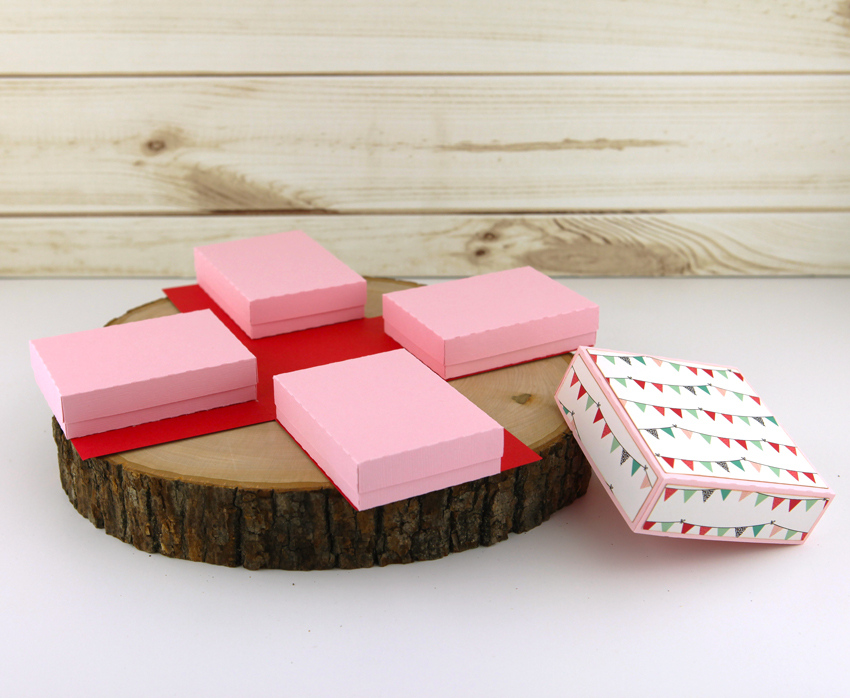 Explosion Box 4 Gift Boxes (SVG, Silhouette)
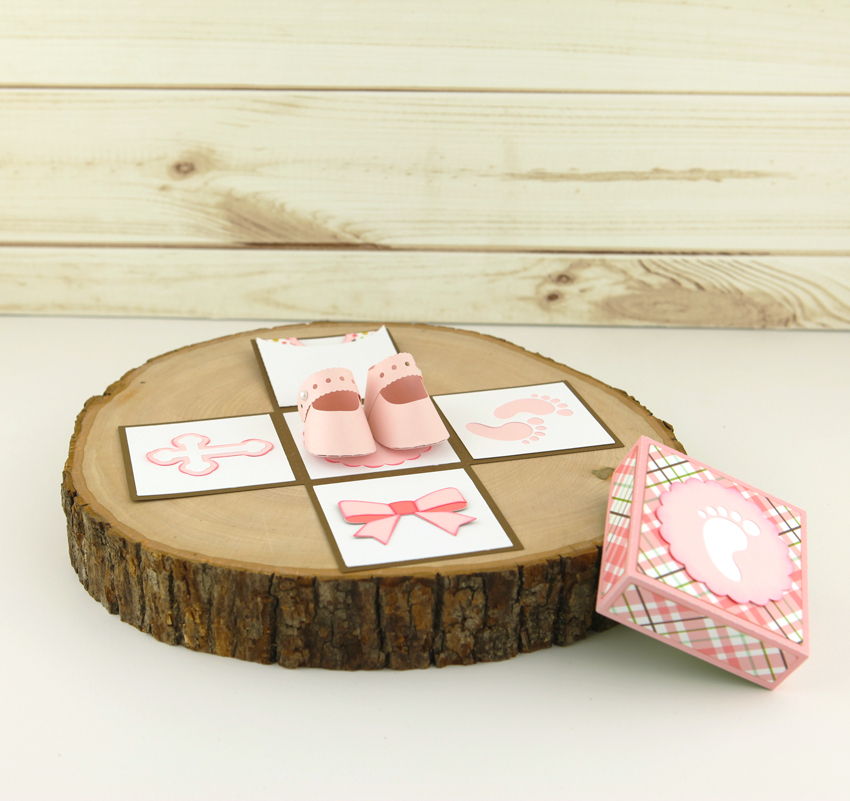 Explosion Box Baby Shoes (SVG, Silhouette)
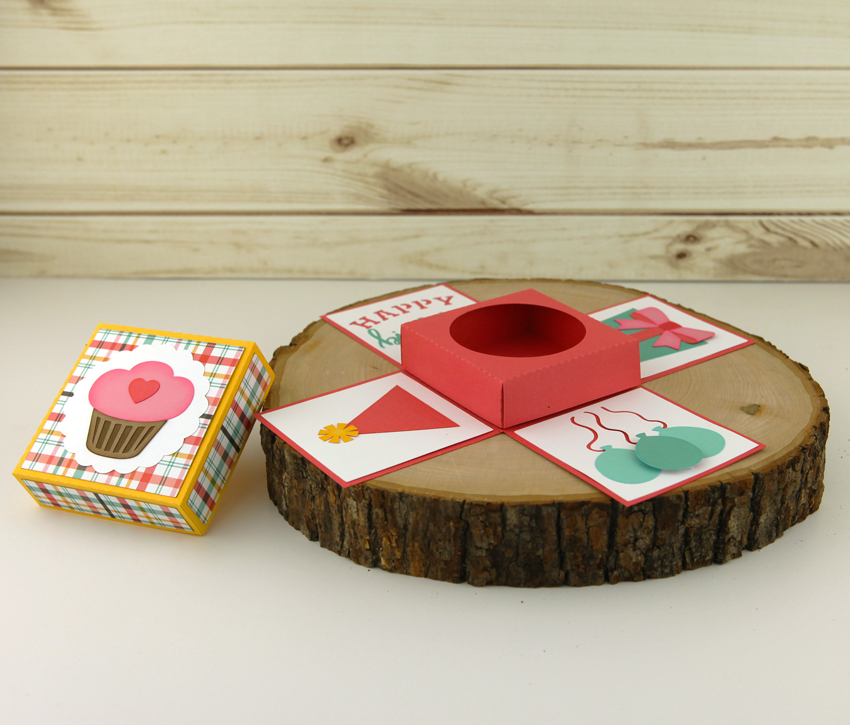 Explosion Box Cupcake Holder (SVG, Silhouette)
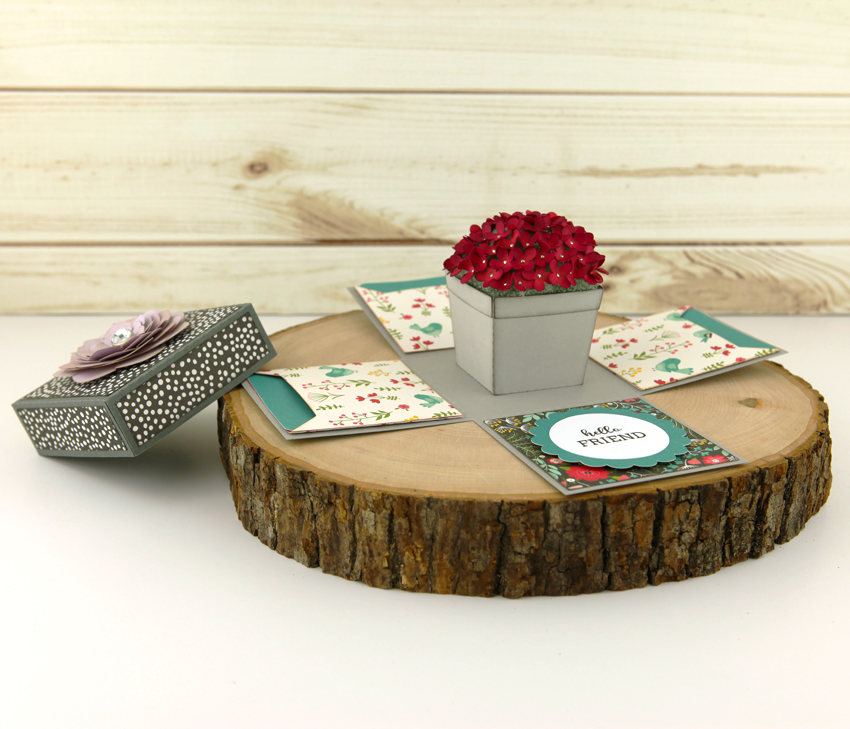 Explosion Box Hydrangea (SVG, Silhouette)
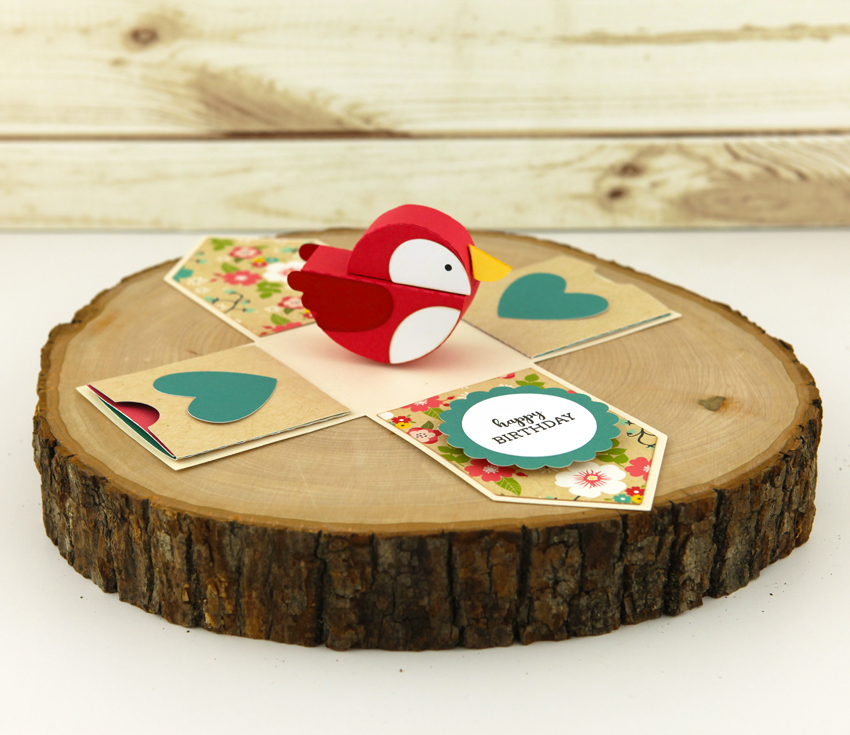 Explosion Box Birdhouse (SVG, Silhouette)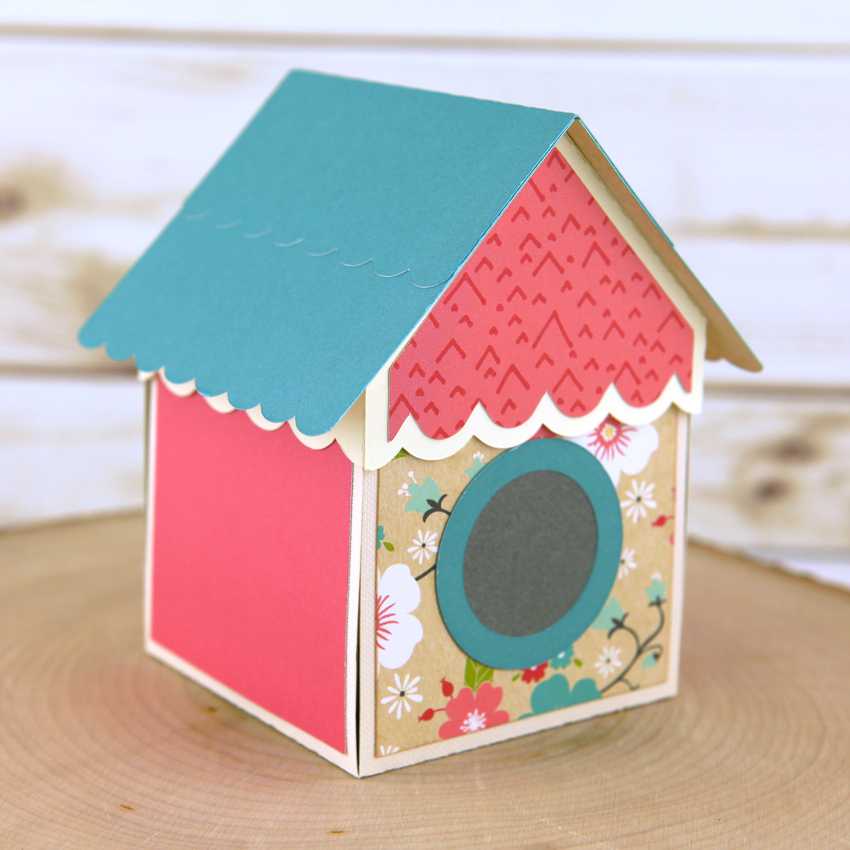
 First, fold the envelope pieces, card base and gift card holder along the score lines.
 Next, apply the cover panels to the interior of the card, the envelope flap, and the gift card holder.
 To make the tassel, lay out your floss and use a small piece to tie a knot in the middle. Bring both ends of the string up so that you can attach the tassel to your cap.
 Next, fold the tassel in half and tie a knot about a quarter of an inch down. You can wrap and tie this a couple of times to secure. Once you have it tied, you can trim the ends to the desired length.
 Attach the tassel to the cap by threading the string through the hole and gluing in place. Apply glue to the triangle portion of the card base and glue the cap into place.
 Finally, glue the gift card holder into place by applying glue to the tabs.
 Thanks so much for stopping by today!


 To get started, I pulled up these 3 cut files…Star Top Box Square (
 I pulled the frog and balloons along with happy birthday sentiment and resized them to fit onto the panels of the box.
 Then cut out the pieces in the colors I chose for my box and adhered them together. Next, I adhered those pieces to my box, folded on the score lines of the box, and then put the box together.
 This cute box is perfect for any small treat, money, or gift card. It could also be used with pinks and purples for a little girl’s gift box.