3D Chocolate Bunny Box Tutorial with Anita


Hi Everyone:

Anita here with a quick and easy tutorial to create this 3D Chocolate Bunny Box.  I used Lori’s cut file called 3D Chocolate Bunny Box to create this adorable Easter project.  You can find the cut file here in her store and here in the Silhouette store.  I used some of her new Echo Park line called Easter Wishes as well as one of her other lines including Sweet Baby Boy.

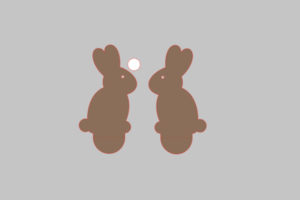
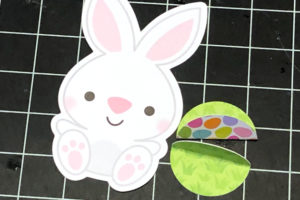
Here are the pieces that you will be cutting out.

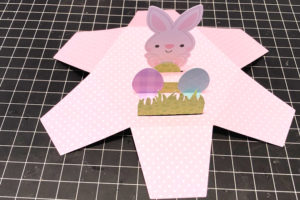
This photo shows where you will be folding the box in preparation for gluing it together.

Fold up the sides and glue in place , tabs on the inside.

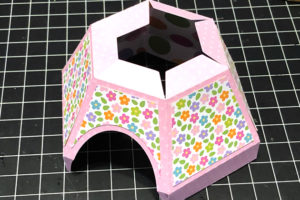
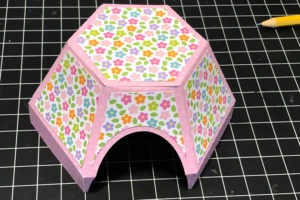
Once the box piece is glued, add the bunnies to either side, and done!

I used some adorable embellishments from Lori’s Easter Wishes collection from Echo Park to finish the box.   I hope everyone has a wonderful Easter!  And don’t forget… now through Monday, all Easter themed files in the Lori Whitlock SVG Shop are 25% off when you use code EASTER25 at checkout!

Hugs,

Anita

Pop Out Birthday Card with Ashley

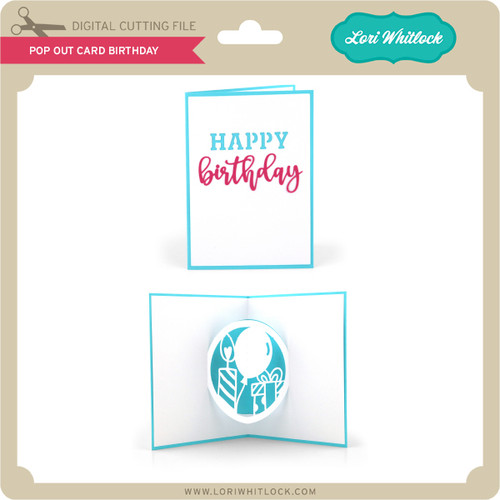
Hi Everyone, Today I’m sharing the new Pop Out Birthday card. Such a fun card to send and easy to assemble!

Image 1

You can find this card in Lori’s shop and in the Silhouette Store.  

When you open this file in Cricut Design Space, there are a few steps to take before you cut.

1. Ungroup the file.

2. Optional: I changed out the dashed cut lines to score lines.  To do this, select the score line which is grouped in Shapes. Align the score line with the dashed cut line and resize as necessary.  Repeat for all the score lines on the white layer.

3. Group the 3 score lines  you created and delete the original dashed cut lines.

4. Select the score lines and the white card and then select Attach.

5. Repeat the processwith the blue card–replace dashed cut line with Score Line, Attach the the Score line with the blue card.

6. Now you are ready to cut.

You don’t have to replace the dashed lines if you are not using a Cricut Scoring wheel or scoring tool.  The dashed lines will be cut instead of scored.  But you will still need to attach the dashed lines to the appropriate layer.

Once you’ve cut the two card pieces, simply adhere the pop out portion of the card to the base, careful not to glue under the pop out section.  Then decorate the front.

  I used paper from Lori’s Spring Fling Collection with Echo Park.  Have a great day!

Easter Bunny Box Tutorial with Corri

Hi everyone!  Corri here today to share a quick assembly tutorial for this adorable Easter Bunny Box (Silhouette, SVG).

This box would be perfect for classroom Easter parties.  It goes together really quickly and is so cute!

When you cut out all the pieces this is what you will have.  I increased the size slightly.  You could make this even larger if you wanted.

First, fold the box along all the score lines and apply glue along the glue tab to form the box.  Next, apply the black piece behind the bunny’s face to create the black whisker and eyes. Then you can glue the pink layers to the ears, feet, and nose.

Glue the bottom of the box closed and apply the bunny’s face to the flap of the box.  Apply glue to the pink oval and put in place on the front of the bag to create the belly.  Finally, adhere the feet to the front with foam dots and the tail to back of the box.

There you have it! So cute and fun to make!  Thanks so much for stopping by!

Cut it Out! Tips and Tricks with Michelle

When using our electronic cutting machines, we often forget that our most valuable tool is our scissors. Hello crafty friends! Michelle Zerull here today to share some simple ideas to stretch your SVG files even farther.

3D Paper Spring Shed House with SVG files by Lori Whitlock

A few years ago my husband bought me this cloche for my Birthday. I love making little seasonal things to fit inside, but it is an odd size. If you recall, Lori designed the cutest set of Haunted Houses, “Haunted House Tall” was perfect for this project.  (you can find the file in Silhouette Design Store or at the Lori Whitlock SVG Shop)

I love the tall, skinny shape, but I can do without the spider for Spring.

A few quick snips to the details after they were cut on my Cameo. Voila! No more spider! It was super easy!

I also used my scissors on the 1 Piece Flower Cluster Border. (found in the Silhouette Design Store)

Flower Cluster Border

Isolating the individual flowers and cutting them out with my machine would’ve taken forever!

So it appears that cutting with scissors, a skill we all learned in Kindergarten, really is a great way to stretch our SVG’s even farther. I added an accent from Lori’s “Spring Fling” line by Echo Park Paper and a cute 3D flower (found in the Lori Whitlock SVG Shop and the Silhouette Design Store) and my cloche is ready for Spring!

Keep those scissors handy!

Michelle

Leprechaun Gable Box Tutorial with Brigit

I love boxes or bags with cute little character faces on them and with St Patrick’s Day coming next month I thought I’d make a little leprechaun one.

You can start with any bag or box, I chose the tall heart gable box (svgsilhouette) and did a ungroup to delete the heart.

I like to do all my designing in Silhouette Studio and cut on my Cricut Maker since I have the Business Edition I can save my file as an svg and bring into Design Space to cut. I usually will change my score lines to solid lines so I can use the scoring wheel in Cricut. For this box I ungrouped all the score lines and deleted all but the lines I have circled then I selected one and dragged the handle, you can select all the ones going the same way and drag, just grab the center handle not the corner one.

This is what they will look like, I also filled in the box makes it easier to see. I then selected all the lines right click and make compound path, and then selected both the lines and box and grouped. In Cricut Design Space I will change the lines to score and then attach the bag and lines together.

For the face, I used the bobblehead card leprechaun (svgsilhouette). I ungrouped and deleted all except for the leprechaun’s head, buckle and one shamrock which I didn’t end up using. I sized the head to the front of the box and then made a duplicate of them. (you won’t need the extra leprechaun head I just always make a copy in case I mess up)

With the knife tool I cut down on the four lines on the front of the box trimming away the leprechaun. I delete the cut up box and trimmed pieces of the leprechaun and zoom in to see if I have to make adjustments.

I want the beard to be square to the box so I double clicked it to bring up the point editing menu, selected each of the points and changed them to make flat, and pulled the center one to the corner to make it square.

This is what it will look like, do the same to the other side.

I wanted the face to be square also so I made a duplicate of the leprechaun and selected the beard and face and welded together, makes it much easier to line up.

Here’s my project ready to save as an svg, I did also make an internal offset of the face by .05 and releaseed the  compound path the eyes and mouth, I like having a solid piece for the background.

Thanks for stopping by and have a wonderful day!