Impossible Card Ages 1-100 Resizing Tutorial

We’ve had a few questions recently on how to resize the numbers in the Impossible Card Ages 1-100 (SVG, Silhouette) so I thought I’d put together a quick tutorial showing how to resize in Silhouette, Cricut and Canvas.  If you’re not familiar with this card, it’s an awesome deal!  You basically get 100 cards in one.  The card comes with the base, and birthday numbers from 1-100.  To keep the file a reasonable size, the extra numbers have been downsized and need to be resized to use with the card.  How you resize depends on the cutting software you are using.

For my card, I chose the number 80 for my mom who is celebrating this milestone birthday this month.  I just love the little birdie!  Below I’ll outline how to resize in each of the 3 cutting programs.

Silhouette

Start by loading the file into Silhouette Studio.  As you can see, the majority of the numbers have been downsized to make the file more manageable.    Down towards the bottom of the file is a note which states to Scale desired number up 400%.

I selected the number 80 and deleted the rest, along with the note.  To resize, first click on the transform button on the right menu panel. Then click on the size button on the top row of the pop up window.  This will bring you to the resize window.

To upsize 400% add the number 400 into the scale section, then click apply.  Your number is now the correct size to use with the card.


Cricut

Upsizing in Cricut takes a bit more work due to the fact that there is not a way to upsize by a percentage in Cricut.  But it’s still relatively easy, you just need to do a little math.  Start by uploading the file into Cricut.  Delete all of the numbers you won’t be using and click on the numbers you will be using to get the width.  In this case, the width of the 80 is .883 inches.  To upsize 400%, you want to multiply the width by 4.  The resulting number is 3.532 inches.

To change the width, go to the size area in the top toolbar (if you can’t see this, make sure you have clicked on the number to select it)  You want to make sure the little lock is closed.  This will make sure that the file is resized uniformly.  Change the Width number to 3.532 and hit enter.  This will resize the number to the correct dimensions.


Canvas

Files that are imported into Canvas that are larger than the 12×12 mat are automatically resized to fit onto the mat.  Because of this, resizing the numbers in Canvas will require two steps. (for more information on resizing in Canvas, see this post)  First resize the file as a whole, then resize the number you wish to use on your card.

Start by importing the SVG file into Canvas. Next you want to select all the pieces, right mouse click and select group.  This way you can resize all of the pieces at once.   Click the edit button on the right menu panel and the sizing box will pop up.  Make sure the Maintain Aspect Ratio box is checked, then change the width to 16.529.  This is the correct width of the file when imported full size.  Click enter and your file will be sized correctly.

Ungroup the pieces of the file (right mouse click, ungroup) and delete the numbers you won’t be using along with the note on sizing.  Click on the number you are using to select it, then on the top menu select Edit, then Resize.

Like Silhouette, Canvas allows you to resize by percentage.  Make sure the Maintain Aspect Ratio Button is checked then change the width to 400%.  The piece is now resized to be used with the card.


All that is left now is to cut your pieces and assemble your card.  For a general assembly tutorial for Lori’s Impossible cards, head over to her YouTube Channel here.  One last note, Lori’s Impossible Cards all come with an envelope!  So it’s easy to create and send right out.

You can find all of Lori’s Impossible Cards here in her SVG shop, as well as in the Silhouette Store.  In addition, don’t forget about the May Sale happening now in Lori’s SVG Shop.  All SVG files are 30% Off when you use code MAY2021 at checkout!

That’s it for me today, thanks for stopping by to peek!

BLOG | INSTAGRAM

Making a Shaped Card in Cricut Tutorial

Hi friends! I have a quick tutorial on how I made a card with the Best Teacher Ever file (SVG, Silhouette). Now that Cricut has updated the design space software making a shaped card is easy!

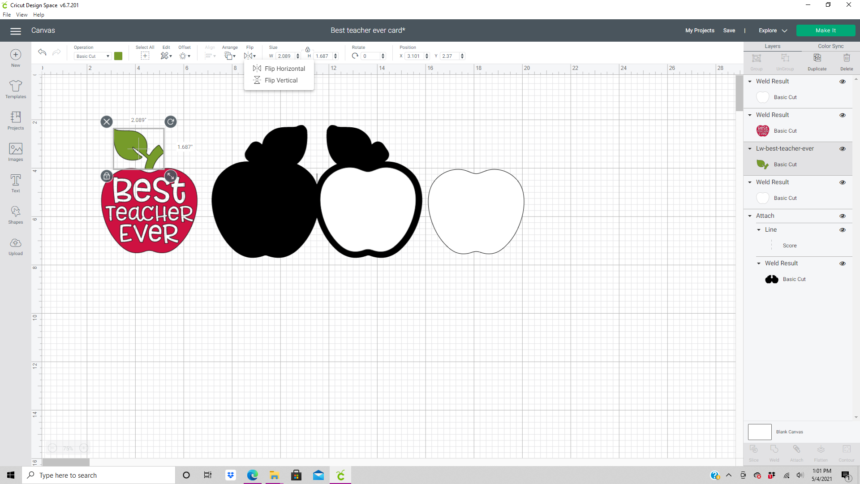
First I resized the apple and leaf to be 5 inches high which made the width 3.96 inches. This file uploaded into Design Space grouped together for me. If it isn’t grouped I recommend grouping it together before resizing.

With the apple selected select the offset feature on the edit tool bar. In the offset window I slid the distance bar to 0.25 inches, selected rounded corners, and left the weld offset box checked.

I then duplicated the offset and flipped one of them horizontally.

Next I moved the two offsets together so they are touching in the center. With the just the offsets selected I aligned them on the bottom and welded the offsets together creating one piece.

I added a score line to the center and aligned and attached it to the offset. (I changed the color from black to white for this picture.)

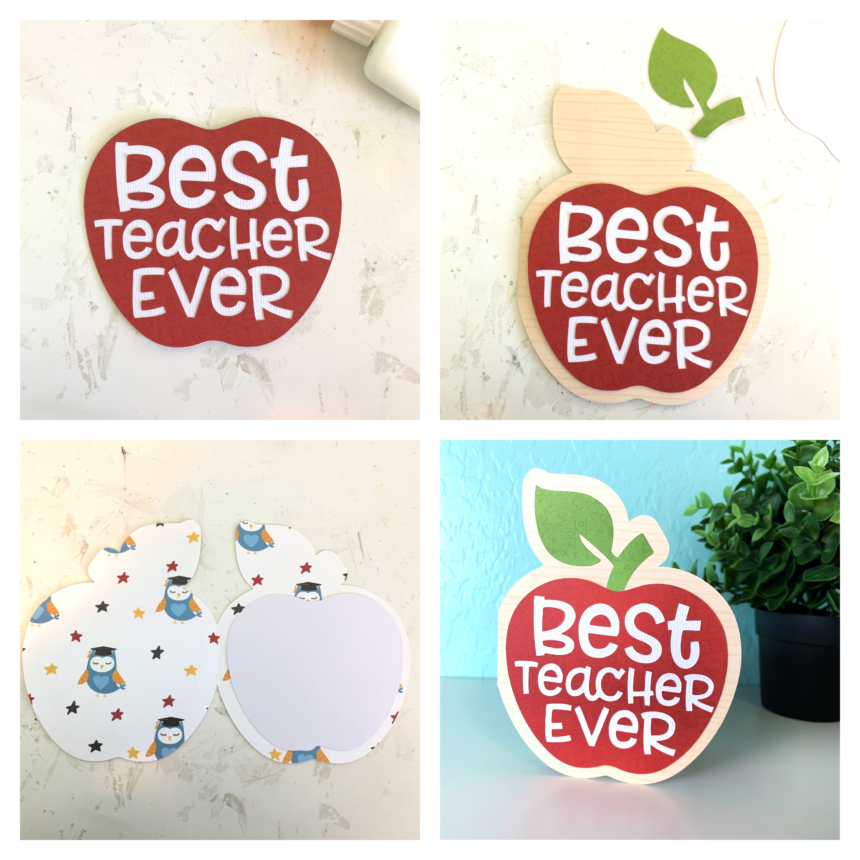
I needed a solid white apple for the inside of the card and the front of the card.  I duplicated the red apple and welded the image then hid all of the contours. I then duplicated the solid apple image so that I had two.

I also needed to flip the leaf  horizontally so that it would fit correctly on the front of the card. (If you use solid paper you don’t need to do this. I used double sided paper and wanted the green to show.)

Once everything was cut I glued everything together with liquid glue in a fine liner bottle.  (Be sure to keep all of the centers of the letters from the cutting mat.) I used papers from the School Rules collection by Echo Park Paper Co.

Thanks for stopping by!
Brandie


Office Update: 4 Drawer Organizer Tutorial

Hi there paper crafting friends!  It’s Michelle Starcher, aka the Bookish Designer, hopping onto the blog to walk you through the steps to create Lori’s 4 Drawer Organizer (SVGSilhouette).  This organizer is perfect if you need extra organization for your office.  There are several sizes available including a 6 Drawer (SVG, Silhouette) and 8 Drawer Organizer (SVG, Silhouette).  The assemble is the same for all sizes, so you can use this tutorial when putting together all of your drawer organizers.

In this photo tutorial, I will break down the steps to create this 4 Drawer Organizer.  I wanted my box to match the Disney inspired organizers I made at the beginning of the school year, so I used Lori’s new collection, A Magical Place, from Echo Park Paper Co.  When I opened the file in Cricut Design Space, I had a note telling me to make four copies of the drawer and base file, so I made extra copies of those and sent the project to my machine.

My next step was to assemble the drawers for the organizer.  I folded the drawers along the score lines and added adhesive tape as shown on the backside of my red cardstock.  Next, fold in the top and bottom portions as show in the top right image.  Be sure to remove the paper from your adhesive if needed.  Fold in the flaps next to the drawer front (the one with the circle cut-out) and adhere those to the tabs. You should have the start of box as shown in the bottom left image.  Then, remove any paper from your adhesive strips and fold in the left and right flaps.  There are tabs on each side that fold inside the box to hold everything together.  Repeat this process for all four drawers.

Now, you are ready to assemble the box.  Before you get started, fold along all of the score lines and add adhesive as shown in the top left image.  Next, remove adhesive paper and fold each of the bottom flaps up as shown in the top right image.  Fold the four panels to form a box shape and close using the tab (bottom left image).  Then, close the box by folding the remaining piece up and close using the three tabs.  You should have an open side, which will hold one of the drawers you made earlier.  Repeat this process for all four of the base pieces.

Next you will assemble the four base pieces to create the organizer.  Stack the pieces to create a 2×2 square with all four openings facing you.  Add adhesive to the connecting sides of each cube.  Combine organizers bases two at a time and stack. 

For your final step, you will attach the large square and four rectangles to the case of your organizer to hide seems.  The square will go on the back of your organizer and the four rectangles will go on the top, bottom, and sides of the organizer.  The four rectangles are the same size, so unless you used a pattern paper, it doesn’t matter where you place them (top, bottom, or sides).  Next, add the pattern paper to your organizer and drawer fronts.  Same rules apply as when you adhered the cardstock pieces.  Finally, insert your drawers into the organizer.  If you want, you can add embellishments to the front of your drawers.

Don’t forget you can make this organizer in a variety of sizes including 4 Drawer (SVGSilhouette), 6 Drawer (SVG, Silhouette), and 8 Drawer Organizer (SVG, Silhouette). It is perfect for holding paperclips and other office supplies.

Until next time,

Michelle

Button Card Tutorial

Lori has some fun new button cards in her shop.  The whole collection can be found here. They are also available individually in the Silhouette Design Store.


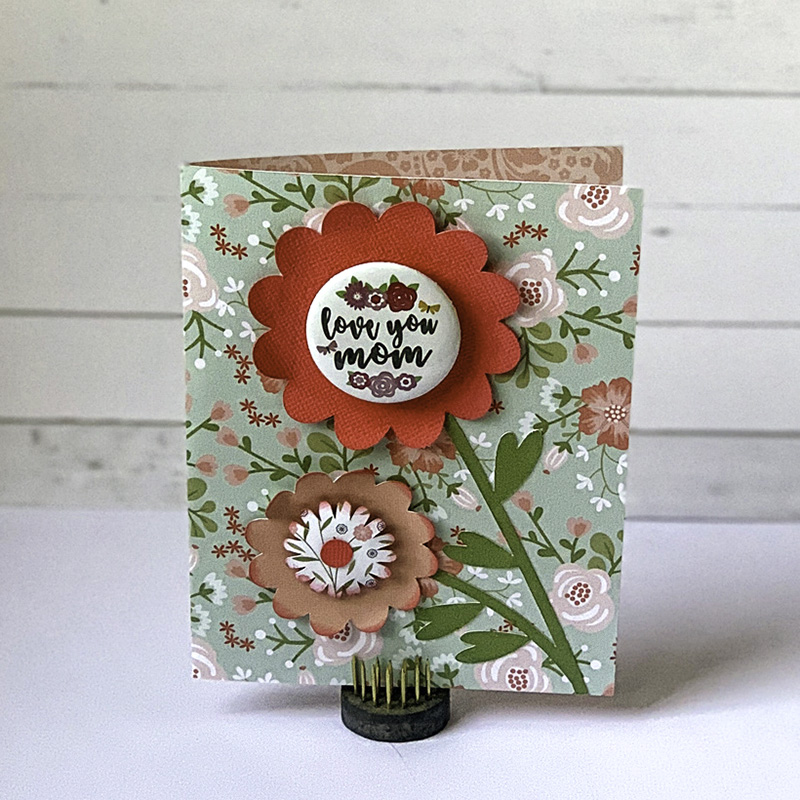
This card is called the Flower Card Button (SVG, Silhouette).  I’m going to share a quick tutorial using Cricut Design Space.  You can create this card with the Silhouette as well.  When you upload and open the image in Design Space, it looks like this:

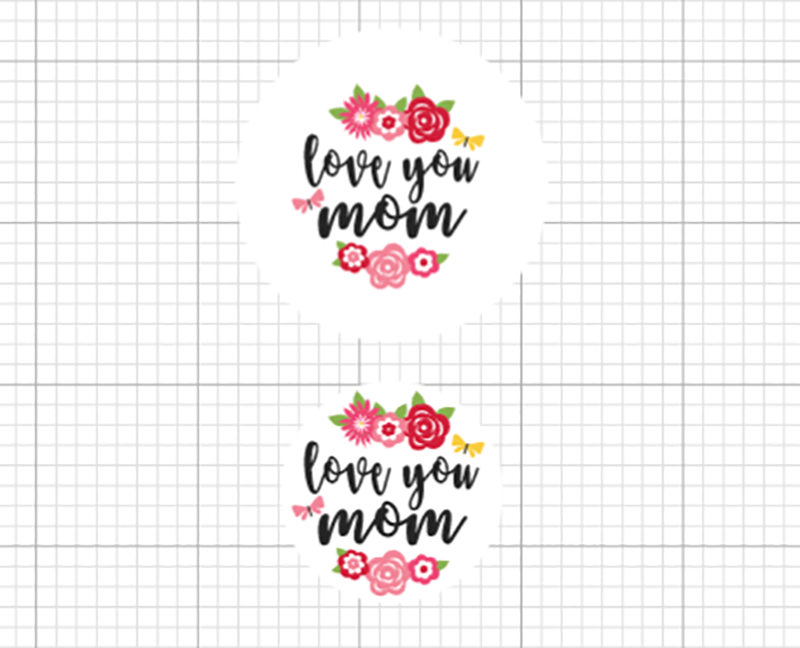
Ungroup the pieces of the card.  Now let’s look at the button sentiment.  Lori has included a circle that is the size of  the medium We R Memory Keepers button (37 mm).  A smaller circle is also included that could be used instead of a button if you did not have a button maker.  Both Mom and Mum are included in the file.


If you want to change any of the colors on the button, this is the time to do that.  Once you have the colors, it is time to flatten the image for Print then Cut.  Select one of the circles and all the pieces in it like shown, and click Flatten (bottom right of screen).

You know you have the file flattened correctly when it looks like this on your screen:

And in your layers, the image looks like this.

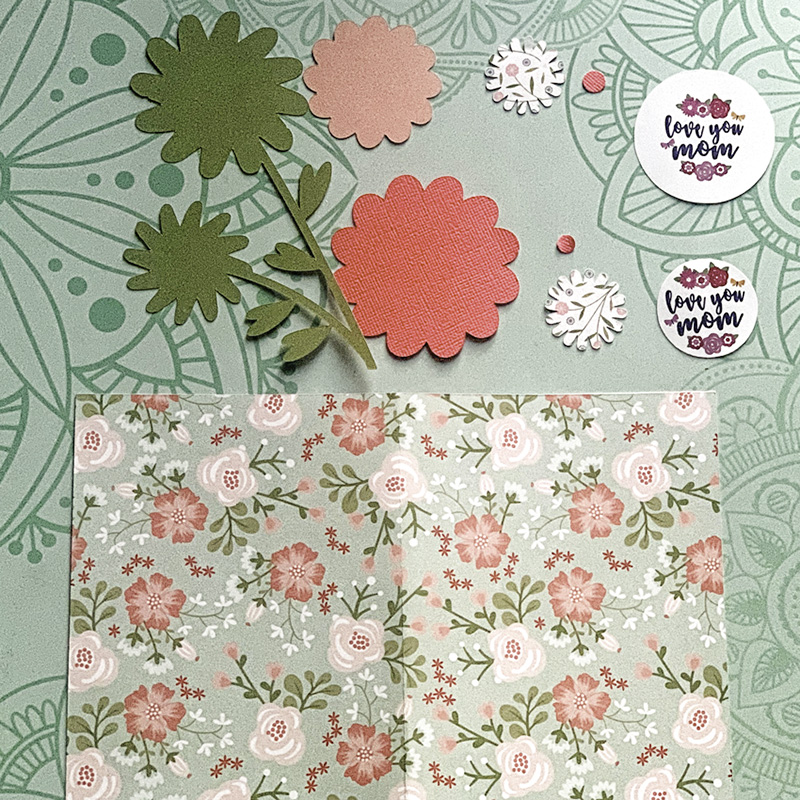
Sometimes when flattening files, you might need to ungroup before you flatten. This file is ready to print then cut.  After printing and cutting, you have all your pieces:

The flower parts are easy to assemble on the card.   If you have a Button press, make a button.

You can make the button with the pin in the back so it can be worn or attached to something else.  Or you can take the pin out, so it will just be an embellishment on the card. I made both to show you.

I decided to use the button without the pin back for the card.  I love the dimension it adds.  If you don’t have a button press, you can use the included smaller circle and mount it to chipboard and/or a pop dot.

I used papers from Lori’s Our Wedding Collection. I hope you enjoy this tutorial for the Button card.  The real question is, Do you call the item in this file a button or badge? Or something else?

Have a great day!

Pop Up Barn Card Tutorial

Hey there or should I say “Hay there” like the sentiment that’s on the card I’m sharing today.  I have a very simple tutorial for you with Lori’s Pop Up Barn Card, (or here in the Silhouette Design Store ).  These pop up cards are just so cute and you can create them in just a matter of minutes.  Check out the bundle here in Lori’s Shop .

First thing, ungroup your design and separate the pieces like below.  One of my favorite things about Lori’s files is that they are color coded.  It just makes things so much easier and quicker. Find your papers and get to cutting.  Now I didn’t use the cute little chicken, I decided to use a little dimensional cow sticker.

Here you can see all my cut pieces laid out. Notice the little scored rectangle in the center of the yellow cut out. That’s the trick, it’s the piece that makes the inside pop up.

Next fold that little pop out rectangle so that it sticks out into the center of the card. You want to glue the yellow piece into the card base.  You  don’t want to glue that rectangle down or you have to start all over, lol.

I have it written here for you for where to add your adhesive.

Once you’ve got the insert of your card adhered you can add your pop up, you just want glue just on the front of your little box…where the chicken or the cow goes.  I added baby powder to the back of my sticker and just left it sticky on the front of the little box.

Here’s the front.


And here’s the inside with the cute little pop up.  How fun is that?  Your recipient will love it!  They fold flat for mailing and pop up with the surprise when opened.  So many pop up designs in Lori’s Shop have this same concept.  Once you master one, you can create ’til your heart’s content.

You’re udderly awesome….have an amazing day!

~Cathy