Hi friends! I’m excited to share a sweet card and tutorial with you today!
I recently went on vacation and had my son’s fiancé stay at my house with my dogs. I decided to make a thank you card for her, and wanted the dogs on the card to resemble my pups. I love Lori’s cute dog cutting file, but one of my dogs has a shorter tail, and one has shorter ears…so here is what I did to fix this.
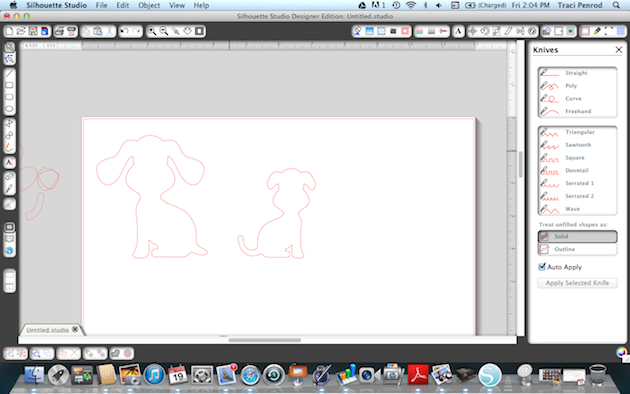
1. First I pulled up the dog shape I wanted to use. I resized and ungrouped all of the pieces and slid the shapes that I didn’t want to use right away, over to the side.
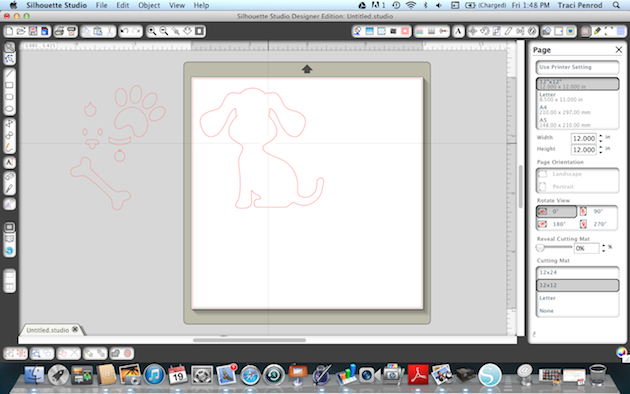
2. Next, I highlighted my dog and duplicated the shape. Since one of my dogs is smaller, I resized one, and flipped her around so that they weren’t facing the same way.
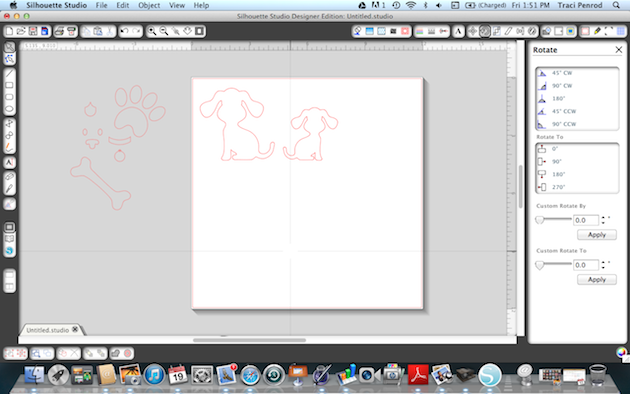
3. Before I cut my shapes, I zoomed in on them so that I could see the cut lines better.

4. I used the knife tool along the left hand tool bar. I clicked on the line to start my cut…and then clicked on the line where I wanted my cut to end (notice the first dog’s tail).
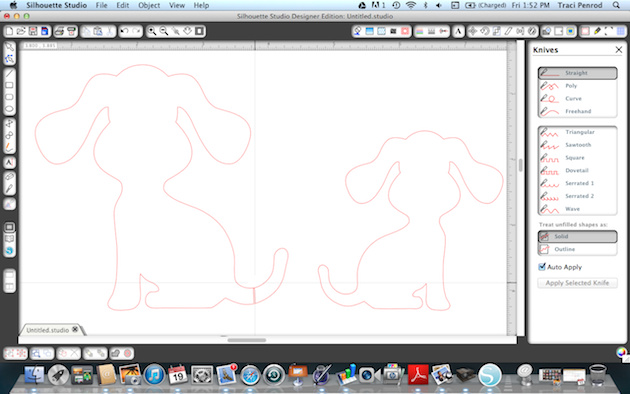
5. I did the same step for cutting the second dog’s ears to make them shorter.
Once the cut line was created, I used the ‘move tool’ (top arrow) and then clicked on the pieces to move them off to the slide.
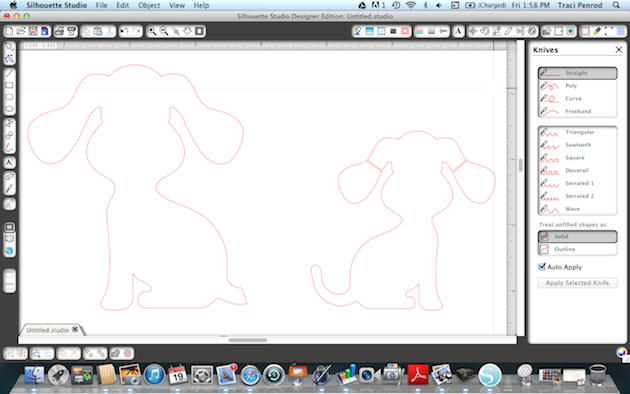
6. The photo below shows where I have used the knife tool to cut one dog’s tail and the other dog’s ears to make them look like my adorable pups 🙂
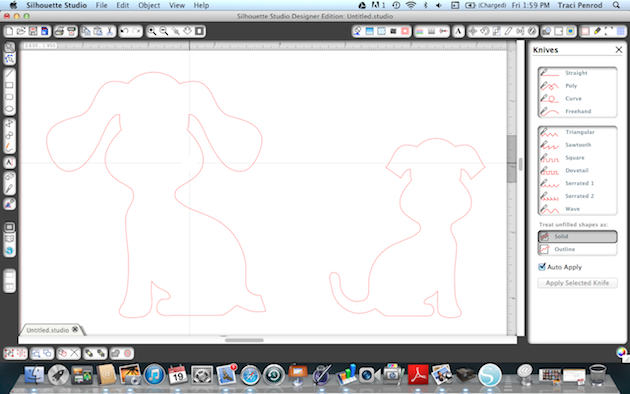
7. Since I don’t want my dogs’ tail and ears to be square, I used the “edit point” (second arrow with dots) tool to round these areas out. If you click this tool, you can pull your points around into the shape you want.
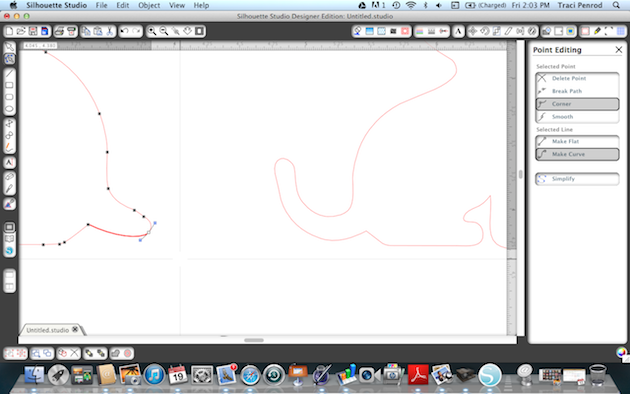
8. This shot shows how one of the ears has been rounded.
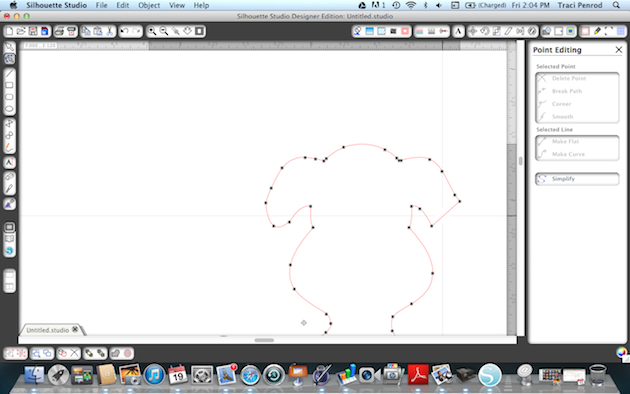
9. Here is the final way my sweet dogs looked before I cut them out…
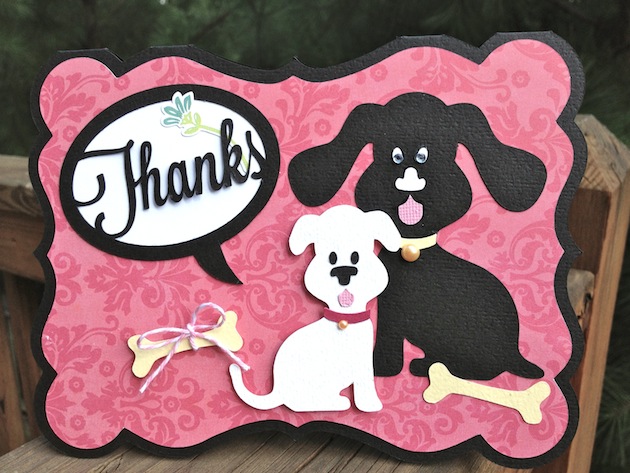
And here is the card I created with my new shapes.
Lori Whitlock cutting files used on this project:
Thanks for visiting Lori’s site today! Please pop over to my blog at Artsy Albums to say hello!