Tea Cup Box Card Cut File Assembly Tutorial

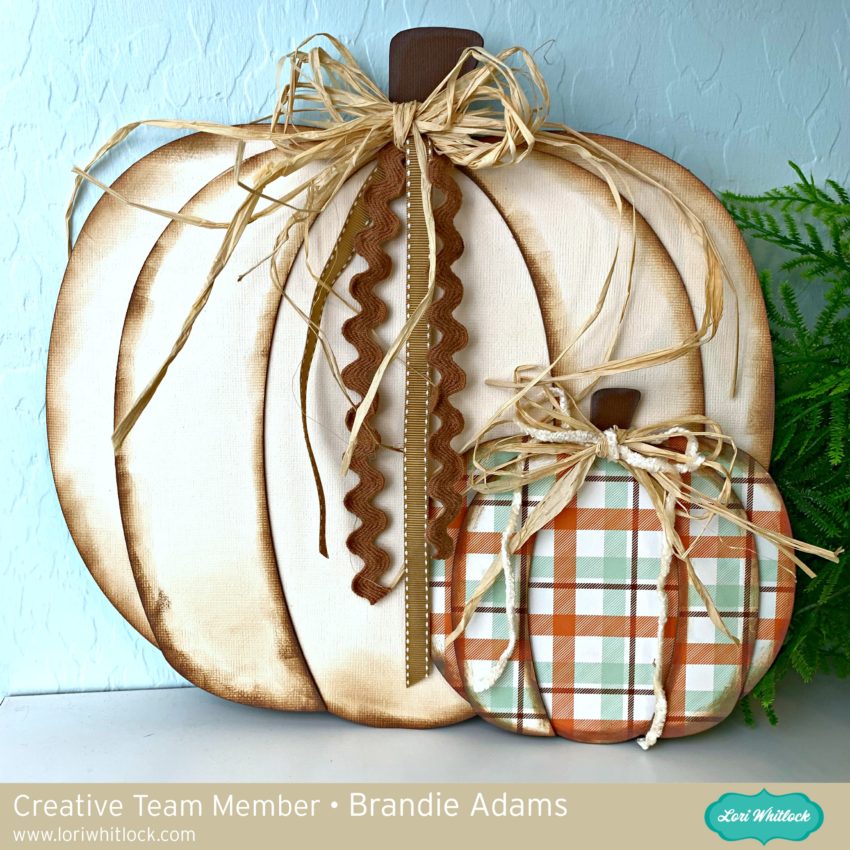
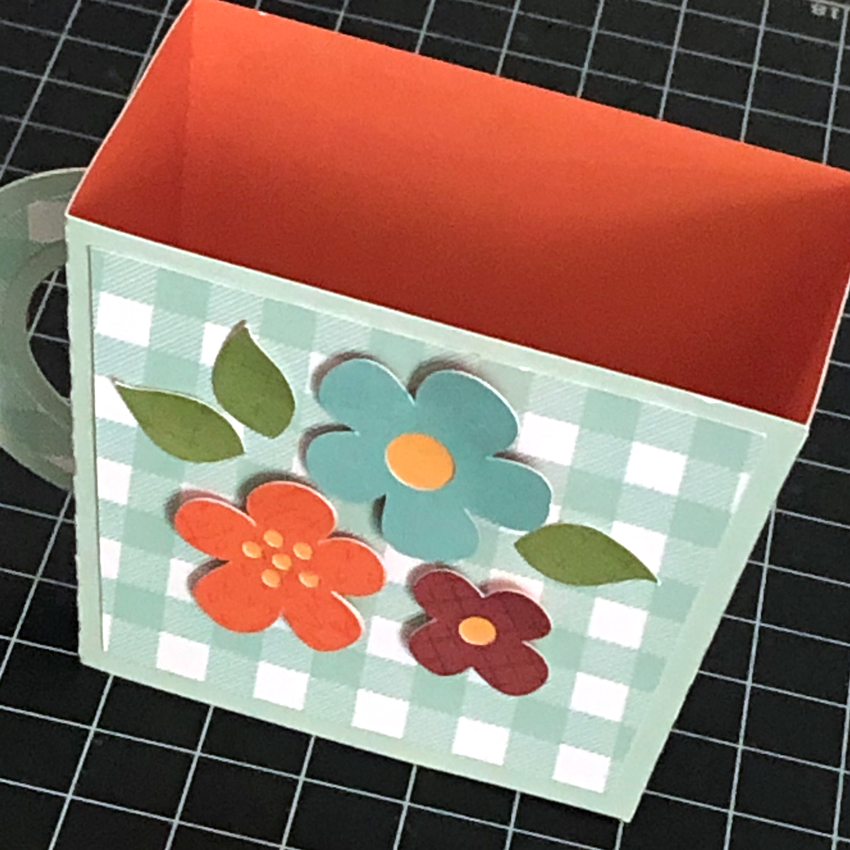
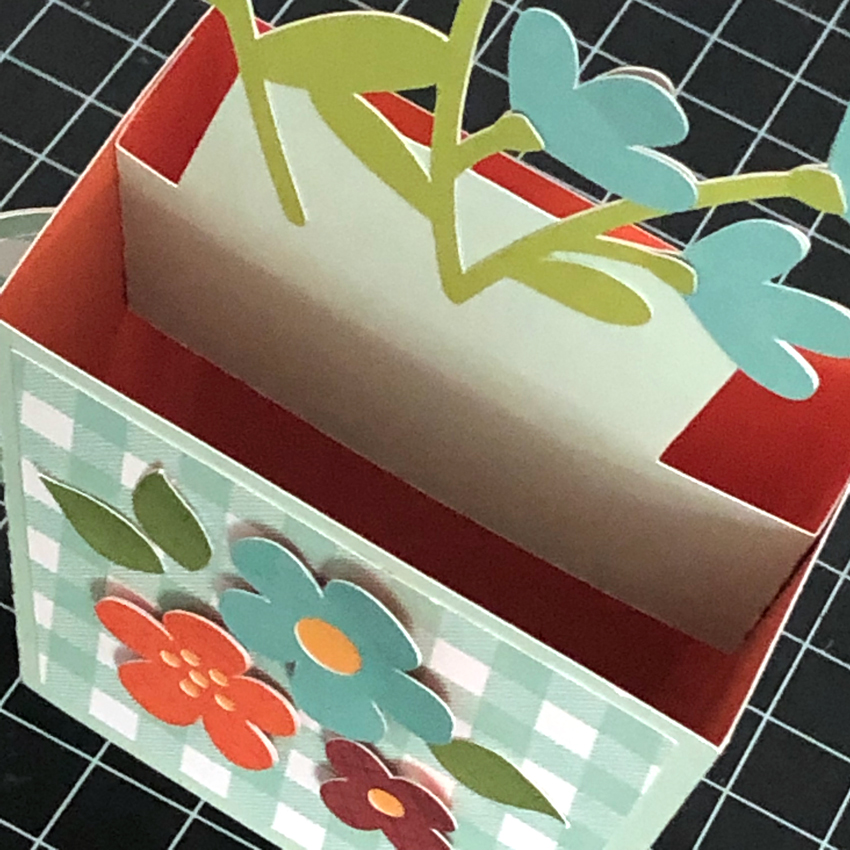
Have you seen all of the fun shaped box cards in the Lori Whitlock SVG & Silhouette Shops?  They look so pretty, and really are easy to assemble.  I fell in love with the new Teacup Box Card (SVG, Silhouette) and made a fall version using papers from Lori’s new My Favorite Fall Collection from Echo Park.  Shaped box cards are assembled in the same basic manner a Lori’s original box cards.  The difference is what makes up the “box”.

I started by cutting all of the pieces for this card…

Next, I glued the flower pieces to the inserts and the 3 solid decorative panels to the tea cup “box” base.  Do not glue the piece with slots onto the base at this point, the handle needs to be added before it is glued.

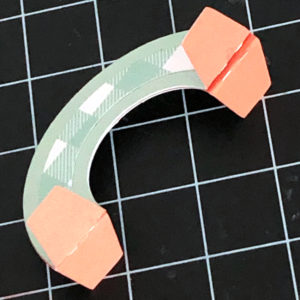
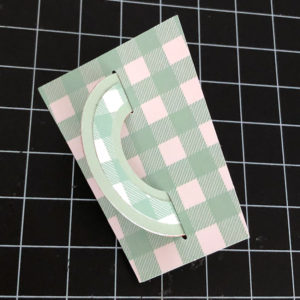
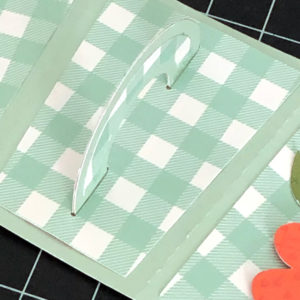
Next, assemble the handle.  Start by folding back the tabs at the ends of each handle and glue the two handle pieces together making sure not to glue the tabs.  Insert the tabs through the slots of the covering panel.  Flip the panel over, fold the tabs back and glue in place.  Then glue the panel to the card base.

Complete the card base by folding it into a “box” shape and gluing, tab inside.

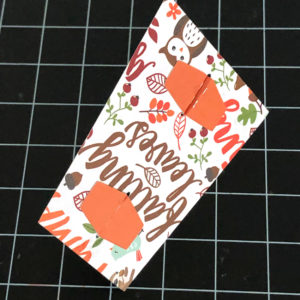
The last part of the assembly is to add the inserts to the teacup “box.”  They are done in the same manner as the box cards in this video.  Fold the tabs back, and glue the number 2 insert into the cup.  The tabs should be flush with the top of the “cup” and touching the back wall of the cup.

Next add the number 1 insert in front of the number 2 insert..  The folded tabs should also be flush with the top of the cup.

It really makes such a pretty card!  It could be used for a birthday, friends or just because!

That’s it for me today, thanks for stopping by to peek!

BLOG * INSTAGRAM


Cupcake Box Card Cut File Assembly Tutorial

Hi everyone!  Corri here today sharing a quick assembly tutorial for the new Cupcake Box Card (Silhouette, SVG).  The shaped box cards in Lori’s shop are assembled in the same general way as the box cards in this video.    The main difference is that the “box” shape is different, but the inserts are done in the same manner.  For the Cupcake Box Card I started by cutting the pieces.

First, layer the cupcake pieces on the inserts and add the decorative top layer to the cupcake wrapper.

Next, apply glue to the tab on the cupcake wrapper to form the “box.”

Finally, apply glue to the tabs on the frosting piece inserts and glue them to the interior edges of the box, placing one in front of the other (insert 1 in front).  Make sure the tabs on both inserts are facing in the same direction.

These shaped box cards are so cute and they fold flat for mailing!  Lori just added a bunch of new ones to the shop so head on over and grab one.    They are so fun and easy to put together.

Thanks so much for stopping by!

Lori Whitlock SVG Envelope Necessities

Hello Crafty Friends!

Today I would like to share my Top Ten Envelopes that are a must-have for any crafter. How many times have you made an awesome card and stuck it in an ordinary, thin, white envelope? It happens all of the time, which is why I’ve compiled this easy-to-reference list so you can find the right size and style for almost any card. I’ve also included some tips and embellishment ideas too!

All of the following envelopes are my very favorite. I know that they’ll be yours, too! All can be sent through the US Post Office, with the exception of the Money Holder. The Money Holder envelope is meant to be hand delivered, but it’s a great envelope to have on hand, so I included it too!

Envelope Card Size Lori Whitlock

SVG Shop

Silhouette Design Store Features
1. A2 Envelope Liner Card Base 4.25” X 5.5” A2 Envelope with Liner & Card Design Id# 50776 Includes Liner & Card Base
2. #10 Envelope with Liner Card Base 3.75” X 8.5” #10 Envelope with Liner Card Base Design Id# 50783 Fun Size, Liner and Card Base
3. A7 Envelope Liner and Card Base 5” X 7” A7 Envelope Liner and Card Base Design Id# 50780 Nice Larger Size, Includes Liner & Card Base
4. Straight Flap Envelope 4.25” X 5.5” 3 Envelopes Design Id# 24862 Great Basic Envelope for Average Sized Card
5. 3” X 4” Envelope 3” X 4” Design Id# 4212 Smaller Notecard Size
6. A2 Thick Envelope Bracket 4.25” X 5.5” A2 Thick Envelope Set Design Id# 135341 For Thicker Cards w/ Embellishments
7. 6.5” Square Thick Envelope Curve 6.25”X 6.25” 6.5” Square Thick Envelope Set Design Id# 135392 Holds Large Square Card w/Thick Embellishments
8. Valentine Print & Cut Unicorn Card 3” X 4” Valentine Print and Cut Unicorn Design Id# 286426 Cute 3”X4” Envelope with Cut-Out Heart: File Includes Card
9. A7 Thick Envelope Card Bracket 5” X 7” A7 Thick Envelope Set Design Id# 135353 Thicker Size for cards with lots of embellishment
10. Money Holder Envelope* US Currency Money Holder Envelope with Tag Design Id# 209573 *Not to be mailed. This money holder envelope includes a print & cut tag

That seems like a lot, but there’s more! Did you know that there’s an entire category for  envelopes at the Lori Whitlock SVG Shop? You can find them all here!

You can make your envelopes in advance too! I like to use Easy-Tear Double Sided Tape. Simply leave the tape liner on and when you’re ready to seal the envelope, remove the tape liner and press firmly. It certainly beats licking the envelopes! Currently, a standard size envelope can be mailed First-Class mail for 55-cents. Square, oversized, thick, or oddly shaped envelopes start out at 70-cents. I always take mine to my local Post Office to be weighed. You can find out where your local branch is at: usps.com.

Want to make that envelope extra special? Make a coordinating label! I love the “Label 3 Dingbat Font.”

Label 3 has many different shapes and you can customize the size to fit your envelope. You can find the font at the Lori Whitlock SVG Shop, or at the Silhouette Design Store.

Curious about the samples posted above? They were made with Lori’s “Forward with Faith” Echo Park Paper line. I love, love, love the colors!

Bookmark this page so you will be able to create the perfect envelope for any project. Now, get those cards in the mail!

Happy Crafting!

Michelle

Summer Magnetic Bookmarks with Lori Whitlock SVG Cutting Files

Hello friends! Aimee here with a tutorial on making some fun Summer magnetic bookmarks! My daughter is a voracious reader so every Summer I get her a handful of books to read over Summer break. This year I thought I would make her some bookmarks to go with those books.

Lori has a lot of fun and cute Summer files to choose from. I chose Popsicle (Lori’s shopSilhouette Store) , Ice Cream Cone ( Silhouette Store), and Watermelon Shaped Card (Lori’s shopSilhouette Store).

I opened the 3 Popsicles file to show you how to take a cut and make it into a fold over bookmark.

To get the basic shape of the popsicle, I opened the Trace option and highlighted the shape and clicked on “trace outer edge”. That will give me the entire shape of the popsicle to create the base of the bookmark.

Then I duplicated the shape, flipped the one vertically, aligned it with one above the other, and then welded both pieces together. After I cut that piece out, all I have to do is fold it in half and add the decorative top layer.

If you would rather try your hand out with something a little easier you could always use one of Lori’s card svg files.

Now comes the easiest part of this tutorial and that’s adding magnetic strips to the insides of the bookmarks. I have a roll of sticky back magnetic strips so I just cut a couple of pieces off and added them to each one.

And now comes the funnest part of this tutorial and that’s decorating each bookmark.

I used some stickers and die cuts from Lori’s new I Love Summer collection to make my bookmarks pretty! That’s all from me today! Hope everyone is having a great Summer!

I Bought an SVG File, Now What?

We get a lot of questions from new customers, who are excited about their purchase of SVG files from our shop, but aren’t really sure how to proceed to make something from their new file.  I thought a post, bringing you step by step through the process might be helpful.  This way you can spend more time creating and less time trying to figure out technical things!

When you purchase a file from the Lori Whitlock SVG Shop, it is immediately available for download to your computer.  There are a few different ways to do this.

First, you can immediately download your purchases directly from the confirmation screen by clicking on the “Download the Items You Ordered” link.

You can also retrieve them from by going to MY ACCOUNT>COMPLETED ORDERS>ORDER DETAILS.

Finally, you will receive an email with your download links at the email address you used when registering for your account.  You can access the files by clicking on the link in that email.

Once you click one of these links, you will be redirected to this screen.  To download your file, click on the file name.  The file will automatically download to your computer.

Most computers automatically download the file to the DOWNLOADS folder on your computer.

Files from the Lori Whitlock SVG Shop are delivered in zipped format and need to be unzipped before they can be used in your cutting software.  To do this, right mouse click on the downloaded file and select extract all.

This will bring up a dialog box.  If you click extract, it will create a new folder containing the SVG file, a photo of the file and the terms of use document.

A note on the SVG file.  Some computers make the SVG file look like an internet or html file.  In the case here you can see my computer makes it look like a Google Chrome Document.  (If you use Internet Explorer it may look like an IE file) This is the SVG file you will want to open in your cutting software.

Now that you have your file… what next?  Simple, upload it to your cutting software. 

If you are using Silhouette, you need to make sure that you have the Designer Edition of the Silhouette Software.  This is a paid upgrade (available here if needed) that is necessary to work with SVG formatted files.   To check to see if you have the Designer Edition go to HELP, ABOUT SILHOUETTE STUDIO.  If you have the DE, it will state on this screen.

If you do not wish to upgrade to the Designer Edition, you can still access all of my files directly through the Silhouette Store.  Here is a link to my gallery.

To open the file in Silhouette, go to FILE, OPEN, navigate to where you saved and unzipped the file and select the SVG file.  This will add it to the mat in your software.  

The process is similar for Cricut Users.  Start by launching Cricut Design Space.  Click on UPLOAD FILE, then under Image, click on UPLOAD IMAGE.  This will allow you to add the file to your Cricut Library.  Once it is added, select the design and click on INSERT IMAGE.

A couple of notes for Cricut Users.  First, before sending my files to cut, you need to attach the score lines to their corresponding layers.  This video will help you with this process.  Also, the score lines on my files are dashed cut lines rather than lines that use the Cricut Score Tool.  This is because I design my files to work on multiple types of cutting machines, some which do not support a scoring function.

For Customers using Brother Scan and Cut, be aware that Scan and Cut will automatically resize any file that is larger than the 12×12 Mat.  If you need to resize the file and know the dimensions of the finished file (for instance an A2 card is 5.5″x4.25″) You can resize the file using the tips in this video I created for S&C Users.  If you need more information on dimensions, please email me at help.loriwhitlock@gmail.com to request dimensions.  I’m happy to get them for you.

If you need assistance assembling your files, be sure to check out the Tutorials page in my Shop.  I’m also happy to help out with questions so don’t hesitate to ask!

I hope this has helped make you more comfortable using files from my shop!  Have a great day!