New 5×7 Pop Up Flower Cards

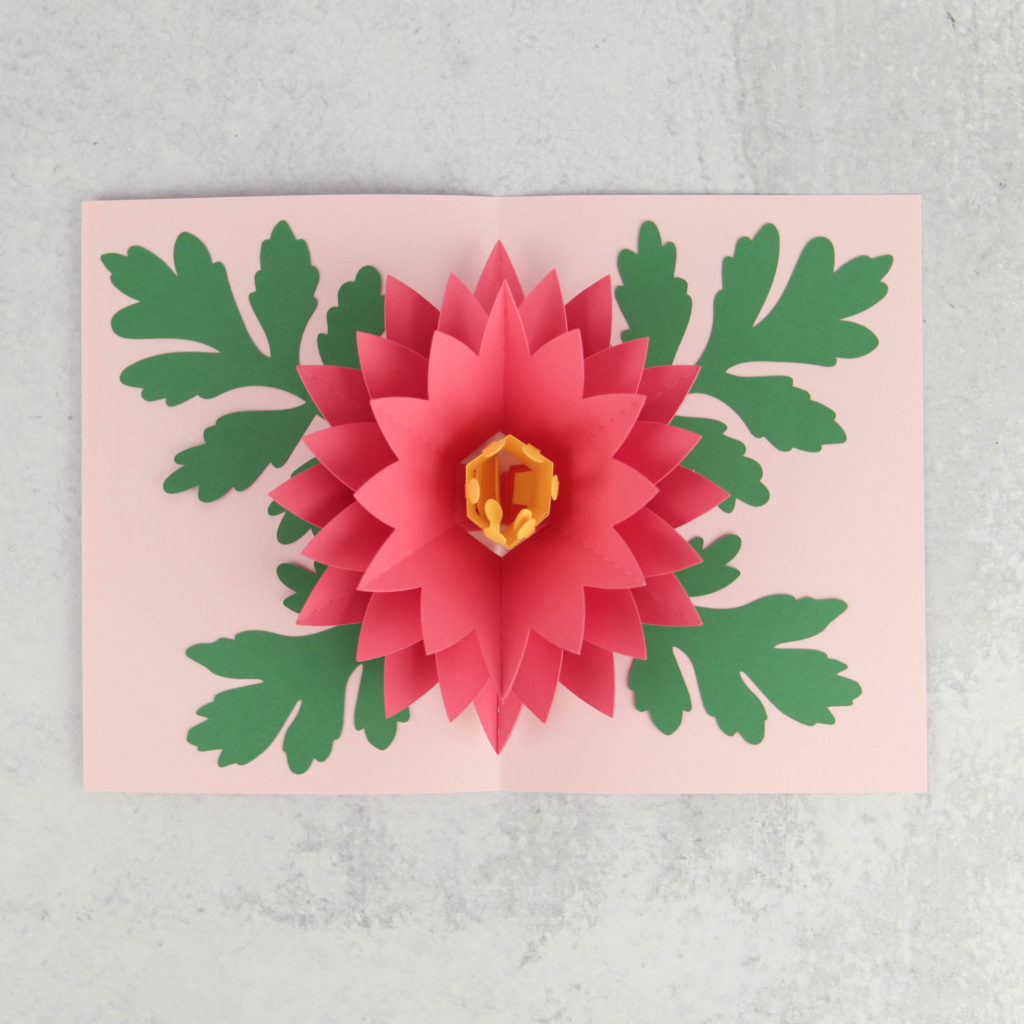
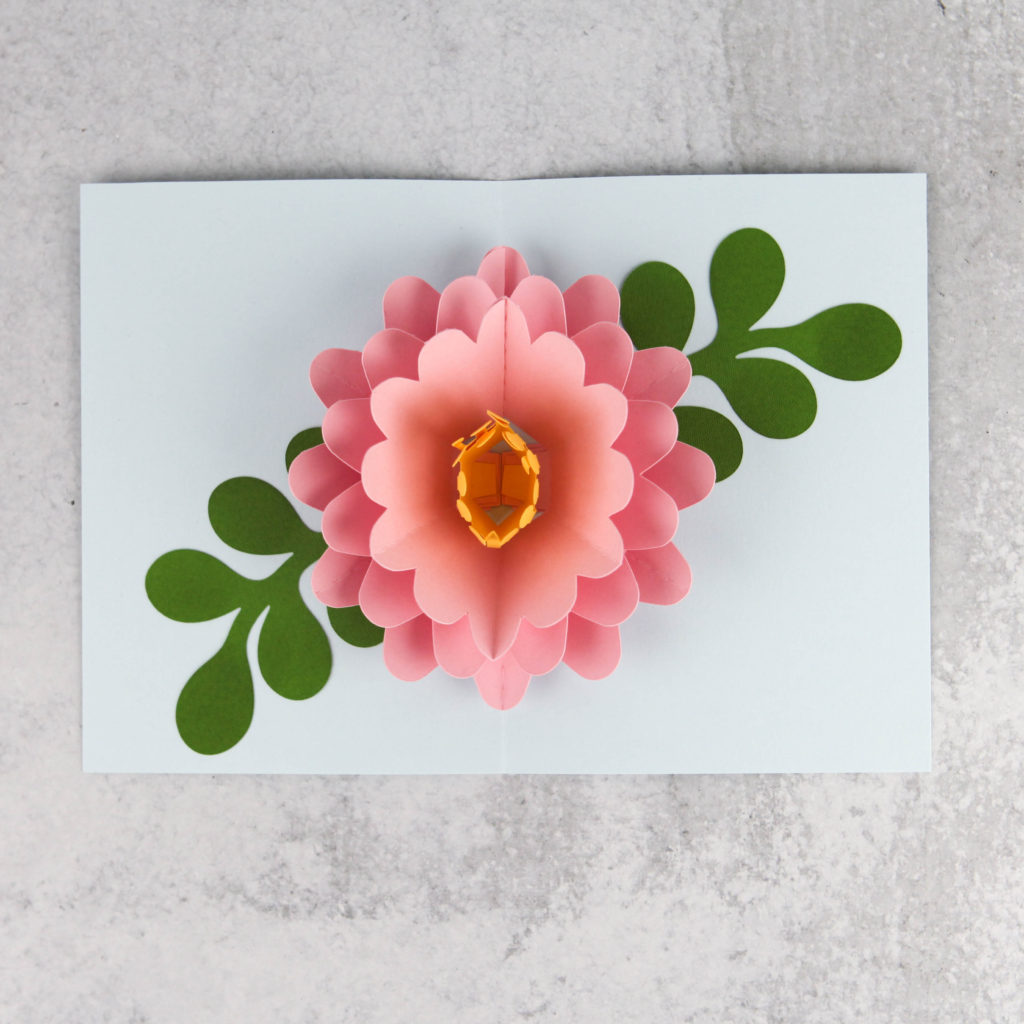
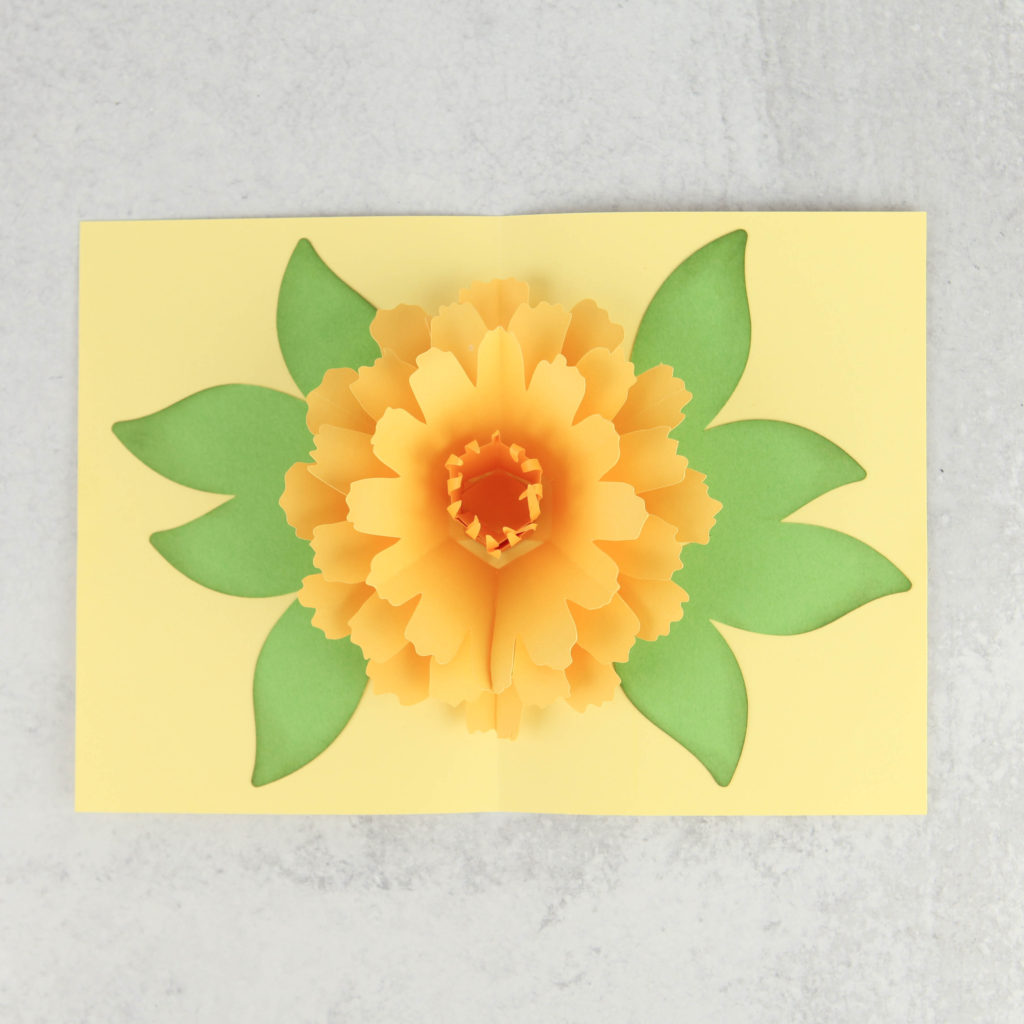
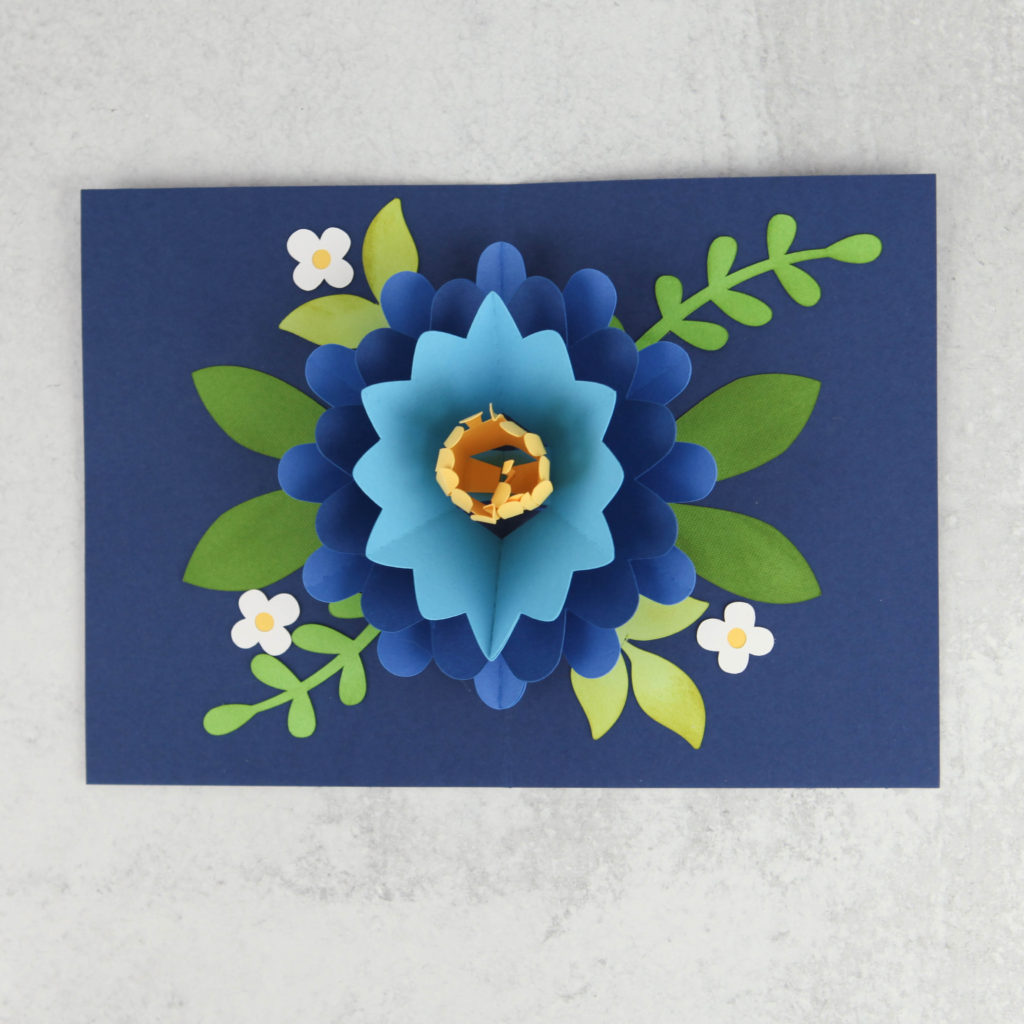
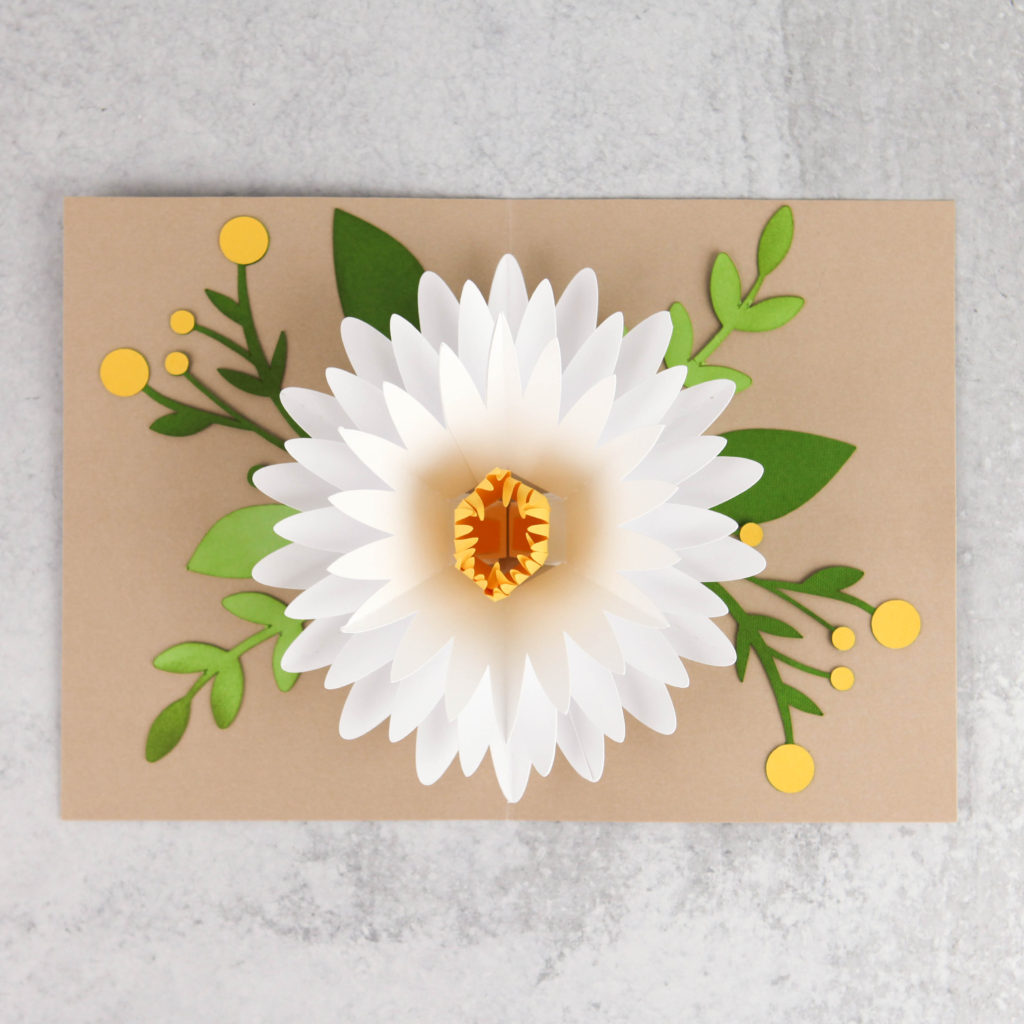
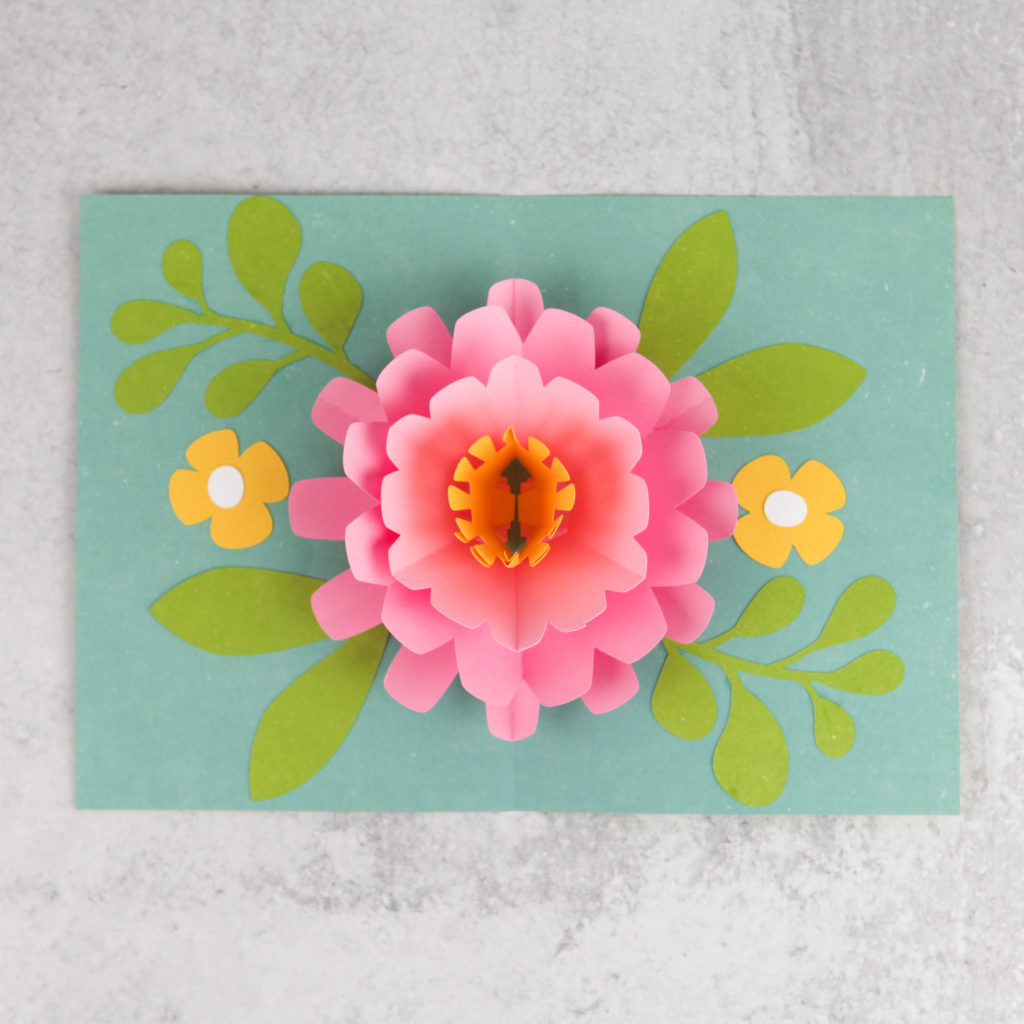
This week I added some fun new 5×7 Pop Up Flower Cards to my shop and to the Silhouette Store!  These cards have a pretty insert design for the front of the card, but when you open them you get a gorgeous 3D Pop Up Flower!  There are 6 new versions… take a peek…

5×7 Pop Up Flower Card 1 (SVG, Silhouette )

5×7 Pop Up Flower Card 2 (SVG, Silhouette)

5×7 Pop Up Flower Card 3 (SVG, Silhouette)

5×7 Pop Up Flower Card 4 (SVG, Silhouette)

5×7 Pop Up Flower Card 5 (SVG, Silhouette )

5×7 Pop Up Flower Card 6 (SVG, Silhouette Coming Soon)

I have a video tutorial for these new cards on my YouTube Channel here.

If you make any of these cards, be sure to tag Lori Whitlock on Facebook and Instagram.  I always love to see your creations!

Have a great day!

Bible Study Journal Tutorial

Hi Everyone:

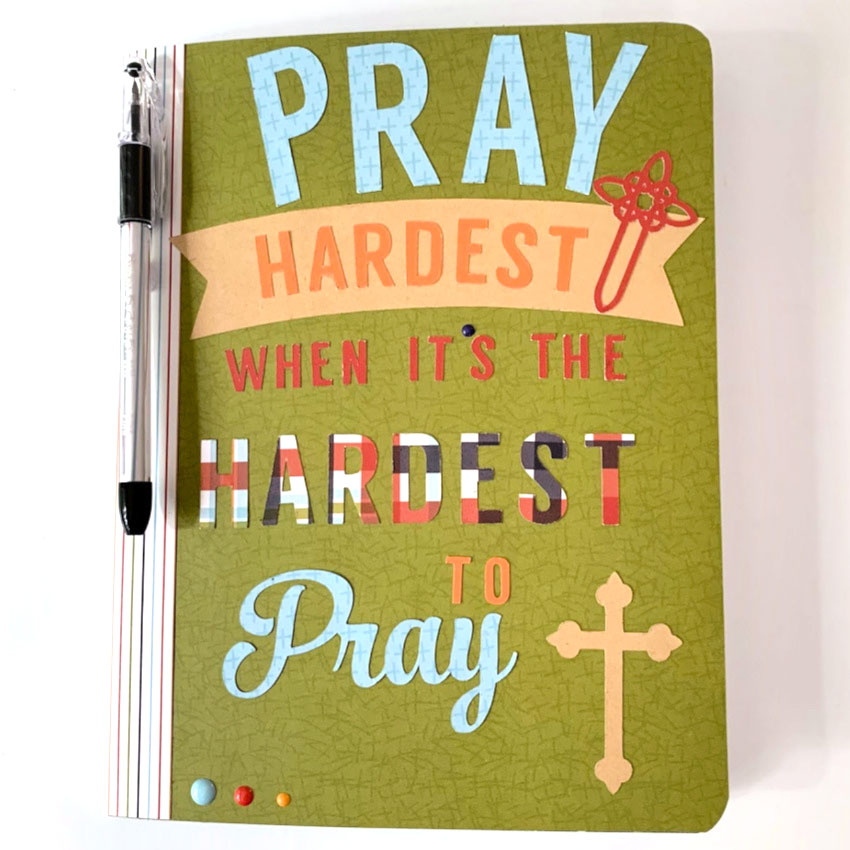
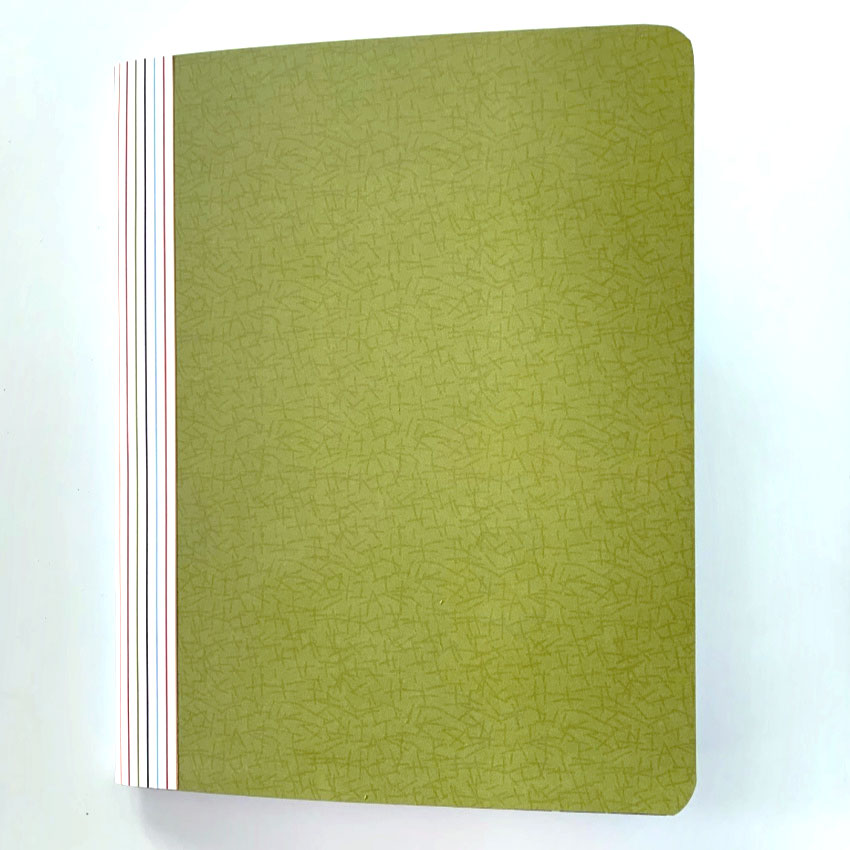
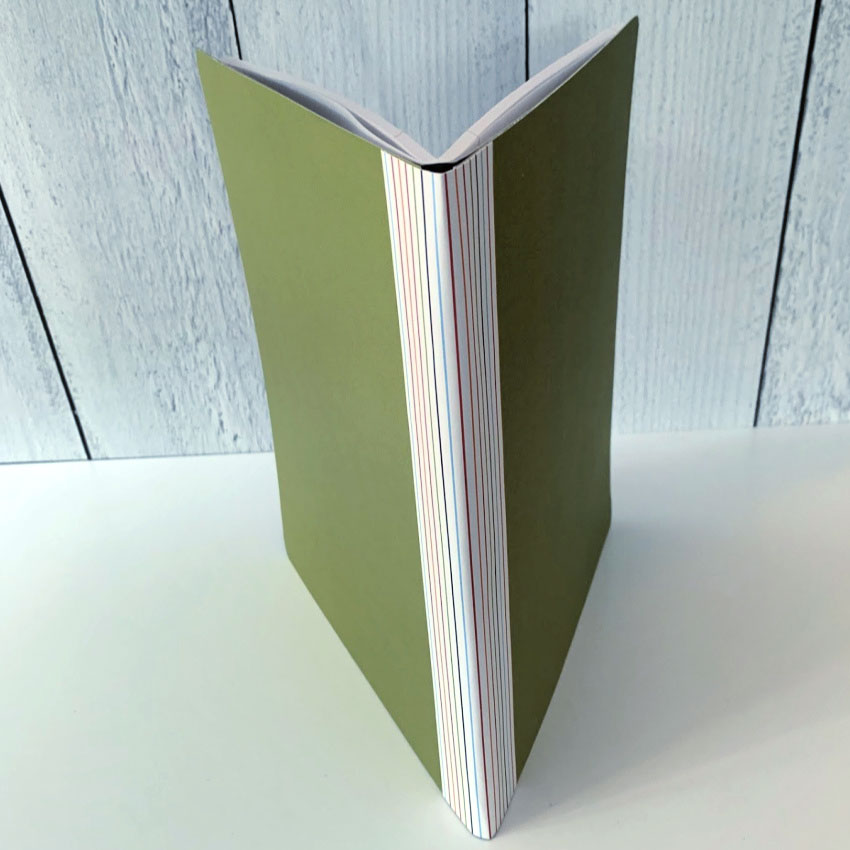
Anita here with a bible study journal that I made for my father.  He has not been able to go to bible study for various reasons over the last several months and is eager to get  back.  I made him this journal so that he could take it with him to make notes.  I used the SVG cut file from Lori’s shop that is called Pray Hardest and you can find that file here in Lori’s SVG Shop and here in the Silhouette Design store.  I also used the file called 3 Christian crosses which you can also find here in Lori’s SVG Shop and here in the Silhouette Design store.  For papers, I used Lori’s Echo Park Paper collection, All Boy.

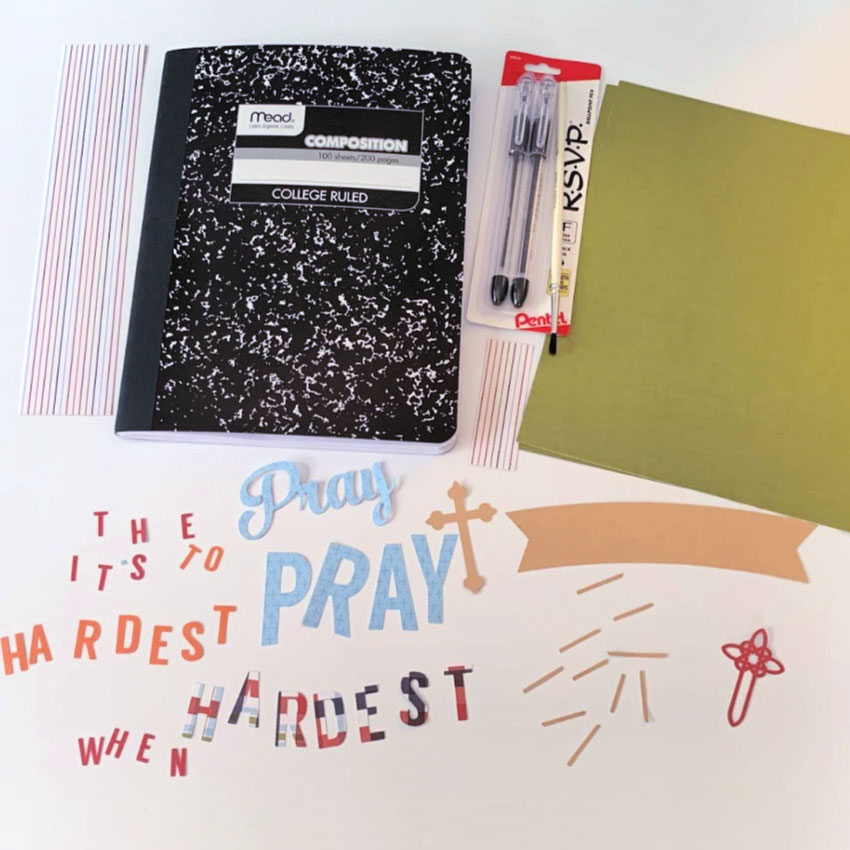
Here is a photo of the materials that I used for making this journal.

I measured the journal cover and it measured 7.5″ X 9.75″ so I cut my front and back cardstock to that size.  I decided that I wanted the spine cover to be 2″ wide so I cut that by the 9.75″ length as well.  I used my Silhouette Cameo to create this project and did resize it once I measured the size that I would have available to decorate on the front of the journal.  I resized it to 8.250″ X 6.767″.  I used a wet adhesive on the covers because then I would be able to move the paper around until it was perfect.  I then opened the journal and trimmed with small scissors around the rounded edges of the covers.

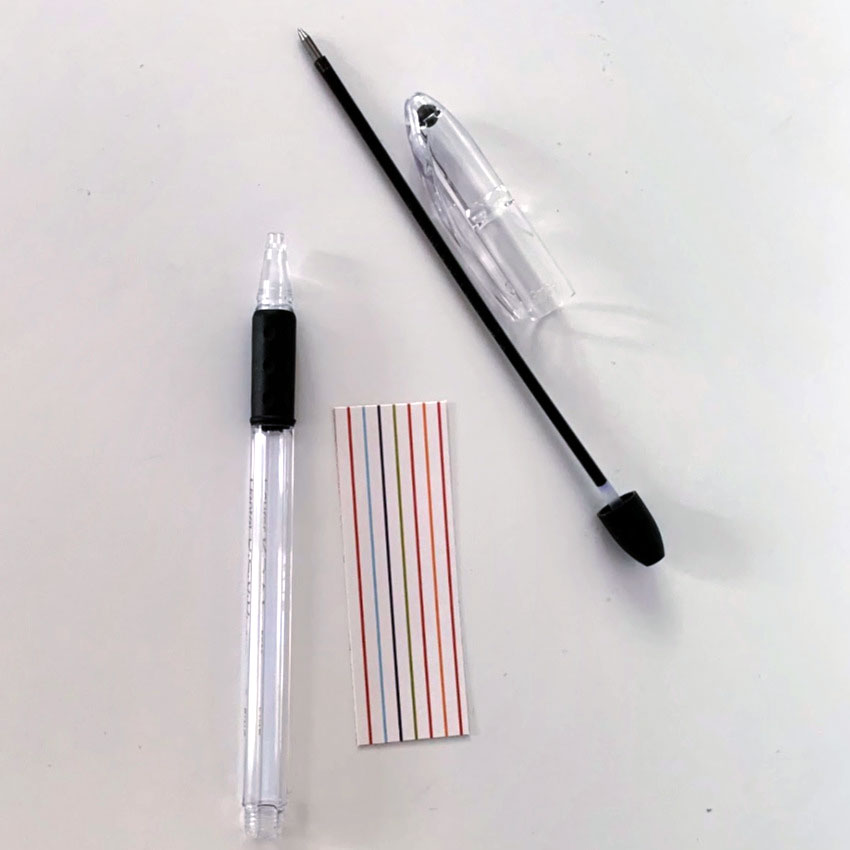
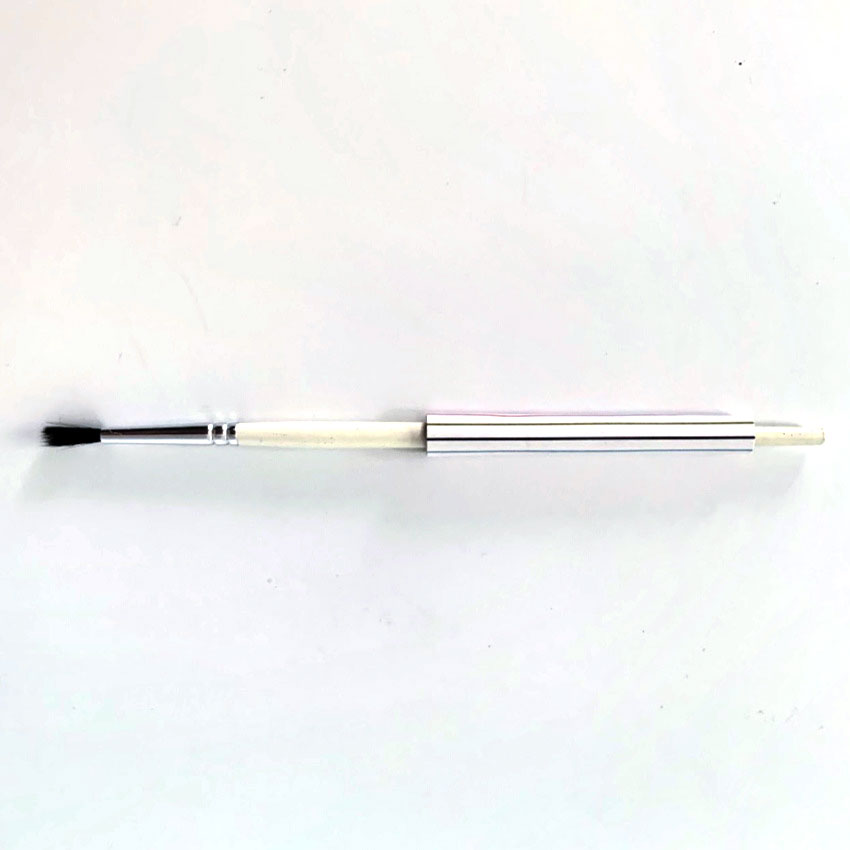
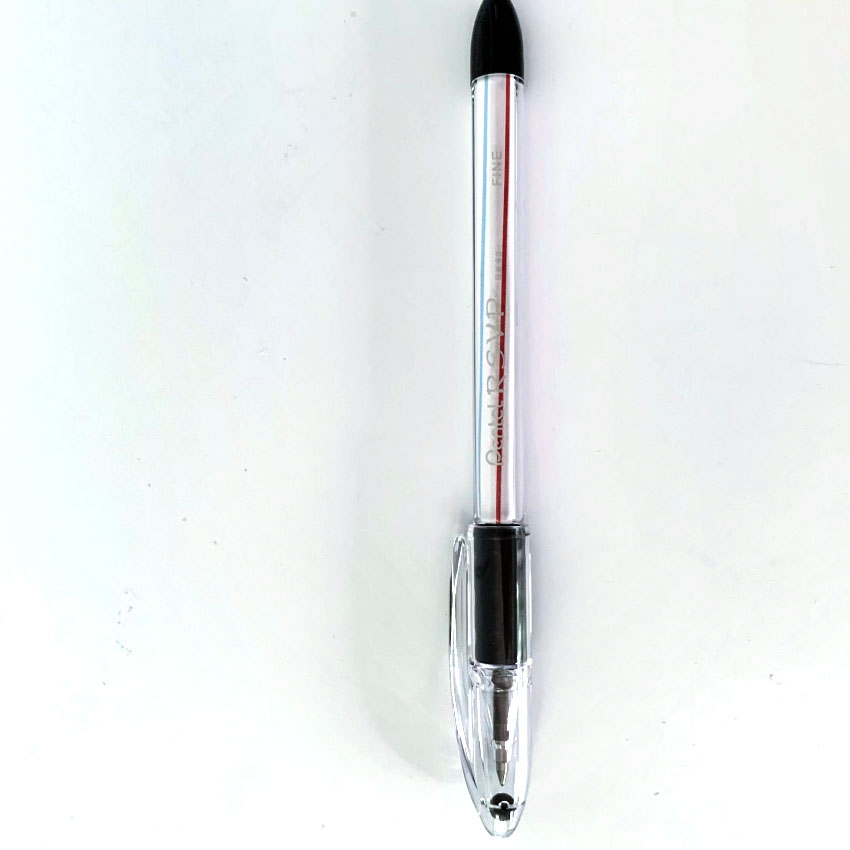
For the pen I took the end of the pen off and took out the ink shaft.  I then measured the length that would be able to be seen when the  pen was together.  I cut my paper 1″ X 3″ and rolled it around a paint brush handle.  You basically just need to get it started rolling in a circle.  I then slid it into the pen shaft, put the ball point ink shaft back into the pen and screwed back on the end cap and my pen was done.  I used 2/5″ diameter adhesive dots to adhere the pen to the spine of the journal.

I hope that it brings a smile to his face when he sees his new bible study journal.

Hugs,

Anita

Fireworks Display

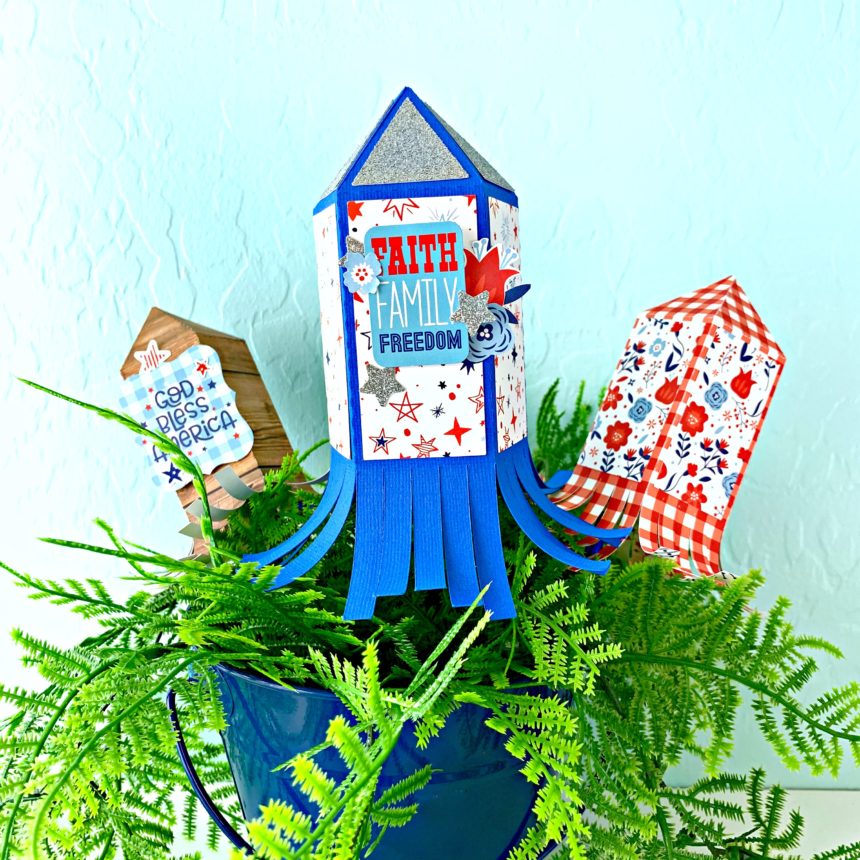
Hi there friends! Brandie here with a tutorial for a cute 4th of July Fireworks Display (SVGSilhouette) These fireworks are so fun and simple to make. They can be added to a vase, mason jar, or even a fake potted plant like I did here.

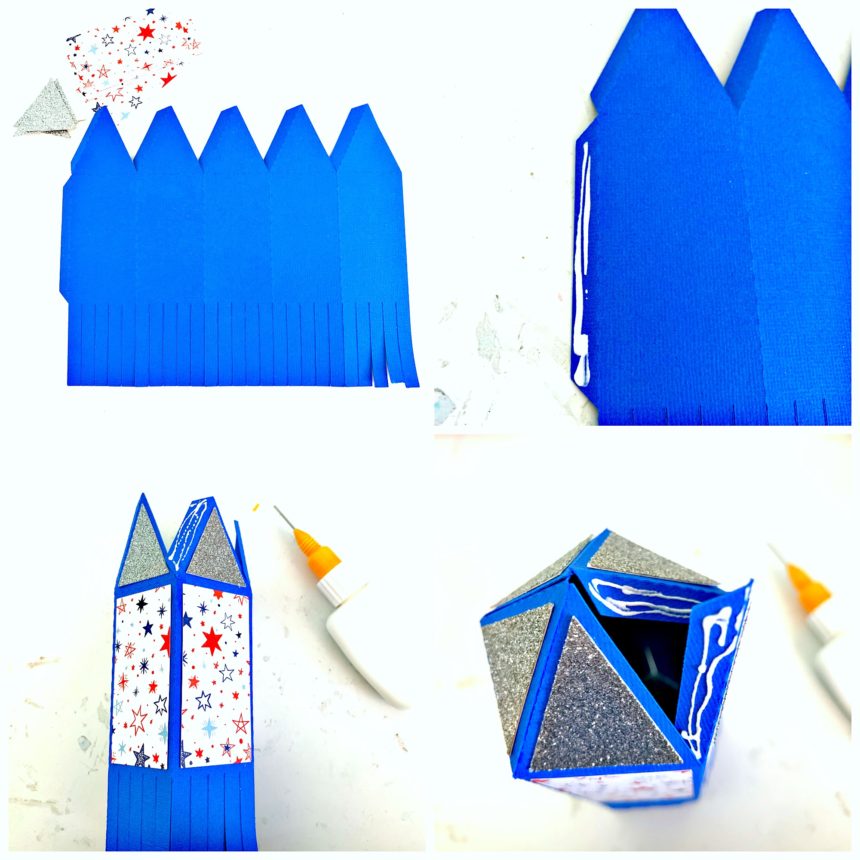
First fold all of the score lines as mountain folds (away from you). Then glue the decorative panels in place. (I glued the long side tab first and then glued the decorative panels which made this step a little harder for myself.) Glue the long side tab creating a octogon shaped tube. Working from left to right glue the top tabs together until you have two tabs left. The last two tabs can be glued together at the same time. Pinch the top points together then flip the firework over and use a pencil or paint brush handle to secure the tabs on the inside of the firework.

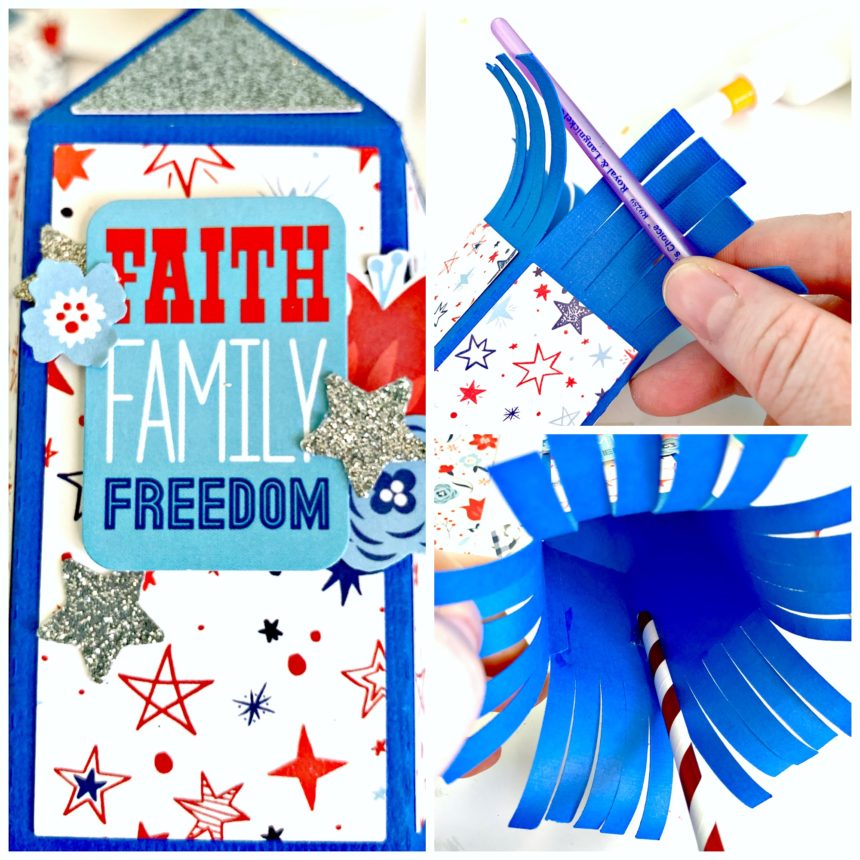
Now its time to embellish the firework, curl the tails, then using hot glue add a paper straw or bamboo skewer to the inside of the firework.

I resized the firework and made two smaller ones. The paper collection I used is America by Echo Park Paper Company.

That’s it for me today. Thanks for stopping by!
Brandie Adams

Installing Fonts Purchased from the Lori Whitlock SVG Shop

Hi Everyone!  I get a lot of questions on installing fonts purchased from my shop, and I thought it would be helpful to write a quick tutorial.   Fonts are not installed or accessed like SVG files.  Fonts are installed to your computer so that they can be accessed by all programs, including Silhouette Design Studio, Cricut Design Space, Canvas Workspace, and even programs like Word and Photoshop.    The installation is very simple for both Windows and Mac.  I’m showing windows here, but the process is the same on a Mac.  Note, this tutorial is for desktops and laptops.  It does not cover installing directly to tablets or phones.

Once you have purchased and downloaded the font, you’ll want to unzip the file. (for more help on downloading and unzipping see this post).  I downloaded the My Type Font (SVG, Silhouette), and unzipped the file below.  In the folder for the font you’ll see a terms of use document, the font file and  the font jpg.  The font file will either have a .ttf (true type font) extension or an .0tf (open type font) extension.

To install the font, simply double click on the font file.  The font installer of your computer will appear.  To install the font, click on the install button.

An install dialog box will appear.  When it disappears, the font has been installed.

The font is now ready to be accessed by your cutter.  One quick note, you will want to close out and restart your cutting software if it was open while you installed the font.  Otherwise it will not show in your fonts list.

To access the font to cut, you use the text tool of your cutting software.  Below are screen shots of Silhouette Studio, Cricut Design Space and Brother Canvas.

This first screen shot show Silhouette Studio.  To access the fonts, click on the text tool on the right most menu.  The available font list will show.  To access the font, scroll down until you find the name.  Note… all of my fonts will begin with the letters LW.

In Cricut Design Space, the text tool is on the left side menu.  Click the T and then you can access the font lists.

In Canvas (Scan and Cut)  The text tool is on the left side menu.  When you click it, you can then scroll through the available fonts at the top of the screen.

Installing fonts is really very simple.  I hope this tutorial has made the process much easier for you!

Have a great day!

 

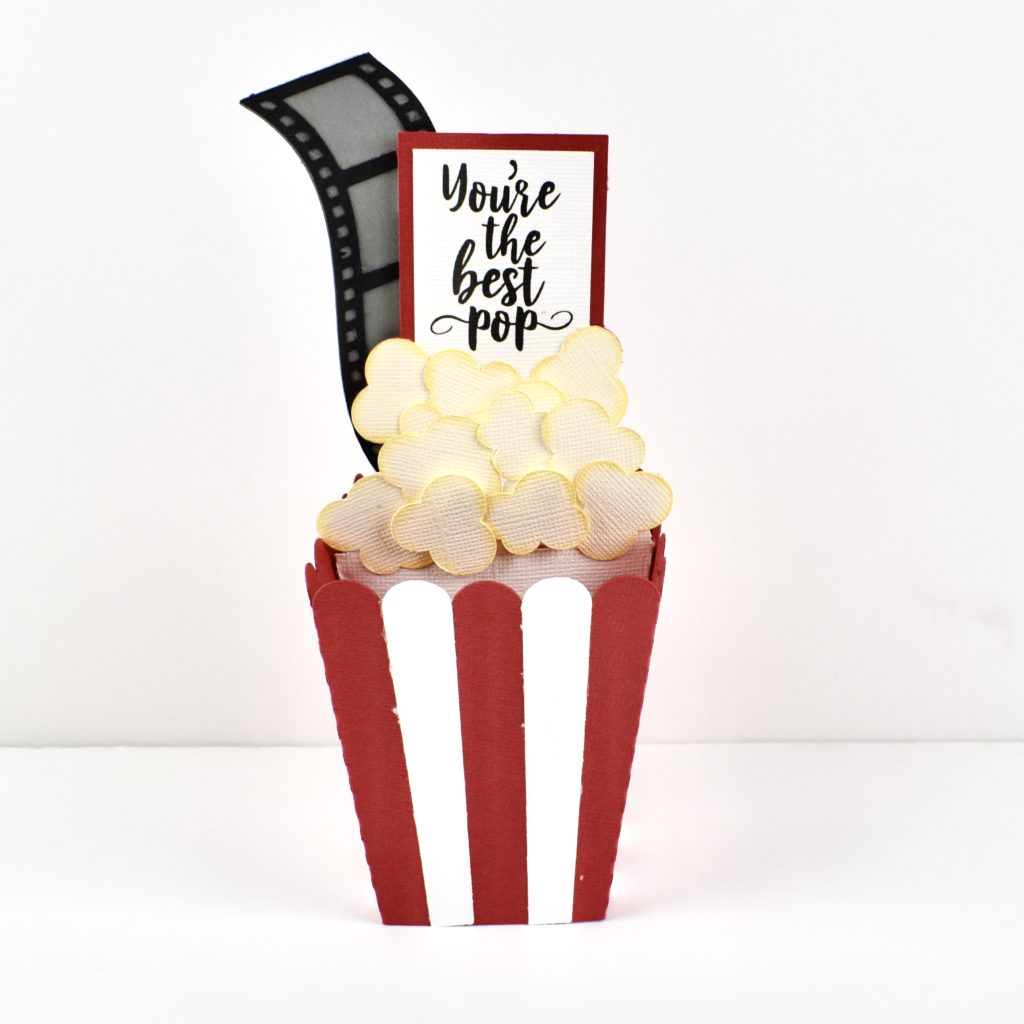
Box Card Father’s Day Popcorn

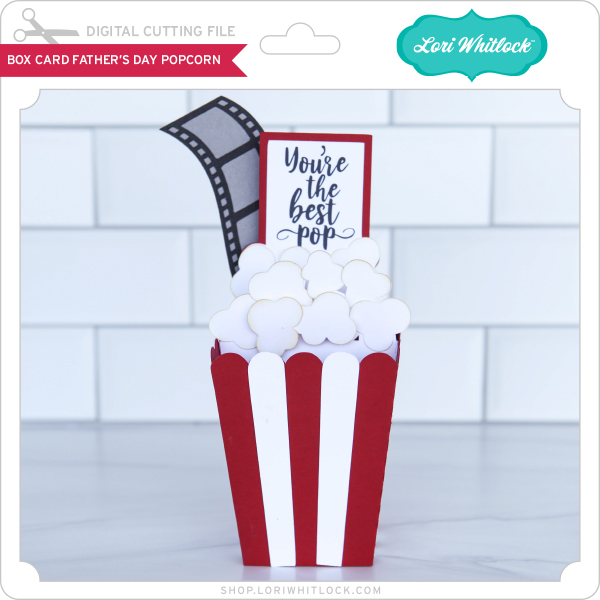
Hi there paper crafting friends!  It’s Michelle Starcher, aka the Bookish Designer, popping in on the blog to walk you through the steps to create Lori’s Father’s Day Popcorn Box Card  (SVGSilhouette).  In this photo tutorial, I will break down the steps to create this fun project for all those popcorn, movie loving pops out there.

After uploading the SVG file to the Cricut Design Studio, I needed to make a few changes, so that it would cut correctly with my Cricut Maker. Below you will find the steps I took to prepare the file for cutting.

  1. Ungroup the SVG file.
  2. Ungroup any portions that have cut/score marks. I had to do this for the white popcorn base, the red message base, and the red popcorn box.
  3. Attach the cut/score marks to the main image. Again, I had to do this for the white popcorn base, the red message base, and the red popcorn box.
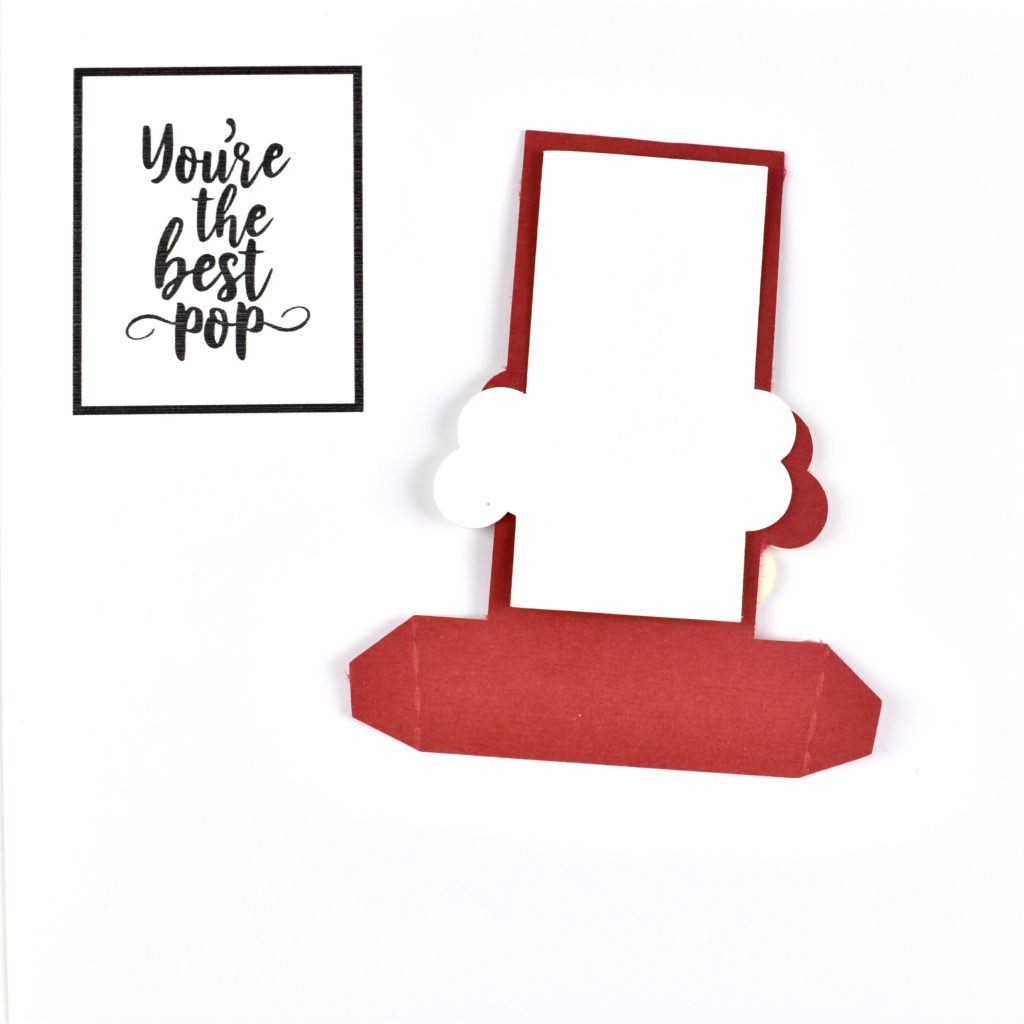
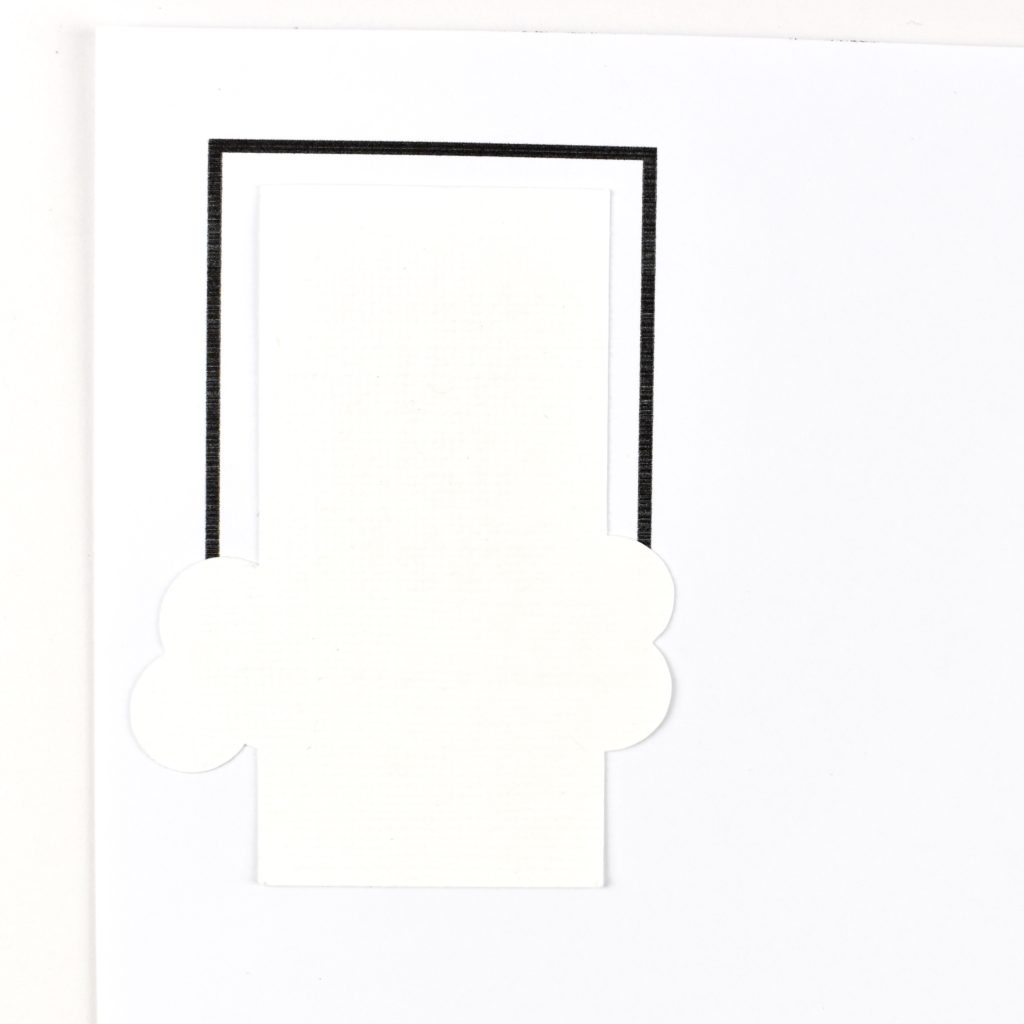
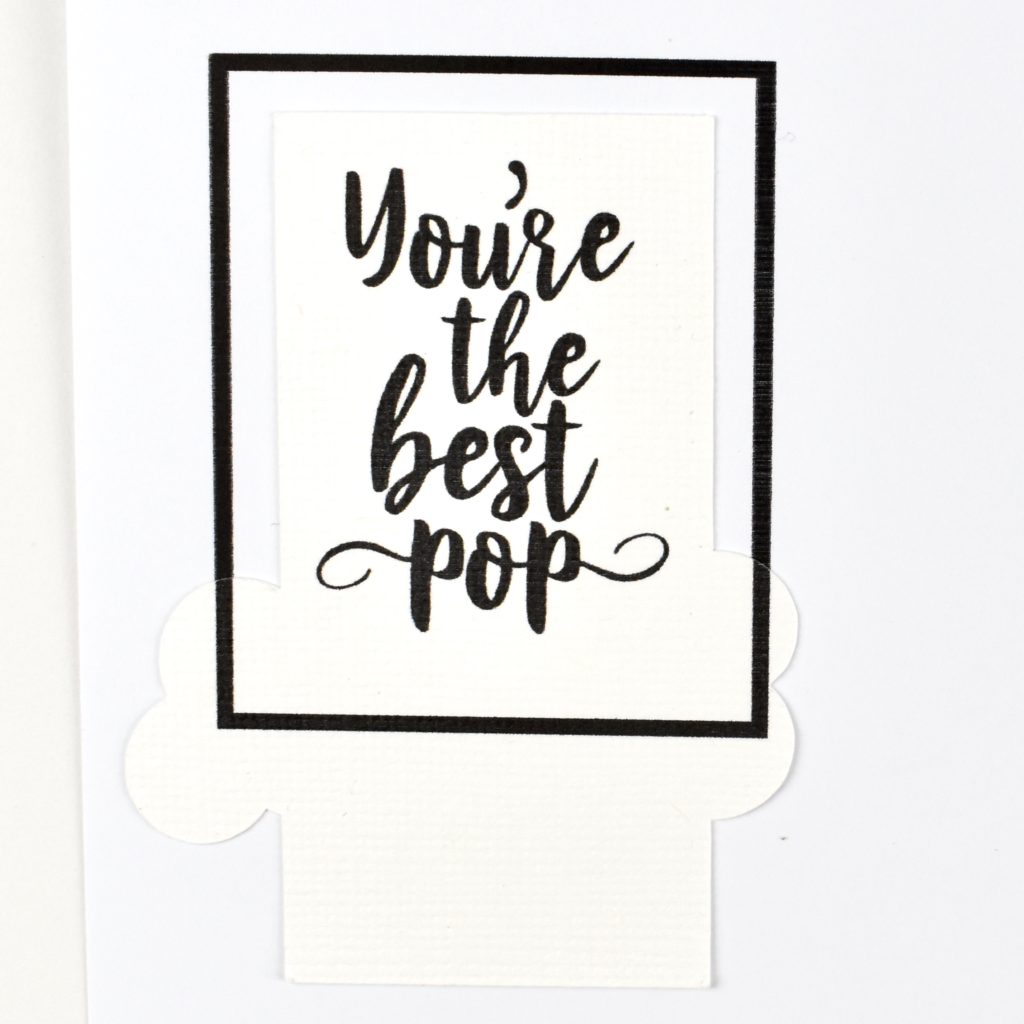
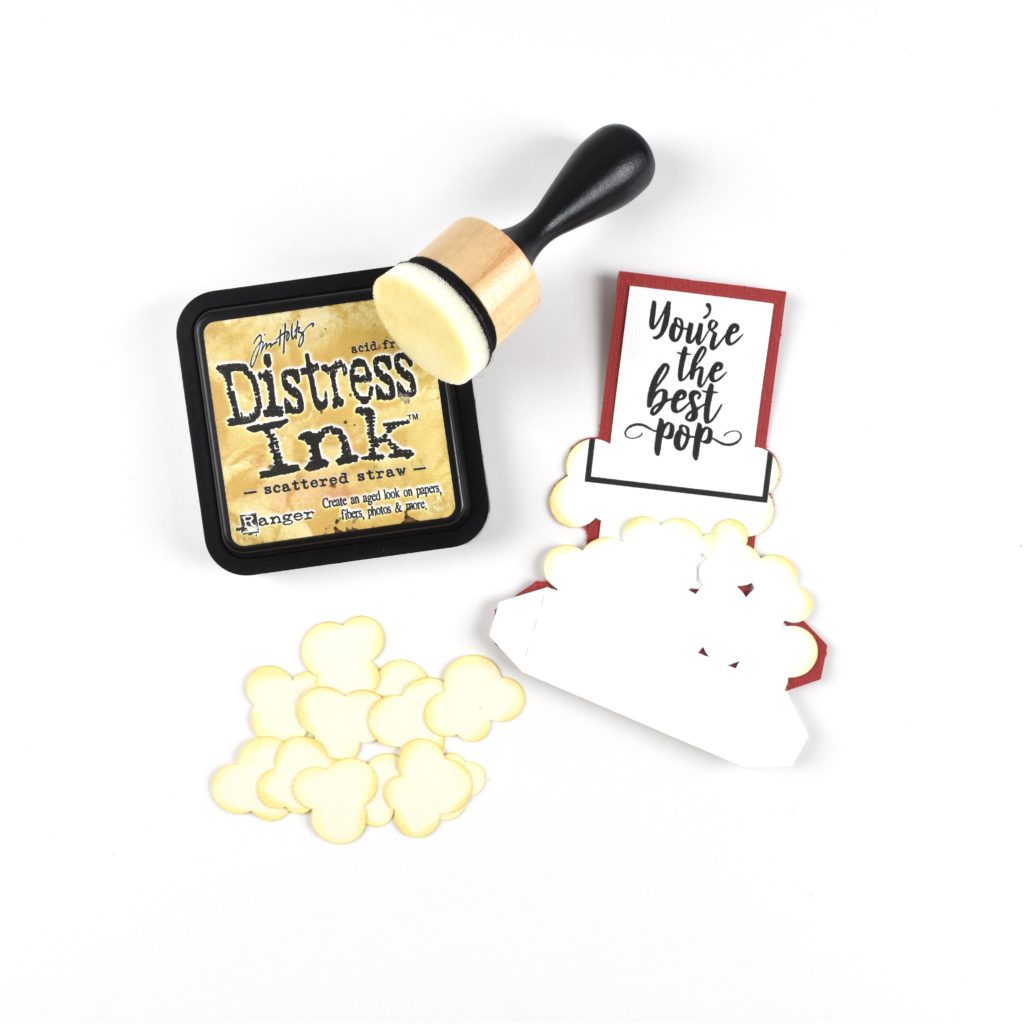
  4. Change the sentiment to Print. To do this, you will change the Fill to Print.  Another option is to hide the sentiment (click on the eyeball) and print it after you have cut everything else.  I actually cut the sentiment the first time, and it was just too small for me to use.  To reprint just the sentiment, I hid all the other pieces, and printed the sentiment without a bleed.  Once I had the sentiment printed, I positioned the pre-cut white cardstock piece over the sentiment and sent it back through the printer. Don’t worry about the black box that appears.  It is going to be covered by popcorn pieces:)

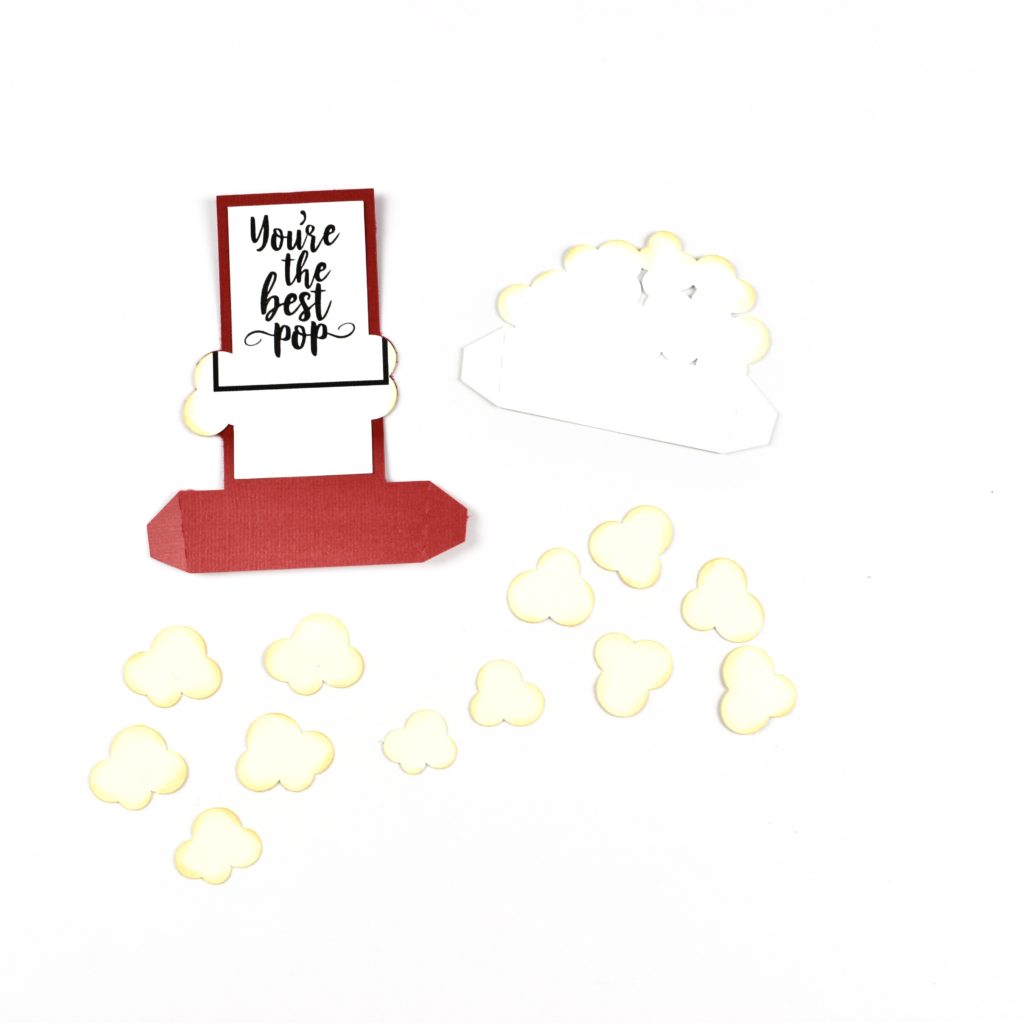
I wanted to give my popcorn pieces a little extra “pop”, so I inked the edges using Scattered Straw Distress Ink and an ink blending tool.  The ink blending tool gives me a little more control over the placement of the ink than when I use just the ink pad.  I inked the edges of the two pieces where I would attach the popcorn pieces as well.

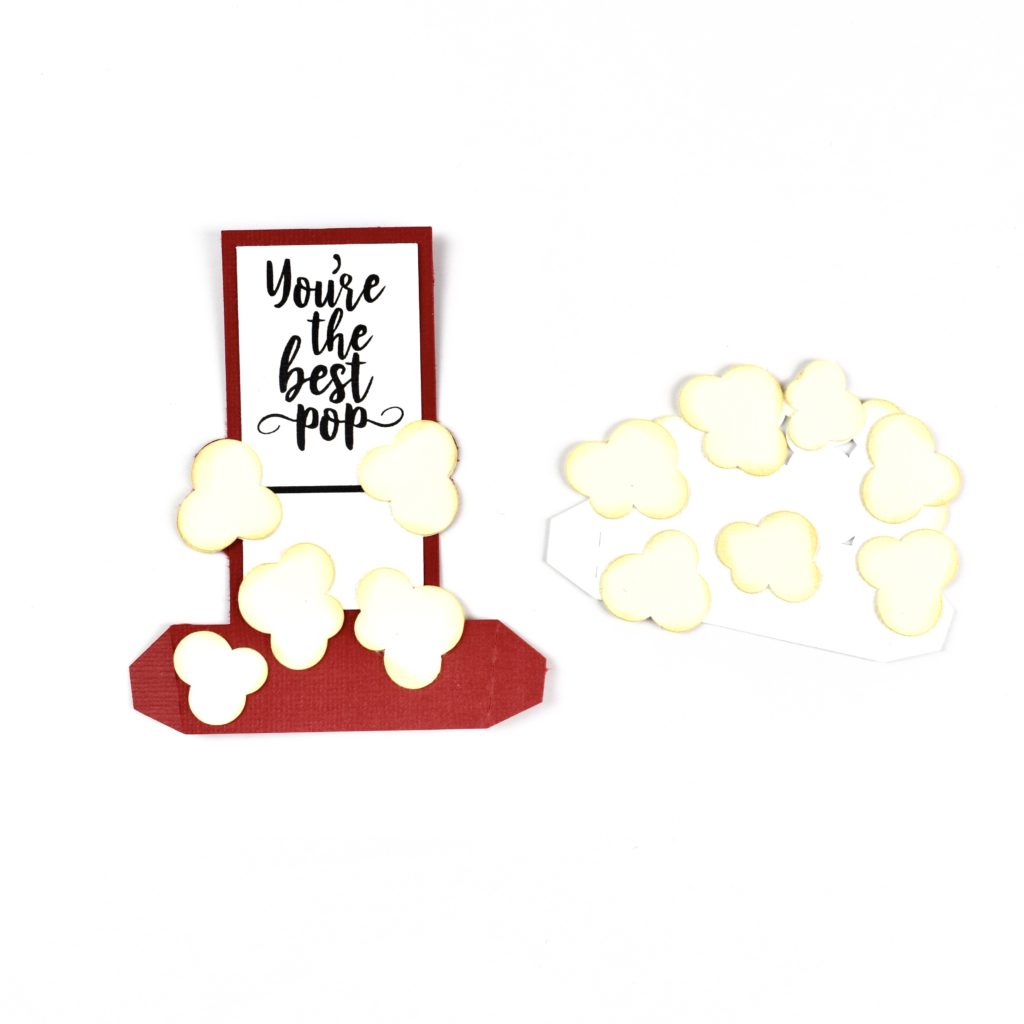
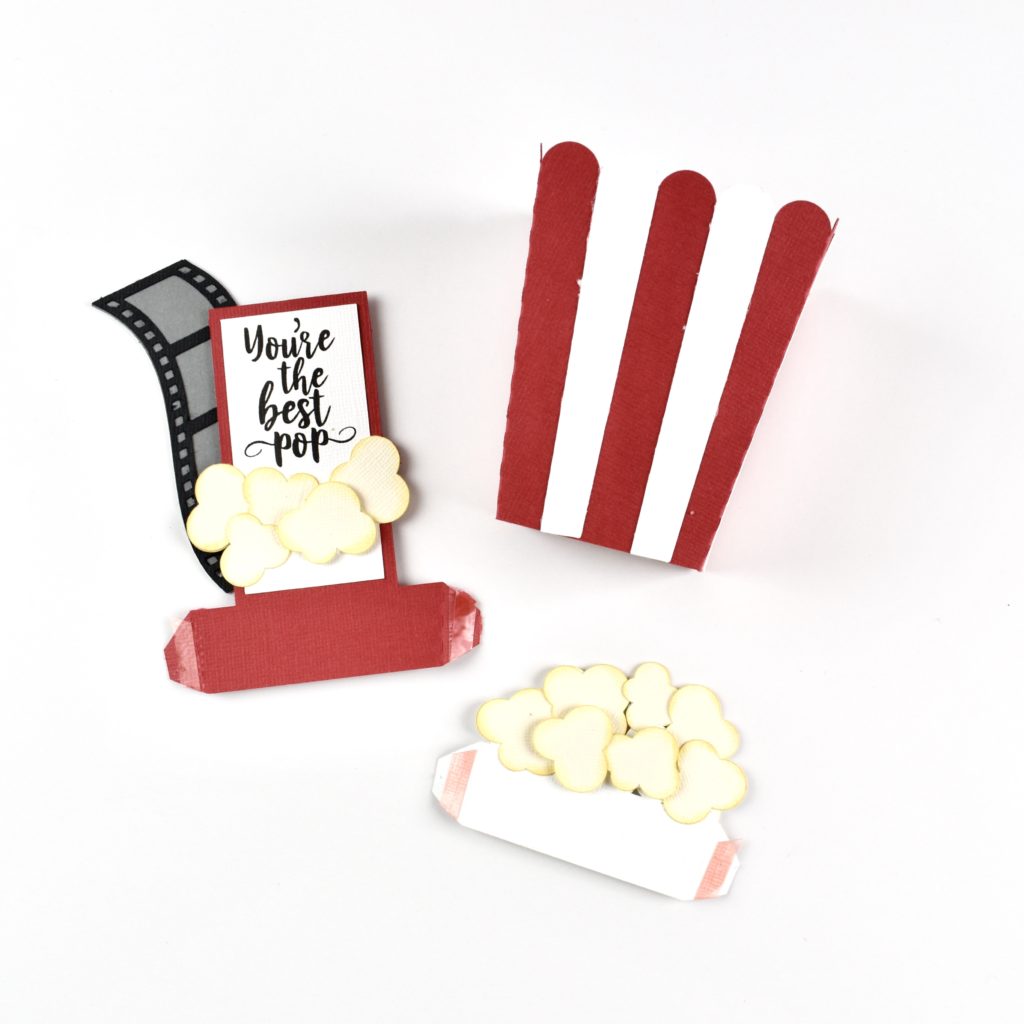
After preparing all of the popcorn pieces, I used the SVG file image to know which popcorn pieces went on which white cardstock base.  I sorted the popcorn pieces by shape and then laid them out on the cardstock bases before adhering.  I used pop-dots on a few of the popcorn pieces to give a little extra dimension.   After I placed all of the popcorn pieces, I used the SVG file image to know where to place the white stripes on the popcorn box.

Next, I layered the film strip and attached it the back of the sentiment card using pop-dots.  Once all of the pieces were layered, I assembled the box.   I played around with the placement using repositionable adhesive. I felt like the box had more balance by placing the pieces in the center about a strip away from each other.  Once, I was ready to make things permanent, I used Tacky Tape on the tabs provided on the two popcorn pieces and the popcorn box.

I hope that you’ve enjoyed this tutorial as much as I have.  The Father’s Day Popcorn Box Card  (SVGSilhouette) will make a great addition to your Father’s Day celebration!   Happy crafting!