Valentine Mini Mailbox Treat Holder Tutorial

Hello crafty friends! Aimee here with you today sharing a tutorial on one of the many new and fabulous Valentine SVG files from Lori. I have been so giddy over these new treat containers, cards, and 3D decor files that I want to make them all!

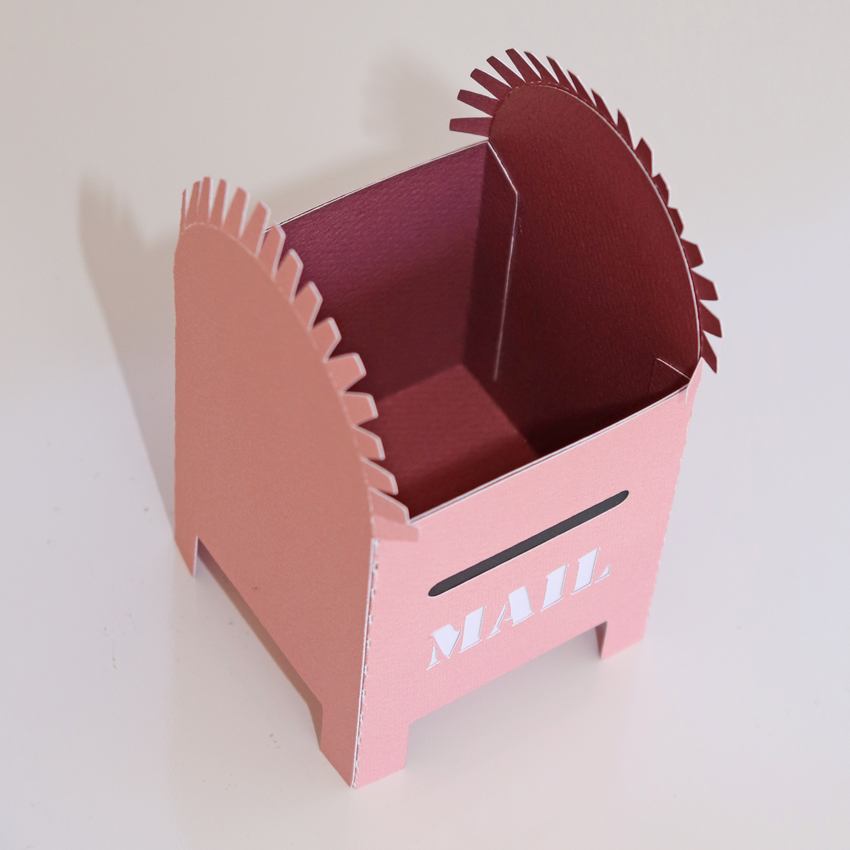
But I will rein myself back in and focus on the MINI MAILBOX TREAT HOLDER (Lori’s Shop, Silhouette) that is super cute!!! Alright, here we go…

Cut out all of the pieces to this project

At this point I’m going to give you 2 different options on getting the main 2 pieces adhered together.

1. adhere both pieces and slide the center piece into the outer mailbox shell

and adhere the two pieces together

Or….

2. Adhere the center box together and then wrap the outer mailbox piece around it and adhere the two pieces together as you go

Now we can adhere the center layer into the box

Adhere the sweet little envelopes onto the center divider piece

Add your adhesive to one of the long strips and start adhering it from the bottom of the front side…

to the bottom of the back side.

Adhere both sides down and you’re done!
Now add some cute embellishments and some candy and you are ready to hand this over to your sweet someone.

That’s all from me! Hope you enjoy making this sweet project as much as I did! Now I am off to go make some more of the new files!
Aimee

A2 Tiered Box Card Tutorial

Hi there friends! Brandie here with a tutorial on the new A2 Tiered Box Cards. I made the A2 Tiered Bird Mountain (SVG, Silhouette). This snowy mountain card will make a perfect birthday card for my dad who loves the outdoors.

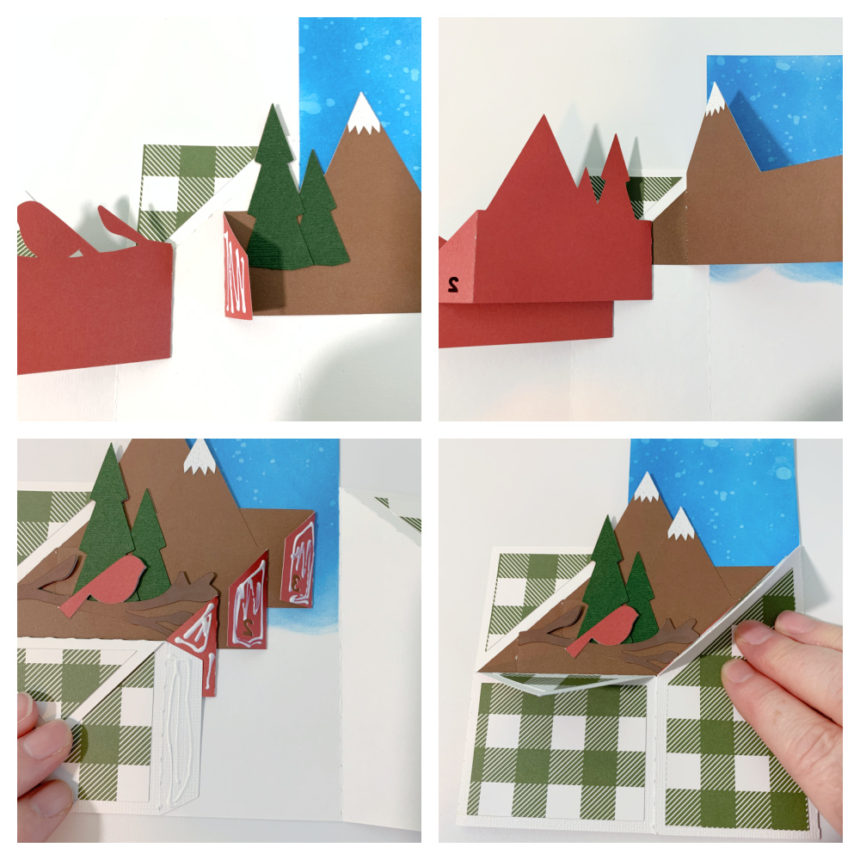
I cut the box card body out of white cardstock but wanted a blue snowy backdrop for the mountains. So I used some distress oxide inks on the tallest middle panels. I then made all of the folds on the score lines (see picture for fold diagram). Then I assembled the inserts. All of the inserts will have a valley fold on the tabs. I also applied the decorative panels to the outside of the box. Once I was ready to glue the inserts in I applied the glue to the outside of the tab(red side for me). Then lined up the front of the tab to the vertical score line and the diagonal score line of the box.

For the second the third insert I lined the tab up to the tab in front and the diagonal score line of the box. I then folded the tabs all in and applied glue to the backs of the inserts and the tab to close up the box (see picture below on how I applied the glue to avoid gluing the box tab to the inserts).

Now that the box is assembled I added the background mountain and the snowflakes.  The green plaid paper is from the My favorite Christmas collection by Echo park Paper Co.

And don’t forget, the New Year’s Sale is happening now in Lori’s SVG Shop.  Get 50% off All SVGs when you use code NEWYEAR at checkout!  Don’t wait, sale ends tomorrow!

Thanks for stopping by today and have a safe and happy New Year!

Brandie

Luminary Tutorial

Growing up, there was a Cul-de-Sac near our home where all the houses had luminaries lining their sidewalks. They were the electronic sort of luminary.  I loved the 100 percent participation on that street, it always looked lovely.

This year my neighborhood had an activity where all the neighbors were invited to place paper bag luminaries with tea lights out on a designated night. Neighbors could decorate their bags, or just leave them plain.  I decided I needed to try cutting designs with an electronic cutter.  I chose a variety of Lori’s Christmas files. I’ll share each link with the pictures.

First, to cut the bags, you need to open the bags and flatten the sides like this picture:

flat bag picture

I placed the bag one inch down, so that I could see the inch marks on the mat.  Using the mat grid, figure out where your design should go on the bag. Then select and resize your design and move it to the correct location on your mat in the software. You can do this in Silhouette Studio or Cricut Design Space. I sized each of my designs just less than 4 inches wide and centered the design on my mat.

You may need to try a couple of cut settings depending on the bag thickness and the sharpness of your blade.  In Silhouette Studio, I started with the Vellum setting–which is Blade 1, Force 19, Speed 6.  I think bringing the force down a to 15 will work well too.

Since the bag is paper, I found that the back side of the back always had cut lines, but with less force, the cuts didn’t cut through the whole design.  My first bags were cut through on both sides, and I think they still looked great.

Tree Luminary

Tree from the A2 Christmas Tree Card (SVG, Silhouette )
This Tree Luminary is a great one to start with because of the simple design.  Fine tune cut settings with this one.

Angel Luminary

Angel from the Full Nativity a Child is Born (SVG, Silhouette).  You could use all the individual pieces for luminaries.

 Star from the Nativity Circle Jesus (SVG, Silhouette)  The star from the Nativity above will also work.

Wisemen

Wisemen from the Nativity Circle Wisemen (SVG, Silhouette)

For these next circle designs, you will need to some editing. If you don’t edit, the entire design will pop out of the bag, and you will be left with just a circle.  I’ve outlined the steps to edit in both Silhouette and Cricut below.

In Silhouette Studio

1. Release Compound Path
2. Move and delete the outer most circle
3. Group the remaining pieces and resize.

4. Move design on the screen to match your bag placement on your physical mat.
5. Select Cut Settings (Vellum; reduce force to 15)
6. Send

In Cricut Design Space

1. Select Image
2. Select Contour
3. Click on the largest circle.

4. Resize your image.
5. Click Make It.
6. Move the design on your screen mat to match the bag placement on your physical mat.
7. Select cut settings and cut.

shepherd

Shepherd from Nativity Circles (SVG, Silhouette )

Nativity from Nativity Circles (SVG, Silhouette)

You may need to use scissors just a bit on the seam part of the bag.  I think it would be so fun to get your street to put out luminaries on Christmas Eve.  For the luminaries, place a bit of sand or dirt at the bottom of the bag and  place your tea light candle (or electric versi0n) with the wick straight up.  Then light them for the evening.

I hope you all have a wonderful Christmas

Ashley

12 Days of Christmas Day 10 & Record Card Tutorial

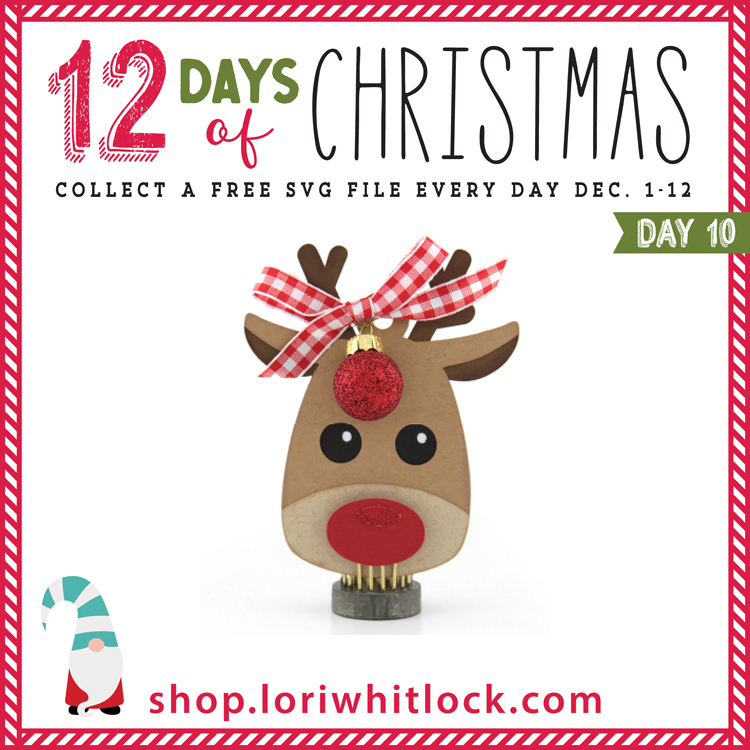
Welcome to Day 10 of our 12 Days of Christmas! Each day from December 1-12, there will be a free SVG file of the day, along with a special promotion!  For Day 10 we have this Christmas Tag Reindeer File.  This file will be free today only, so don’t miss out!


In addition, don’t forget, all SVG files in the Lori Whitlock SVG Shop are 30% Off when you use code DEC2020 at checkout!


And check out this great tutorial by Corri!

Hi everyone!  Corri here today sharing a quick assembly tutorial for Lori’s Record Card (SVG, Silhouette).   When you get everything cut out this is what you will have.

First, form the box shape and card base by folding along the score lines.  Next glue the box shape to the card base as shown below.

Next, apply glue on the glue tab and glue to the top portion of the card base.

This is what it looks like after you have formed the card base.

Finally, glue all the die cut in place.   Here is what the completed outside of the card will look like.

And here is the inside…

There you have it! This card is super cute and goes together very quickly.  Thanks so much for stopping by!

Thanksgiving Turkey Décor Tutorial

Hello crafty friends! Aimee here with a tutorial on this sweet little 3D Turkey 2 (Lori’s ShopSilhouette). Is he not the cutest?!?! I made 2 of these guys…meet Tom Turkey and Timmy Turkey. I will be proudly displaying them on my dining room table this Thanksgiving!

Today I have a tutorial all set up if you are planning on making this little guy or guys for your Thanksgiving table. First thing is picking out the papers and fire up your paper cutting machine.
Cut out all of your pieces and get ready to assemble.
 Adhere all of the box together but NOT THE TOP PIECE.
The wings are next. Turn the box where the lid faces you, slide the wing tabs into the slits in the box and adhere the tabs to the inside.
Adhere together all of the pieces for the head. I used some pop dots on the back side of the hat for some dimension. Also, I used some black enamel dots for the eyes. Then fold on the perforated neck line backwards.
Next thing to do is slip the head tab into the slit in the top of the box and adhere it to the inside of the box. Then adhere the top of the box to the rest of it.
Now your turkey should look like this…
I also used some pop dots on the feet to make it look like they are somewhat sticking out.

Glue the tail to the back of the box and your Tom Turkey is complete and ready to adorn your Thanksgiving table!!
And we are done! I made a “baby” turkey too by downsizing the original file.  Like I said, are they just the cutest?!?! I know they aren’t the traditional colors but I really love the warm green tones against the orange!
Thanks for stopping by today! Wishing everyone a Thanksgiving full of love and thankfulness!
Aimee