Perpetual Celebration Calendar Tutorial

Happy Thursday Everyone:

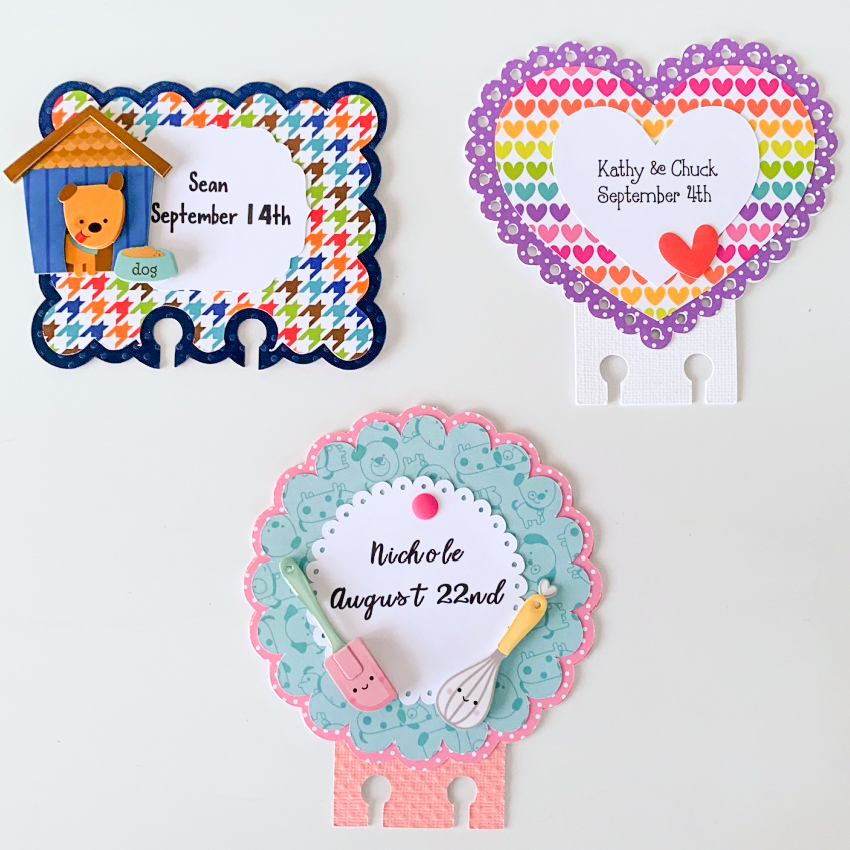
Anita here today with a tutorial for a Perpetual Celebration Calendar.  I have a perpetual calendar which I have been using for years and wanted to replace it with something more fun.  I decided to buy a rolodex and found some great files in Lori’s store that I used to create the pages for my calendar.  I used Memorydex Scalloped Cards (SVG, Silhouette) and used all three included shapes.  Male birthdays got the rectangle shape which can be found in the 4 Cute Tags file (SVG, Silhouette).  I  used 4 Scalloped Shapes (SVG, Silhouette) as the date reminder tags that went on the female birthday cards.  And I used the Nested Hearts file (SVG, Silhouette) for the anniversary cards. For the files without the punch holes in the bottom, I used a memorydex punch to add them.   Please note that each card also has an extra layer on the back of cardstock to give it a bit more stability and to help it to be more stable on the rolodex holder as it spins.
I used the Memorydex Box and Cards (SVG, Silhouette) for the month tab cards.  You can find a tutorial to make the Memorydex Box and Cards here on Lori’s blog.  I also used the Month 4X6 Journaling Cards (SVG, Silhouette)  I resized them to fit on the card and then cut them out.  I did my editing of this file on my Silhouette.   I decorated the cards with ephemera from my stash.
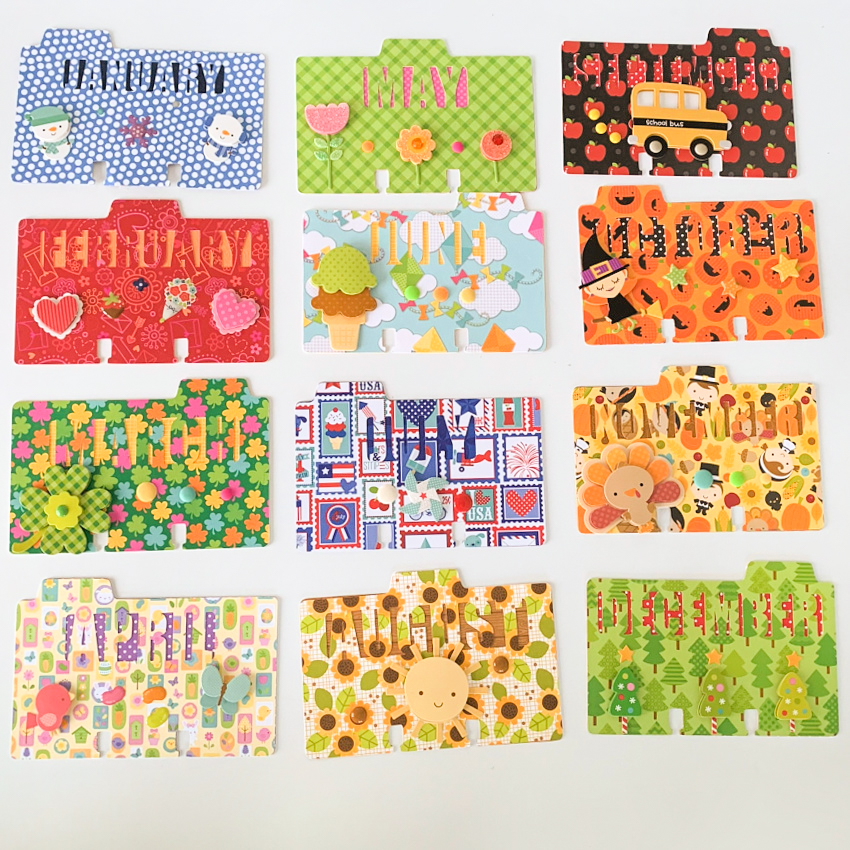
That’s it for me today.  I love how this came out and now each  month I get to flip the pages to see who I will be celebrating that month.

Hugs,

Anita

Box Card Truck Front End Easter Bunny Tutorial

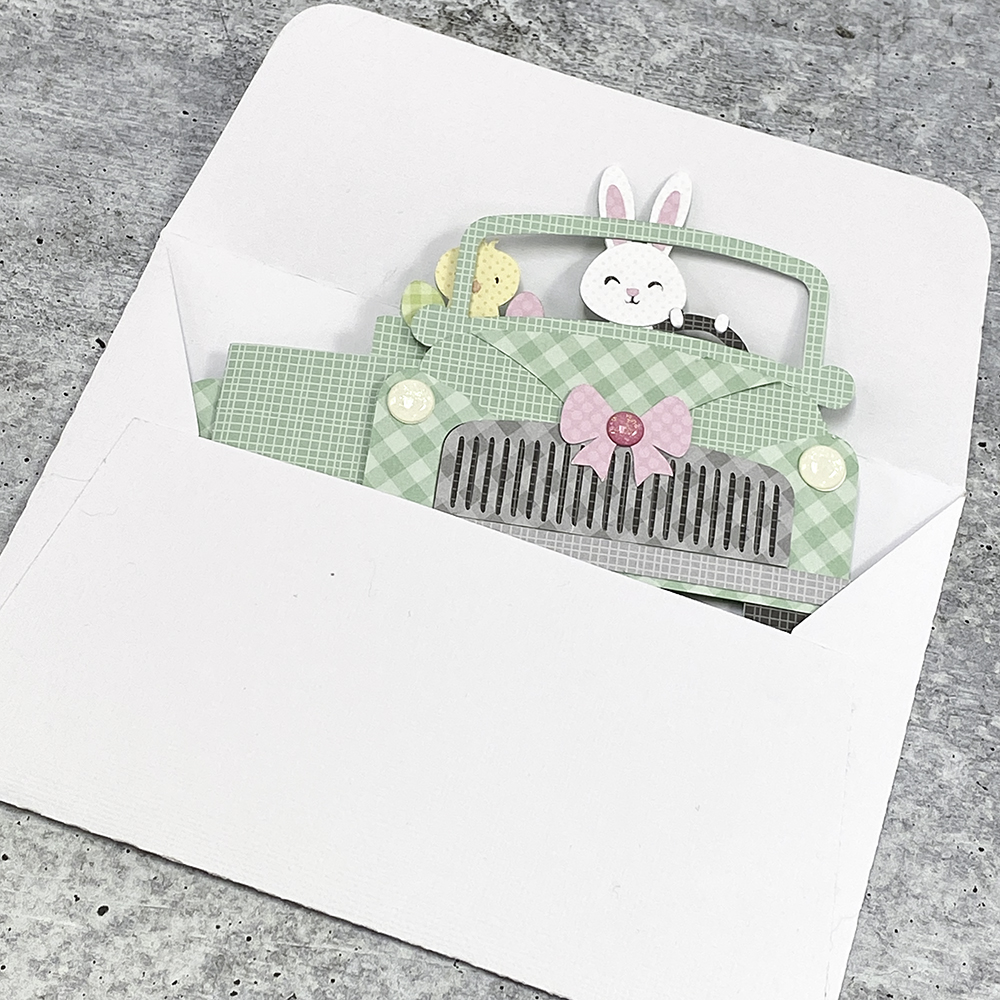
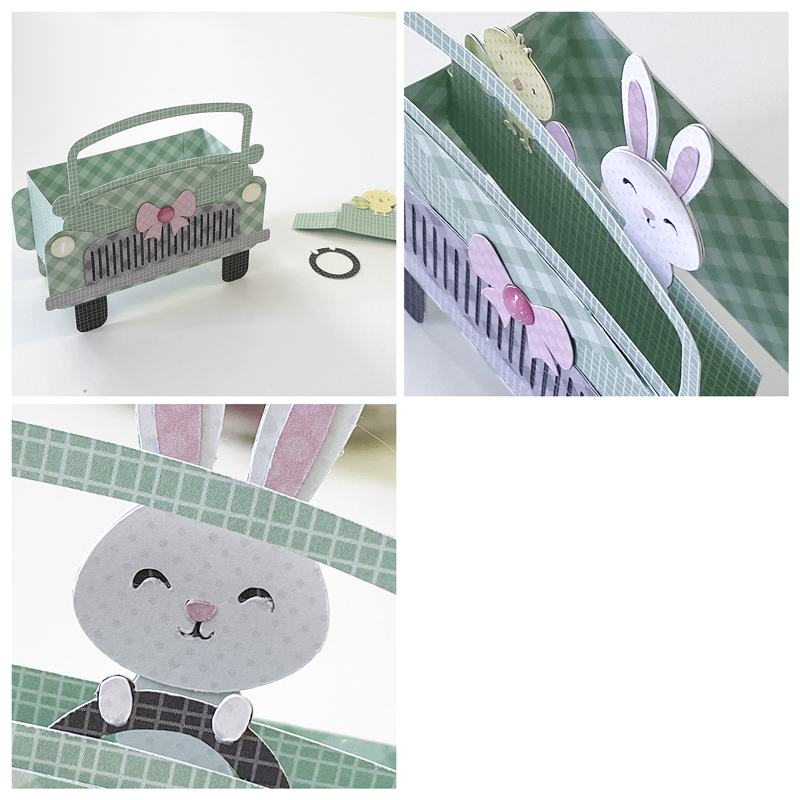
Hi Everyone!  Have you seen the adorable Box Card Truck Front End Easter Bunny file (SVG, Silhouette) ? I think this is just about the cutest card I’ve ever seen!  I love the little bunny with his paws on the steering wheel!  Take a peek…

And the card is even cute from behind…  In fact it’s just like Lori’s Box Card Truck Back files, and it’s assembled in the same manner.

Best of all it folds flat and fits into a 5×7 envelope.

This card might look complicated but it’s really easy to assemble.  I’ve outlined the steps for you below.

Above are the pieces that make up the file.  Before starting the main assembly, I print and cut the Easter License plate and glued it to it’s backing piece.  I also glued the chick & bunny to the insert piece and backed the gray grill with the black paper.  Finally I added the tires to the card.  If you ever need help with where to place the little pieces, it’s helpful to reopen the file in your cutting software… Lori groups all of these pieces together so you can see how they go.

I began with the back of the truck.  You can see how I layered the pieces above.  I started by gluing the back base piece to the card base, lining it up just above the tires.  Next I added the decorative rectangle.  It’s positioned slightly towards the top of the card rather than centered.  To finish I added the bumper (there are 2 bumper pieces in the file, the back one is slightly shorter in length), the tail lights and the license plate.

Next I assembled the front of the truck.  Starting with the front base piece, glue on the “butterfly” looking piece, alighing the bottoms and centering the pieces.  Center the triangular piece along the top edge of the base.  Next add the longer bumper piece, the grill and headlights.  Finish off with the bow.  Glue this to the front of the truck, aligning the bottom of the front piece with the bottom edge of the card base.

At this point I added some enamel dots to both the front and back.  It’s easier to do this now.

With the front and back of the truck done, I folded the card base into a “box” shape and glued.  The tab goes on the inside of the card.  Fold the side tabs on the insert backward, and add adhesive to both tabs.  Slide the insert into the box and press the tabs to the sides to secure.  I did mine about a half inch back from the front of the card.  The tops of the tabs should be flush with the top of the card base.  Lastly I added the steering wheel.  It’s glued behind the front of the car, so it sticks up slightly.  It’s easier to do this now because you can line it up with the bunny.

The bunny and chick are now ready to drive off on their adventure!

That’s it for me today, thanks for stopping by to peek.


BLOG * INSTAGRAM

New Spring-Easter Pop Up Card Bundle

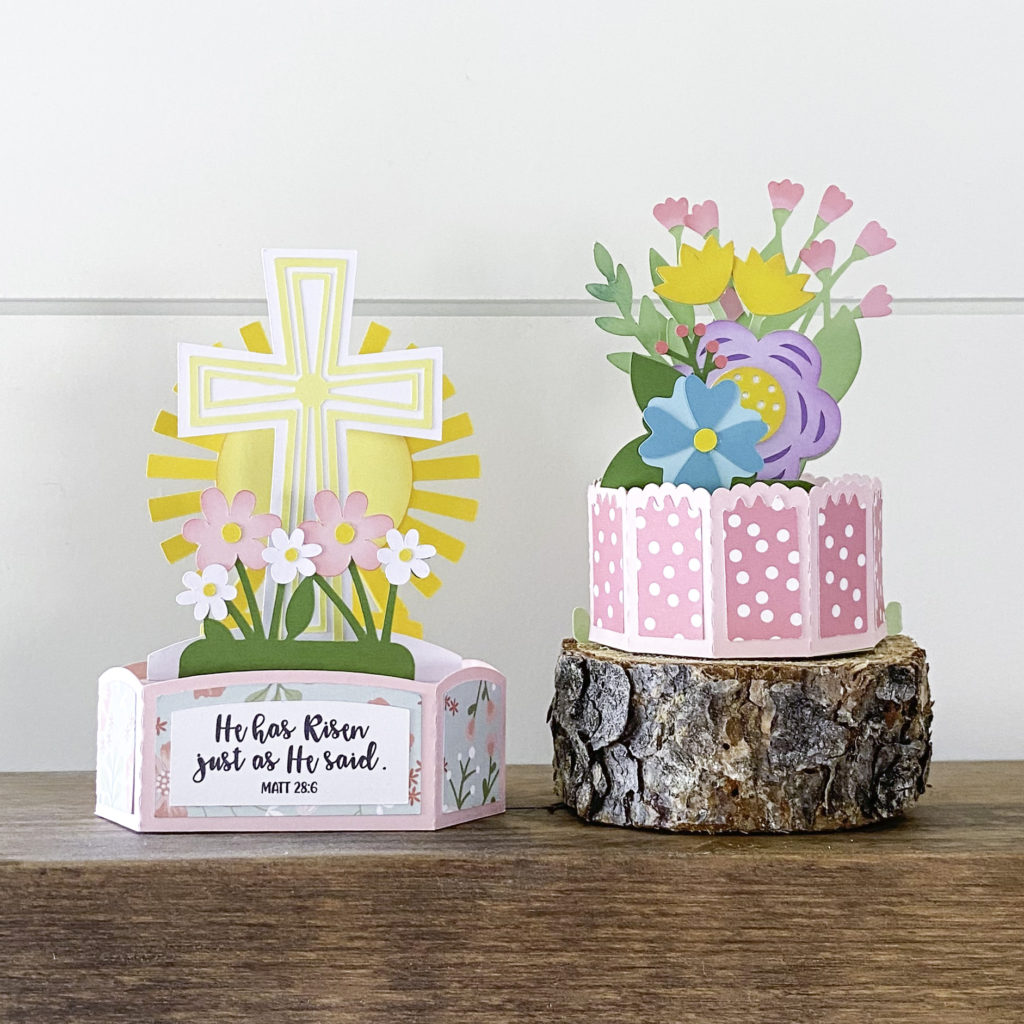
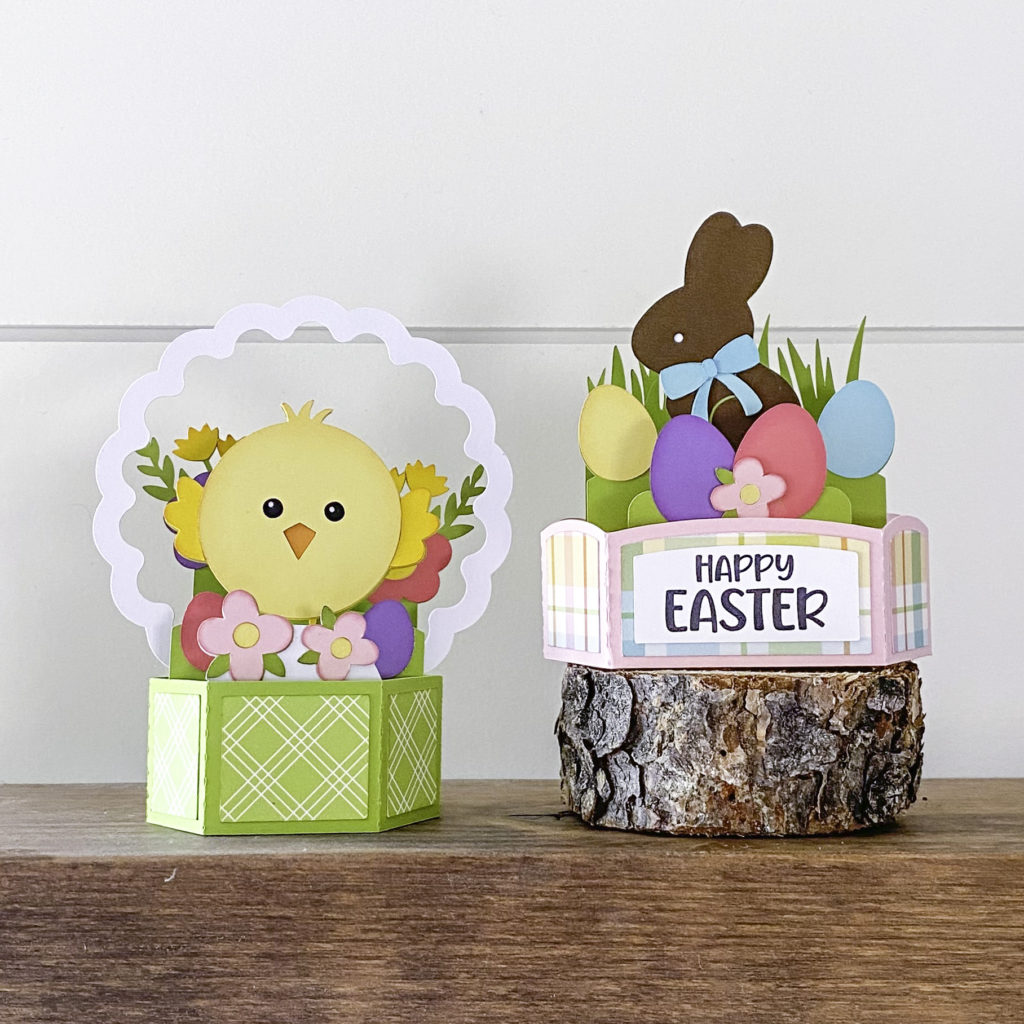
Hi Everyone!  I have a new Spring Easter Pop Up Card Bundle in the shop this week, there are 4 new versions just in time for the holiday!  Take a peek…

Hexagon Pop Up Card Easter Cross (SVG, Silhouette)
Fits into a 5×7 envelope
Hexagon Pop Up Card Tutorial

Decagon Pop Up Card Flowers (SVG, Silhouette)
Fits into  5×7 envelope
Decagon Pop Up Card Tutorial


Hexagon Pop Up Card Chick (SVG, Silhouette)
Hexagon Pop Up Card Chocolate Easter Bunny (SVG, Silhouette)
Both fit into a 5×7 envelope
Hexagon Pop Up Card Tutorial

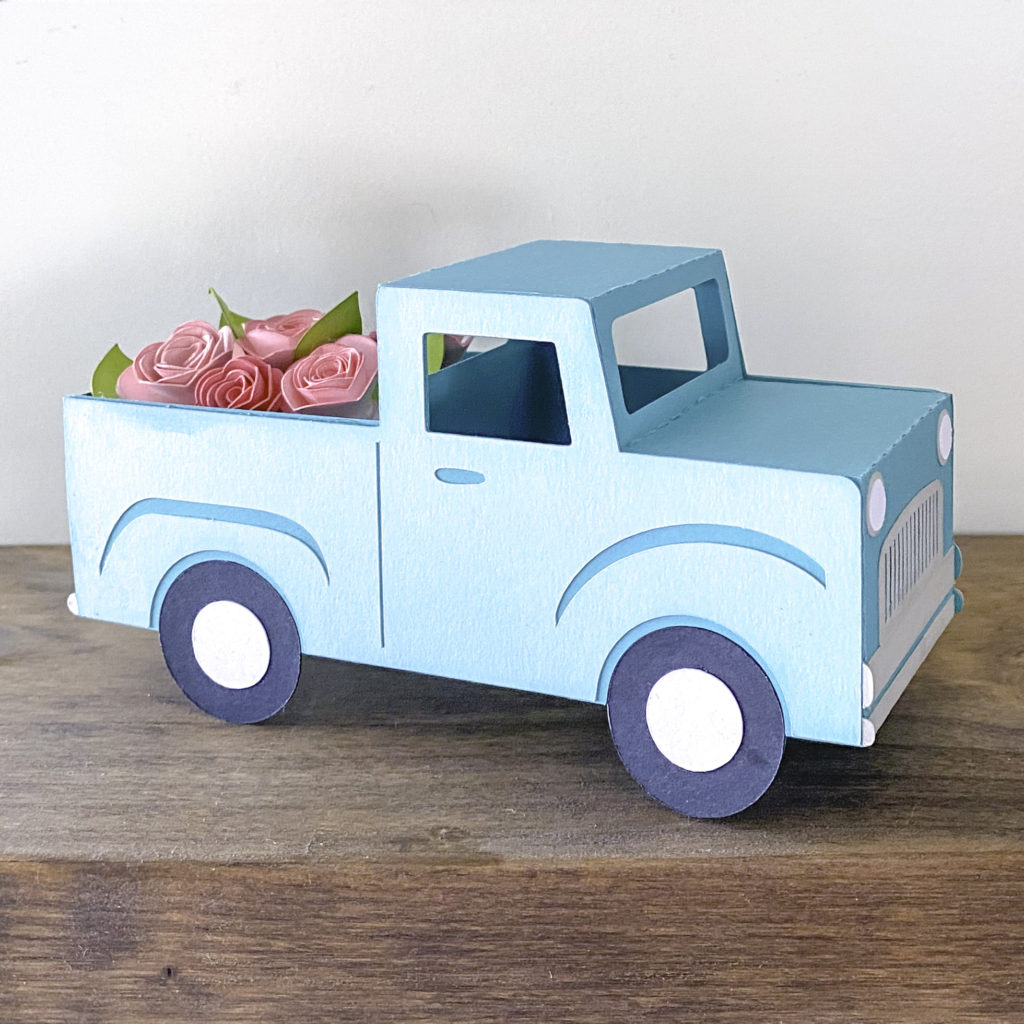
In addition to the new Pop Up Cards, I have a new 3D Pick up Truck… how cute is this?? It would be a great addition to your holiday decorating!

3D Pick Up Truck Flowers (SVG, Silhouette)
Tutorial

Have a great day!

Easter Bunny Belly Box Tutorial

Hi there paper crafting friends!  It’s Michelle Starcher, aka the Bookish Designer, hopping onto the blog to walk you through the steps to create Lori’s Belly Box Easter Bunny  (SVGSilhouette).  This adorable little treat holder is part of the 2021 March Kit of the Month (SVG), which is FREE with any $20 purchase from the Lori Whitlock Shop during the month of March.  Look for the coupon code in the item description.

In this photo tutorial, I will break down the steps to create this cute little bunny box!  I wanted my box to be a little bit bigger than the original design.  After opening the file in the Cricut Design Space, I increased the size by dragging the arrow in the bottom right corner.  If you are resizing a file, do it while all the elements are still grouped to keep the ratio between elements.  I set my file size to 13.848 x 11.5″ since my Cricut Maker doesn’t like to cut files larger than 11.5″ without using oversized papers.  The process is similar in Silhouette.

After cutting the file pieces, I inked the edges of the pieces.  After inking all of the individual pieces, I attached the paw pads to the paws and the ears to box bunny face.  At this point, it doesn’t matter which side of the bunny make the front, unless you are like me and your cardstock is a different color on each side.**

Next, you are going to attach the black rectangle to the back of the bunny face.  At this point, I folded the bow as well.  The pieces fold back to form the bow, and then you “tie” the matching strip around the bow. Hopefully, you can see the how the bow comes together in the picture below.

Attach the box-less bunny face over the back of the box bunny to cover the black rectangle.  Fold the box along the score marks, and add adhesive to the tabs on the box.

Attach the tabs to the front of the bunny and the front rectangle to create the box.  Then add your paws, bow, and bunny nose using foam tape.  (You can use regular adhesive, but I always like to add a little “pop” to my projects!)

Fill your Bunny Belly Box with candy, and it is ready to give to some-bunny special this Easter.

Don’t forget this adorable little treat holder is part of the 2021 March Kit of the Month (SVG), which is FREE with any $20 purchase from the Lori Whitlock SVG Shop during the month of March.  Look for the coupon code in the item description.

Until next time,

Michelle

**Since my cardstock was light gray on one side and dark gray on the other, I cut two copies of the bunny belly box.  I cut off the box portion of the second one and attached it to the front of my bunny box.  I did this because I didn’t want my bunny face and the box body to be two different colors.**


Gnome Shamrock Box Card Tutorial

Hi there friends! Today I am showing how I made the Box Card Gnome Shamrock (SVG, Silhouette). I was able to make four of these little guys in no time.

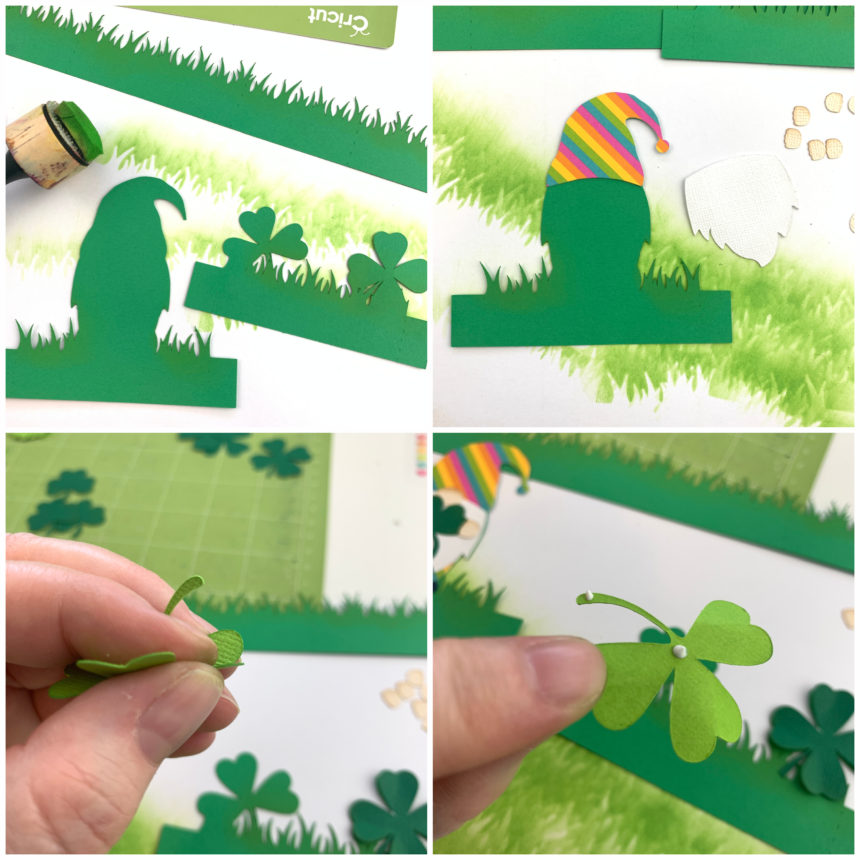
I cut all of the elements out of  80lb cardstock. For the pieces that have grass I had my machine do a second cut before removing the cutting mat from the machine. On a Cricut all you have to do is hit the C button again once the first cut is complete and before you take the cutting mat out of the machine. On Silhouette, you can set a double cut in the Send panel.  Doing the second cut always saves me time. I do not like to weed paper, so frustrating.

Once all my pieces were cut I inked all the edges to add some dimension. I also ran all the small pieces through my sticker maker.

For the gnome insert I glued the hat into place first and worked my way down with the beard, pants, and shoes. Then I added the nose at the center of line where the hat and beard meet. Then I attached one of the small shamrocks and hands. Also don’t forget the little ball at the end of his hat.

I wanted to give the shamrock insert a little more dimension so I gently folded the petals of the shamrocks then applied glue to just the centers and the very end of the steam and glued into place on the insert.

The long strip of grass is for the box. I folded all of the score lines in a mountain fold. Making sure all of my inking was on the out side of the box. Then I add glue to the tab and created the box.

For the inserts both tabs are valley folds. I glued the shamrock insert into place first. I lined up the edge of the tab  against the front and bottom of the box. Then before the glue sets fold the box flat to make sure it will lay flat for mailing.  I then glued in the gnome insert into place by lining up the bottom edge of the tab with the bottom edge of the box at about the center of the box. I also folded the box card flat before the glue set to make sure it would fold flat.

Once the inserts were in place I added the sentiment to the front with the remaining shamrock. Now he’s ready to brighten someone’s day! Thanks for stopping by!

Brandie