July 4th Shaker Star Tutorial

Hi everyone!  Corri here today sharing a quick assembly tutorial for Lori’s Shaker Star (SVG, Silhouette).    To make this, you will need cardstock, chipboard (I used a soda box), a dowel or straw and a piece of clear acetate.   I normally use transparency sheets for the clear part but this time I used a piece of a clam shell package from some craft supplies.

When you cut out all the pieces, this is what you will have plus a bunch of confetti pieces that will go inside the shaker.

First, glue the three chipboard stars together.  This step creates a spacer that will allow the confetti pieces to shake.

Next, glue the chipboard to the solid red star and glue the star frame piece on top of the acetate star.

Now you can add the confetti pieces to the inside of the star and then glue the clear star on top.

I wrapped the paper strips around a pencil to form into corkscrew shapes.   I glued those and a wooden dowel to to the back of the completed star and then cut an extra star “back” to cover up where they were attached.

There you have it!  Super simple to put together and so much fun!  The kids will love to wave them to celebrate the 4th!  Thanks so much for stopping by!

A Pinwheel Bouquet

It’s time to start creating for the 4th of July…celebrate the country we love.  Lori has this amazing bundle available, you can find it here.  So many cute projects.  You can also find them individually in her store or in the Silhouette Design Store.  I played with the pinwheel design for this project.

As I said I am using the new Pinwheel (SVG, Silhouette) for my project.   You will need some double sided papers or card stock, brads to secure your pinwheel and paper straws or dowels to attach the pinwheels.


This is how the file looks when you open it, ungroup it and cut the two pieces for your pinwheel.  I was able to get both on one 12×12 with some trial and error.

Once your pinwheel is cut, layer the two pieces just as shown in the screenshot or the picture below.  Have your brad handy.

Just start bring the tip of each point to the middle, lining up the tiny holes that your machine cut for you.

Keep going all the way around, one by one, lining them up…..

Once you have them all lined up, insert your brad.  It takes a little patience to get all those little holes lined up.  I’ve made so many pinwheels in my life time that I’m used to this step…so I didn’t think about this until after, but it may be easier for you to secure it with a paper piercer as you pick it up.  That way each point will be secure and lined up, then just slide the brad in.  So adorable!  I cut three pinwheels, starting with the original size in the file, then sized it down 1.5 inches the next two times.

For the smallest pinwheel, I wanted to have it two colors, so I simply flipped one.  You will have one going clockwise and one going counter clockwise.  Notice the direction of both on the screenshot below.

Once I had all three cut and secured with a brad, I hot glued them onto paper straws and added to a mason jar.  I love this, it’s fun and a unique centerpiece for my 4th of July holiday cookout.  I can’t wait.

Thank you for joining us today! And don’t forget, all SVG files in the Lori Whitlock SVG Shop are 30% off through Saturday when you use code JUN2021 at checkout!

SHOP NOW

You’re The Best Pop – Tutorial

Hello everybody! Marcia here today. I thought I would do a tutorial on this adorable popcorn box card. I made this Father’s Day Popcorn box card (SVG, Silhouette) for my Dad. I have fond memories as a child of him taking my siblings and I to the movie theater. Now that he is older, I am the one who is taking him out to the movies.

This tutorial is based on Silhouette Studio, but there are parts applicable to all different cutting machines.

After opening the file in Silhouette, you will want to ungroup all the pieces. If there is a printable sentiment, set your print registration marks in the Page Setup Menu. This lets the software detect where your cut lines should be in reference to the printed text. Ungroup the text from the shape surrounding it and move the shape to cut outside of the print registration marks. Select the printer icon to send the text to your printer. After printing, mount the paper in the upper left corner of your mat and load the mat into your Silhouette. Move the shape to cut back around the text. Now select the text and move it away from the shape to cut. Send to Silhouette to cut. Cut the rest of the pieces from whatever desired cardstock or pattern paper you like.

Before assembling the pieces together, I like to ink the edges of some pieces to make them look more dimensional. I selected a yellow and light brown here for inking my popcorn edges.

After inking, assemble the popcorn box and the card inserts. I used pop dots behind some popcorn pieces for added dimension.

Adhere the card inserts to the inside of the popcorn box, placing the popcorn insert in front of the sentiment insert. Use more pop dots to adhere the filmstrip slightly behind the sentiment.

Lori has lots more Father’s Day cards in her shop. Go take a look. Thanks so much for stopping by.

~Marcia

Father’s Day Gift Set

Hello crafty friends! We’ve already celebrated Mother’s Day and now it’s almost time to celebrate Dad! Aimee here with you and my tip for the day is take a minute to look at the svg files you have and see which ones can be matched up. And I also have a small tutorial on putting this adorable new box together for you.

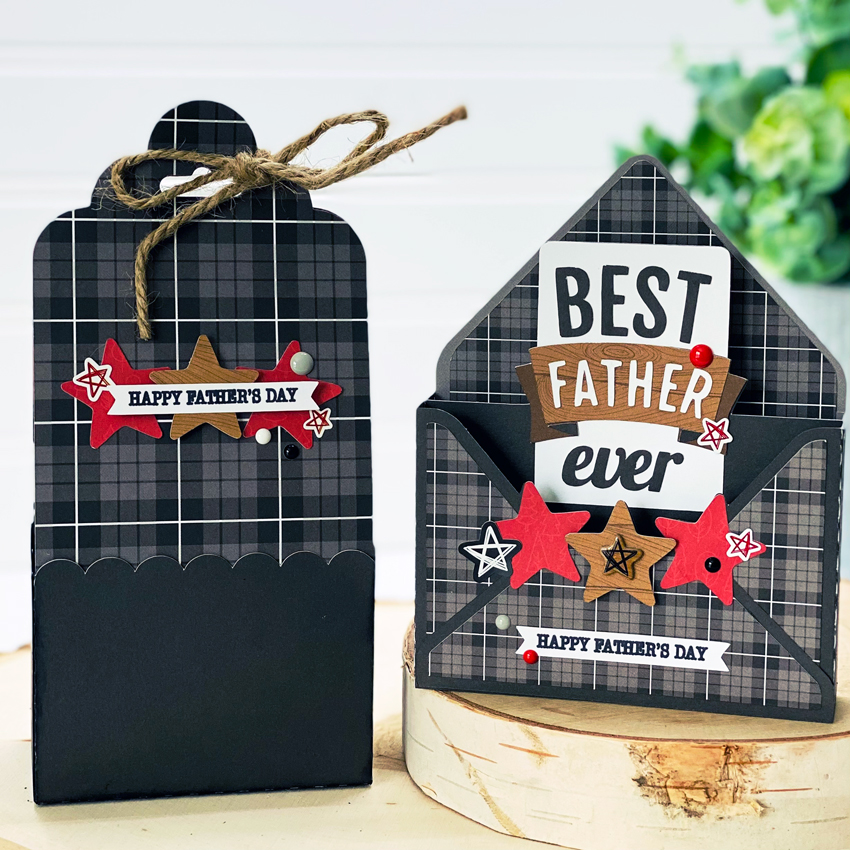
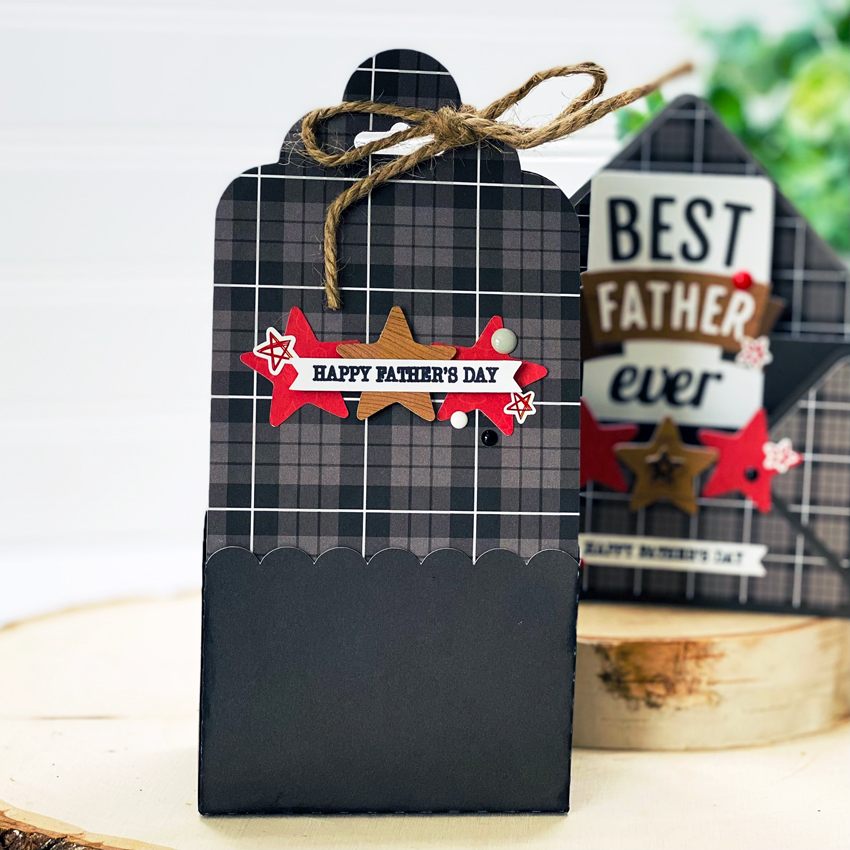
For my Father’s Day Gift set, I’ve used the Box Card Envelope Father’s Day (Lori’s SVG Shop, Silhouette) and Tag Wrap Gift Box (Lori’s SVG Shop, Silhouette). Instead of using the flower that came with the box file I decided I wanted to cut out some additional stars that came with the Father’s Day card file and make a small collage on the box so the two would match. I also used some fabulous papers and stickers from the Little Lumber Jack collection.

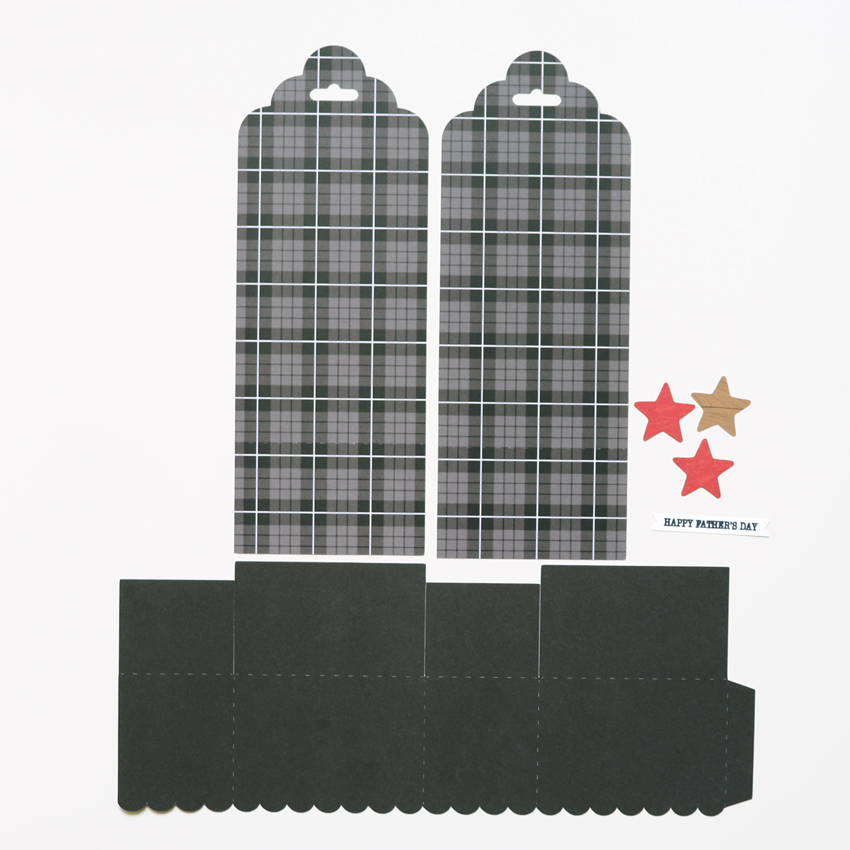
The assembly for the Tag Wrap Gift Box is very simple! I started off by cutting my papers and getting my adhesive ready. I wanted to point out that my box piece is upside down in the picture. So make sure when you are adhering the front and back piece to the box panel that the scallops are right side up.

Next thing to do is fold all of your cuts on the dotted lines. Then adhere the tag pieces to the box…scallop side up! Lol!

And then adhere the side tab and the bottom tabs as you would any normal box bottom. Now your box is ready for decorations.

When looking through my stash I found some rope twine that matches perfectly with the wood in the papers! And I added some enamel dots and star stickers to both pieces.

Now all I need to do is buy a gift for my hubby and I’m all set for Father’s Day! Hope this cute set gives you some ideas and inspiration for your Father’s Day gifts! Thanks for stopping by!
Aimee

Mickey Mouse 3D First Birthday Blocks Tutorial

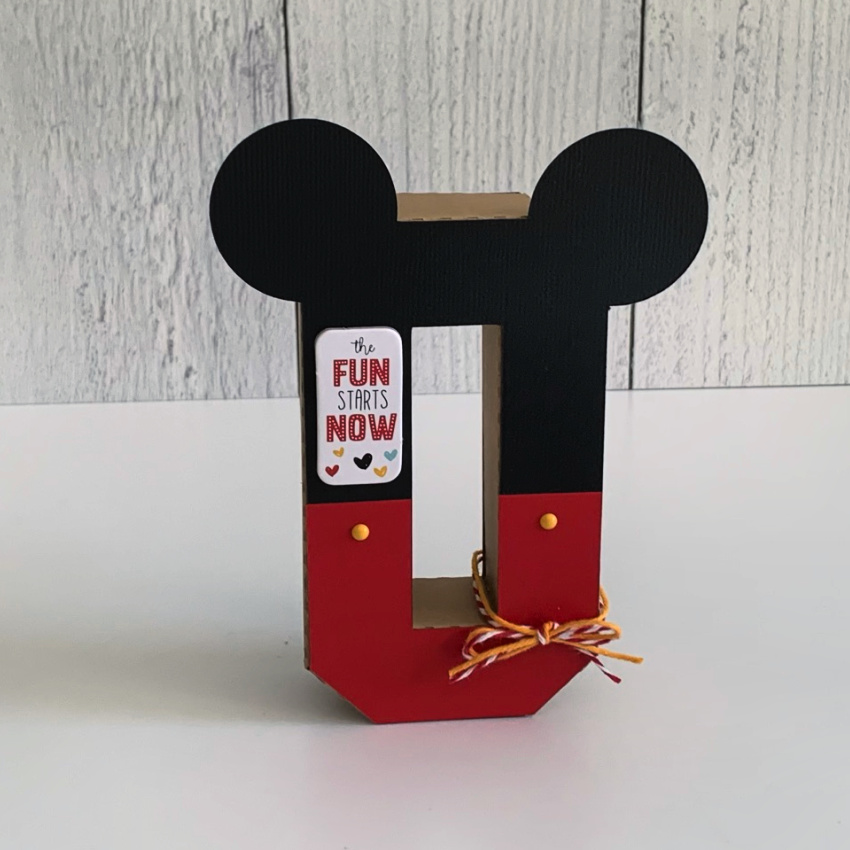
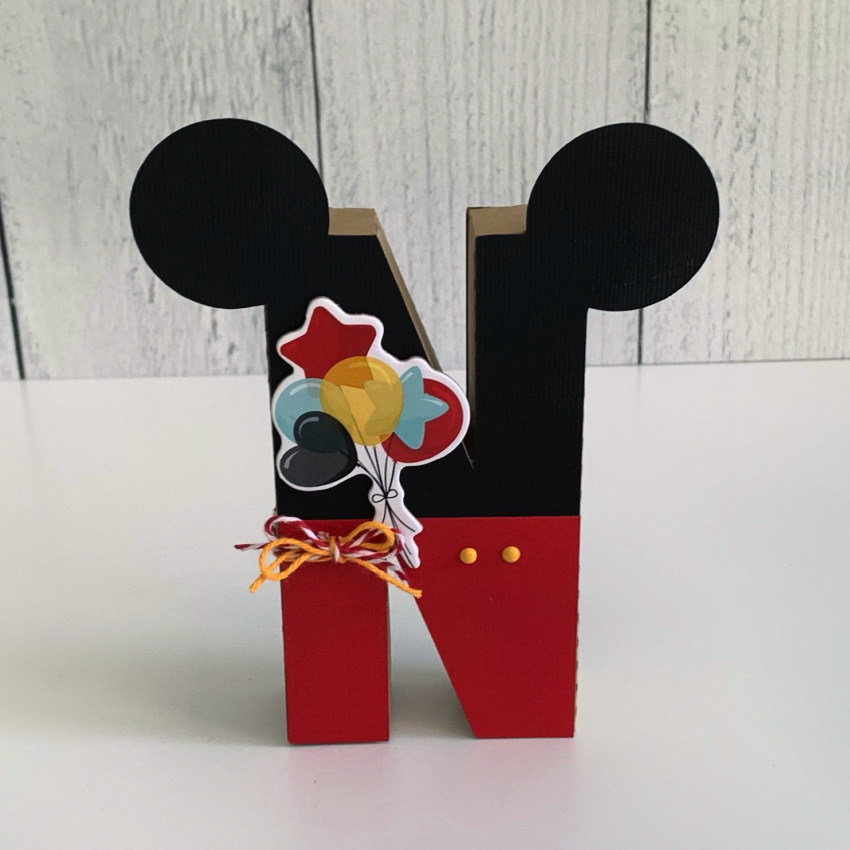
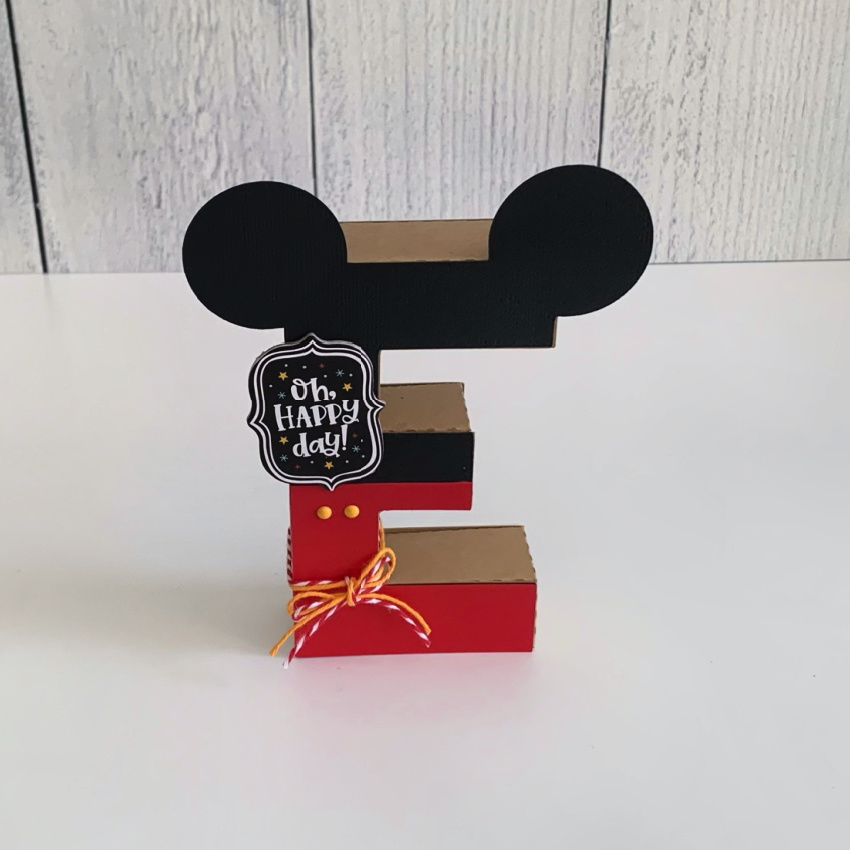
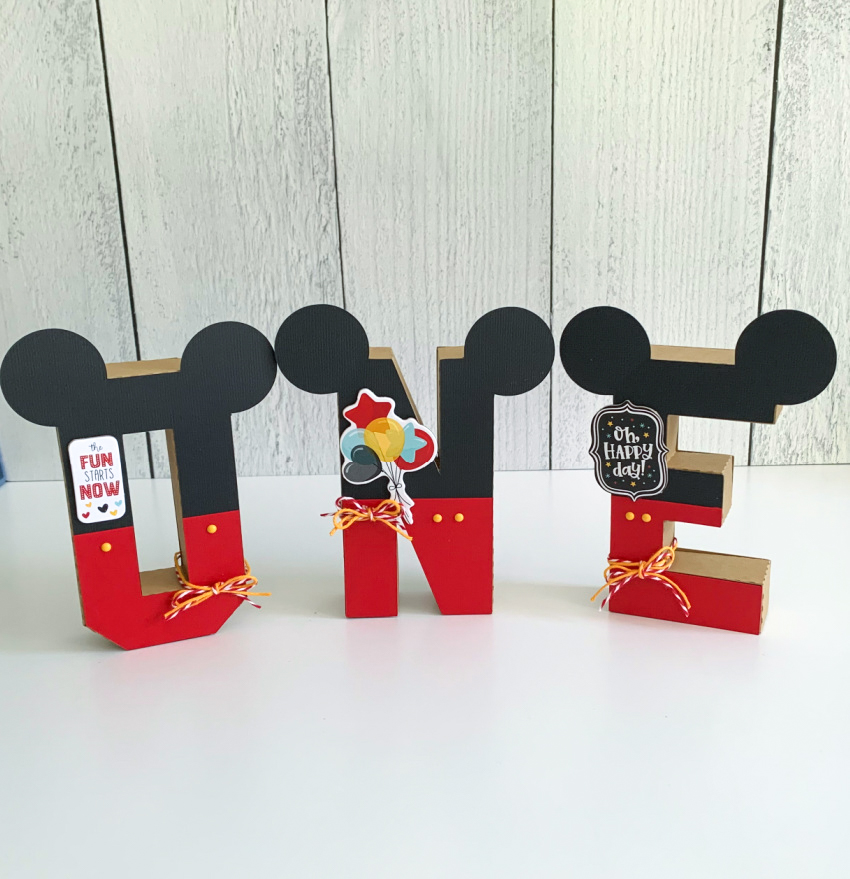
Anita here with a tutorial to show you how I made Mickey Mouse letters for my grandson’s first birthday party.  I used Lori’s awesome files for the 3D Letters, including the 3D Letter Alphabet O (SVG, Silhouette), the 3D Letter Alphabet N (SVG, Silhouette) and the 3D Letter Alphabet E (SVG, Silhouette).   Lori also has a wonderful tutorial on her YouTube page which you can watch here to assist with putting the letters together.

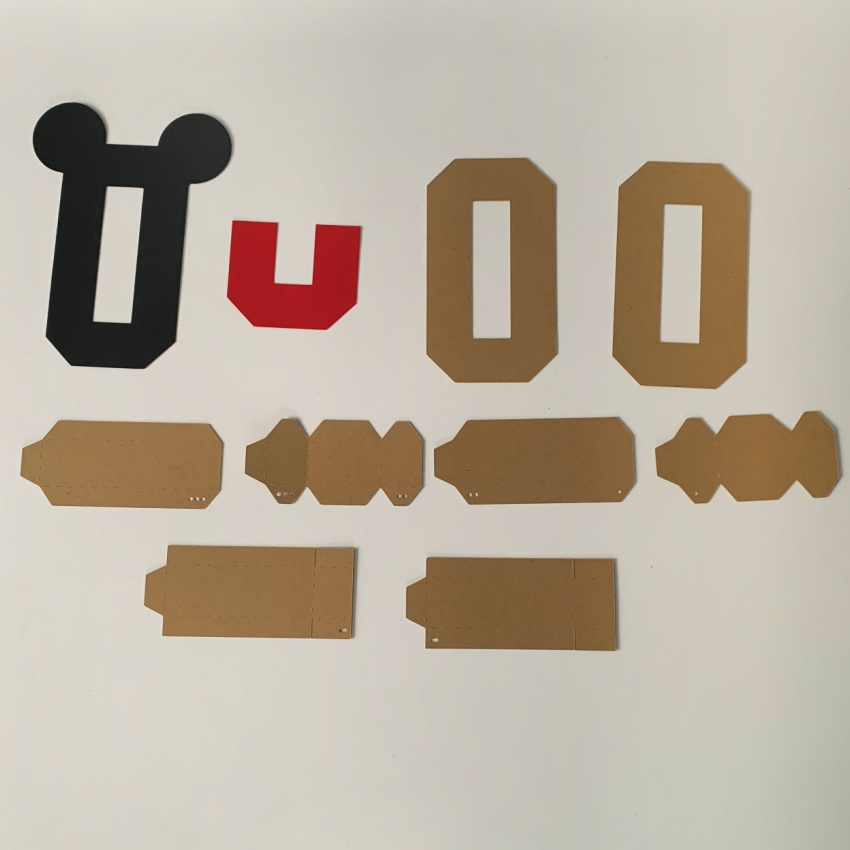
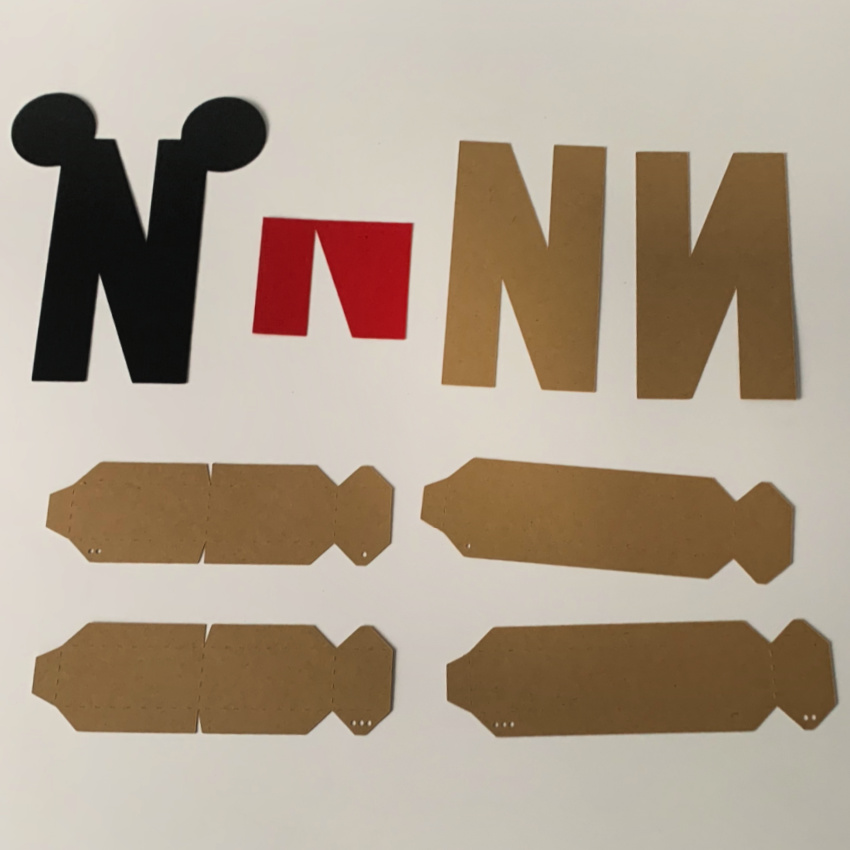
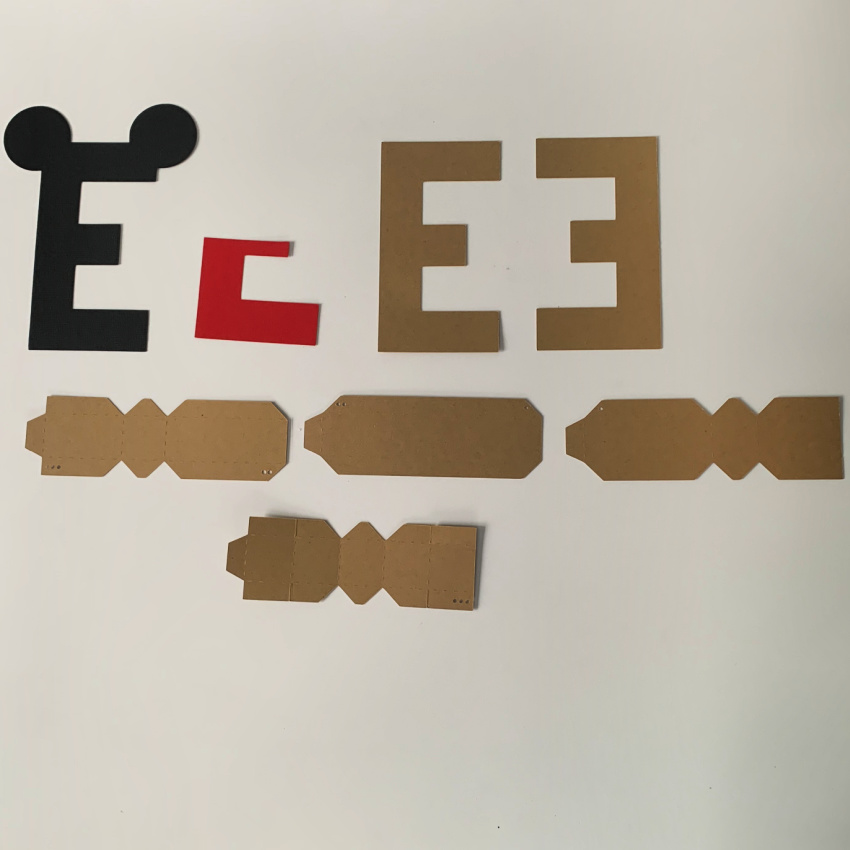
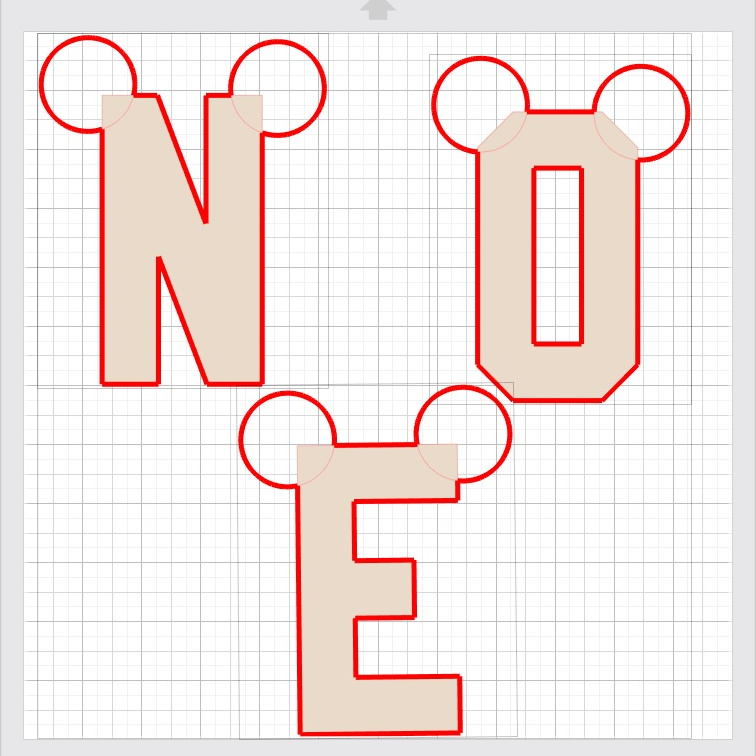
Here are all the pieces that I cut out to make my blocks.  I used kraft cardstock papers for assembling my letters.  I will describe what I did to create the Mickey ears at the top of the letter and cut an extra letter in the red, and cut it to fit near the bottom third of the letters.

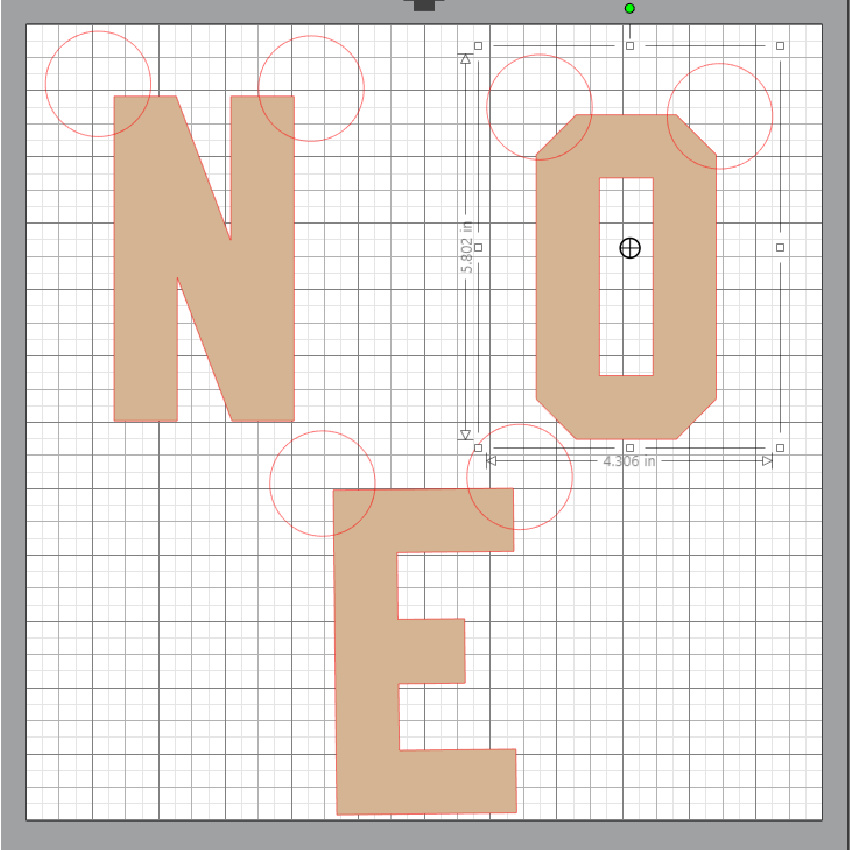
To create the ears, I used the shape tool in my Silhouette Studio software and created a small circles that were the size that I wanted for the ears.  I copy and pasted a copy of the larger front piece from the file as I didn’t want the layered look as shown in the original cut file.  Once I had all three of the letters on the mat I added two circles to each letter.  I then grouped each letter with the ears and arranged them on the mat so that they all fit.  I then sent the file to cut and selected each letter one at a time and then selected cut edge.  I sent it to my Silhouette and it came out perfect.

Thanks for looking and have a great day.

Hugs,

Anita