Box Card Flower Trunk Tutorial

Hello crafty friends! Today I am sharing an assembly tutorial for the Box Card Flower Trunk (SVG, Silhouette).  I used papers from the Day and Life collection by Echo Park Paper Co. I also cut a few extra flowers to add to my card to give it a fuller look.

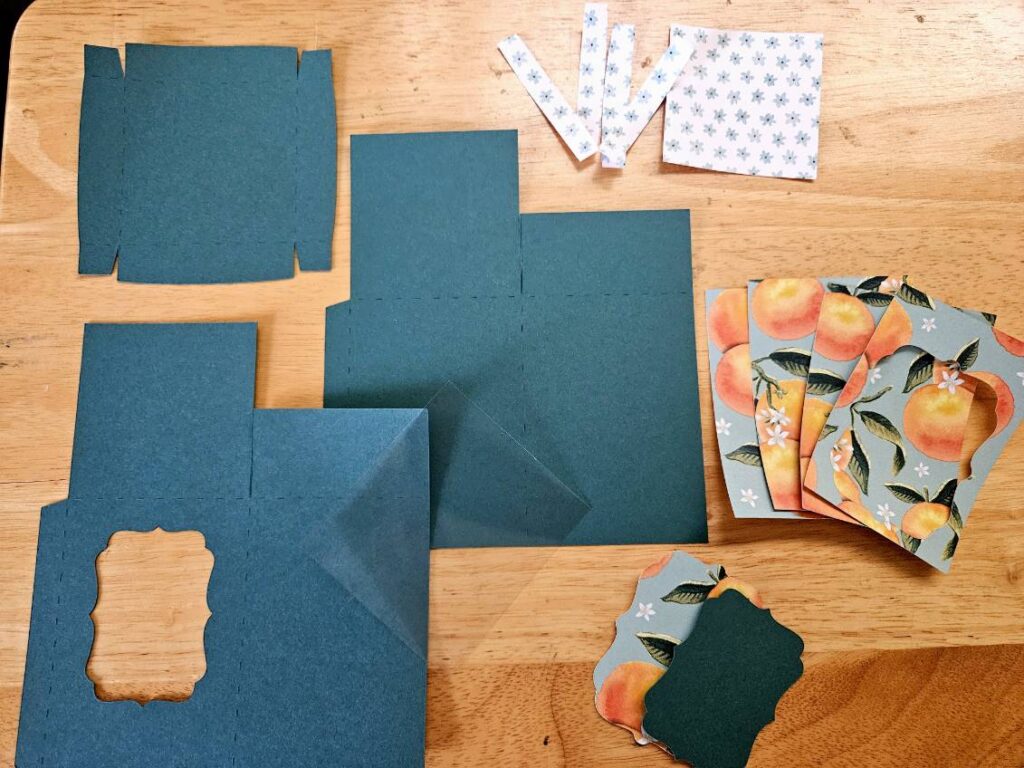
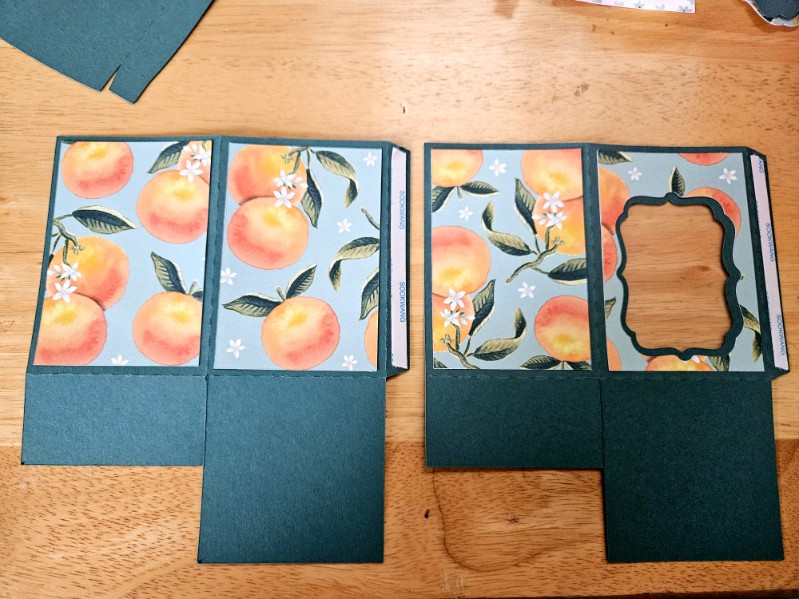
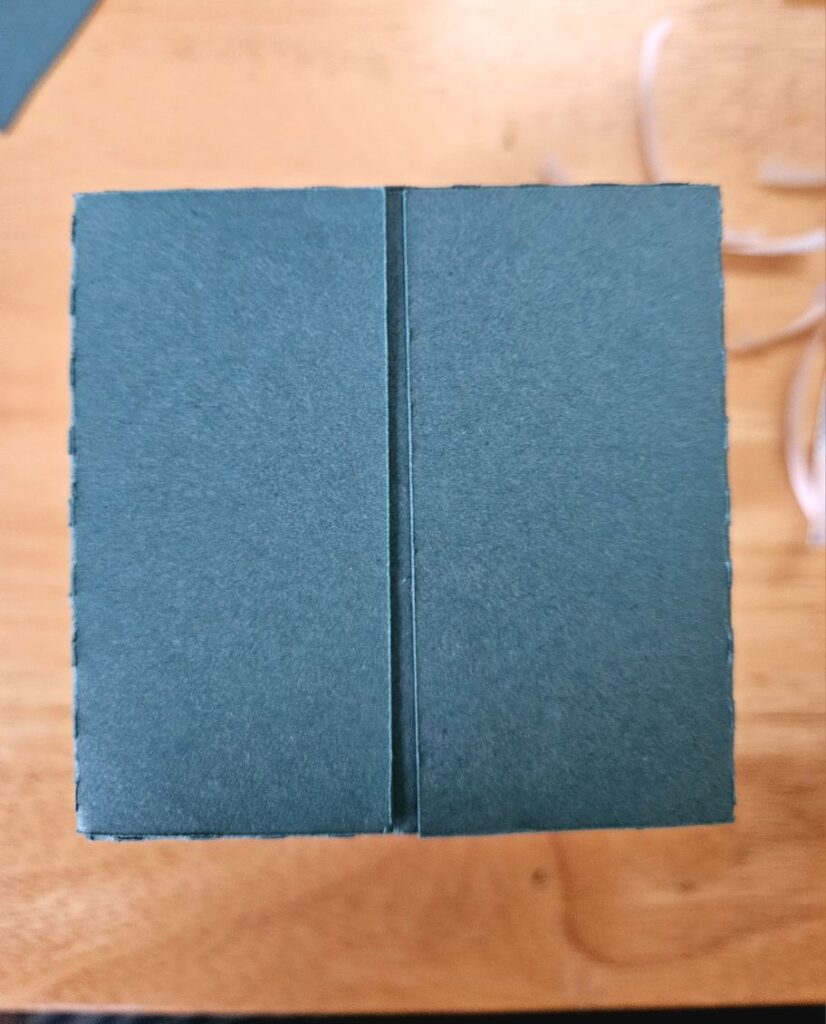
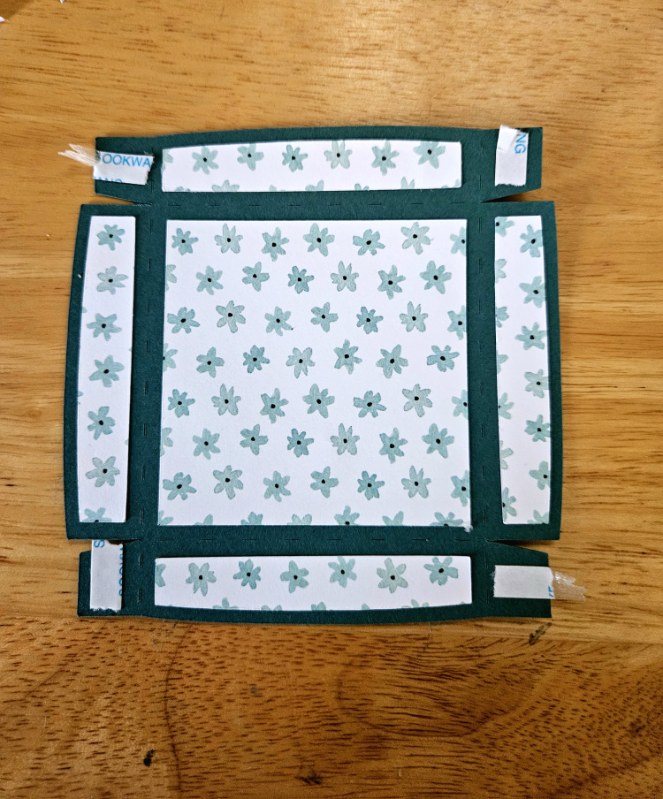
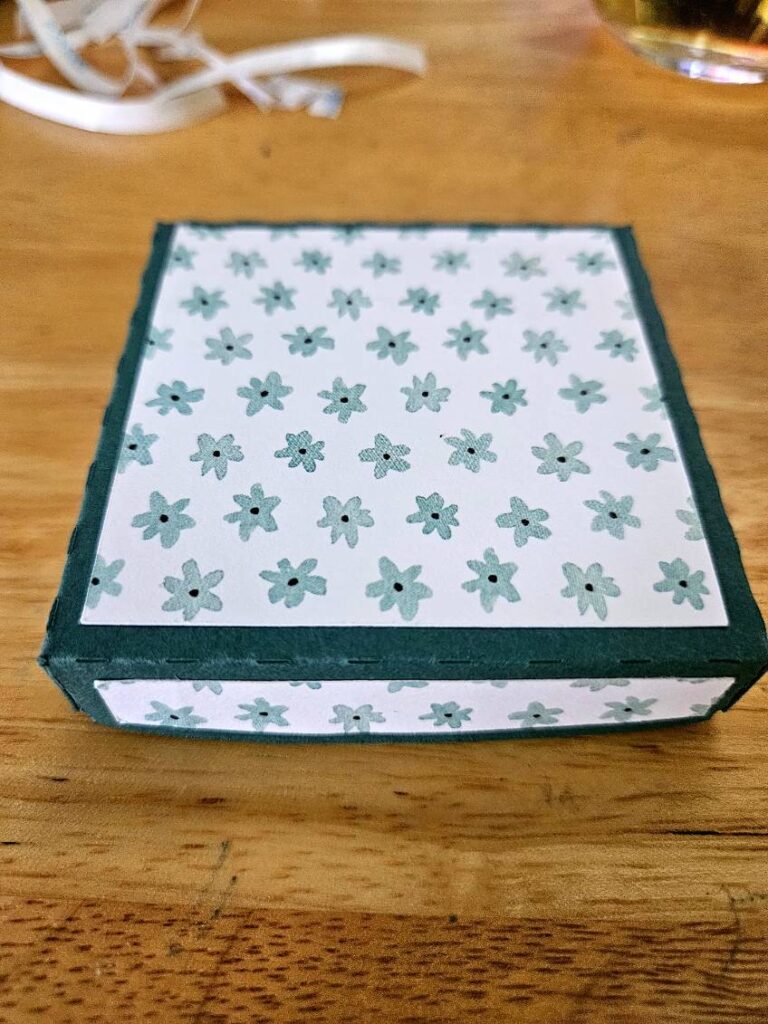
The body of the box card is in two parts that will be glued together. The tabs are all folded in a valley fold. First, I inked the edges of all of my pieces then glued the decorative panels to the outside of my trunk. I then assembled the flowers. All of the flowers have two layers. I then glued the flowers to the two inserts. Three of the flowers are on the front insert and two flowers on the back insert.

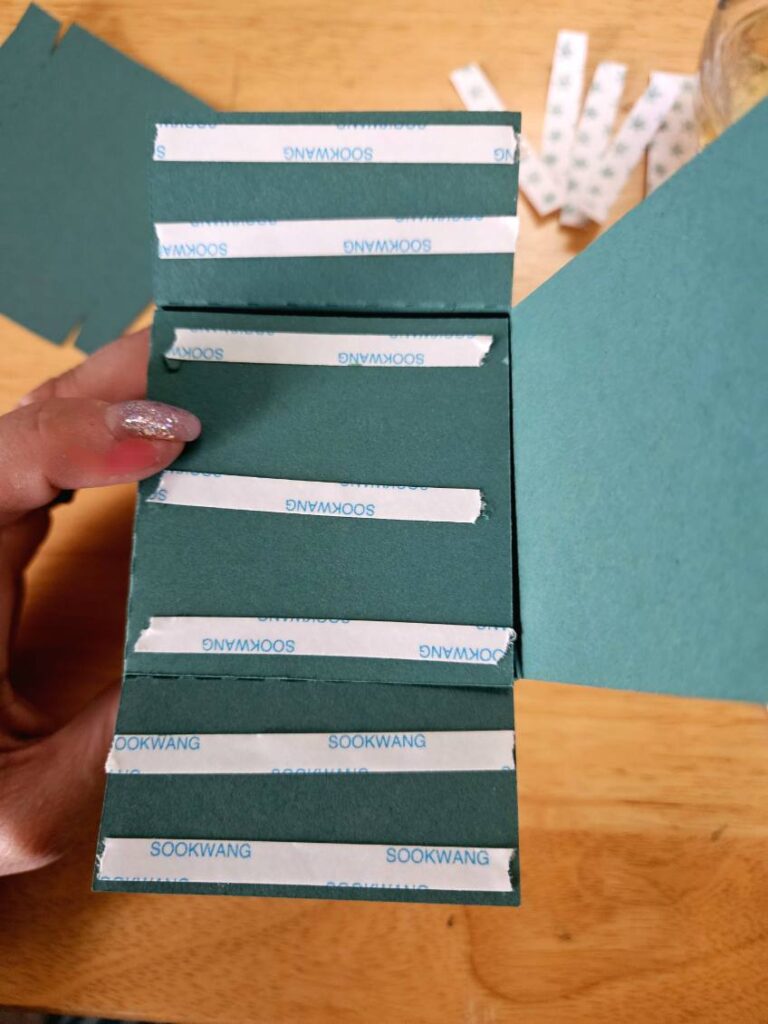
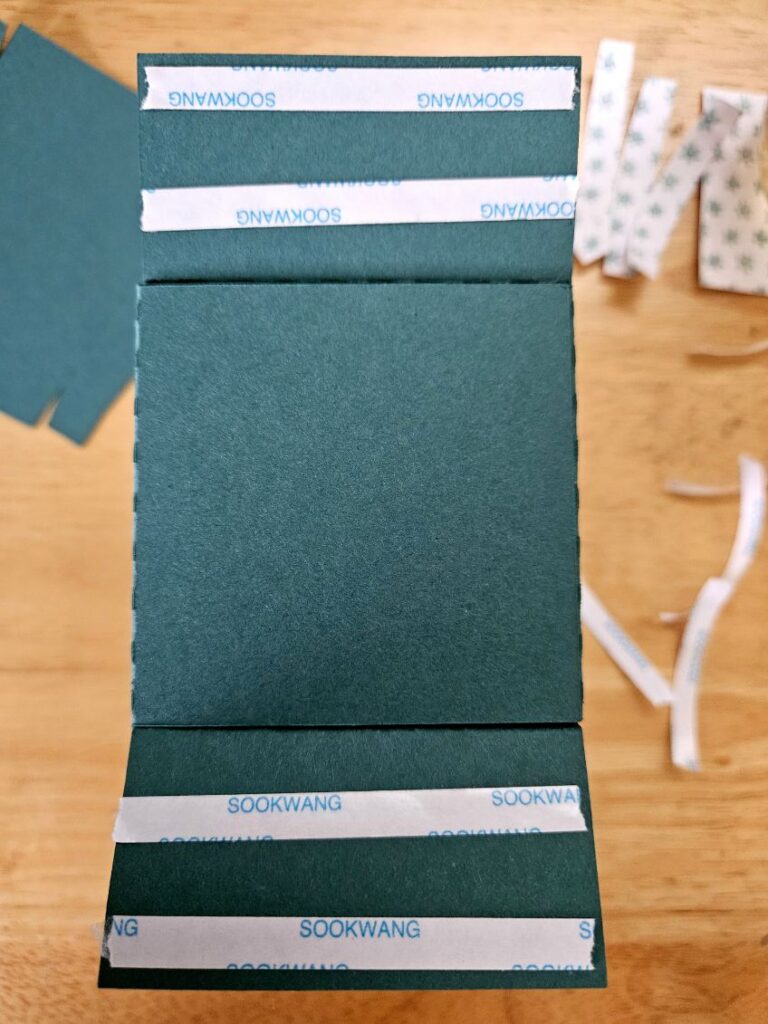
For the trunk I added glue to both tabs and made sure to line up the holes on both pieces so that the brads would be fit. I then glued the decorative corner pieces to the trunk and added the brads to all of the holes. Enamel dots would also be cute on the holes if you can’t find brads. After I had all the brads in place I glued the back decorative panel into the trunk.

Next, I folded the tabs on the inserts in a valley fold and added glue to the back of the tabs. Securing one tab at a time I lined up the edge of the tab with the top of the trunk and held it in place while the glue set. I was also careful to not glue the tab over the back of the brad. I repeat the process for the other side of the insert. With both tabs glued I fold the card flat to check that it will fold flat then repeat the process for the second insert.

With both inserts secure I glued the last flower and stem to the front of the trunk.  I then embellished my trunk with the additional flowers and two butterflies I fussy cut from the collection.

This card is so pretty and has several sentiments for the back of the card that are included in the file.

Thanks for stopping by today!
Brandie

Mother’s Day Stickers Tutorial

Welcome to Thursday Tutorial.  Lori has some lovely Mother’s Day Stickers in her shop (SVG, Silhouette). I’m going to share a couple of ways to use them or any stickers in the shop.  This tutorial is specific to Silhouette, but you can use the ideas on other platforms.

1. Open the Stickers in Silhouette Studio.


2. Go to the Send Screen. If the stickers look like the picture below, select all the stickers, and Click Cut Edge.

3. You can print the stickers just like this.  Be sure to select a high quality print setting, and choose photo or presentation paper for the paper.  I used Avery Sticker paper that can easily be found at Office Supply stores.  Silhouette sticker paper is great to use as well.

4. After printing the stickers, they are ready to cut.  For the Avery Sticker paper, you want to edit the default Sticker settings.  I decreased the Force to 6.

This cut setting will cut through the sticker, but not the backing.

5. Next idea, is to make a sticker sheet. I created a box that would fit in an A2 envelope (4.25 x 5.75).

Be sure to change the color of the rectangle to blue.  Then drag and drop stickers to the rectangle, re-sizing as needed.

6. Now let’s get ready to cut. Select the Line choice at the right in the Send page.


The red line will be the sticker cut settings; the blue line will be to cut the rectangle.  Scroll down to edit the settings as needed.

So some ideas to use these stickers and sheets.  You can print some stickers out either full size sheet, or the smaller sheet.  Give some cardstock and the stickers to kids to create a fun card.

Hope you enjoy.  You can do the same activity with the Father’s Day stickers (SVG, Silhouette).

Hope you enjoy creating!

Ashley

Easter Projects Tutorial

Hello there! 
 
My tutorial is very easy today but I wanted to show you the cute little candy baskets, bags and boxes I have been making for Easter. You still have plenty of time to make some of these fast and easy projects!
 
Basic directions on these projects is to cut your pieces and fold on the scored lines. Glue any little pieces to form faces etc and glue the project up joining at the flaps. These cut files are simple so you can make all of these, or pick one and make multiples. They are perfect to hold a bit of candy. The chick bag and the white Easter bunny basket with it’s fun little hair bow are also a good size to hold a gift card.


*****
 Treat Bag Easter Chick (SVGSilhouette)
The chick on this bag is adorable. Lori also made a bunny bag too . With so few pieces this is a  quick one to finish. Glue the black piece behind the chick head and add the rosy cheeks and the beak. I added some shading with distress inks before I put the pieces on. This bag would easily hold a nice size candy bar and is the largest of all the projects. Stands 5.5 inches tall.
*****
Easter Basket with Carrots (SVGSilhouette)
 
Fold this one up, add glue to all side tabs and fold up to form the box. Burnish the glued tabs a bit so that they all stick well. Add your little carrot design on the front and tie up the top.
*****
Easter Bunny Petal Basket (SVG)
 
I made this guy with kraft paper. I creased all the score lines and glued the black piece on the inside where the face cut out is. I added the nose with dimensionals before closing the box by bringing up the two top loops and then slip the sides with the slits over the top. I  glued on the ears about a quarter of an inch from each edge. 
 

*****

3D Easter Carrot Box (SVGSilhouette)
 
Glue on the “greenery”(love the fun scallops) and then fold the carrot in half along the center score line and glue together with the side tab. All that’s left is to tie the top with some twine or ribbon. This project is just over 8 inches long including the carrot top greens.

*****

Easter Bunny Tote (SVGSilhouette)
 
For this file- glue the black piece on the back of the piece with the face so the eyes and whiskers show through. 

Glue the other white piece with the ears  to the back of the face section so it covers the black piece for a finished look. Glue the sections together then fold in half and glue together with the tab. Glue the bottom flaps One thing about Lori’s files- when you fold a file in half (like boxes ,bags, 3D cards) the two sections match perfectly. I love this-no struggle to force a file to fit together. Glue the bottom flaps.

 I added the handle on with two brads but you could easily just glue them on.
I hope you enjoyed these little projects-it’s just so hard to pick from all Lori’s fun Easter creations!

Summer Layout Tutorial

Hello! We got the dreamiest paper in the mail last week and I couldn’t wait to create with it.  Echo Park’s Have A Great Summer designed by Lori Whitlock has all the best colors and papers. It made me think of how fun this layout would be with these papers.

First I decided on papers and made my cuts. (*If you are making this on cricut, check your sizes, my scallop page cut 7×7 so I had to adjust.)

I went ahead and inked all my little pieces

And then I added letters to the banner pieces.

One thing I’ve learned over the years is it’s never a bad things to flip the paper over. I had originally thought I wanted to use the pink side of the solid paper, but it just wasn’t as summery so I flipped it and used the yellow. I love that I did. So bright and fun.

I added my photo and took a few liberties with positioning the other elements. I made sure my sun was over my clouds so it wouldn’t blend into the background and popped the photo corner up on the outside of the photo.

My banner I wanted on a string so I added my bakers twine and then popped the banners up over top of the bakers twine.

Finished off the layout with some chipboard and stickers from the Have A Great Summer line and a few enamel dots.

Thanks for stopping by and Happy Crafting!

Chelsea

Easter Banner Tutorial

Hello crafty friends. Today I want to share with you how I made this cute Easter banner using 6 Lori Whitlocks Files:
Layered Bunting 2 (SilhouetteSVG)
Easter Purse Topper (SilhouetteSVG)
Easter Sheep Car Box Card (SilhouetteSVG)
Easter Bunny Car Box Card (SilhouetteSVG)
5×7 Easter Bunny Card (SilhouetteSVG)
Easter Basket Chick Box Card (SilhouetteSVG)
I wanted my banner to have a pastel rustic feel. I chose some Doodlebug kraft gingham cardstock for my bunting base. Then some coordinating coloured papers to match.
To start my project I opened all the files in Silhouette that I wanted to use.  I deleted the parts I didn’t need then I copied them onto one page with the bunting.  You will see I have used the similar bunnies from the 5×7 Easter Bunny Card & Easter Bunny Car box card. I did this because the carrots in the box card are whole carrots once you ungroup everything. Also she has more of a body. I omitted her bow & used the floral head piece from the 5×7 card. You can just use the Bunny from the Easter Bunny Car box Card if you wish. I also took the extra step of using the egg from the topper to give the bunny a belly like the one in the 5×7 card. To do this I used the same step below by sizing it onto the bunny.
When you open the Bunting file it will have 3 bunting shapes across the page. I right clicked over all 3 & enlarged by dragging the corner just enough so that all 3 bunting pieces fit across my page. I then coppied all 3 & pasted another row. You can make yours bigger or smaller however you please. I did mine this way as it will give me the most bunting pieces, (6 in total per page), without too much scrap. I cut 9 bunting panels in total. Next I sized my images one by one. To do this I copied a bunting panel to the side of my page. I then placed my image piece inside & enlarged or reduced the size making sure it fit inside. Make sure you place the little panel across the top of the bunting as well as I did in my image below.  Do this step for all your pieces.
Now once you have all the sizes correctly cut out all your pieces & glue together all your image pieces.
Then just place everything onto the panels to see what order you want everything to sit. Once you are happy with it, it helps to take a photo so that you remember where to glue everything.
Now glue the panels onto the bunting base. You will notice that the body on the bunny is a little long. Before I stuck down the bunny I placed her onto the bunting with washi tape, then I turned the bunting over & traced the edge with pencil along the back of the bunny. I then cut along the pencil trace & proceeded to stick the bunny onto the front of the bunting.
 
I used foam squares to stick down my image pieces. This gives them a raised look.
Once you have all the bunting pieces ready the last step is to thread some twine & pastel pom poms through to finish the banner.
You can use as little or as many files as you wish. The possibilities are endless. I just love Lori’s files & couldn’t resist the temptation.
I hope I have given you some inspiration today to create an easter bunting banner!
For more inspiration, check out my Instagram!
Thanks for stopping by!
Hugs
Noelene 🙂