Silhouette Tutorial with Brigit: Chalkboard Tutorial

Hi everyone, I made some chalkboard Christmas tags recently and love the technique so much I thought I’d make a chalkboard tutorial using one of Lori’s vinyl phrases and a Christmas card.
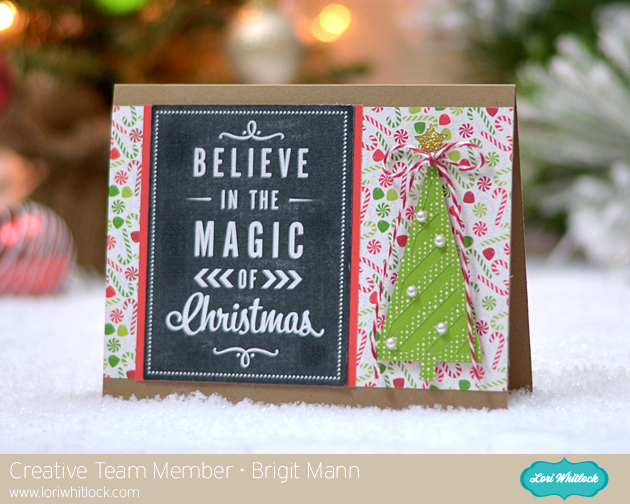


I used Lori’s Merry Christmas with Tree card and the Believe in the Magic of Christmas Vinyl.  These phrases for vinyl are just perfect for this chalkboard technique, it’s a quick and simple project.


First add your card and phrase to your mat.
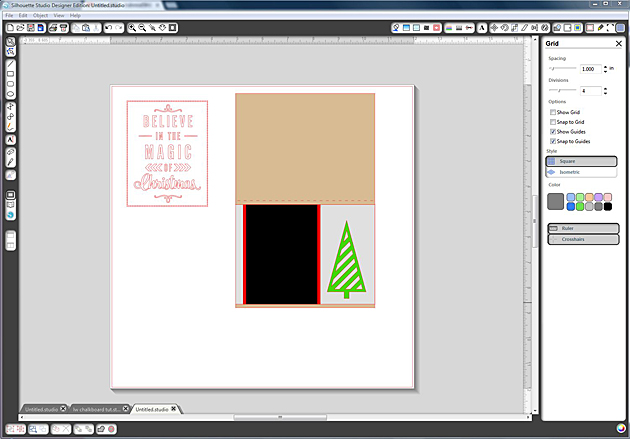


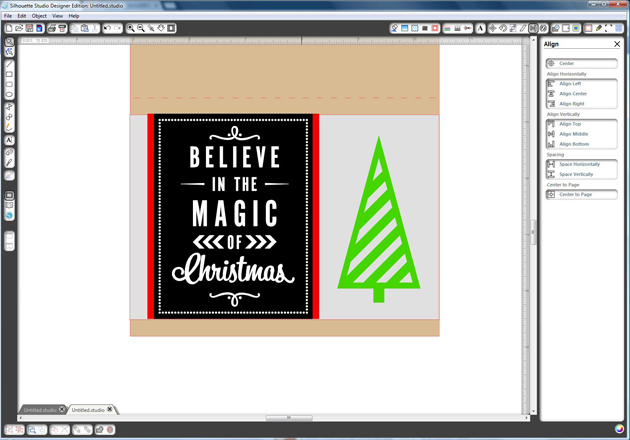
I ungrouped the card and assembled how the card would look.

I disregarded the banners and made the tree a little bigger, you could keep the banners but I wanted the chalkboard text to really be the focal point.


Line up the gray, red and black layers so they are aligned together at the top.

Resize the vinyl text and place it over the black layer.

It’s short so I selected the gray, red and black layers and resized them so the text would have the same black border going around.


You can see in this photo how the vinyl is pretty even against the black layer now.


This next part I had seen someone from Silhouette do in a video.

I really like how it adds a shadow to the text.

Make a copy of the vinyl, select the background one and go to the advanced under the Fill Color Window.

Slide the transparency, I used around  42%.


Center both vinyl pieces and the black layer all together.

Select only the top vinyl layer and move it with your arrow key down three and over to the left three.

Or you can go up and over to the right, whatever your preference is.

There’s your shadow, now group your two vinyl layers and black pieces together.


Move the rest of the card off the mat.

Select the grouped text, go to the Cut Style Window and select Cut Edge.

It should look like the picture above, you only want it to cut around the black.


Now your ready to print n cut.

Under the Registration Mark window check Show Reg Marks.

Under Paper Tools Window select your paper size, I customized mine to save paper.


Take a piece of chalk and go over the whole piece.

Or you can leave more black if you’d like and not as much chalk.

Take a paper towel and removed the excess chalk.

You can keep adding and removing until you get it how you like.

Last I inked the edges with some black ink.


Well I hope you get a chance to use this tutorial to create some chalkboard projects, it really is a lot of fun!


Thanks for stopping by you can visit me at http://www.brigitsscraps.com

Silhouette Class at Jessica Sprague

Did you know Lori has an all new class on using your Silhouette machine? If you have ever wanted to learn more about this amazing machine this is a great class to walk you through all the tools of the basic software while making this adorable project. In this class you will receive many custom shapes only available through this class + a Lori Whitlock font. You provide your own paper and time to cut it and this cute mini album can showcase your favorite photos. This is a self paced class available here at Jessica Sprague. Normal price is $35 but until the end of the month you can pick it up for $26.25.

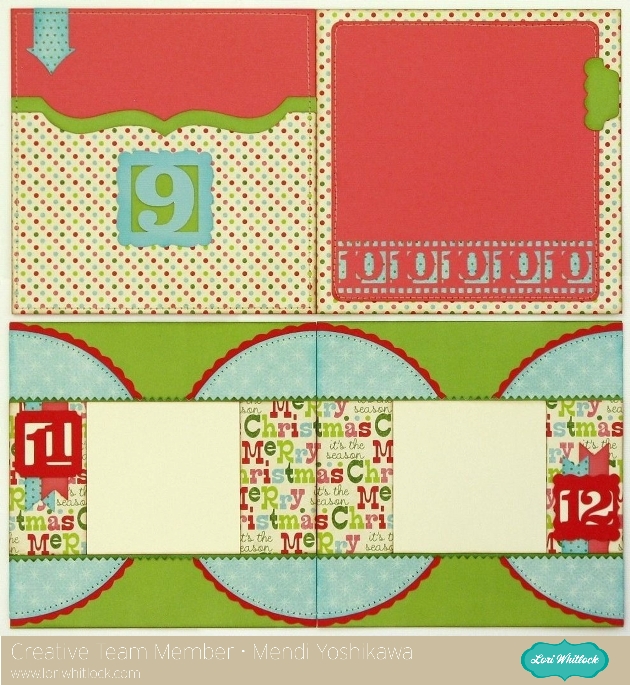
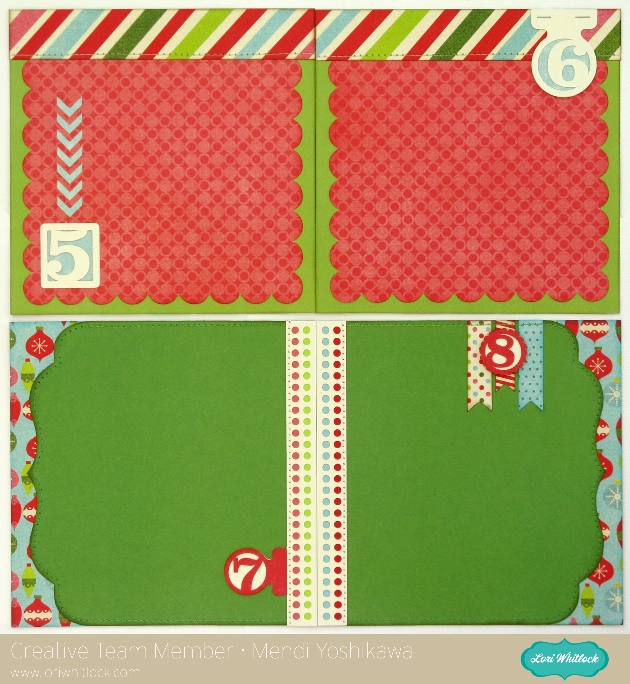
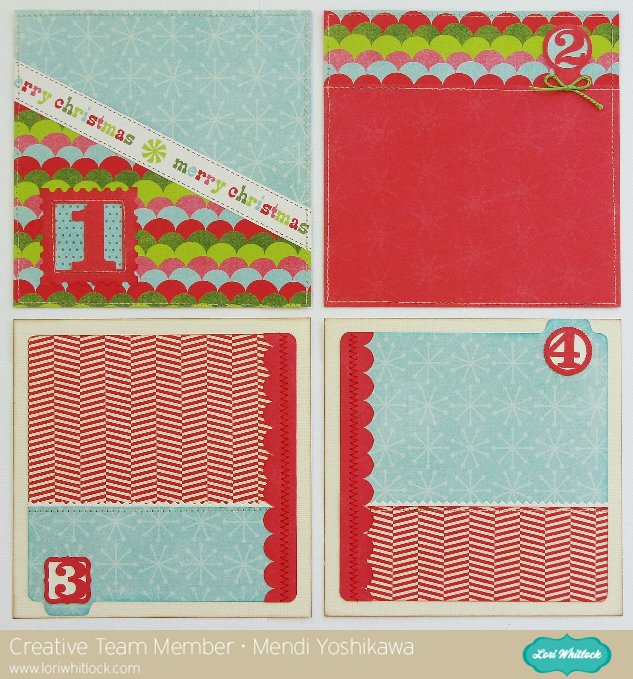
Our talented Creative Team used these files to create books of their own. Mendi adjusted the size of her album and check out a few of her adorable layouts.


Tuesday Freebie + New in SVG shop

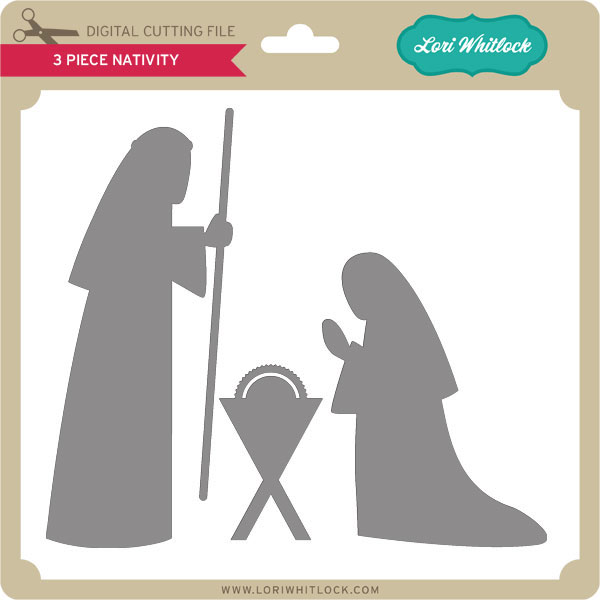
TODAY ONLY, this 3 PIECE NATIVITY SVG file is FREE with purchase.

With your $5.00 purchase this $1.99 file will be yours free. Just enter coupon code NATIVITY at checkout and the price will be deducted from your purchase. This freebie is good until midnight tonight!

We have many requests for the PDF file for hand cutting, class room projects etc, now many of new shapes will also include a line art PDF as well. Check the description on each shape before making your purchase, if you desire the PDF on an older shape that does not include a PDF let us know. Remember ALL new shapes are on sale for 25% off until Monday of next week.

Only a purchase in Lori’s SVG shop will qualify for the free cutting file.

Check out the new files in the shop this week. They will be on sale at 25% off through Sunday.

Christmas Packaging with Natalie

As it gets closer to Christmas, we get closer to thinking more about how we are going to wrap the gifts we are giving rather than what we are shopping for.  When I saw these boxes in Lori’s shop I knew that it would be the perfect holders for a gift we are giving some of my family.  It’s a three part gift, so the three boxes were the ideal solution to wrap up this gift. Most of the things going inside are small like gift cards and treats, so these worked out great.


I used the 3 Stacking Christmas Boxes found in Lori’s shop here. I cut them out with various Christmas paper and card stock.  After assembling I tied them with some bakers string added some ribbon and tags and they are ready to go.
Hope you all have a wonderful Christmas and holiday season!

Silhouette Tutorial Matching Colors with Traci

Hey Lori friends!
It’s Traci here with a tutorial for matching your Silhouette print & cuts to your favorite card stock.  Have you ever created a print & cut, only to find that after you printed it, it really didn’t match the paper or card stock you were using?  Maybe the greens were too blue, or the yellows were too orange?  Well, there are a few ways to solve this problem, and today we are going to focus on matching your card stock.
Before we get started, I will add one disclaimer…much of this technique depends on the quality and level of the ink in your printer.  If you are low on ink, the colors may not be as true as you might want them to be.  But I encourage you to try it and see how it works for you!
I use many brands of card stock in my projects, but for the purposes of this tutorial, I am going to use Bazzill.  The reason for this is because in order to use the Silhouette software to match your colors, you need to know the RGB code for each color.  Bazzill provides a few different ways for you to look up a color’s RBG code.  They have a paid app in the iTunes store that I use.  You can use the app to search a card stock name and find the RGB code.  Another way is to purchase Bazzill swatch books — these have the RGB code listed right on the swatch.  I am in no way affiliated with the Bazzill company, and I am sure there are ways to find out the RGB codes for other brands as well.
So let’s get started:
First, pull up the shape you want to use in the software and resize it if needed.
I’m making a card, so I resized this cute subway art to fit the front of my card. (I later made it a bit smaller).
To resize, click on the Scale menu to specify dimensions.
Next, right-click on the shape to “ungroup” the pieces if you want them to be different colors.
Go to the Fill Color menu (little paint bucket icon) and find the “advanced options” at the bottom of that screen.
Next, highlight one piece of the shape that you want to color, and then input the RGB code for your card stock in the boxes on the advanced screen.
Hit enter, and your card stock color will pop into your shape.
Repeat the step above by entering the RGB codes for each piece of the shape.
My RBG codes included values for Bazzill Garnet, Parakeet, Hillary, and Black card stocks.
Next print the shape.  I am not cutting this shape out with my silhouette so I just sent the image to my printer.
If you have a shape to cut out after printing, be sure to follow the guidelines for a traditional print and cut.
I also repeated the steps above to change the colors on this adorable “Jolly” label.  Just be sure to
ungroup all of the individual pieces of the shape to change each color.
And here is my final card and ornament box.  Although hard to tell online, the colors match very well, especially
the greens 🙂  Have fun trying this on your next print & cut!
Lori Whitlock Shapes: