Hi Everyone, It’s Kathy today with a fun tutorial showing how to use the Silhouette Pop Up Creator which is available in Silhouette Design Studio starting with version 4.1. This is such a fun way to use all the shapes in your Silhouette Library! I made this sweet kitty Valentine card using the cat from Lori’s Bobble Head Card Cat (SVG, Silhouette) and the Pop Up Creator.

To start, you want to select your shape. Then trace your shape using the trace tool in Silhouette. You also want to create two card base pieces, my first piece (pink) is 8.5″ h x 5.5″ w. The second piece is slightly smaller at 8.375″ x 5.375″. I added a dashed score line to the larger piece using the line creator and centered it so the card would fold in half. I added a solid line and centered it to the smaller piece. This line will be used as a guide and deleted later.

Next move everything off your mat, but the traced shape. Select the shape by clicking on it and then click on the Pop Up Panel button on the right hand side.
Click on the Convert Selected Shapes in the Pop Up Menu. This will add lines to your shape.

The Pop Up Creator creates a number of “support struts” that will make your shape pop out. For cutting simplicity, it’s easier to have fewer of these struts. By increasing the number in the Minimum Strut Width, the number of struts will decrease. I kept enlarging my number until I had 3 struts. This is a good number for support and will take less time to cut.

Next you want to adjust the base width. This is the size of the connection that will connect the bottom of your shape to the base. I increased the number in the base width until the supports were just slightly narrower than the feet of my cat.

One final adjustment to the shape… You will want to increase the length of the score lines by increasing the Dash Pitch Number. This will make for easier, shorter cutting time.

Now you want to add the pop up shape to your smaller card base. Add the smaller base to your mat. Move the Pop up shape so that the bottom most score lines align with the temporary center guide line you created. Next, select both the card base and the pop up shape and align them so that they are centered using the Transform button. Make sure the bottom score line is still aligned flush with the temporary guide line.

Delete your temporary guide line, and extend the score line on the bottom of the pop up shape by clicking on the red dot and dragging almost to the edge. Repeat for the other side.

You can adjust how deeply the shape pops out by clicking on the dot on the center of the shape and dragging down to make it stick out more, or up for less. Make sure that the height of the pop up shape is not higher than the height of your card when closed or it will stick out of the top.

Once you’re happy with the placement, select both the pop up shape and the base, right mouse click and select group.

One more optional step. If you look at the card I created you’ll notice I cut patterned paper to cover the inside of my card which molds itself around the pop out shape. This is actually pretty easy to do. Start by creating a copy of your card base. Select the copy (only) by clicking on it then right mouse click and select make compound path.

Click on the resulting shape to select and then click on the Offset Panel button on the right menu.
Click on the Internal Offset Button, then change the Distance number to be 0.8. This creates the panel shapes inside the card base.

Drag the inside shapes out to separate and delete the remaining shapes. I colored them blue in this picture so you can see them.

One final thing before cutting, when you send the pop up piece to cut, you’ll notice the top of the shape’s lines are grayed out…. this is correct, those lines are not meant to be cut.

Once you’ve cut all your pieces, they are easy to assemble..

Cut all the pieces and assemble the shape piece if needed. Add the decorative panels you cut to the inside of the card. The second picture (B.) shows how to fold the pop out piece. Add the shape over the pop out design piece, and then glue the pop up base into the slightly larger base, making sure that you do NOT add any adhesive under the pop out pieces.
All that’s left is to embellish! I created a print and cut sentiment using Lori’s Abby Font (SVG, Silhouette) and added a bow sticker and enamel hearts. I also decorated the front of the card as well. The papers are from Lori’s Easter Wishes and Spring Fling collections by Echo Park Paper.


That’s it for me today, thanks for stopping by to peek!
 BLOG * INSTAGRAM


 In addition, don’t forget about this special ! You can get this Free Kit of the Month with any $20 purchase (Purchase must be in one transaction.) Simply add the 2019 February Kit of the Month to your shopping cart along with ANY $20.00+ purchase from the SVG Shop and this file is yours FREE. Be sure to use Coupon Code: FEB19KOTM (case sensitive) at checkout. This offer is good through February 28, 2019!
Your cart must reach at least $27.95 before the coupon will be applied and then $7.95 will be subtracted from your total at checkout. The files will be available for immediate download after you pay for your order by visiting MY ACCOUNT>COMPLETED ORDERS>ORDER DETAILS inside of your account. Only one discount code per order allowed.)
In addition, don’t forget about this special ! You can get this Free Kit of the Month with any $20 purchase (Purchase must be in one transaction.) Simply add the 2019 February Kit of the Month to your shopping cart along with ANY $20.00+ purchase from the SVG Shop and this file is yours FREE. Be sure to use Coupon Code: FEB19KOTM (case sensitive) at checkout. This offer is good through February 28, 2019!
Your cart must reach at least $27.95 before the coupon will be applied and then $7.95 will be subtracted from your total at checkout. The files will be available for immediate download after you pay for your order by visiting MY ACCOUNT>COMPLETED ORDERS>ORDER DETAILS inside of your account. Only one discount code per order allowed.)
 Check out the new SVG files releasing this week!
Just like always, the NEW SVG files will be ON SALE 25% OFF through the weekend in the SVG Shop! These downloads include SVG files that may be used with Cricut Explore, Silhouette (DE upgrade required), Eclips, Brother Scan and Cut, and any other software that will open SVG files. No coupon code necessary, the newly released files are all discounted in the shop! Be sure to go get them while they are on SALE this week.
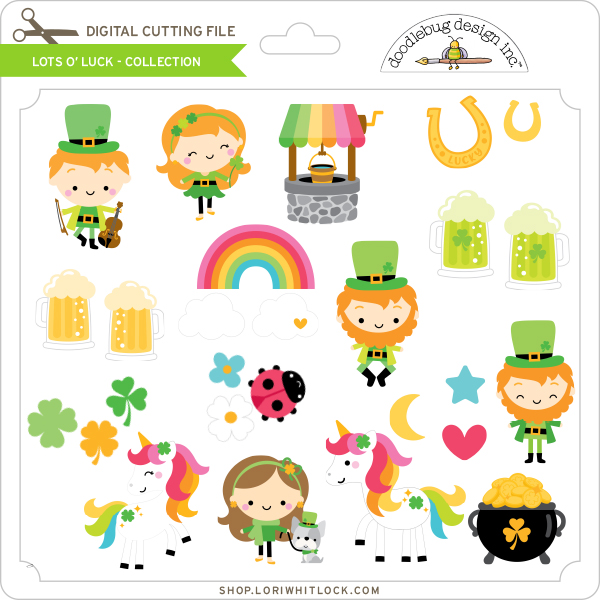
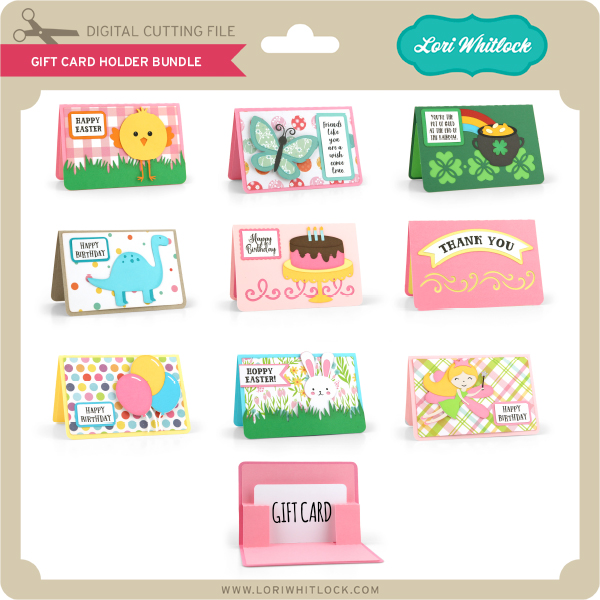
This week we have the Lots O’Luck Collection from Doodlebug Design ! I also have a bundle of Gift Card Holders and we have files from Pebbles in My Pocket and Dresden Carrie!
Check out the new SVG files releasing this week!
Just like always, the NEW SVG files will be ON SALE 25% OFF through the weekend in the SVG Shop! These downloads include SVG files that may be used with Cricut Explore, Silhouette (DE upgrade required), Eclips, Brother Scan and Cut, and any other software that will open SVG files. No coupon code necessary, the newly released files are all discounted in the shop! Be sure to go get them while they are on SALE this week.
This week we have the Lots O’Luck Collection from Doodlebug Design ! I also have a bundle of Gift Card Holders and we have files from Pebbles in My Pocket and Dresden Carrie!