Camera Lovers Birthday Set

Hi Everyone:

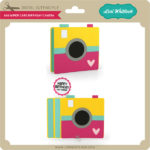
Anita here with a really fun birthday card and camera gift box set for the photography lovers in your life.  My nephew takes amazing photos and I made this set for his birthday.   I used Lori’s A2 Shaped Box Card Camera which you can find the file for here in her SVG shop and here in the Silhouette store.  I used her SVG file called Camera Shaped Box and you can find that file here in Lori’s SVG shop and here in the Silhouette store.  Lori also has a wonderful tutorial for putting together the camera shaped box which was done by one of my fellow Creative Team members, Brandie Adams which you can find here.  I used a several of Lori’s wonderful Echo Park paper collections on these projects including I’d Rather be Crafting, Back to School and Easter Wishes.

That’s it for me today.

Hugs,

Anita

A Birthday Set Card and Gift Set

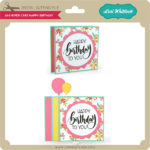
Hi everyone!  Cathy here with you today sharing a cute little Happy Birthday set with a quick card and a no glue gift box.  These are just perfect to brighten someone’s special day.  I love that the little box is no glue…super easy to put together.  The card is Lori’s Candle Shaped Card (Silhouette) or here in Lori’s SVG shop.  Super easy and quick to put together.  The no glue gift box you can find here in Silhouette or here at Lori’s SVG shop.  It’s just perfect for stashing a little something special for that Birthday girl.  You can find a great tutorial here in Lori’s SVG shop for assembling the box.

Thanks for joining us today!  Enjoy your day and stop by the shops to check out all the fun little no glue boxes that Lori has.

A New Friday $5 SVG Bundle

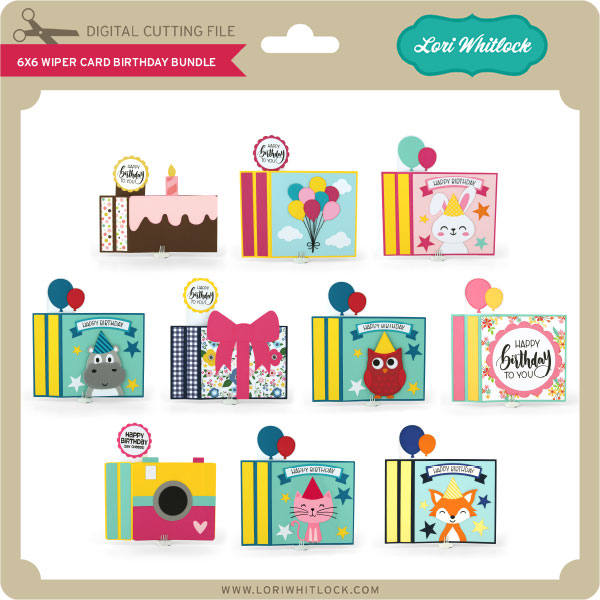
Hi Everyone! Today we have a new Friday $5 Bundle! It will ONLY be available until Midnight Sunday and when it’s gone it’s gone. These SVG files can be used with Cricut Explore, Silhouette Studio (with the Designer Edition upgrade), Scan N Cut, and any other cutter that will work with SVG files. Help spread the word by telling your friends and announcing it on social media!

Now through Sunday, you can pick up this Back to School Bundle including 5 fun SVG files for just $5!


The cost of this bundle is $5, for $9.95 worth of SVG files, over a 49% savings! Make it your resolution to never miss a birthday! But don’t wait, this bundle will only be around until Sunday at midnight!

Have a great day!

Tea Cup Box Card Cut File Assembly Tutorial

Have you seen all of the fun shaped box cards in the Lori Whitlock SVG & Silhouette Shops?  They look so pretty, and really are easy to assemble.  I fell in love with the new Teacup Box Card (SVG, Silhouette) and made a fall version using papers from Lori’s new My Favorite Fall Collection from Echo Park.  Shaped box cards are assembled in the same basic manner a Lori’s original box cards.  The difference is what makes up the “box”.

I started by cutting all of the pieces for this card…

Next, I glued the flower pieces to the inserts and the 3 solid decorative panels to the tea cup “box” base.  Do not glue the piece with slots onto the base at this point, the handle needs to be added before it is glued.

Next, assemble the handle.  Start by folding back the tabs at the ends of each handle and glue the two handle pieces together making sure not to glue the tabs.  Insert the tabs through the slots of the covering panel.  Flip the panel over, fold the tabs back and glue in place.  Then glue the panel to the card base.

Complete the card base by folding it into a “box” shape and gluing, tab inside.

The last part of the assembly is to add the inserts to the teacup “box.”  They are done in the same manner as the box cards in this video.  Fold the tabs back, and glue the number 2 insert into the cup.  The tabs should be flush with the top of the “cup” and touching the back wall of the cup.

Next add the number 1 insert in front of the number 2 insert..  The folded tabs should also be flush with the top of the cup.

It really makes such a pretty card!  It could be used for a birthday, friends or just because!

That’s it for me today, thanks for stopping by to peek!

BLOG * INSTAGRAM


Resizing SVG Files in Cricut Design Space

The Cricut Design Space update that happened on July 11, 2019 has caused a new issue.  Now, when you open any SVG file (not just files from the Lori Whitlock SVG Shop) that measures over 11.5″ in either width or height, Cricut Design Space will automatically resize it to 11.5″. This causes a problem for 3D and size-specific projects.  Going forward, we will be providing the width measurement inside of each 3D file. For files that pre-date August 2019,  we have a NEW page in our shop that will give you the correct widths of 3D and size specific files.  This will allow you to correctly resize the files once uploaded to Cricut.

As mentioned any 3D file created after August 1, 2019 will have the correct width included in each file.  We are adding this information to all files, not just ones that Cricut will resize.  This way you can be confident that you are cutting the file in the correct proportions.  If you look at the picture below of a newer file, you can see the measurement listed beneath the image.

For files created prior to August 1, 2019, we have set up a Sizing Page in the SVG Shop that will list all 3D & size specific files and their correct widths.  Again, we are listing all widths for all files, whether or not they will be resized by Cricut.  The list is alphabetical and each listing is linked to the file in the shop so you can be confident that you have the correct file.  We are updating this page continuously. Please email us for sizing information on any file that you may need help with and we’ll add it to this list ASAP.


Because the list is so long, you may want to use the find function of your computer to search the list.  The command to do this on a Mac is “CMD+F”.  To do it on a PC, you would press “CTL+F”.  A dialog box will pop up and you can then type the name of the file to search.

How To Resize in Cricut

Using the 3D Desk Teacher file as an example, this is how you would resize a file in Cricut.  First, upload the file to Design Space.  This file has been resized to 11.5″

You want to make sure all of the pieces of the file are grouped together before resizing.  My files should import grouped, but if not select all pieces, right mouse click and select group.  Next, navigate to the top menu of Cricut Design Space to the sizing area.  First make sure that the lock icon is “locked” or closed.

If it is open click on it to lock.  This will ensure that your file is uniformly resized.

Next, add the correct width (either from the sizing page, or the width listed in the file) into the W box and enter.  This will resize the file to the original size.

Again, we are working continuously to include all 3D and size specific files from the shop on this list.  If you have any difficulty finding the width of a particular file, Please email us for sizing information on any file that you may need help with and we’ll add it to this list.

Have a great day!