Stickers, Not Just For Planners!

Have you seen the new sticker sets?  There are 2 new Birthday Sets (Birthday Stickers (SVGSilhouette), Birthday Stickers 2 (SVGSilhouette)) and a new set of Fall Stickers (SVGSilhouette).  These stickers can be used for a number of different projects… in addition to planners, you can use them on cards, gift bags, etc.  Individual stickers can be resized… larger for a gift bag for instance or you can print a few of the same stickers to make cards in multiples.  I used the new fall stickers to decorate a little gift bag.  Take a peek…

I started with The Gift Bag with Scalloped Handles (SVG, Silhouette).  I resized the bag to make it a bit larger. (11.75″ wide)  When resizing make sure that you do it uniformly by clicking the Lock Aspect Ratio in the top tool bar.  I pieced the bag together using some papers from Echo Park’s My Favorite Fall Collection.

I loaded the Fall Stickers into Silhouette Studio.  I only wanted to use some of them for the bag, so I started by ungrouping the stickers. (Lori has a print and cut tutorial for Cricut here)
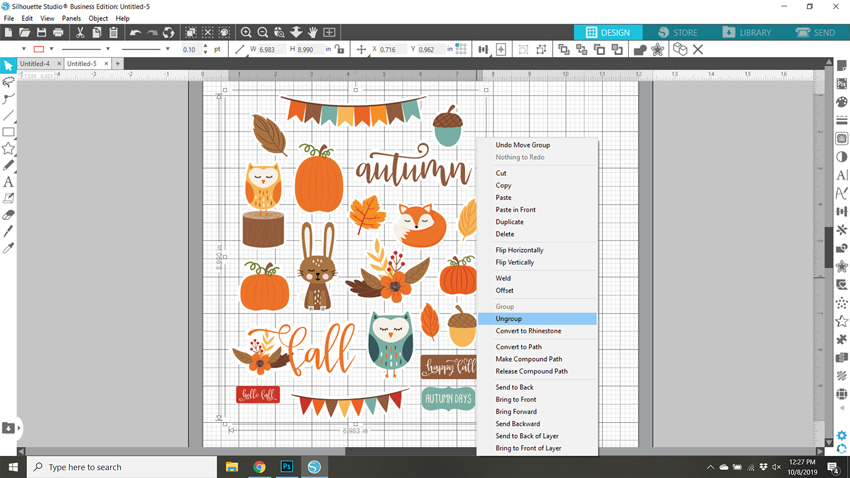
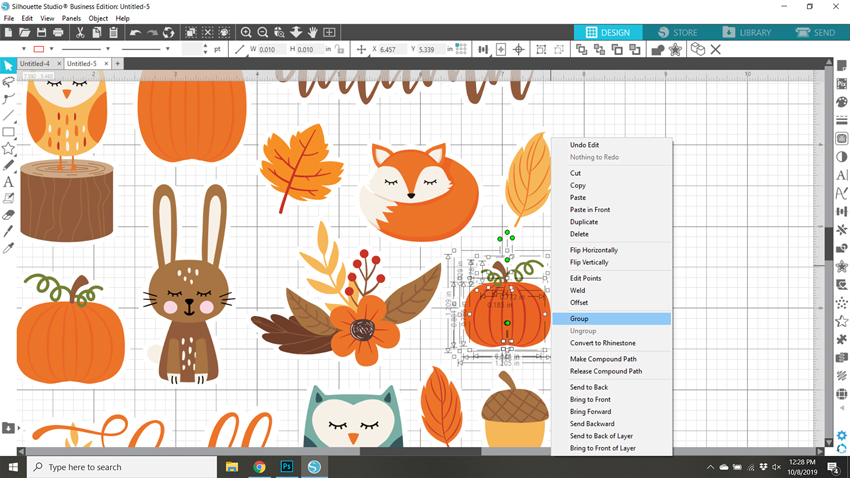
For this group of stickers, ungrouping also ungrouped the individual designs on each sticker.  I zoomed in on the stickers I wanted to keep, selected all of the sticker pieces, right mouse clicked and selected group.  I did this for each sticker I planned on using and deleted the rest.
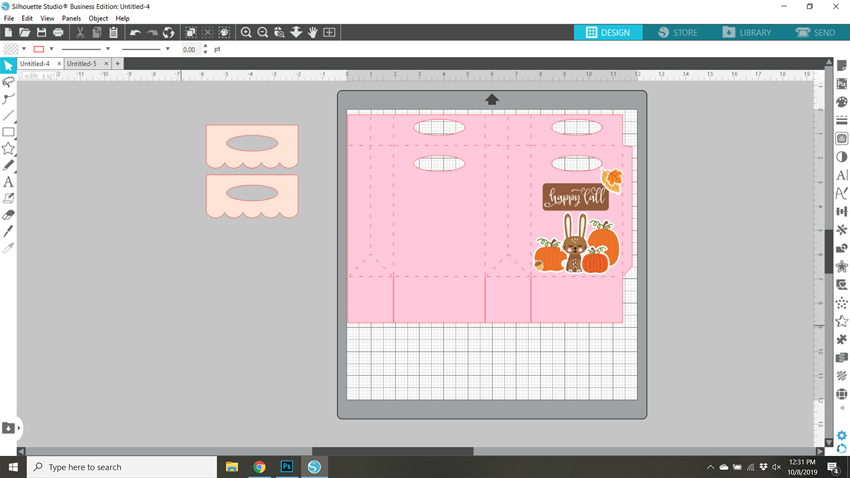
I knew I wanted to make a little scene, so I placed the bag file on my cutting mat and arranged the stickers as I wanted.  Some stickers I resized like the leaves and the acorn to make them smaller.  This allowed me to make sure everything would fit.
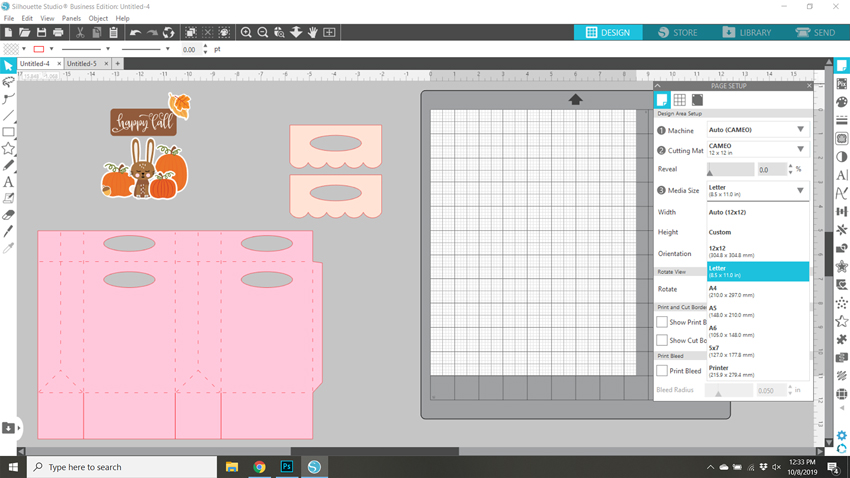
Once everything was sized as I wanted, I moved everything from my mat and set it up for print and cut.  First, using the page set up I set the media size to 8.5×11.  This is the size of my sticker paper.  I used Matte White Sticker Paper from Staples.
Next I turned on the registration marks.
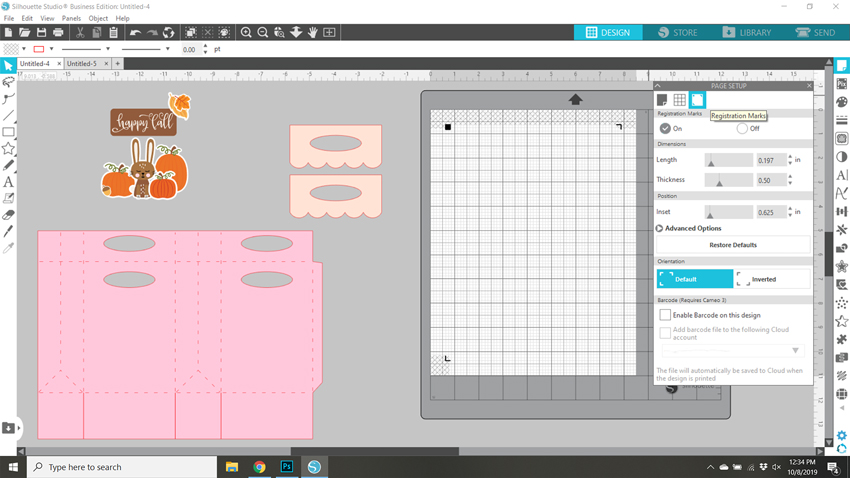
I then moved the stickers I wanted printed onto the mat, making sure each sticker was inside the registration mark area, then sent it to print.   It would be easy to make multiples of this bag by simply copying the stickers and fitting them on the page.
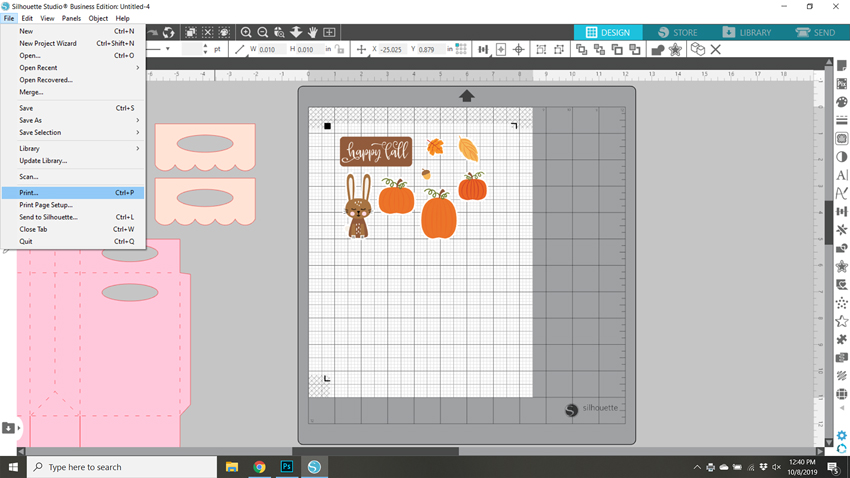
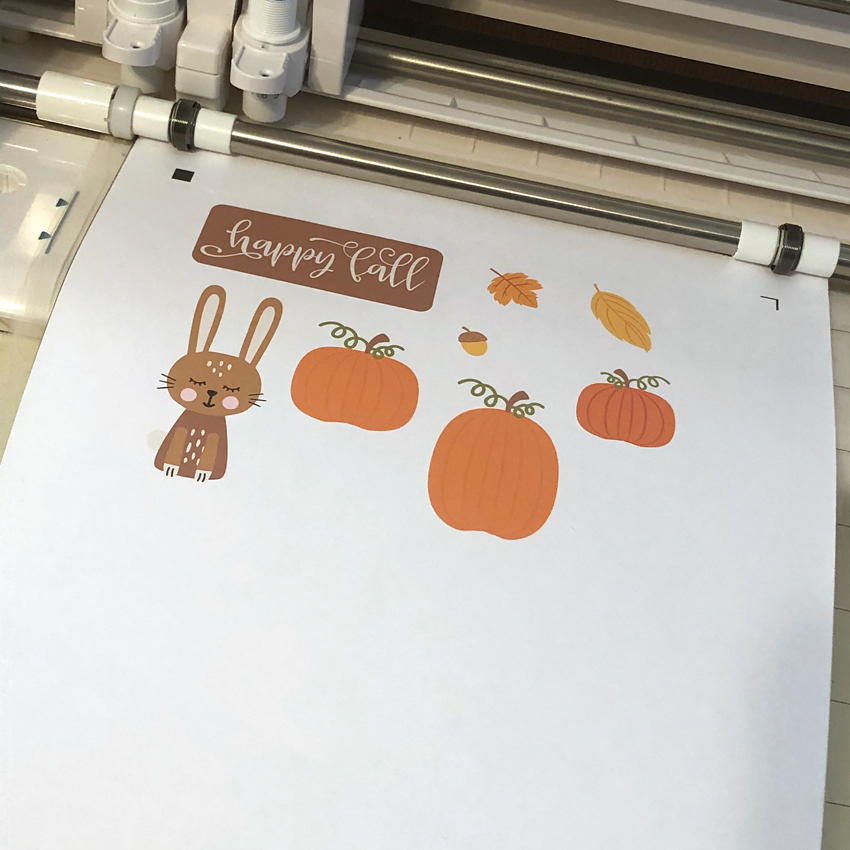
Once the stickers were printed I added the paper to my Silhouette mat and fed it into my machine.
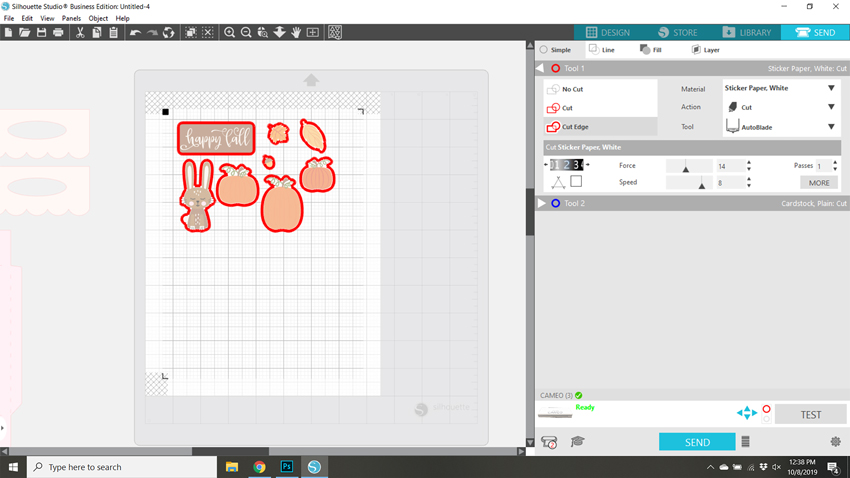
In my Silhouette software I clicked send then set up the cutting for Sticker Paper.  Make sure that Cut Edge is selected, so that only the edges are cut.  Then hit send.
A couple of notes if you’re having difficulty with the print and cut.  First, if your machine is not reading your registration marks, make sure you are running the most current version of Silhouette and that the paper you’re using is not colored. You can also try coloring over the square a bit with a black marker.  You may also have problems if the registration marks are smudged.   Some colored papers cause the marks to not be read.  Also, you can try shutting down your machine and computer and unplugging your Silhouette then start it all up again.  You would be amazed at the issues this can fix.  I also recommend the shut down process if your cut lines are out of sync with the designs.  Any time I have ever had issues with print and cut, the shutdown method has worked.

Once I had my stickers cut, all that was left was to add them to my bag!

If you use Lori’s stickers for any projects, make sure to tag her on Facebook and Instagram.  We would love to see your creations!  That’s it for me today, thanks for stopping by to peek!

BLOG * INSTAGRAM

Fall Gable Boxes

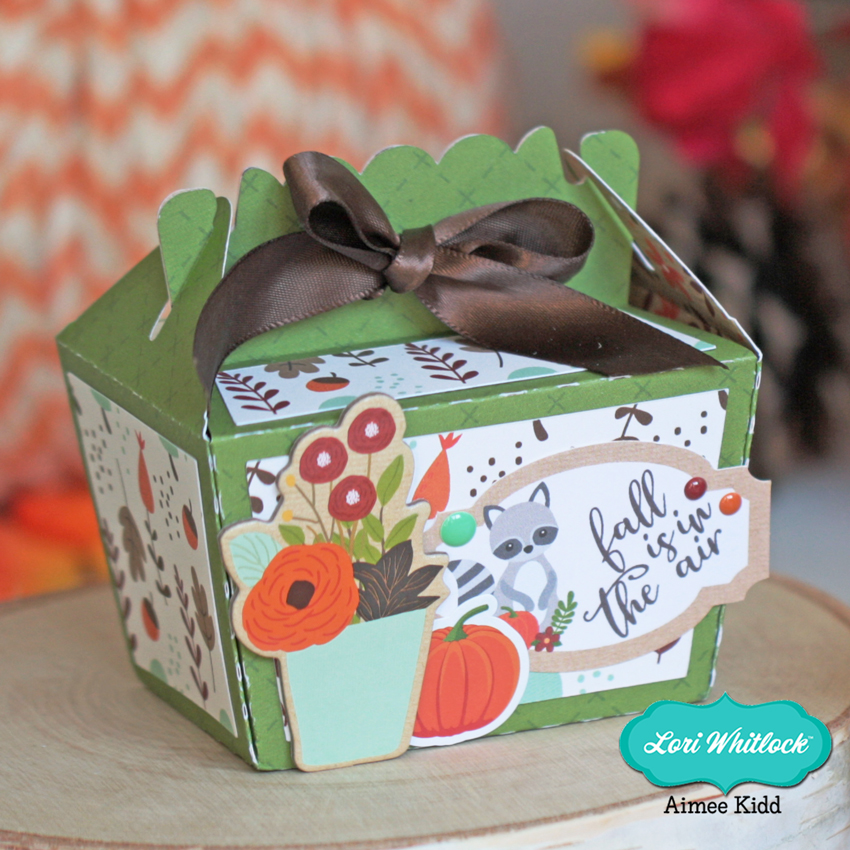
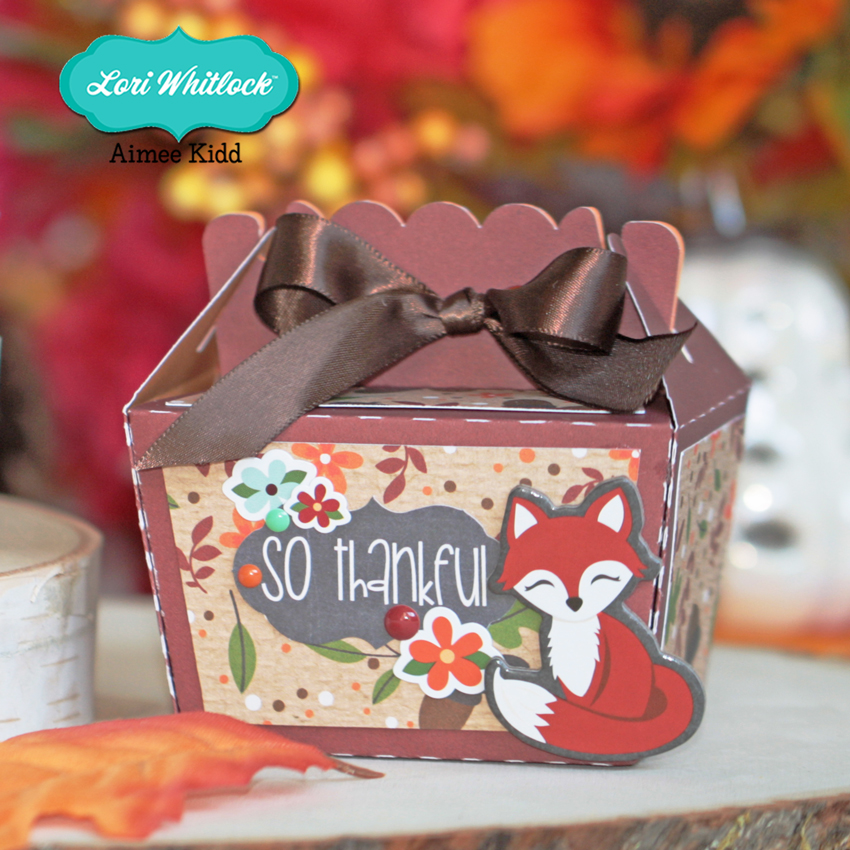
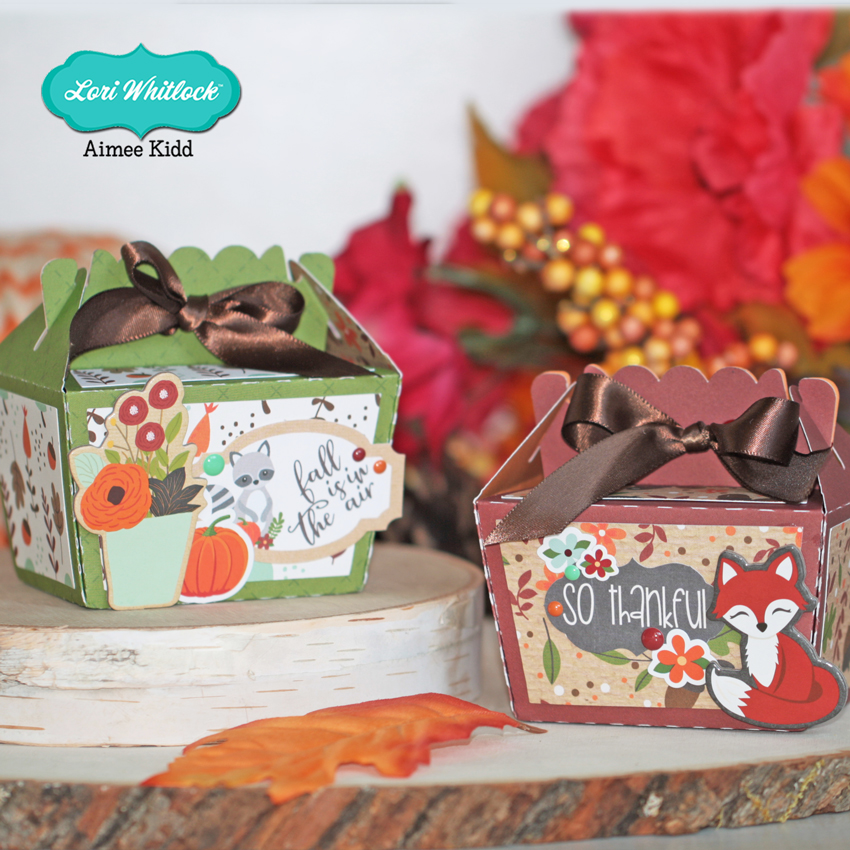
Hello crafty friends! Aimee here today to share some Fall goodies! I am so excited…Fall has begun!! So today I am sharing the 3D No Glue Tapered Side Gable Box (Lori’s ShopSilhouette Store) and how adorable it looks all decorated with the new My Favorite Fall collection.

These little boxes were easily put together and so much fun to decorate! There is just enough room on the front panel to add a sweet little animal chipboard piece, tag, and some enamel dots to make these boxes look inviting to open and reveal the Fall goodies you’ve placed inside!

Thanks for stopping by today and I hope everyone is enjoying this beautiful Fall season so far!!

Aimee

Fall Gnome Card

Welcome Fall!  My favorite time of the year!  Autumn and Halloween are also my favorite for paper crafting. This Fall I have been seeing lots of little gnomes everywhere, in paper crafting, stamping and home decor.  I love these little guys, so I thought I would create a Fall gnome card with Lori’s Echo Park My Favorite Fall collection and just a bit Carta Bella’s Fall Market.

I used Lori’s Gnome for the Holidays card and just switched up the patterns.  You can find the file here in the Silhouette Store or here in Lori’s SVG shop.  After I pieced him together, I added pretty embellishments from both collections.  Isn’t he adorable?  He’s simply too cute and I know my friend will love him when I send him to her with Birthday Wishes.

Enjoy this beautiful time of year and thank you for joining us today! ~Cathy

Fall Decorated Gift Bag

Happy Monday everyone!  If you haven’t looked recently, Lori has created a number of new box & bag cut files.  I love these files because they can be decorated for any occasion!  I made the new Gift Bag with Magnet Velcro Handle (SVG, Silhouette) to hold a gift card for a friend.  I decorated it with one of the new flowers, Rolled Flower 48 (SVG, Silhouette) for a fun fall look.

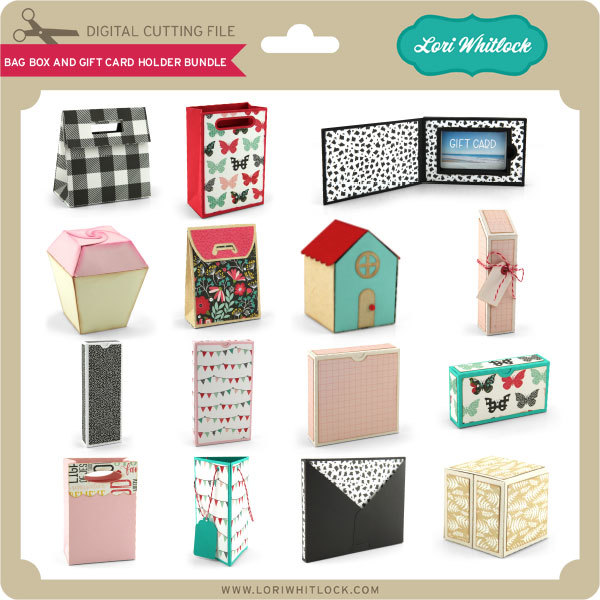
I love how the flower looks like a fall chrysanthemum!  I used Echo Park’s My Favorite Fall Collection to piece this all together.  For more gift packaging ideas, check out the new Bag Box and Gift Card Holder Bundle in the Lori Whitlock SVG Shop!

All of these files are also available individually in Lori’s SVG Shop and in the Silhouette Store.  That’s it for me today, thanks for stopping by to peek!
BLOG * INSTAGRAM

Fall Treat Bags Tutorial

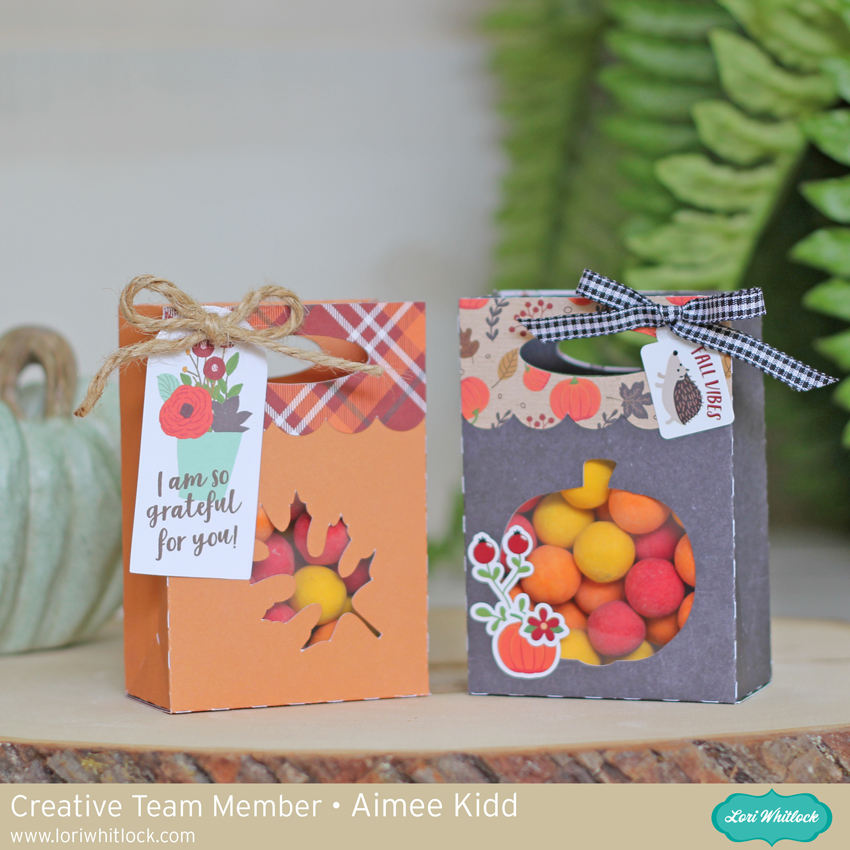
Hello friends! Aimee here with you today to share a tutorial on one of the fabulous new box files that Lori has created for us! This is the Gift Bag with Handle Scalloped (Lori’s ShopSilhouette Store) and I am going to show you how to add a front panel so that the treats show through. And since Fall is just around the corner I added a couple of Autumn icons from the Fall Icons set 2 (Lori’s ShopSilhouette Store). So if you’re ready…let’s get to crafting some Fall gift bags!

Open the Gift Bag with Handle Scalloped file…

and add the Fall Icon set. I only used the pumpkin and leaf so I deleted the others but the other 2 could easily be used as long as you’re only adding the base layer.

At this point,  place the icon and the scalloped handle on the front panel of the bag. You can size and arrange the icon you’ve chosen. With the handle in place, it gives you an idea of what size your icon should be.

Now that you have you’re icon placed and sized, slide the handle to the top. Click on the bag and ungroup the bag from the cut lines. This is a very important step! If this step is missed, it will turn the dotted cut lines into solid cut lines which will give you a bunch of strips of paper instead of a bag.

Next,  click on the icon and while holding the shift button, click on the bag and click on “make compound path”. It will make your bag clear but it still cuts the same. Now you will want to click on the bag and the cut lines and group them together. Now you are ready to cut.

Run your papers through your paper cutting machine. Now let’s get to putting the box together.

Adhere a piece of acetate over the icon space

Place your adhesive on the top panel of the bag and fold it down on itself

Now adhere the bag together

And adhere the scalloped handles to the front and back of the bag.

And decorate them! There are so many possibilities! I used My Favorite Fall collection to make and decorate my bags. All that’s left to do is add a sweet treat to give to some you are grateful for!

That’s all from me today! I hope this provides some great inspiration for your Fall projects!

Aimee