Luminary Tutorial

Growing up, there was a Cul-de-Sac near our home where all the houses had luminaries lining their sidewalks. They were the electronic sort of luminary.  I loved the 100 percent participation on that street, it always looked lovely.

This year my neighborhood had an activity where all the neighbors were invited to place paper bag luminaries with tea lights out on a designated night. Neighbors could decorate their bags, or just leave them plain.  I decided I needed to try cutting designs with an electronic cutter.  I chose a variety of Lori’s Christmas files. I’ll share each link with the pictures.

First, to cut the bags, you need to open the bags and flatten the sides like this picture:

flat bag picture

I placed the bag one inch down, so that I could see the inch marks on the mat.  Using the mat grid, figure out where your design should go on the bag. Then select and resize your design and move it to the correct location on your mat in the software. You can do this in Silhouette Studio or Cricut Design Space. I sized each of my designs just less than 4 inches wide and centered the design on my mat.

You may need to try a couple of cut settings depending on the bag thickness and the sharpness of your blade.  In Silhouette Studio, I started with the Vellum setting–which is Blade 1, Force 19, Speed 6.  I think bringing the force down a to 15 will work well too.

Since the bag is paper, I found that the back side of the back always had cut lines, but with less force, the cuts didn’t cut through the whole design.  My first bags were cut through on both sides, and I think they still looked great.

Tree Luminary

Tree from the A2 Christmas Tree Card (SVG, Silhouette )
This Tree Luminary is a great one to start with because of the simple design.  Fine tune cut settings with this one.

Angel Luminary

Angel from the Full Nativity a Child is Born (SVG, Silhouette).  You could use all the individual pieces for luminaries.

 Star from the Nativity Circle Jesus (SVG, Silhouette)  The star from the Nativity above will also work.

Wisemen

Wisemen from the Nativity Circle Wisemen (SVG, Silhouette)

For these next circle designs, you will need to some editing. If you don’t edit, the entire design will pop out of the bag, and you will be left with just a circle.  I’ve outlined the steps to edit in both Silhouette and Cricut below.

In Silhouette Studio

1. Release Compound Path
2. Move and delete the outer most circle
3. Group the remaining pieces and resize.

4. Move design on the screen to match your bag placement on your physical mat.
5. Select Cut Settings (Vellum; reduce force to 15)
6. Send

In Cricut Design Space

1. Select Image
2. Select Contour
3. Click on the largest circle.

4. Resize your image.
5. Click Make It.
6. Move the design on your screen mat to match the bag placement on your physical mat.
7. Select cut settings and cut.

shepherd

Shepherd from Nativity Circles (SVG, Silhouette )

Nativity from Nativity Circles (SVG, Silhouette)

You may need to use scissors just a bit on the seam part of the bag.  I think it would be so fun to get your street to put out luminaries on Christmas Eve.  For the luminaries, place a bit of sand or dirt at the bottom of the bag and  place your tea light candle (or electric versi0n) with the wick straight up.  Then light them for the evening.

I hope you all have a wonderful Christmas

Ashley
12 Days of Christmas- Day 2 and Explosion Box House with Ashley

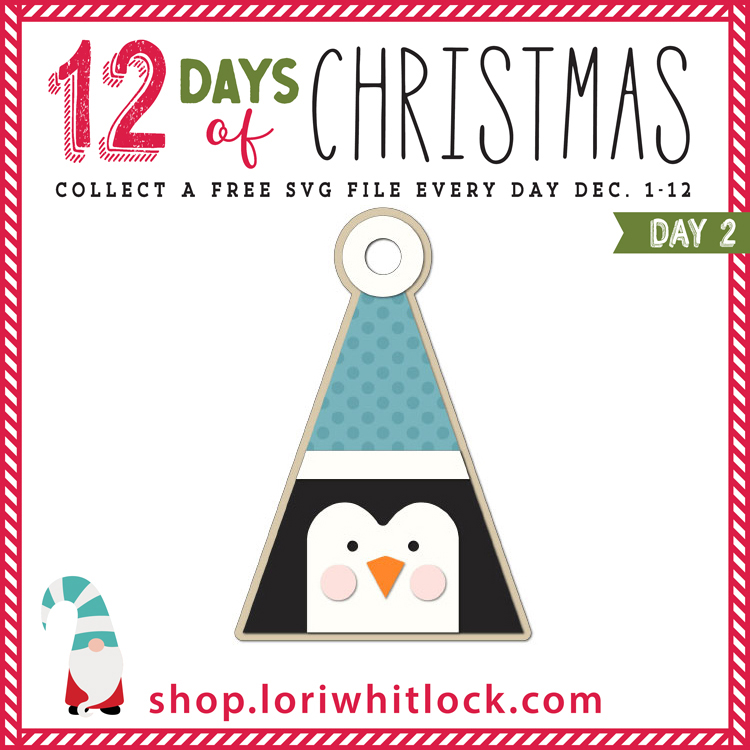
Welcome to Day 2 of our 12 Days of Christmas! Each day from December 1-12, there will be a free SVG file of the day, along with a special promotion!  For Day 2 we have this absolutely adorable Christmas Tag Penguin File.  This file will be free today only, so don’t miss out!

In addition, today only, you can get 30% off all items under the Cards Category in my SVG shop!  Just use code CARDS at checkout!

And now check out this festive Explosion Box by Ashley!

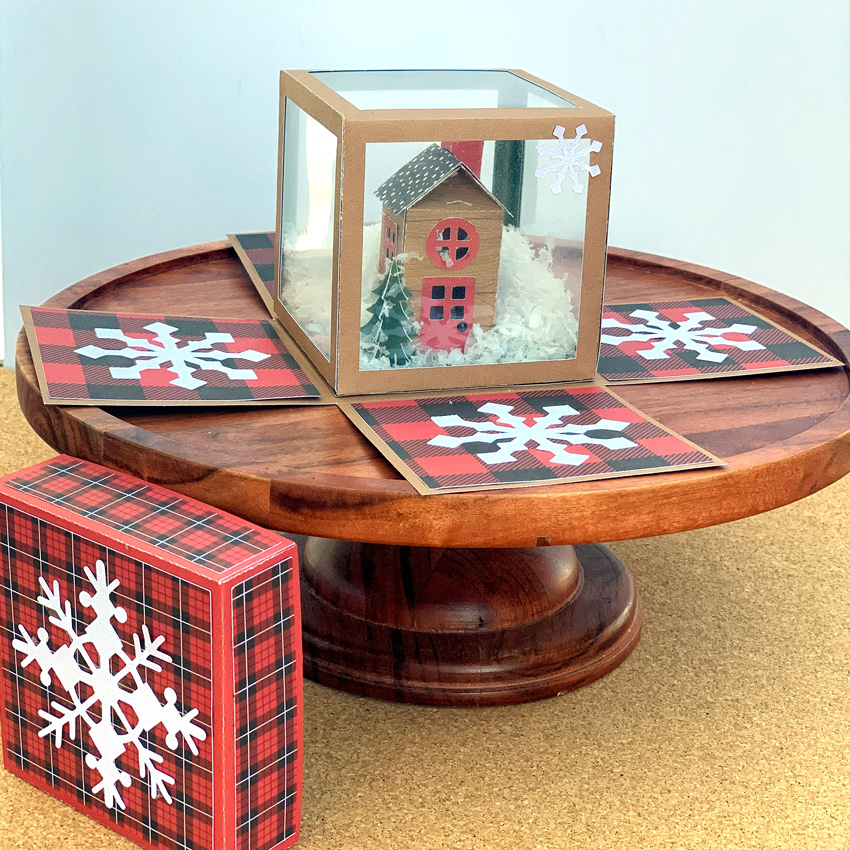
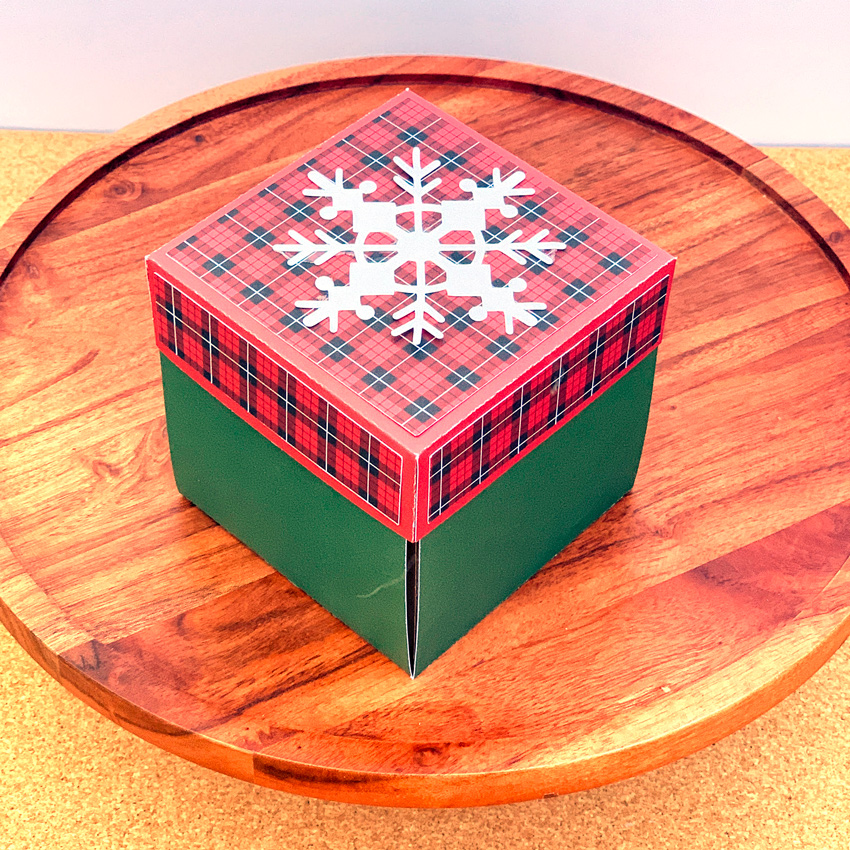
Lori has so many great holiday files.  The new Explosion Boxes are so fun.  It combines the look of a snow globe with an explosion box. I am featuring the Explosion Box Scene House (SVG, Silhouette-coming soon) today.

I used a transparency sheet for the clear panels, you could also leave them open. I also used Lori’s Little Lumberjack Christmas paper collection from Echo Park Paper. You can add fake snow before adhering the panel part to the base of the box for a fun effect!  The size of this box is just under 4 inches cubed. For an assembly tutorial see Lori’s YouTube page here.

Have a Great Day!

Ashley

Pie Place Cards

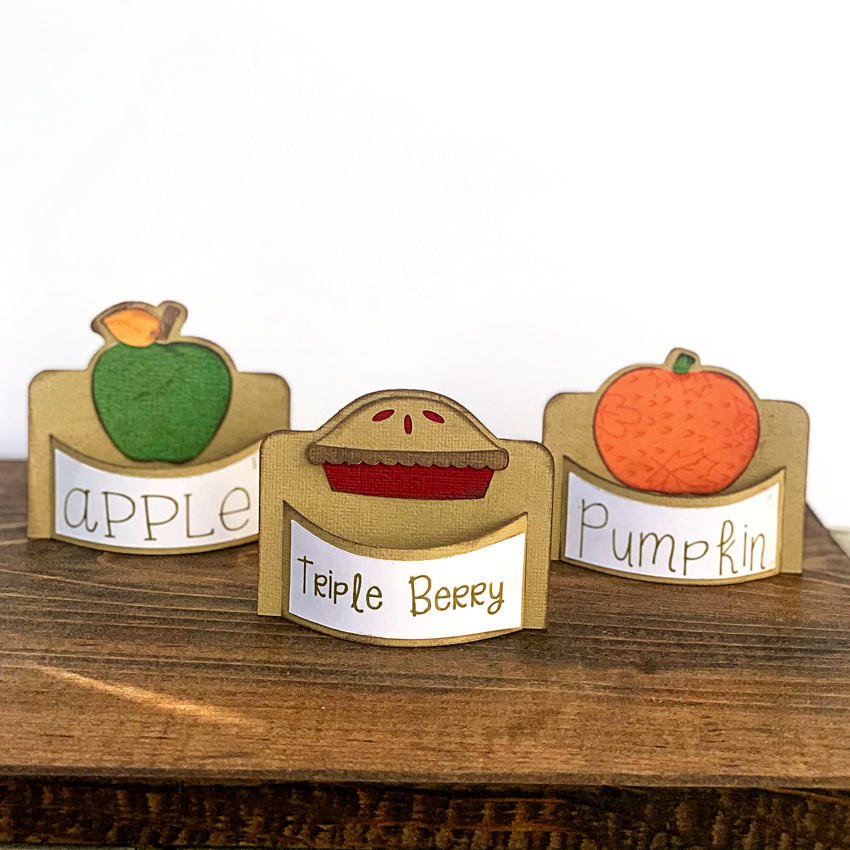
Welcome to the blog today.  I’m sharing a project using some of Lori’s name place cards.  Do you love having pie at Thanksgiving?  How many pies are at your feast?  With my extended family, we enjoy having many different pies. I thought it would be great to have pie card labels. I used the Cricut Pen to write the labels.

Find the place cards here: Pie–SVG, Silhouette
Pumpkin–SVG, Silhouette
Apple–SVG, SilhouetteMy
Favorite Sketch Font–SVG, Silhouette

Pie Place Cards

Who wants a piece of pie now?  Have a great day!

Halloween Layered HTV Tutorial

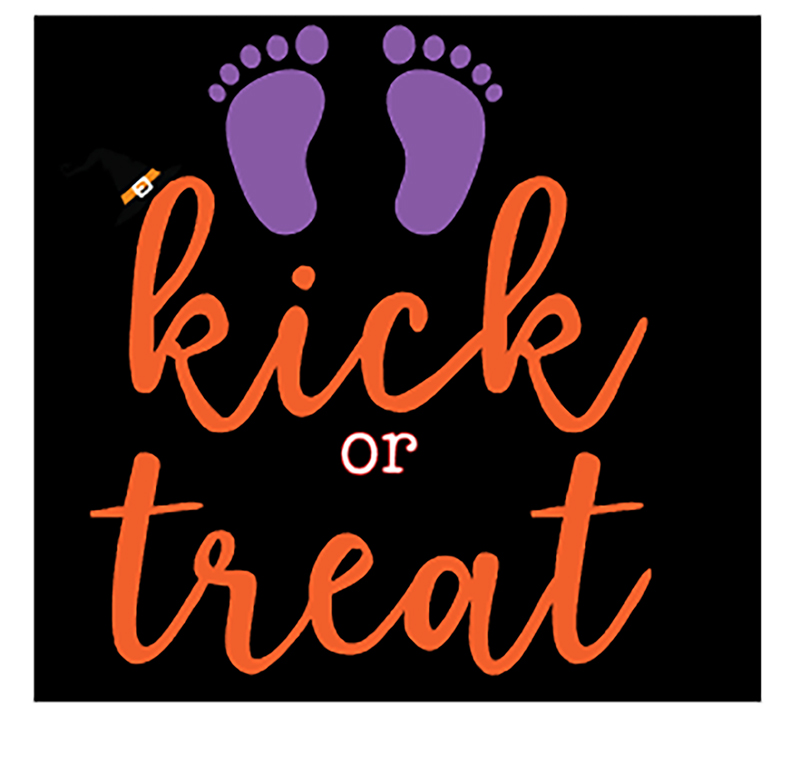
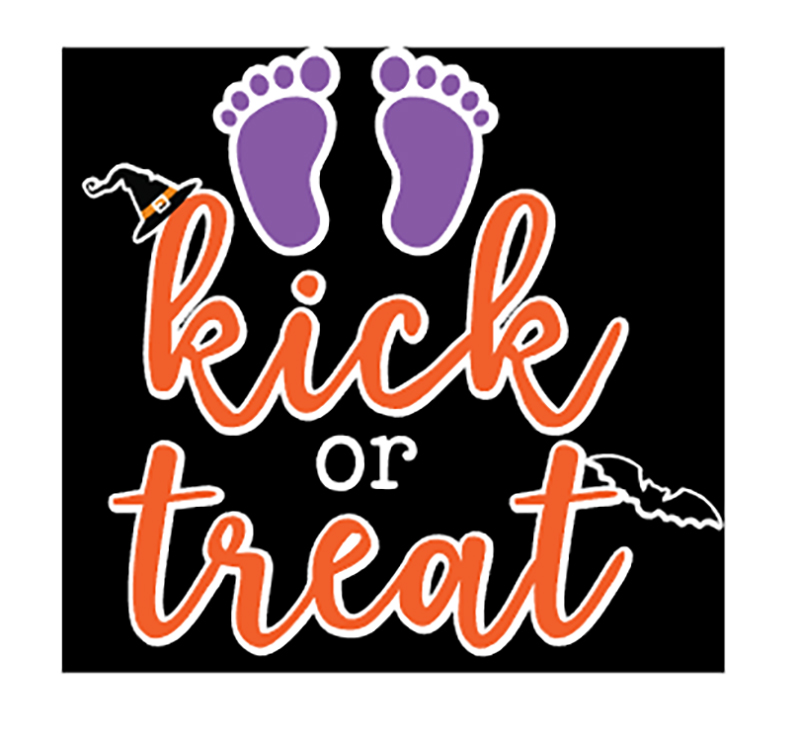
Welcome to Tutorial Thursday. Today I am sharing some HTV (heat transfer vinyl) tips with the Silhouette Studio software.  You can also cut HTV with other machines. Here is what we are making!

Let’s get started.  First, find your files and fonts to create your shirt.  I used these files for this shirt:

LW Longhand Font (SVG, Silhouette)
LW Perfect Type Font (SVG, Silhouette)
Feet from Coming Soon (SVG, Silhouette)
Halloween Witch Hat (SVG, Silhouette)
Halloween Bats (SVG, Silhouette)

I typed Kick or Treat, and then added the other elements. In your design software, make a background box that will be the color of your project.  This will help you visualize the colors.

This looks ok, but I really wanted the colors to pop out more from the background.  This is where the Offset feature is used in Silhouette Studio.  I moved the background, and then selected the project. Then I used the Offset function which is the star Icon on the right side menu.  This is the Offset Settings Panel:


For this project I used Offset, changed the distance to 0.085 inches and selected the round option.  Click apply.


In this image, the red outline shows the offset.  Now it’s almost ready to cut.  Now separate each color and flip your project horizontally before cutting. The white offset layer is perfect in helping you line up all your other layers.

You will apply the HTV to your shirt or project working from the back color to the front with one color at a time. In this project, the first color to be applied is white.  I heat each layer for about 15 seconds instead of the full recommended time.  Then on the last layer, I apply heat for the full recommended time.  In my project the white layer is the largest, so I kept the clear transfer tape and used it to cover the whole project with each new layer. It is such a fun Halloween shirt for my sister!

You can create your own HTV project for less this week!  All SVGs, Fonts and commercial licenses are 30% off when you use code OCT2020 at checkout!

Have a great day!

Shutter Card Fox

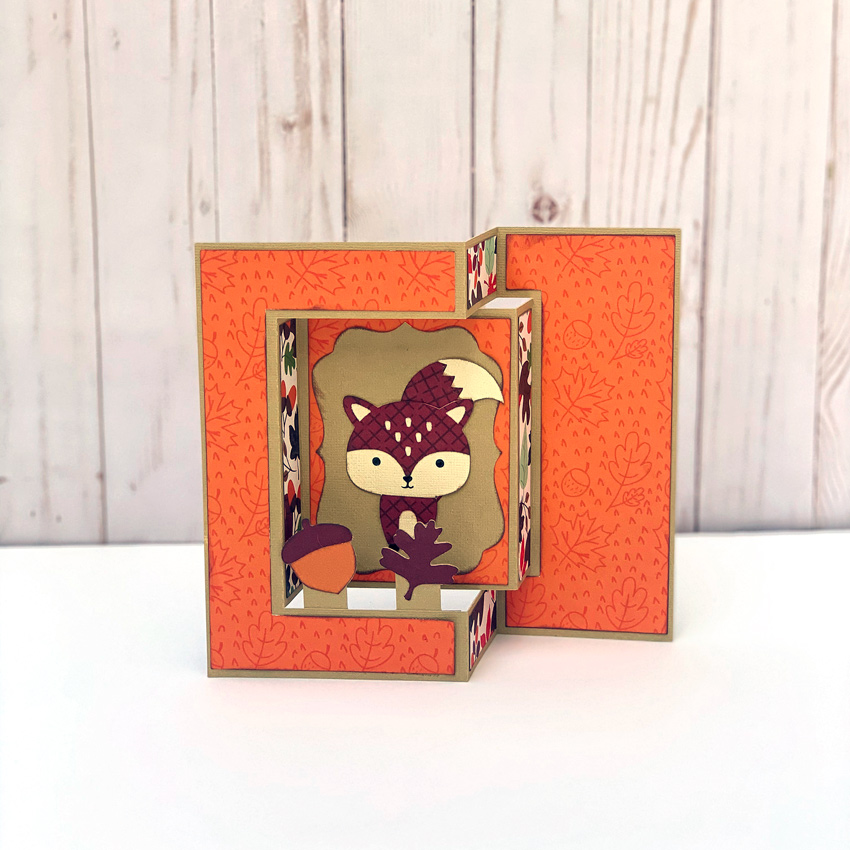
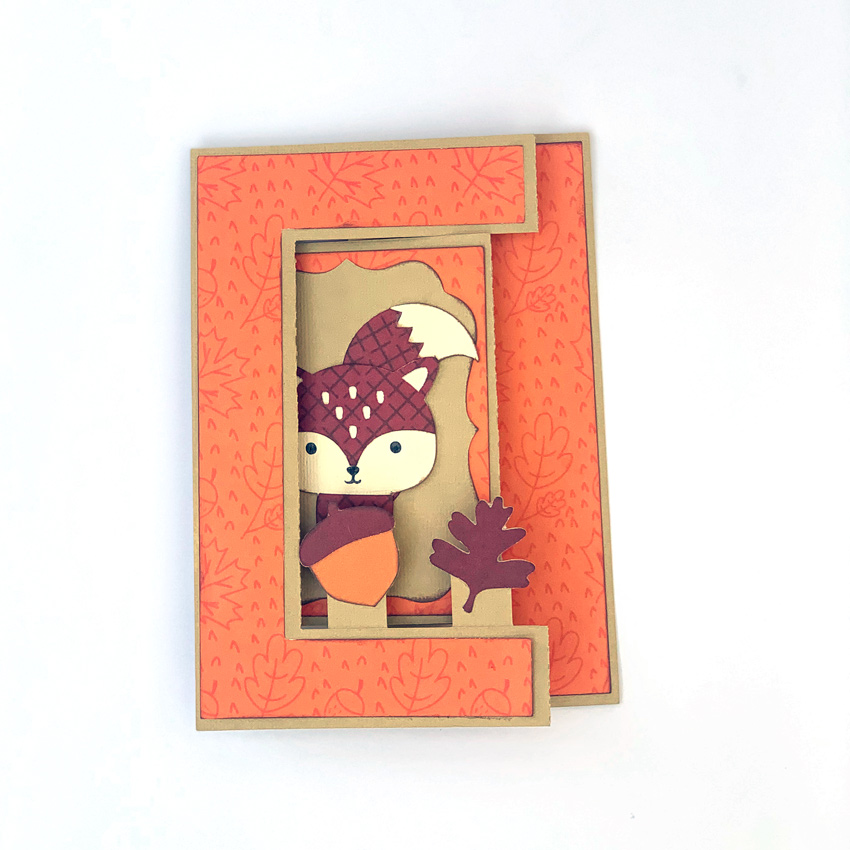
Hi! As we move into the fall season in some parts of the world, we reach for fall colors. Foxes seem to match right along with the seasonal decor. I’m sharing today Lori’s Fox Shutter Card–SVG, Silhouette.

I used Lori’s My Favorite Fall Collection from Echo Park Paper.

Enjoy the holiday!

Ashley