Silhouette Tutorial Print & Cut by Mendi

I’m excited to be back today to share a Silhouette video tutorial with all of you!
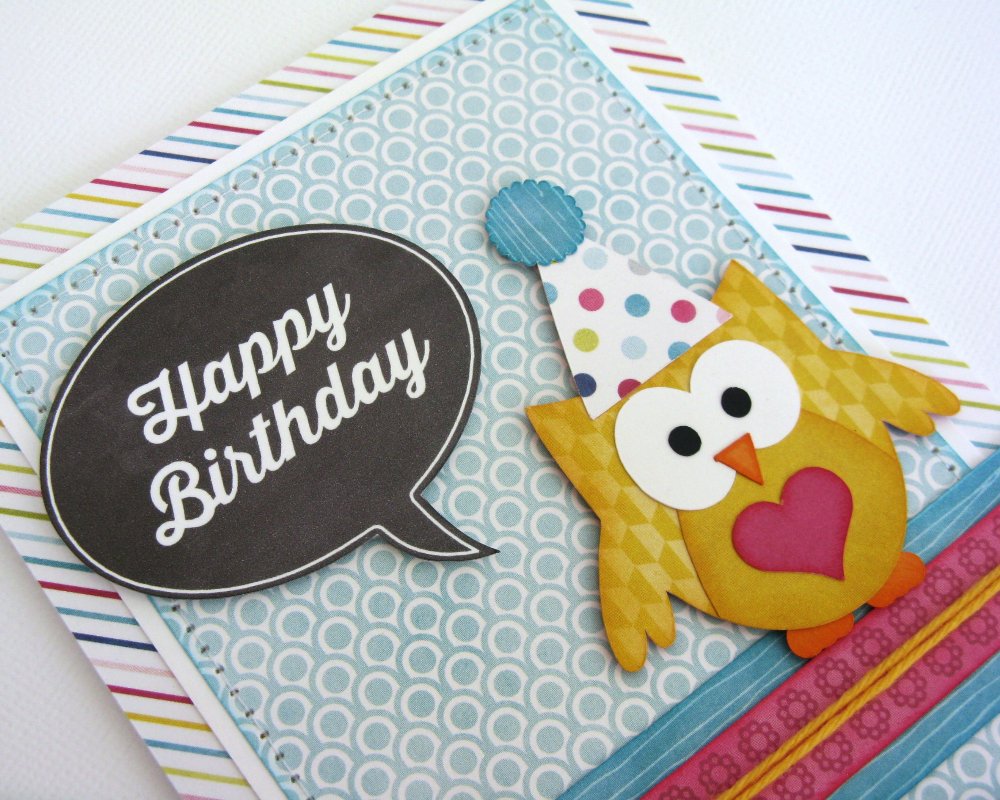
Today’s card and video shares several little tricks and tips, but my primary focus was to share how to take one of Lori’s many versatile shapes and to personalize it to create your own customized “print & cut” file.  The creative possibilities using this basic idea are endless which is really exciting!
I decided for my card it would be fun to make a chalkboard themed speech bubble to match the feel of Lori’s “Here & Now” collection using one of her everyday shapes, sentiments and digital paper files.
To create my project I used the following cutting files designed by Lori:
Patriotic Icons (Ice Cream Cone)
Heart Flowers (Pom Pom–Silhouette Store Only)

The chalkboard paper I used can be purchased at Jessica Sprague here:

Silhouette Tutorial by Brigit: Polygon Tool

Hi everyone, Brigit here, Today I have a tutorial using the polygon tool to create cutouts from the acorn box to make this luminary.  It’s a fun and easy project that looks so pretty when done!

Import the acorn and resize it to 15.5″w with aspect ratio checked. Now ungroup, you can move the other pieces off the mat, (the hole on the lid ungroups also so make sure you group it together again with the lid before you move.)

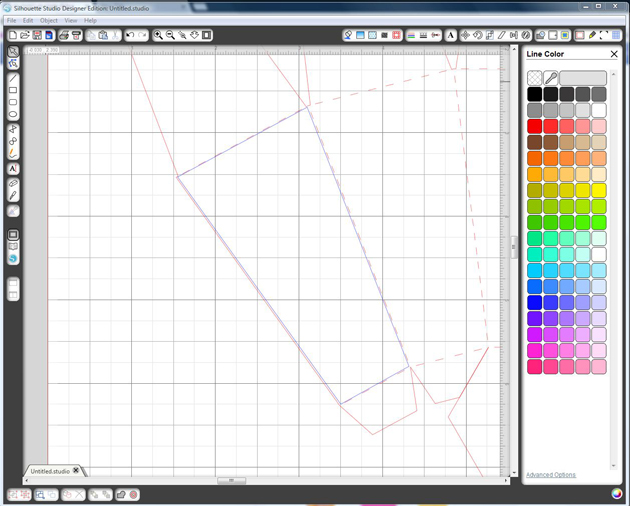
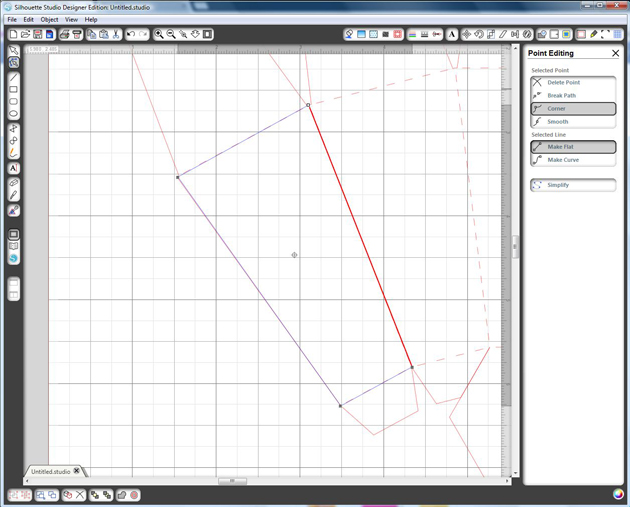
On the first panel zoom in close, select the Polygon tool, click in one corner then the second, third, forth and back to the first to form your shape like I did here in blue, don’t worry about being precise.

If you double click on the shape you will see 4 dots in the corners, click on them and you can easily adjust the lines if need be.

Now select the shape you just created, go to the offset window and select internal offset, I used a .250 offset distance.  Delete your original shape, you just want the internal one.

Continue and repeat the same steps with the next 5 panels.  After you finish the last one, select the whole acorn including the shapes you just made, go to the modify window and select Make, you can do this after each one if you don’t want to worry about moving it but I just use the undo if that happens.  This is how it looks filled.

With the knife tool I cut leaving just enough to folder over at the top and some off the side flap, you don’t have to be exact, leave more you can trim with a scissor if you have too.  Tip, when I was cutting the flaps after the third one from the left I lost one of the bottom lines, so I ctrl z (undo) selected the whole shape again, and used make a compound path.  I could continue cutting the other flaps without losing the cut line.

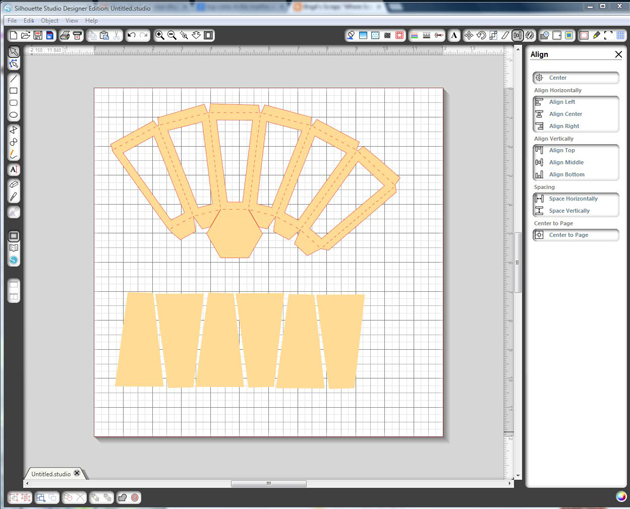
The last thing you need to do is make the vellum pieces so use the polygon tool again and draw inside the score marks on one of the panels, you’ll need 6 of them.

Here’s how the body of the luminary looks with the vellum pieces.  Make sure you glue the vellum on first and then fold over the top flaps before you assemble.  Follow Lori’s video here for the instructions on putting the rest of the acorn together.

To decorate I used the flowers from the 3D Flower Set 5 and the leaf that came with the acorn.  I embossed the vellum and rubbed a little distress ink over. Paper is from Echo Park’s Reflections Fall Collection designed by Lori, it’s so beautiful, love the stickers and chipboard pieces too!  Finished with some Thanksgiving Orange Truffle Trendy Twine, a cute little button and sentiment from the paper collection.

Hope you enjoyed this tutorial, you can visit me at http://www.brigitsscraps.com

Creating Titles Using the Flip and Weld Features with Traci

Please welcome Traci to the blog today sharing this adorable layout with us.

Happy Thursday Lori fans!

I’m so glad to be here sharing a tutorial with you today!  This one is pretty easy, but I often forget that I can do this so I thought I would share a creative way to have fun with your titles. 

I’ve been saving a photo of my son for just the right layout idea.  I wanted to focus on the photo, but have a really nice element in the title or embellishment.  I decided to use a few of Lori’s wonderful files to create a really neat title for this picture.  Plus, fall is my favorite time of year, and it will be here before we know it!

1.  First, pull up Lori’s wonderful fall designs…the autumn leaves title, and the fall flourish.

 2. Next, move the title off to the side so you can focus on the flourish. Size the flourish to 6″ in the ‘scale’ window and click Lock Aspect Ratio and apply.

3.  Click on the ‘duplicate’ icon and then ‘duplicate right’.

4.  Both of the shapes are facing the same way…which will look a bit funny under the title, so highlight the left shape, right click, and flip
horizontally.

5.  Next, move the left shape over just enough to overlap the right one slightly.  Highlight both shapes, and then right click and hit weld.


6. Now, right click and flip vertically so the image is upside down.   This allows for a straighter line across the top of the shape for adding the title.

Next move the “autumn leaves” title back over onto the mat.  Ungroup both words by highlighting the whole title, right click and hit ungroup.

7.  To add an internal offset on top of the full title, first duplicate the title and temporarily move one off to the side. 

8.  Next, line up your title and flourish pieces so that they overlap slightly.

9.  Right click and hit weld to connect your border and title pieces all together.  Cut this piece out.

10.  To cut a smaller, overlapping title to cover the ‘autumn leaves’ portion,  highlight those pieces and click on the offset icon, and then ‘internal offset’. Zoom into the shapes to make sure that you can pull away the correct portion, and move the outer pieces off the mat. Finally, cut the internal offset portion in a different color.

And here is my final layout!
In addition to Lori’s flourish and title pieces, I also used the brand new paper and embellishments she designed for Echo Park, Reflections Fall.
Thanks so much for letting me share! Please stop by my blog at Artsy Albums to say hello!
Traci

Cropping in Silhouette Studio by Corri

Hi everyone!  I have a simple tutorial for you today using a new tool I recently discovered in Silhouette Studio.  It’s the crop feature and it’s super easy to do but very useful.  I used it to make a quick and easy name tag for my daughter’s backpack.

First, open this tag and border on your mat. I resized the tag to 5″w. Make a duplicate of your tag.

Line the the border up on top of your tag.

Select both items and then go to the Modify menu in the upper left of your screen.


Click on Crop.

It trims your border to fit perfectly along the edge of your tag.

I typed  Olivia using Lori’s Happy Font and embellished my tag with this butterfly and a sticker from the

Here and Now Collection that Lori designed for Echo Park.


I laminated it to make it more durable….so it was a little hard to photograph but it turned out very cute! I will be using the crop feature a lot.  It’s perfect for trim border for cards that have an unusual shape.  I also think it would be cute to trim a grass border to fit perfectly along the edge of an Easter egg.

Silhouette Tutorial Make Your Own Belly Band

Thanks for stopping by today.  I have a tutorial that I would like to share with you on how to take a shape and make it into a belly band.  I used the 7 Shapes files so using this technique, you could have 7 different belly bands or decorative edged paper to decorate with.
This cute litte pencil cup and Post It Note Holder would make a great gift for friends, teachers, coworkers, or even look great on your own desk.  I know that is where mine is going to stay.  Even in a world filled with digital devices, I find myself reaching for a piece of paper and pencil all of the time.
Here is a close up of the belly band that I created from the label.  I also decorated the outside of the Post It Note Holder so it looks pretty even without the belly band on it.
So to make the belly band for your own Post It note holder, just follow these few easy steps.
1.  Open up on your mat, the 7 Shapes from the Lori Whitlock store.  Ungroup them, and move away all but the bottom left shape.

2.  Go to the Replicate panel and click Row of Four.
3.  Click on the first one and nudge over to the second one until the edges are just overlapping.  Do this for each shape.
4.  To make sure that everything in lined up, select all, go to the Align panel, click Align Top, and then space Horizontally.
5.  Now go to the Modify panel, keeping all of the pieces selected, and click Weld.
6.  There will be a few of the middle pieces left.  Select them all and delete.
7.  This is what your welded shapes look like together.
8.  Now we are going to make the belly band part.  Draw a rectangle across the middle of the welded shape and make sure it extends about a half inch past both ends.
9.  Select both pieces and weld them together.
10.  Here are a couple more examples of belly bands that I created using the other shapes in the 7 Shapes file.
For my project, I had to manipulate the size of the belly band on both the pencil cup and the Post It Note Holder.  On the Post It Note Holder, I stretched it to make it longer and push the top down to make it thinner.  For the pencil cup, I copied and pasted a second one and overlapping them, I welded them together to make a longer piece.

I think it is fun to experiment with different shapes and see if I can make them into other things, like the belly bands.  I also used the Birthday Cake Box to create the pencil cup.  I only assembled the bottom so that it was open at the top.  The pieces that I did use were skewed so that the cup was taller than the original cake box would have been.
I also used the label shape a second time and sized it to fit inside one on the belly band so that I had a mat for the Remember This sentiment.  Stickers and paper from the Here and Now collection by Lori Whitlock for Echo Park make this a eye catching ensemble.

Lori Whitlock Supplies Used:
Sticky Note Holder 3  Holds up to 100 sheets of sticky notes
Here & Now Paper and Sticker Collection by Lori Whitlock for Echo Park