May Off the Page Challenge with Kathy

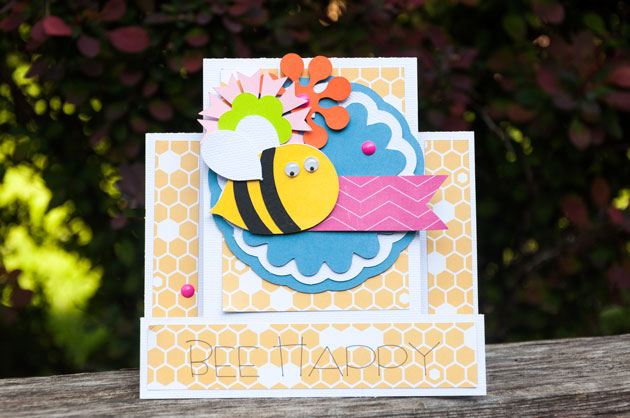
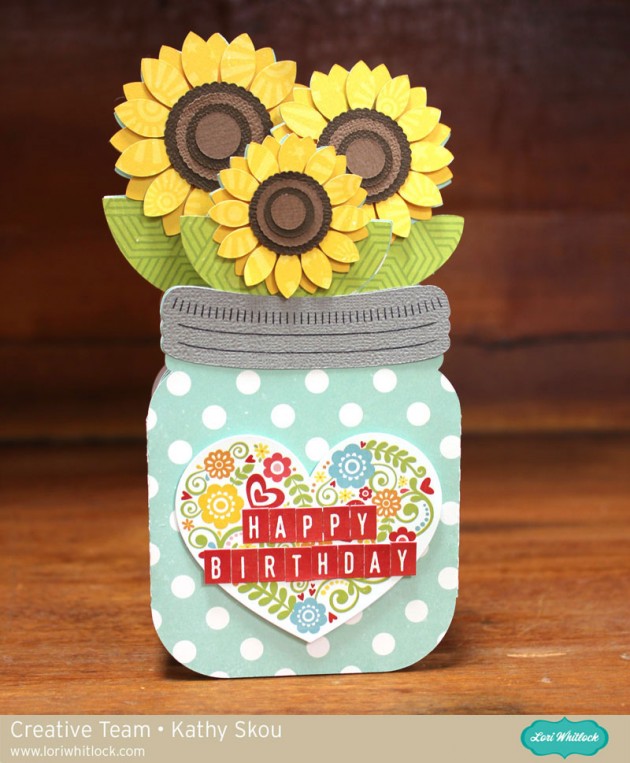
I can’t believe it’s already May!  It’s time for the May Off the Page Challenge over in the Paper Issues Friends and Fans Facebook Group!  This month’s challenge is all about Flowers! We want to see all of your paper projects featuring flowers.  You can also add in Mother’s Day and Teacher Appreciation gifts projects as well!  Of course we would love you to use Lori Whitlock files!  For my project, I used the fun files from the May Kit of the Month take a peek…

These just make me happy!  The would be so cute for a Mother’s Day gift or for that special teacher or friend. Here are some close-ups!  I used some papers from Echo Park’s Hello Summer collection, they are so bright and cheery!


Be sure to play along with this challenge by posting your project in the May Challenges Album in the Paper Issues Friends and Fans Facebook Group in the comments under this project.  Each project posted will give you an entry to win a $10 Gift Card to the Paper Issues Store!  You have until June 6th  to enter!  I can’t wait to see what you create!

Using Digital Brushes and Stamps with Rachael

Hello, all! Rachael here today, to show you how to use brushes and stamps on your digital layout. I will be demonstrating this technique in Photoshop CC, but the principles are the same in Photoshop Elements. Let’s go ahead and get started, shall we?

For this layout, I used a solid yellow paper as the background. Solid papers are a great starting point for adding brushwork.

The first step is to create a blank layer for your brush strokes:

Next, you’ll want to activate the brush tool. In Photoshop, this tool looks like a paintbrush and can be activated by using the hotkey (B) on your keyboard. Once the tool is activated, you could go ahead and use the default brushes. However, we are going to use some of Lori Whitlock’s very cool brushes in this layout. To load additional brushes, click the drop-down arrow next to the currently active brush:

The brushes window will open, displaying all available brushes in the current brush set. Click the gear icon in this window to load new brushes:

The next window gives you a series of options. You can either Reset the brushes, which replaces the brush set with the default brushes; Load brushes, which appends the brushes in the new brush set to the existing brushes; or Replace brushes, which replaces all loaded brushes with the ones in the brush set you select. There are, of course, numerous additional options within the menu, which you can explore and experiment with as you see fit. For now, go ahead and select the “Load Brushes” option.

Navigate to the folder that contains the brush set you wish to use, and double-click to load the brushes.

To view the brushes in the brush set, click the drop-down arrow next to the current brush (refer to the second step, above). This menu displays a thumbnail icon for each brush in the brush set. Select the brush you wish to use, and set your foreground color.

Go ahead and place your curser, which should now be in the shape of your brush, in the location you desire.

Since you’ve placed the brush stroke on its own layer, you can move the brush around and rotate or manipulate it as needed, just as you would any other design element. You can also change the blending mode of the brush layer, to get different results. For this next brush stroke, I stamped in black and then changed the blending mode to Overlay and reduced the opacity to 40%:


Digital brushes and stamps are a fun and easy way to add complexity and depth to your layout. Feel free to play around with the options and find what works best for you.

I hope this inspires you to try something new!

The following products were used in this layout:

Echo Park (designed by Lori Whitlock): For the Record Collection

Flourish Brushes

Everyday Stamps

Everyday Stamps 2

Four Compartment Cookie Box Tutorial with Tya

Hi Everybody! It’s Tya Smith here with a tutorial on how to assemble the new Four Compartment Cookie Box that Lori recently came out with. I love her boxes and this box was just what I needed to take a yummy treat to my Mom for her birthday.Let me show you the steps it takes to put this box together.

Open up the file. It is found here on the Silhouette and here on the LW SVG Shop.

Now, it may look like a lot of pieces – but this really is quite easy to cut out and put together. The tan pieces are for the box base and lid and the aqua pieces are the pattern papers for the lid and sides of the box.

I went ahead and cut out all the box pieces out of kraft cardstock.

Then I started assembling the pieces. I took the 2 square pieces and layed them on top of one another. This is the box base.

Next take the 4 box pieces and fold on all the scored lines. Add adhesive as shown and glue the box together.

Add 2 of the boxes to one end. Then add the handle piece as shown.

Now add the other 2 box pieces.

Add the pattern papers to the 4 rectangle pieces. These will be glued all along the edges of the box.

Now put together the lid. Add the pattern paper to the top and edges.

Here’s the box all put together.

 I added some yummy cupcakes to the boxes, but you could add cookies, candy or other small gifts.

To finish off the box I cut out a tag from the 5 Hang Tags cut file. I added some pretty ribbons and some stickers and other embellishments from Lori’s Petticoats Line for Echo Park Paper. So pretty and feminine.

That’s all there is to it! Hopefully I have inspired you to create this box for your special someone! Have a great day!

*** For a video tutorial on the 4 x 6 Compartment Candy Box which is very similar to this box, watch this video! ***

Girly Dress Box Tutorial with Angi

Hello everyone! Angi from Twenty Five Smiles here with a fun tutorial for a little girl’s party. I love the versatility of Lori’s cut files. You can use them in a variety of ways. For example, I used her Wedding Favor Box and transformed it in another way.


I decided to make a party favor set. I used Lori’s designer paper and chipboard accents from Echo Park. It’s called “Petticoats and Pinstripes”. It’s so adorable to use for girly parties.

Here’s how to make one of your own: First, use your electric die cutter and pretty paper to cut out the shape.


Next, fold at the cut lines and use adhesive to put the box together.

Add pop dots to the back of the extra cut out of the dress.


Place that extra piece to the front of your box to give it a 3D effect.


Add little pearl accents to the bottom of the dress.

You can make a whole set of these for each girl at the party. The girls would love it.

Thanks for stopping by. I hope you enjoyed my little party idea today.

3D Letter and Ornate Gatefold Card with Tya

Hi everyone – it’s Tya and I am so happy to share with you all a few of my favorite new cut files from Lori Whitlock. With Mother’s Day (and my Mom’s Birthday) around the corner – I thought I would get a jump start on my gift giving with this fun set.

These files were just what I was looking for. I used the Petticoats line that Lori designed for Echo Park. I love the floral, feminine feel to this line. And aren’t the colors lovely? Let me give you a closer look:

First up is this beautiful card. I used the 5×7 Ornate Gatefold Card (Silhouette) (LW SVG). I love how I was able to use one of the 4×6 cards found in the Petticoat papers for the perfect sentiment. I used some stickers from the collection as well as some jewels and washi tape to decorate the card.

 I have been so looking forward to using one of Lori’s new 3D Letters. They are so slick to put together!! Only 2 tabs on the top and bottom are all you need. I used the letter “L” (Silhouette) (LW SVG)  for my mom’s name – Leisa. She can place this on her desk at work. I also added one of Lori’s new 3D Flowers (Silhouette) (LW SVG)  to decorate it. She always does the most beautiful job on these flowers. So realistic looking!

Thanks for stopping by the blog today. I hope I have inspired you to pick up these fun new files and give these projects a try. Happy Crafting!