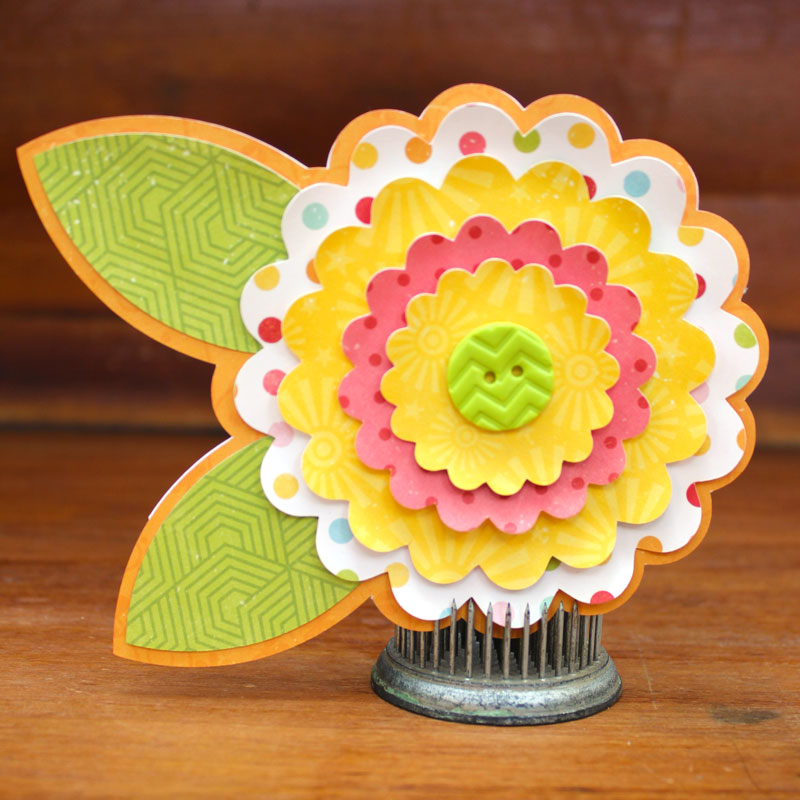
Tri-Fold Shadow Box Card Tutorial with Courtney

Hey all! It’s Courtney Lee from Court’s Crafts here with your Thursday tutorial!

Okay, so this is both a tutorial and a “what you can do with the product” tutorial so I am going to show you the traditional way this is put together, but I am going to then deviate slightly by making the stars into mini shakers.. so hang with me.

Before you start anything when you import to the Cricut Design Space software you want to right click and ungroup everything. Then you want to highlight a whole segment and “attach”. The reason you want to do this is so that the scoring lines actually end up in the correct places. It’s a weird funny “glitch” but if you don’t then the scoring lines think they want to cut out of black and even if you make them white they still will try to “cut” as a different object. This took me quite some “you-tubing” to figure out. 🙂

First of all I duplicated both the mirror looking layer and the background rectangle. The extra mirror looking layer is for the front of the card and the extra background rectangle is for acetate to make this a shaker-shadow box. Those are shown as a red piece and a black piece (not pictured) respectively on my screen shot. I’m so sorry I cannot get all of it into view! The Cricut software doesn’t put it on different mats it just puts it in different colors (or you choose them) and it divides it onto different mats accordingly. I LOVE it for saving me time, but it’s not super for pictures for a tutorial. 🙂

Step 1: I adhered the red polka dot panel (the extra mirror looking layer) to the front of the card.
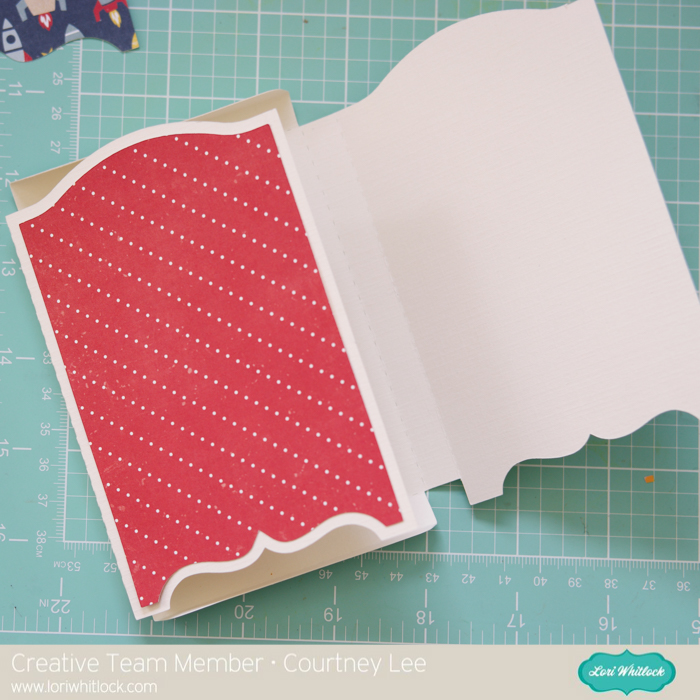
Step 2: I adhered the red polka dot rectangle to the back middle of the card.
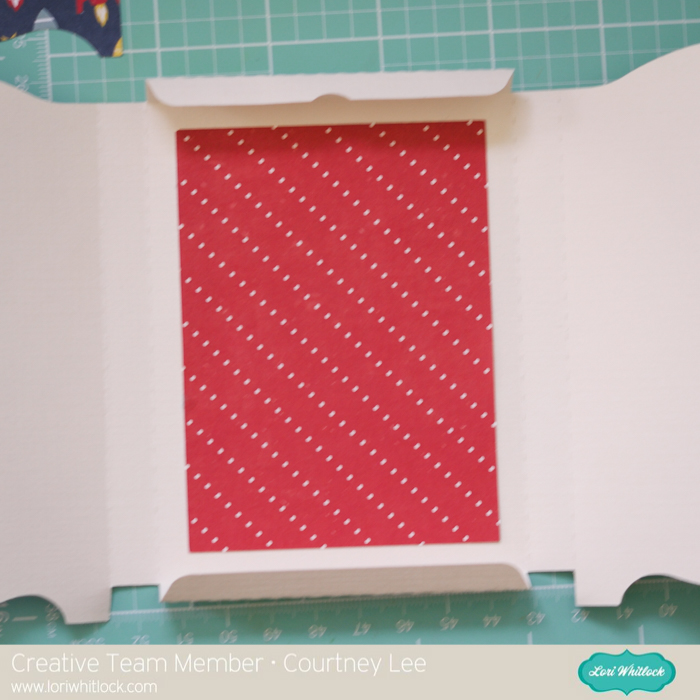
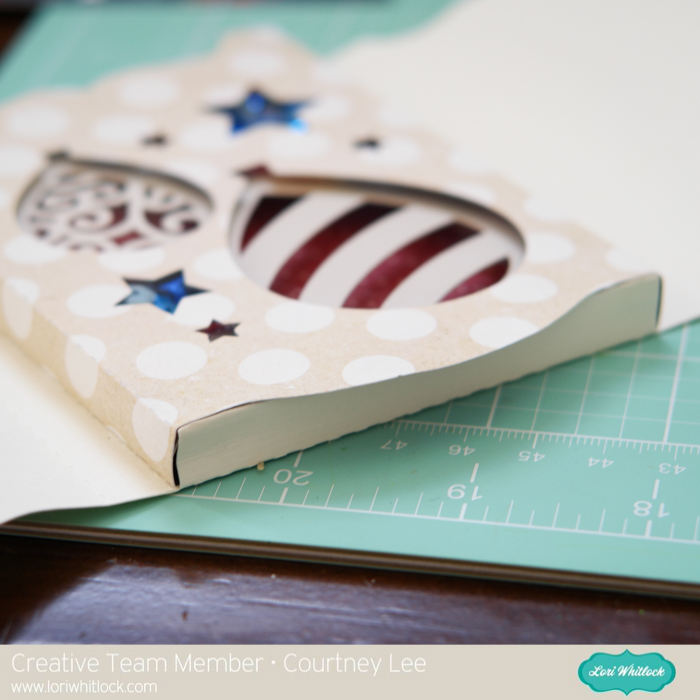
Step 3: Adhere the acetate to the back of the tan and white polka dotted panel.
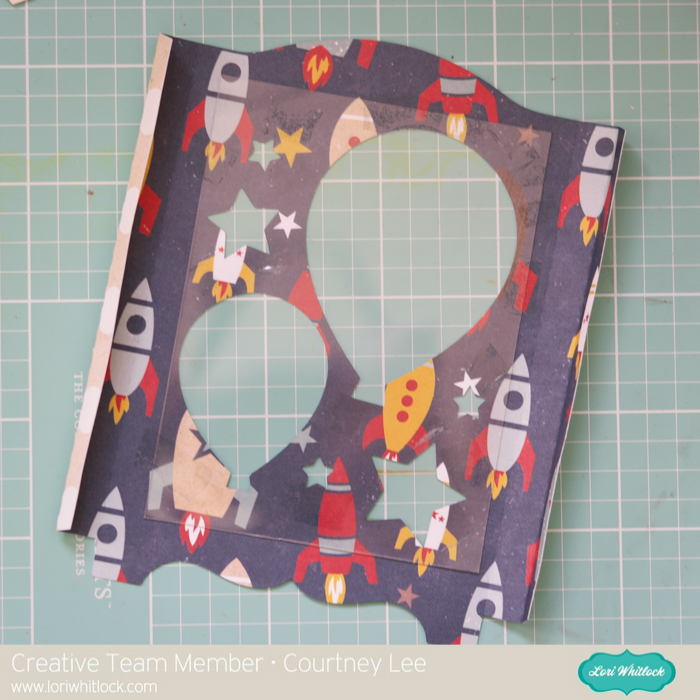
Step 4: I added the foam dimensional tape around the stars and then added a second layer of tape to increase the thickness and then fill the stars with sequins.

Step 5: Put the cream layer upside down onto the foam dimensional tape. Line it up by using the top and the bottom line of the bottom panel.

Step 6: Put liquid glue on the skinny sides of the cream layer, the outside of the whole panel you have been working on, and the top and bottom of the “box”.

Step 7: Tuck the top and bottom of the box in between the cream layer and the rocket layer.
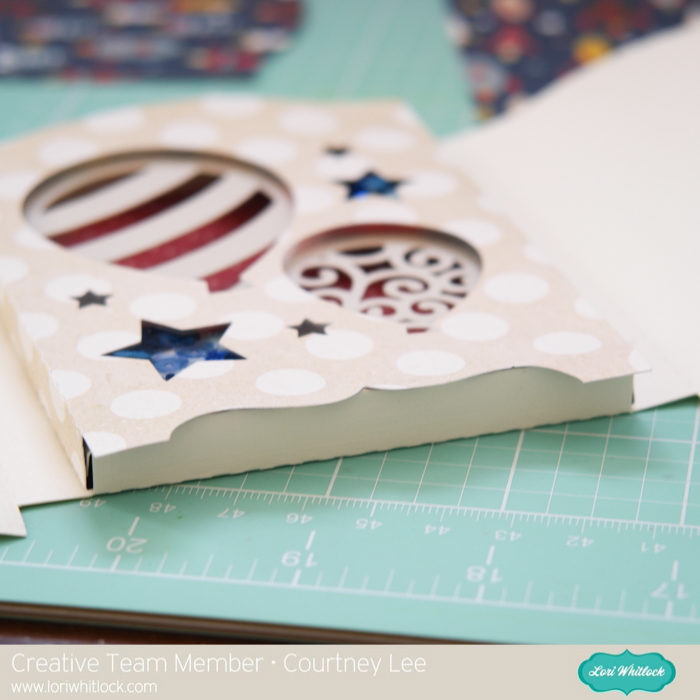
Step 8: Adhere the panels to the sides of the frame and decorate! 🙂
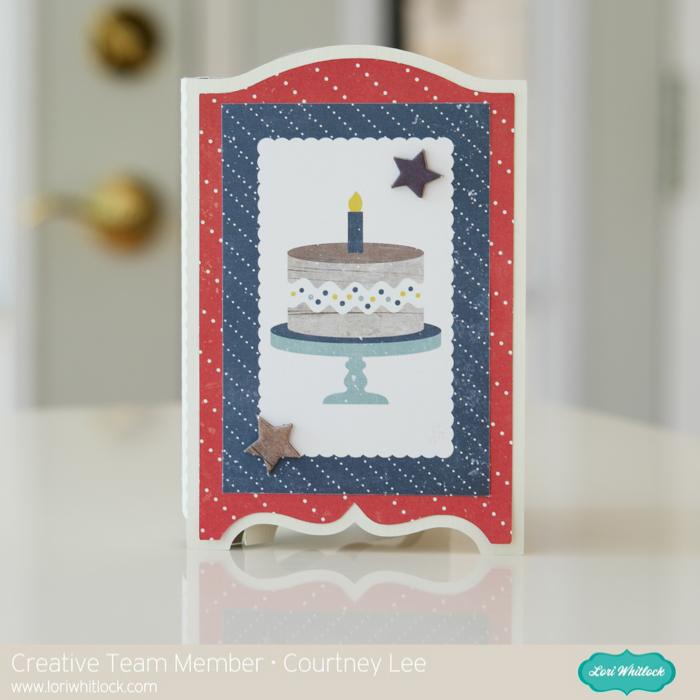
Recipe:

Lori’s Shop: Tri-Fold Shadow Box Card: Birthday

Silhouette Shop: Tri-Fold Shadow Box Card: Birthday

Lori Whitlock’s Pinstripes collection for Echo Park Paper

Pinstripes: Boy Bingo Cards (PS104010)

Pinstripes: Rocket Ships (PS104005)

Pinstripes: Alpha Stickers (PS104015)

Pinstripes: Adhesive Chipboard (PS104022)

Pinstripes: 6×6 Paper Pad

acetate

liquid glue

tape runner
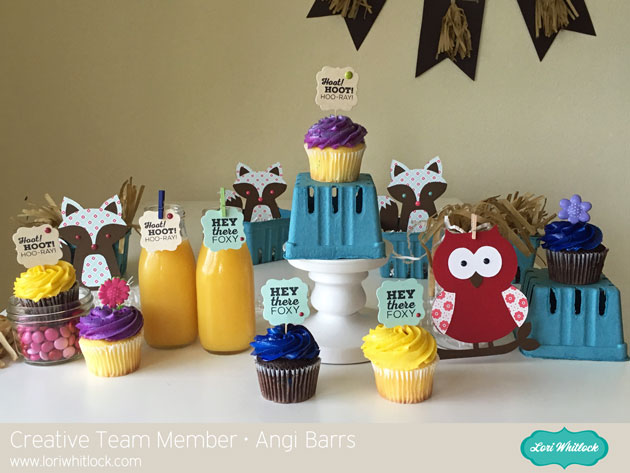
Sizzix Woodland Animal Party with Lori Whitlock Dies

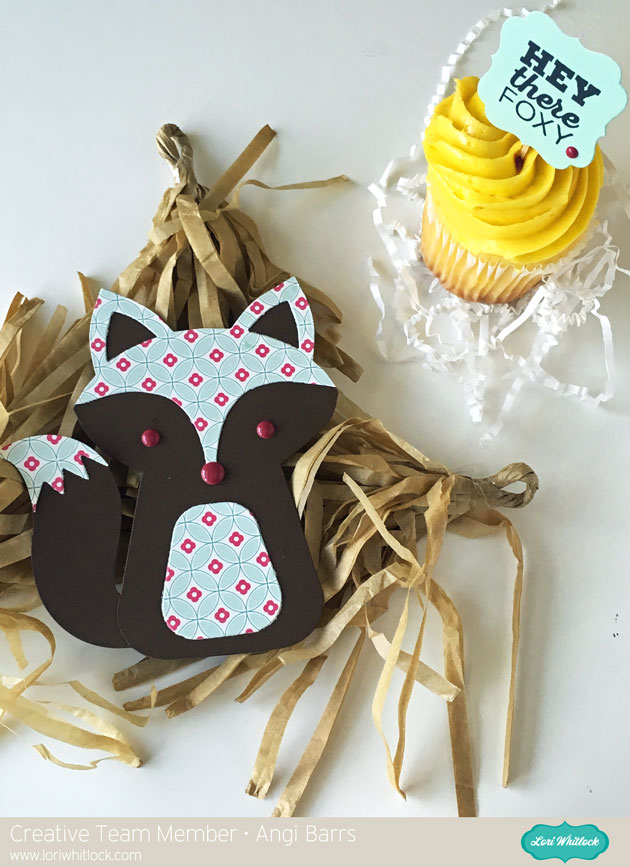
Hello everyone! Angi from Twenty Five Smiles here with a fun party idea. This one would be perfect for both boys and girls. And since it’s a “woodland theme” you could host this party indoors or out. I used Lori’s adorable dies from Sizzix for this one. And I also used some of her patterned paper that she designed for Echo Park. Let’s get this party started!


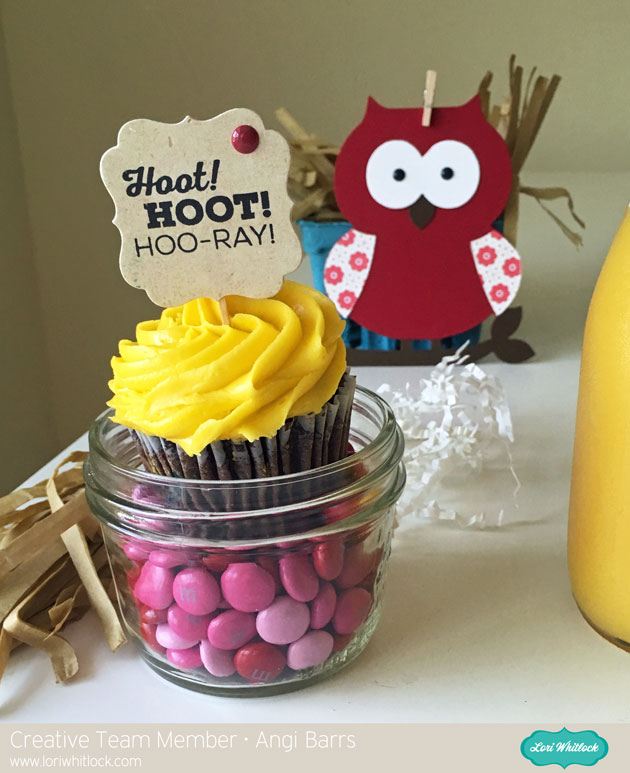
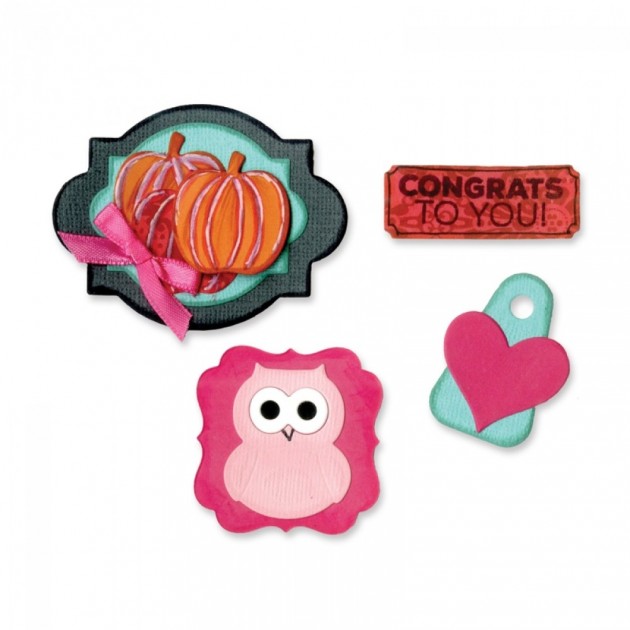
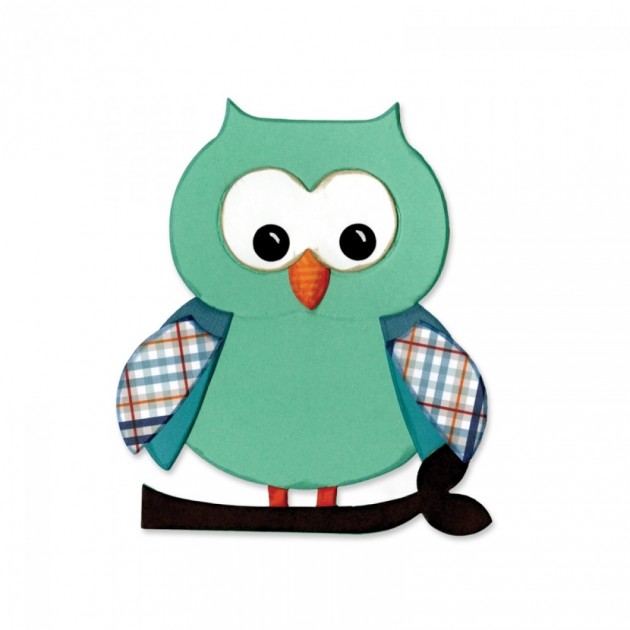
Here are some close up shots of my little party! I just love the Sizzix Bigz Die Owl. It’s so adorable. I added some of the Petticoats and Pinstripes patterned paper to the wings. I also used the Framelits coordinating dies and stamps to make the cupcake toppers.


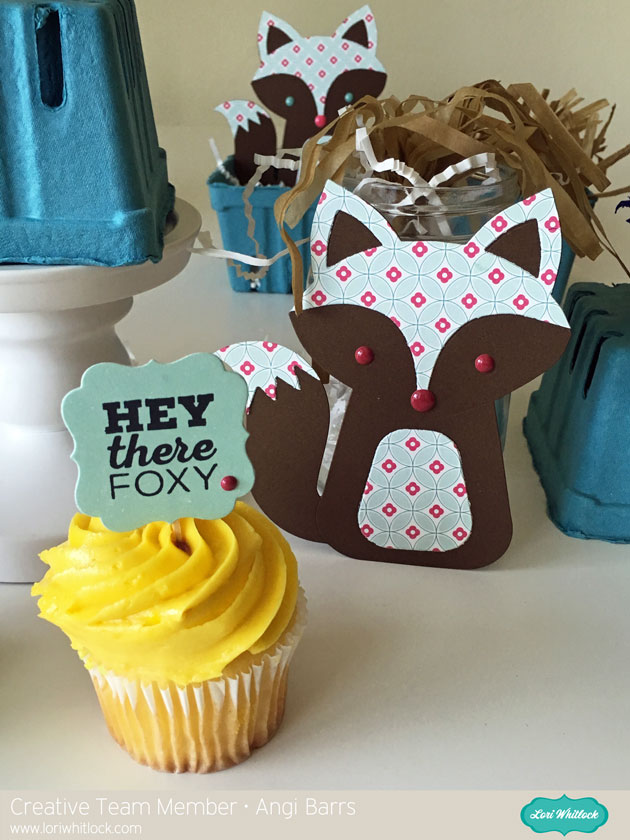
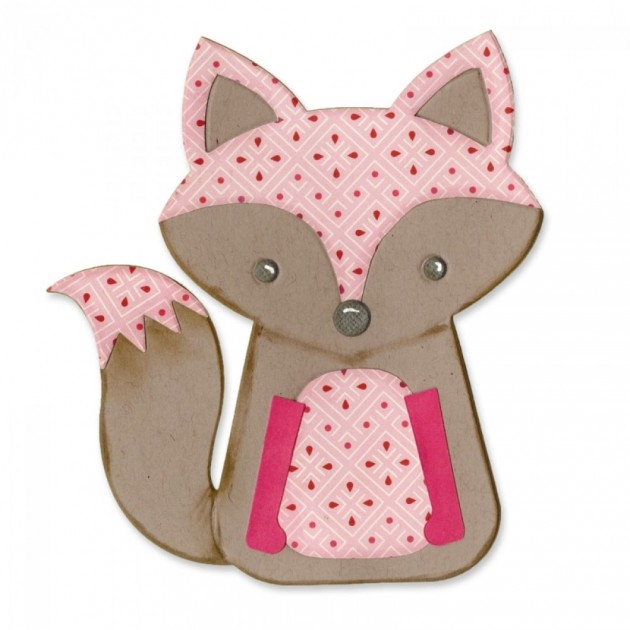
The Sizzix Bigz Die Fox is another adorable part of the party. I added more of the patterned paper and used the enamel dots for the eyes and nose.

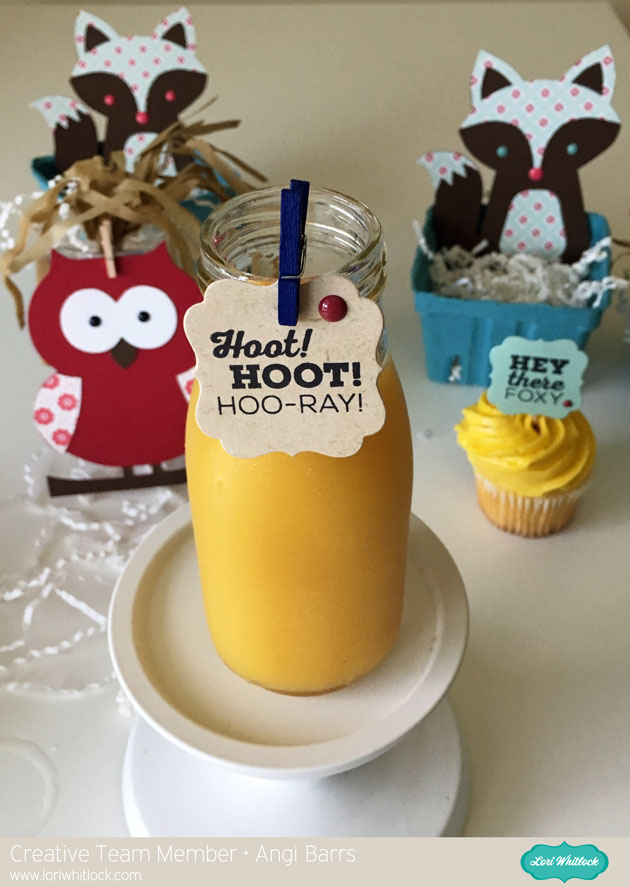
Be sure to add more fun sentiments to some juice bottles.

The kiddos would love seeing them on their drinks.


I hope you enjoyed my fun little party idea today. Be sure to check out Lori’s Sizzix dies, they’re a lot of fun to work with!

Sizzix Dies and Stamps Used:

Book Box Tutorial with Kathy

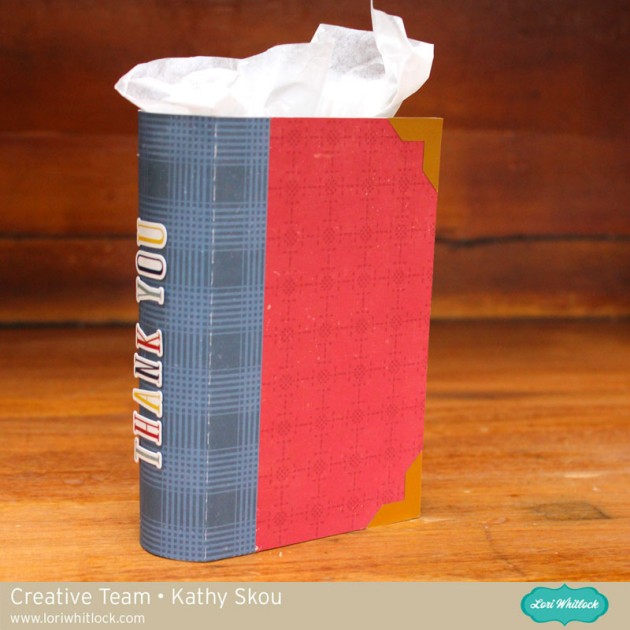
Hi Everyone, it’s Kathy today with a tutorial showing how to assemble Lori’s new Book Boxes.  These boxes are so cute and come in three different sizes!  I used the Small Book Box as a gift card holder for my daughter’s  English Teacher… he has been so helpful, writing college recommendations, helping to edit essays and providing much morale support, she wanted to make sure he knew how much he is appreciated!

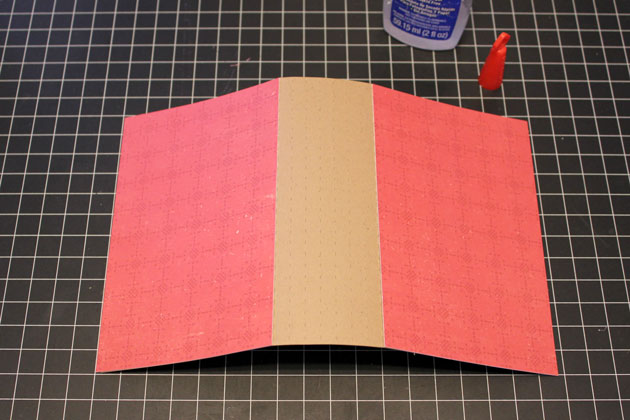
I started by cutting the pieces out using Lori’s Pinstripes Collection for Echo Park.  For the book “cover” you want to run it along the edge of your desk or table to curve the spine area.  The same for the spine cover (blue).

The first assembly step is to glue together the main box piece, making sure the tabs are inside the box.

Next, I added the “pages” strips to the side and the bottom of the box.  Be aware, the bottom page piece is supposed to stick out a bit further then the box bottom.

Next I added the decorative panels to the book cover.


I then added the spine cover, making sure to line up the outside score lines.

***  A quick note on the last two steps… I did it in the incorrect order… You want to add the spine piece first, then cover with the cover pieces, but mine was already glued… it still looks great, but goes to show, even the “experts” make mistakes!!

The next step is to add the cover to the box.  You want to line the edges of the open end of the box up with the outside score lines on the spine of the cover.

I found it easier to do one side at a time.

All that’s left is to add the outside embellishments!  I used some gold sticker paper I had in my stash to make the corner protectors.

I used the stickers from the Pinstripes collection to write a Thank You “title” on the spine.

That’s it for me today, thanks for stopping by to peek!

May Off the Page Challenge with Kathy

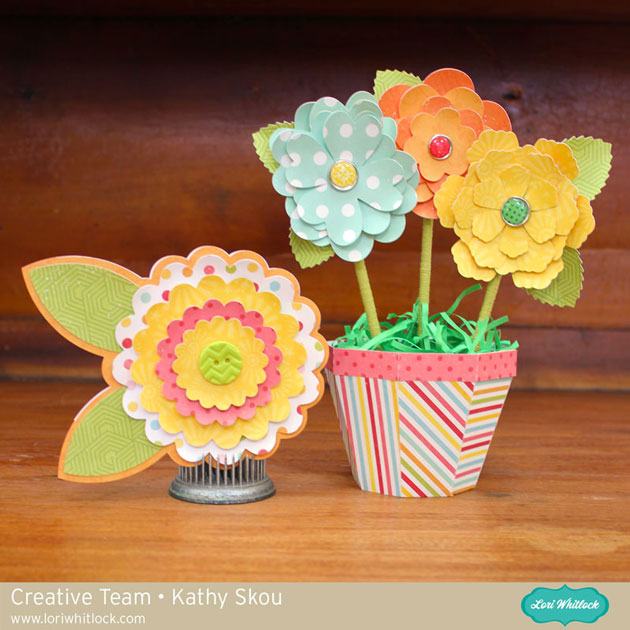
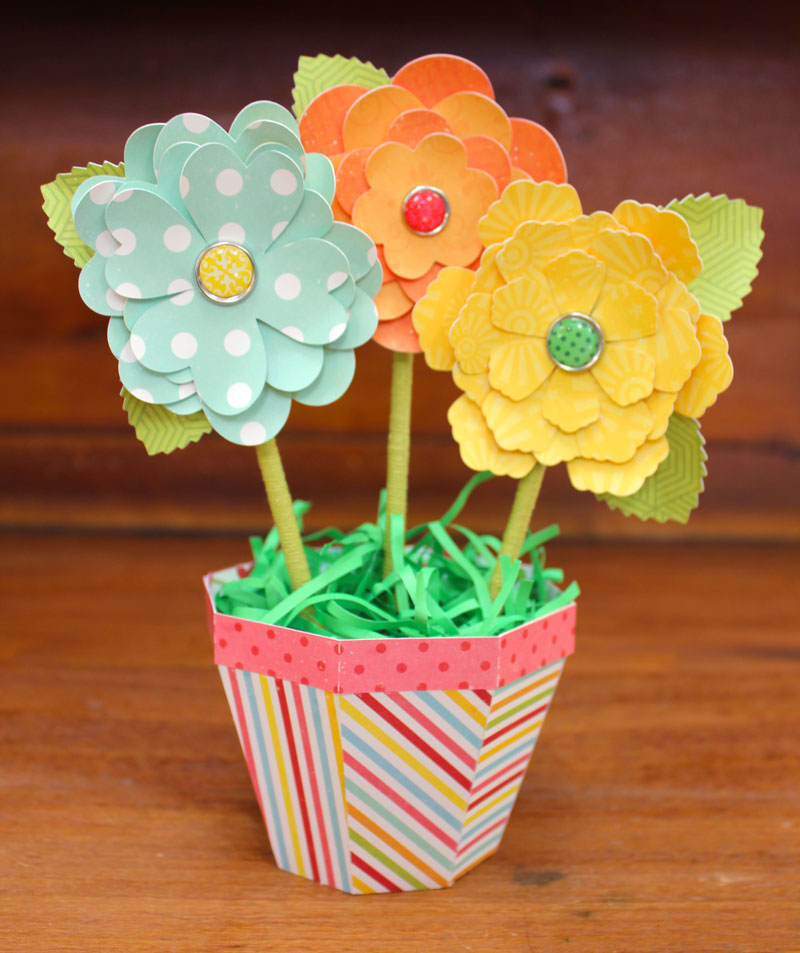
I can’t believe it’s already May!  It’s time for the May Off the Page Challenge over in the Paper Issues Friends and Fans Facebook Group!  This month’s challenge is all about Flowers! We want to see all of your paper projects featuring flowers.  You can also add in Mother’s Day and Teacher Appreciation gifts projects as well!  Of course we would love you to use Lori Whitlock files!  For my project, I used the fun files from the May Kit of the Month take a peek…

These just make me happy!  The would be so cute for a Mother’s Day gift or for that special teacher or friend. Here are some close-ups!  I used some papers from Echo Park’s Hello Summer collection, they are so bright and cheery!


Be sure to play along with this challenge by posting your project in the May Challenges Album in the Paper Issues Friends and Fans Facebook Group in the comments under this project.  Each project posted will give you an entry to win a $10 Gift Card to the Paper Issues Store!  You have until June 6th  to enter!  I can’t wait to see what you create!

Using Digital Brushes and Stamps with Rachael

Hello, all! Rachael here today, to show you how to use brushes and stamps on your digital layout. I will be demonstrating this technique in Photoshop CC, but the principles are the same in Photoshop Elements. Let’s go ahead and get started, shall we?

For this layout, I used a solid yellow paper as the background. Solid papers are a great starting point for adding brushwork.

The first step is to create a blank layer for your brush strokes:

Next, you’ll want to activate the brush tool. In Photoshop, this tool looks like a paintbrush and can be activated by using the hotkey (B) on your keyboard. Once the tool is activated, you could go ahead and use the default brushes. However, we are going to use some of Lori Whitlock’s very cool brushes in this layout. To load additional brushes, click the drop-down arrow next to the currently active brush:

The brushes window will open, displaying all available brushes in the current brush set. Click the gear icon in this window to load new brushes:

The next window gives you a series of options. You can either Reset the brushes, which replaces the brush set with the default brushes; Load brushes, which appends the brushes in the new brush set to the existing brushes; or Replace brushes, which replaces all loaded brushes with the ones in the brush set you select. There are, of course, numerous additional options within the menu, which you can explore and experiment with as you see fit. For now, go ahead and select the “Load Brushes” option.

Navigate to the folder that contains the brush set you wish to use, and double-click to load the brushes.

To view the brushes in the brush set, click the drop-down arrow next to the current brush (refer to the second step, above). This menu displays a thumbnail icon for each brush in the brush set. Select the brush you wish to use, and set your foreground color.

Go ahead and place your curser, which should now be in the shape of your brush, in the location you desire.

Since you’ve placed the brush stroke on its own layer, you can move the brush around and rotate or manipulate it as needed, just as you would any other design element. You can also change the blending mode of the brush layer, to get different results. For this next brush stroke, I stamped in black and then changed the blending mode to Overlay and reduced the opacity to 40%:


Digital brushes and stamps are a fun and easy way to add complexity and depth to your layout. Feel free to play around with the options and find what works best for you.

I hope this inspires you to try something new!

The following products were used in this layout:

Echo Park (designed by Lori Whitlock): For the Record Collection

Flourish Brushes

Everyday Stamps

Everyday Stamps 2