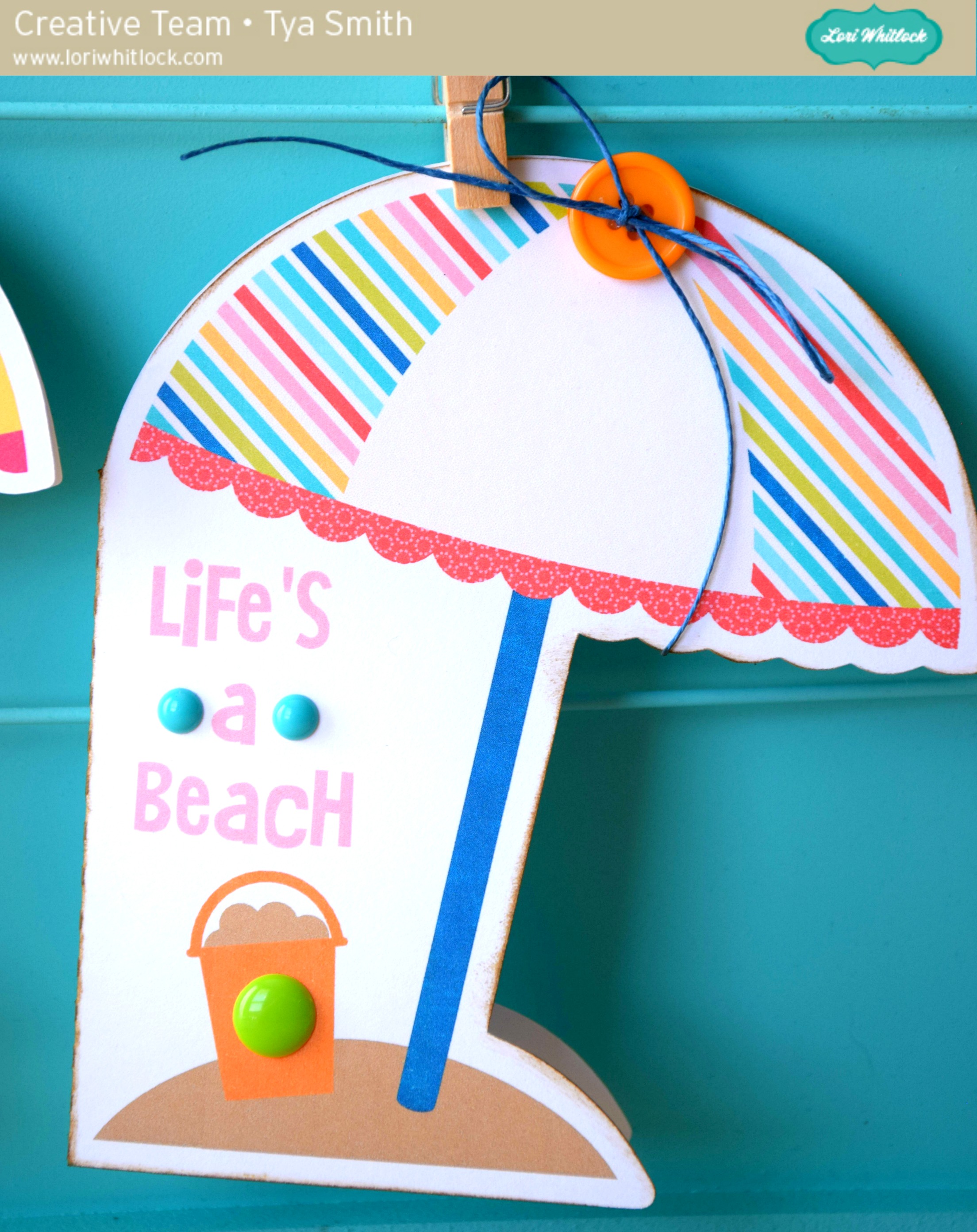
How to Change the Colors of a Print and Cut File Tutorial by Tya

Hey everyone! Hope you are all enjoying your summer! Today I have a tutorial for you on how to change the color of a Print and Cut file. One of my favorite features of the Silhouette software is the ability to do a print and cut. Lori has some really cute Print and Cut files in her library and so I thought it would be fun to showcase one of these files today.
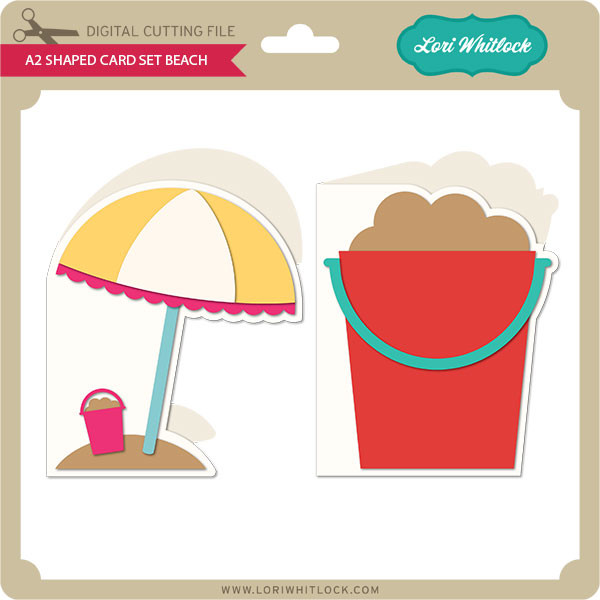
So I am using the a2 Shaped Card Beach (found here in the Silhouette Store). I loved all the fun colors of this card, but I wanted to add some patterns to spice it up a little . Let me show you the steps to do this.

Step 1-

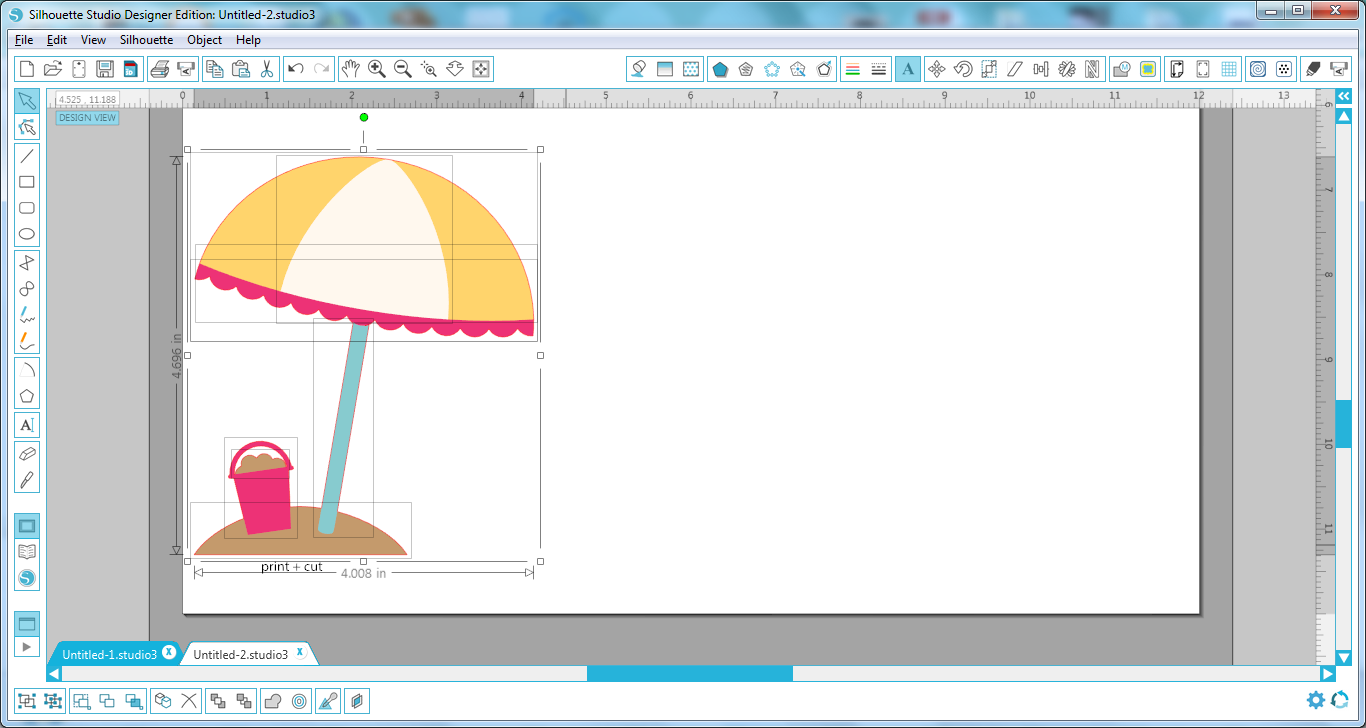
Open up the file in your Silhouette. Here is what it looks like in its original state.

Step 2-

Select all the pieces of the card and then ungroup them so we can work with each piece individually.

Step 3-

We only want to work with the Print and Cut part of the file, so go ahead and delete the other pieces.
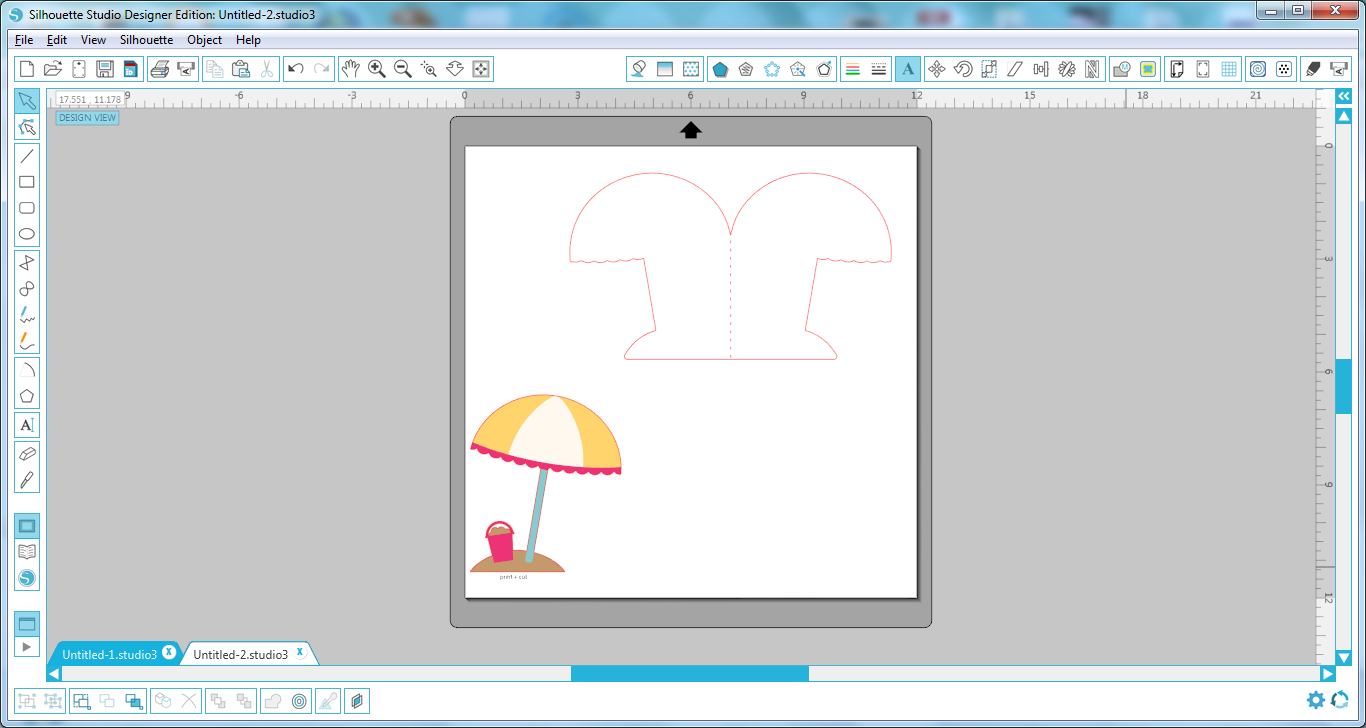
Step 4-

Select the shape and then again ungroup the shapes so we can separate all the different pieces.

Step 5-

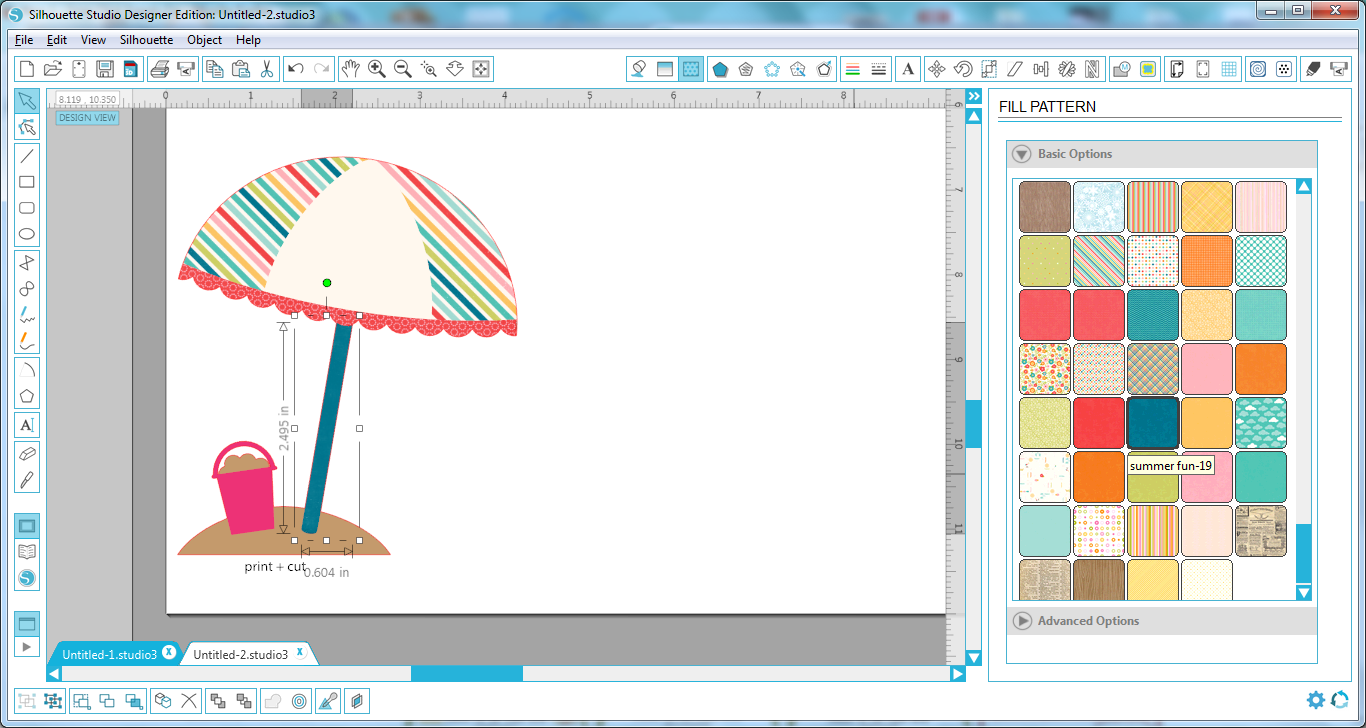
I downloaded this digital paper set ( Summer Fun Papers found on Snap Click Supply). Adding digital papers to your Fill Patterns in the Silhouette software is super easy. Simply select the papers you want and drag them into your pattern bin in the software.

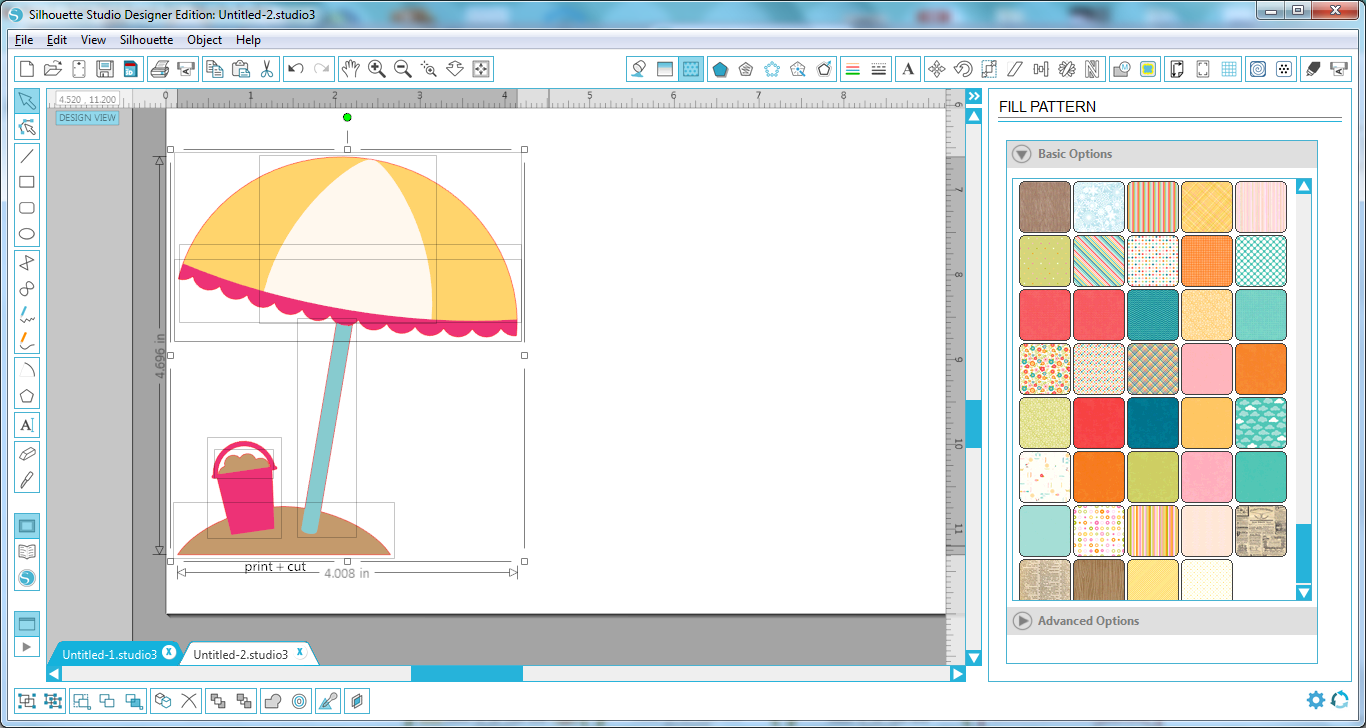
Step 6-

Select the part of the original file you want to change. Here I changed the yellow part of the umbrella to a fun stripe. Simply click on the fill pattern and the software does the rest.

Step 7 –

Go ahead and change the rest of the original elements to new ones by selecting the piece and then selecting a new fill pattern.

 Step 8-

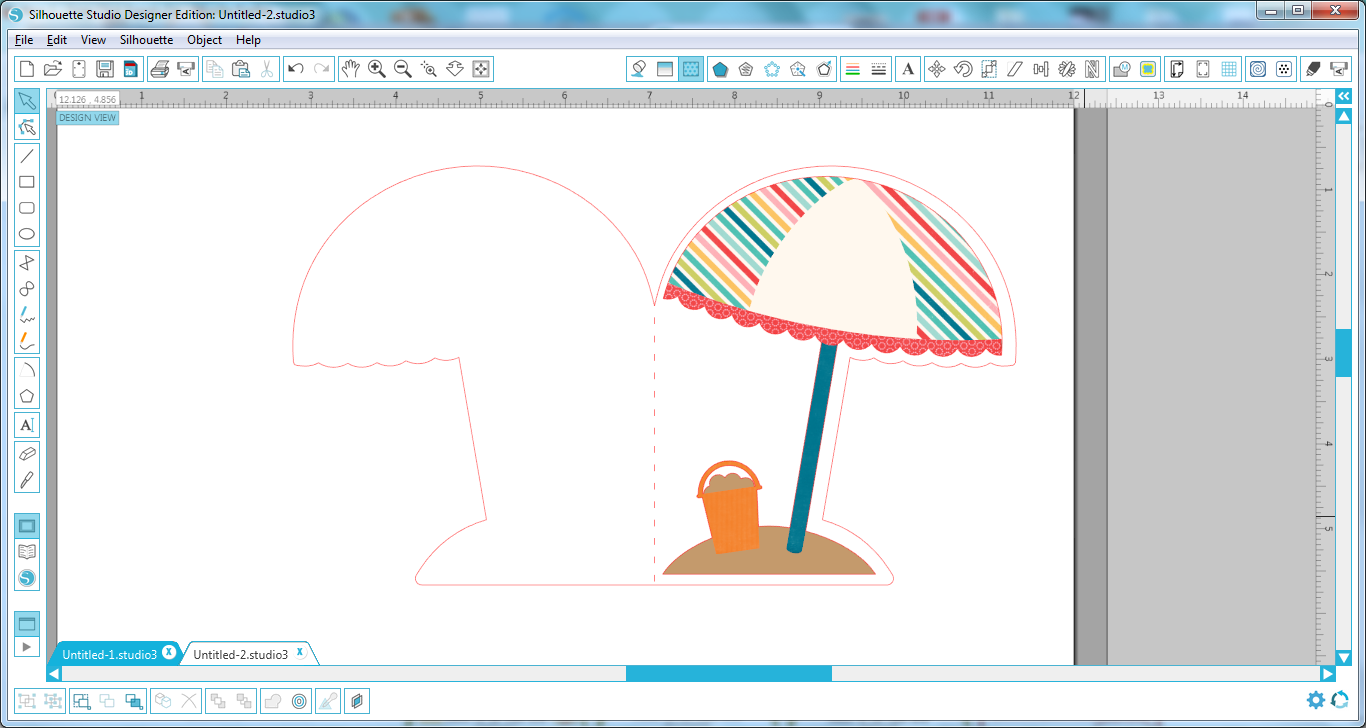
Once you have all the colors changed to your liking – go ahead and group the file back together again and then drag it onto the card base.

Step 9 –

Just for fun – I added a sentiment to the card front using the LW Fun font. (LW SVG shop) (Silhouette) .

Step 10-

Add registration marks for an 8 1/2 x 11 size page.
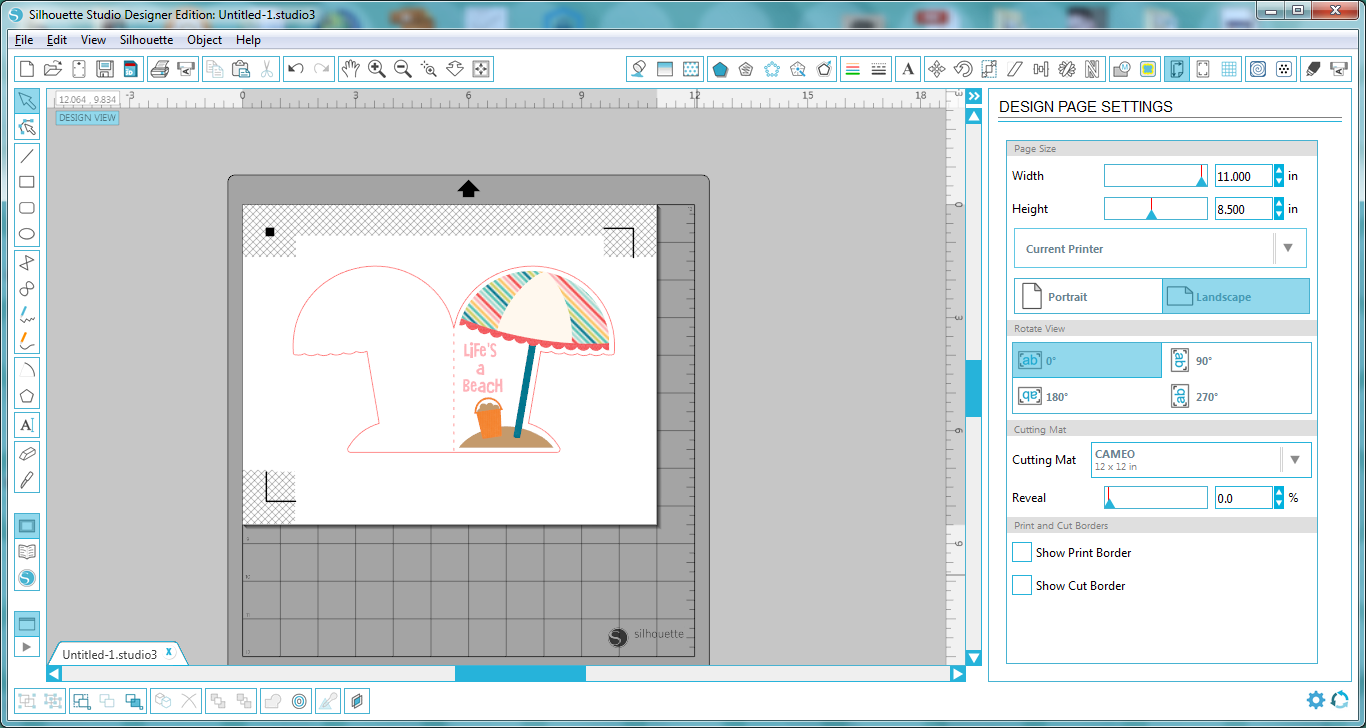
 Make sure you adjust your cut settings as well to only cut the outer edge of the card and not the cute umbrella.

 Select the No Cut option to make sure the umbrella does not get cut out.

Now were ready to cut! Send the file to your printer and print it out and then load the paper onto your Silhouette mat and cut it out.

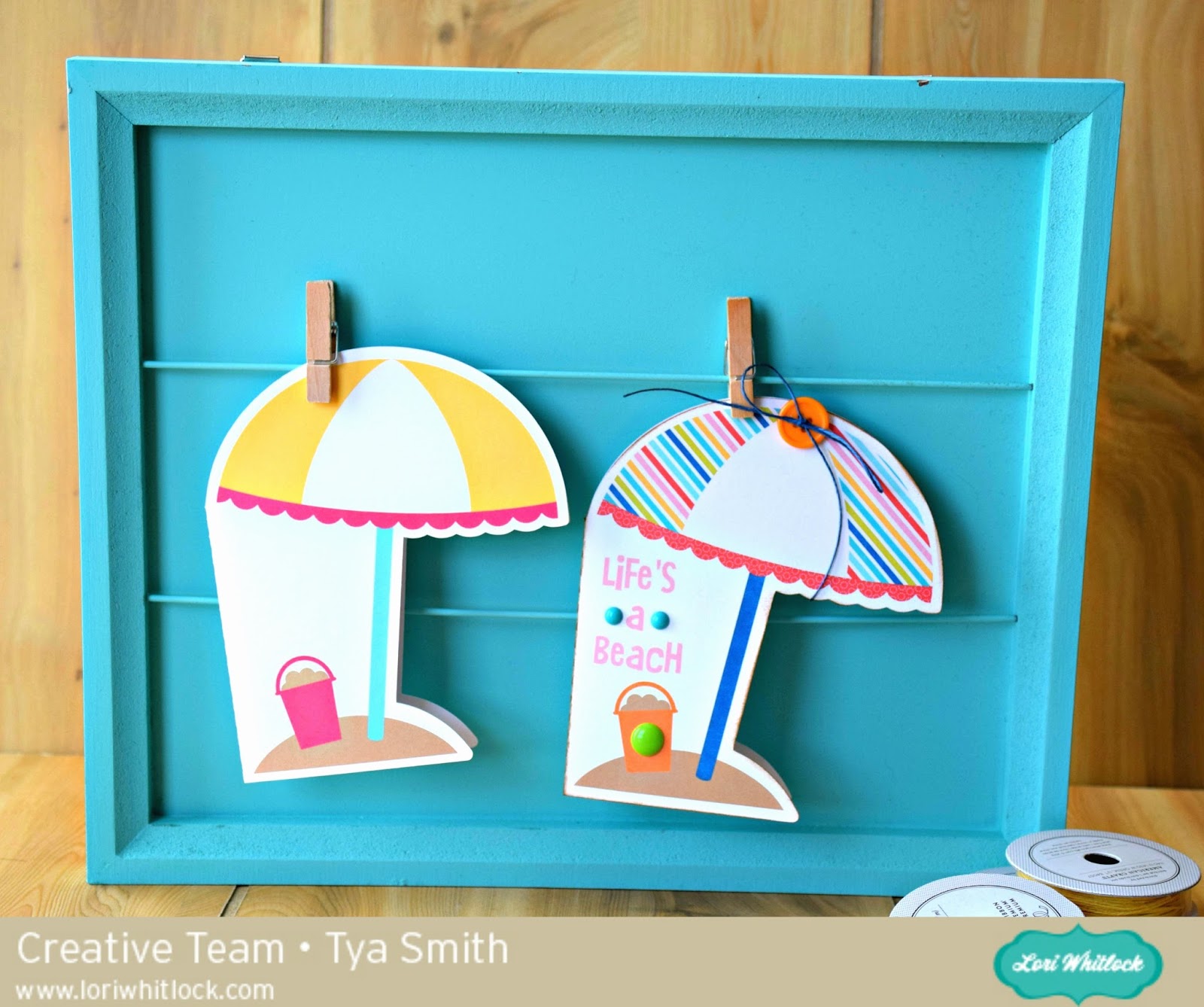
So here are the cards. The one on the left is the original card.The one on the right is the card that we made changes to. I also added some embellishments to add a little texture and interest.
Thanks for stopping by. Hopefully I have taught you a new fun trick for you to try the next time you want to make a project using the Print and Cut feature! Happy Crafting!

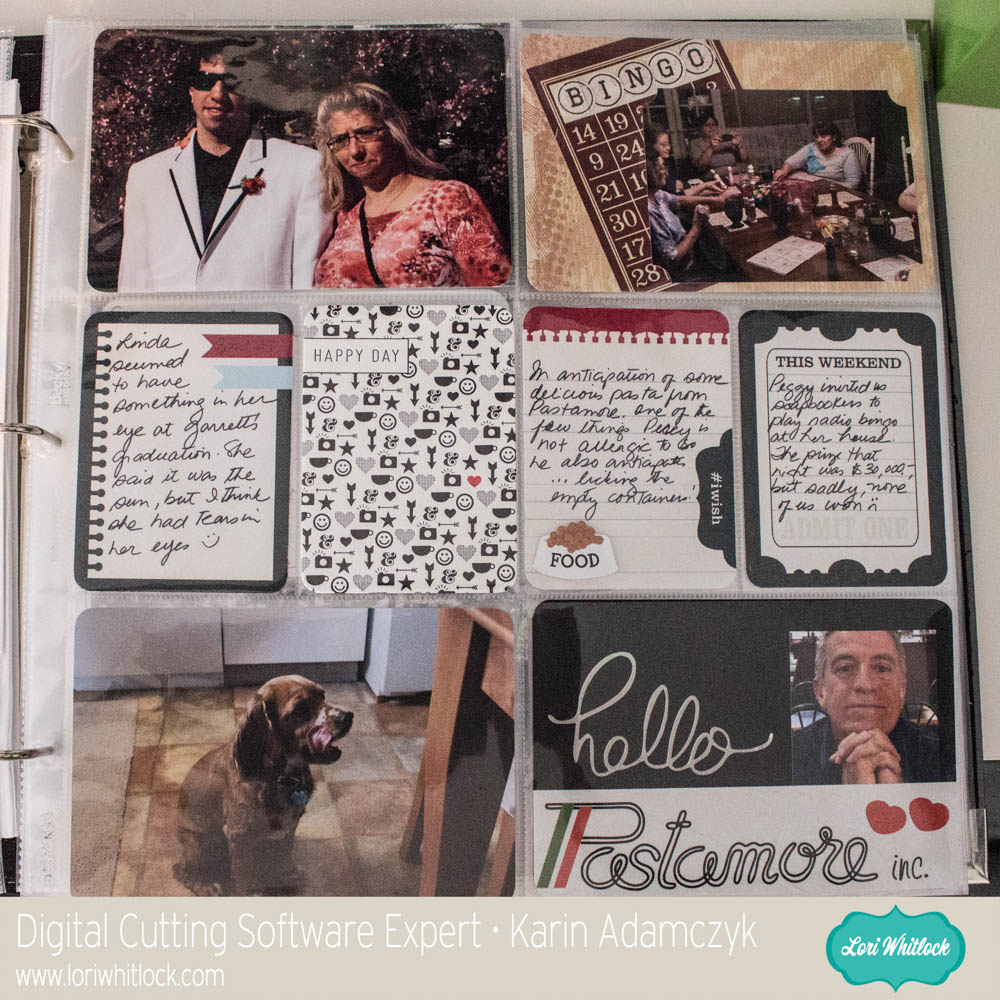
Life Cards Flip Through

Hi Everyone, it’s Karin today and as promised in my last post, here are the pages I have completed in my Project Life binder. The page above shows a number of Lori’s Office Oriented Life Cards and the following images include life cards and various other Lori Whitlock digital elements.

The next two pages are from my last post in which I used St. Patrick’s Day life elements

Using the Lori’s digital images from Snap Click Supply makes fast work of my pocket pages!  Thanks for stopping by today!

One Buck Wednesday at Snap Click Supply Co.

Today at Snap Click Supply I have two items featured for $1 on Wednesday!. That means you can pick up 2 of my digital scrapbooking products at a steal. TODAY ONLY!

Island Paradise Papers


Island Paradise Elements 

Be sure to go grab these great deals while you can. These offers will end at midnight!

There are specials in my SVG Shop as well! Don’t forget about the July Kit of the Month! If you spend $20 in the SVG Shop (in one transaction) you can get the Kit of the Month for free! Simply add the July Kit of the Month to your shopping cart along with ANY $20.00+ purchase from the SVG Shop and this file is yours FREE. These would be perfect to help someone celebrate their special day! Be sure to use Coupon Code: JULYKOTM (case sensitive) at checkout. This offer is good through July 31st!

(Your cart must reach at least $20.00 before the coupon will be applied and then $7.95 will be subtracted from your total at checkout. The files will be available for immediate download after you pay for your order by visiting MY ACCOUNT>COMPLETED ORDERS>ORDER DETAILS inside of your account. Only one discount code per order allowed.)


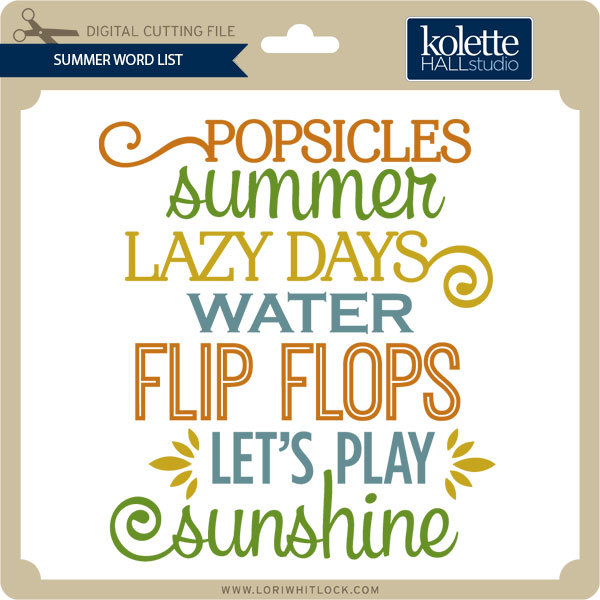
We also have this week’s free file! Simply add this Summer Word List to your shopping cart along with ANY $1.99+ purchase from the SVG Shop and this file is yours FREE. Be sure to use Coupon Code: SUMMER (case sensitive) at checkout. This offer is good through next Sunday.

(Your cart must reach at least $3.48 before the coupon will be applied and then $1.49 will be subtracted from your total at checkout. The files will be available for immediate download after you pay for your order by visiting MY ACCOUNT>COMPLETED ORDERS>ORDER DETAILS inside of your account. Only one discount code per order allowed.)


And don’t forget, all new files in my SVG Shop are 25% off through Sunday!

Have a great day!


Digital Life Cards and Print Elements with the Cricut Explore with Karin

20160708-2016-07-08_17-00-04-Edit


I worked on a series of videos to show you how I am using Lori Whitlock’s digital life cards in my Project Life binder. I combined the videos into the one below and will add another in two weeks showing how far I have progressed in a very short time.
I had started a Project Life binder in 2012 and had it very well organized, but then I never kept it up. Since it is now so much later, I have decided that I won’t organize the binder by date. Instead I will just work through all my images and journalling using digital life cards and make my binder look nice and complete the project.
I literally have hundreds of files to work with so I need to organize them before I get started. I used Adobe Photoshop Lightroom to do this because it makes it so easy to find what I need. Also, if I want to tag elements for specific topics or themes, Lightroom makes this very easy. The image above shows how the thumbnails look in Lightroom.
20160708-2016-07-08_17-00-52-Edit
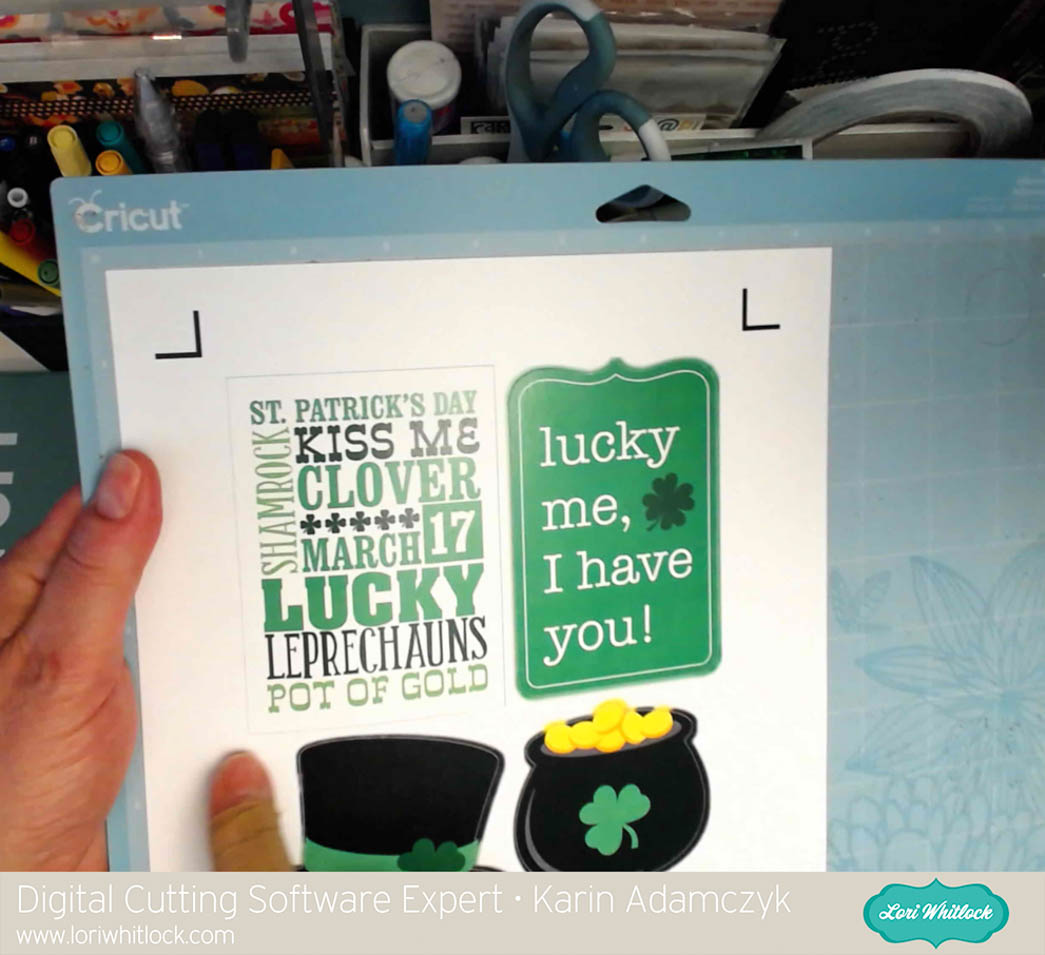
The image above shows how I took an element, uploaded it into Design Space, cleaned away the outer white area to have the scalloped edge and inner portions as a print element that I cut out with my Cricut Explore.
20160708-2016-07-08_17-02-13-Edit
In my video, I show you how I set up the element in the upper left corner of the print then cut image above to use it as a card in a 3×4 pocket.
20160708-2016-07-08_17-02-59-Edit
This image shows you how the cutting line goes around the outside of the card.

Thanks so much for stopping by. Be sure to check back in two weeks when I post a flip through of my Project Life binder so far.


Digital Layout by Rachael

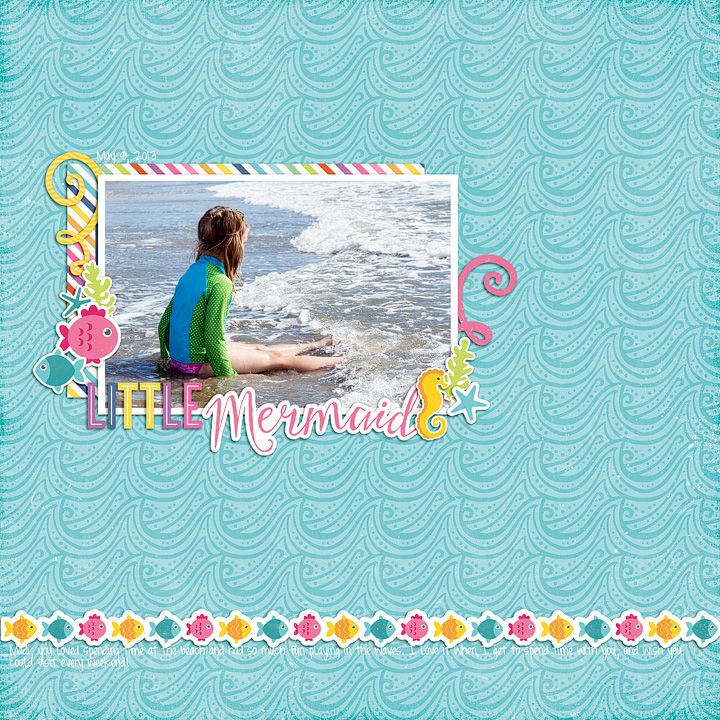
Hello, all! Welcome to the blog, and happy Independence Day weekend! This week I’d like to share a layout I created using Echo Park’s “Let’s Be Mermaids” collection, designed by Lori Whitlock:

This kit is so much fun for documenting beach days with your little sweethearts!

Enjoy your weekend, and be sure to document the amazing memories you are making!