Resizing SVG Files in Cricut Design Space

The Cricut Design Space update that happened on July 11, 2019 has caused a new issue.  Now, when you open any SVG file (not just files from the Lori Whitlock SVG Shop) that measures over 11.5″ in either width or height, Cricut Design Space will automatically resize it to 11.5″. This causes a problem for 3D and size-specific projects.  Going forward, we will be providing the width measurement inside of each 3D file. For files that pre-date August 2019,  we have a NEW page in our shop that will give you the correct widths of 3D and size specific files.  This will allow you to correctly resize the files once uploaded to Cricut.

As mentioned any 3D file created after August 1, 2019 will have the correct width included in each file.  We are adding this information to all files, not just ones that Cricut will resize.  This way you can be confident that you are cutting the file in the correct proportions.  If you look at the picture below of a newer file, you can see the measurement listed beneath the image.

For files created prior to August 1, 2019, we have set up a Sizing Page in the SVG Shop that will list all 3D & size specific files and their correct widths.  Again, we are listing all widths for all files, whether or not they will be resized by Cricut.  The list is alphabetical and each listing is linked to the file in the shop so you can be confident that you have the correct file.  We are updating this page continuously. Please email us for sizing information on any file that you may need help with and we’ll add it to this list ASAP.


Because the list is so long, you may want to use the find function of your computer to search the list.  The command to do this on a Mac is “CMD+F”.  To do it on a PC, you would press “CTL+F”.  A dialog box will pop up and you can then type the name of the file to search.

How To Resize in Cricut

Using the 3D Desk Teacher file as an example, this is how you would resize a file in Cricut.  First, upload the file to Design Space.  This file has been resized to 11.5″

You want to make sure all of the pieces of the file are grouped together before resizing.  My files should import grouped, but if not select all pieces, right mouse click and select group.  Next, navigate to the top menu of Cricut Design Space to the sizing area.  First make sure that the lock icon is “locked” or closed.

If it is open click on it to lock.  This will ensure that your file is uniformly resized.

Next, add the correct width (either from the sizing page, or the width listed in the file) into the W box and enter.  This will resize the file to the original size.

Again, we are working continuously to include all 3D and size specific files from the shop on this list.  If you have any difficulty finding the width of a particular file, Please email us for sizing information on any file that you may need help with and we’ll add it to this list.

Have a great day!

August Blog Hop and 25% Off All SVGs!

Welcome to our August 2019 Creative Team Blog Hop!  The creative team has been working hard on some new projects to share with you that will get you in the crafting mood. We also have a fun release of new SVG files for you this week and a GIVEAWAY! Be sure to check them out below. Oh, and there is also a FREE FILE for you!

This week we have a 25% OFF SALE going on at Lori’s SVG SHOP. ALL files (and commercial licenses) from Lori Whitlock, Kolette Hall, Doodlebug Design, Bella Blvd., Dresden Carrie, Paige Evans, Pebbles in My Pocket, Rivka’s Renditions and SAS Creative are on SALE now through Saturday, August 17th! Be sure to use coupon code: AUG2019 (case sensitive) at checkout in the SVG SHOP. (Only one coupon code per order allowed)

To thank you for joining us in the hop today and sharing the hop with your friends, we have a gift for you! TODAY ONLY, You can download this Pennant Summer file absolutely FREE! Be sure to go grab it while you can.

We have some fun new files this week! Be sure to go shopping while all files are 25% off this week when you use code AUG2019 in my SVG Shop!  And, as always, my new files are available in the Silhouette Design Store as well.

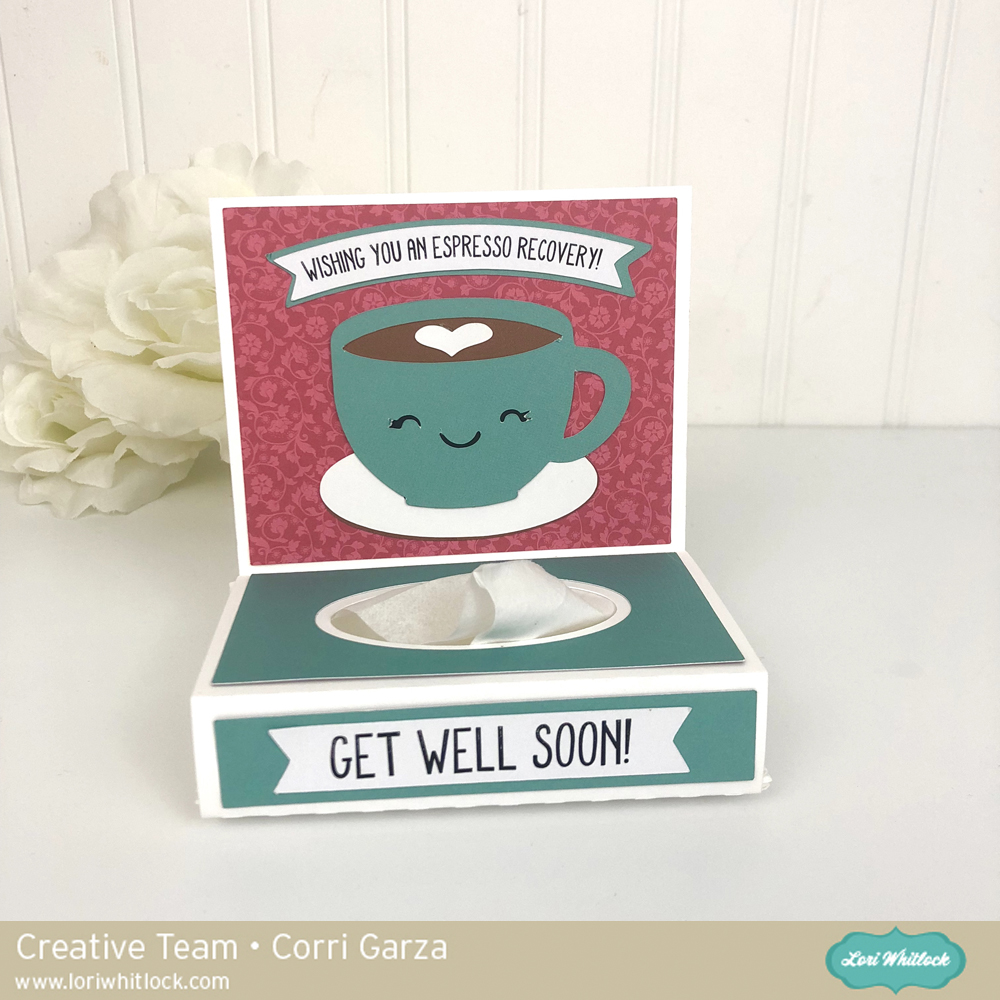
This week I have a new Get Well Tissue Box Bundle and some Back To School Sign Bundles.  We also have files from Doodlebug Design and Pebbles in My Pocket.


How about a giveaway?

a Rafflecopter giveaway
And, last but not least… would you like to see what our amazing team has created? Click the links below for some wonderful inspiration. If you get lost come back here to get on track Lori Whitlock, Traci Penrod, Kathy Skou, Brandie Adams, Michelle Zerull, Aimee Kidd, Ashley Cook, Cathy Harper and Michelle Houx !! Thanks again for dropping by! Have a GREAT day!

Pop Up Barn Card with Chicken

Hi everyone, Cathy here with you today!  I hope your summer is going great, and it’s County Fair Time in almost every county across the country in August….so I thought I would create a fun card with Lori’s new pop up barn card with the cutest little chicken. A darling card that celebrates just about anybody.  You can find the file here on Silhouette or here at Lori’s SVG shop.

This card was so quick and easy to make.  Really, just a few minutes and I was done.  I had some fun little pieces left over from Doodlebug’s Down on the Farm Collection that I added.  That little chicken is just too funny!  Everything about this file is adorable.  Check out both the Silhouette Online Design Store and Lori’s Shop for all her new pop up cards!

Thanks for joining us today!

Tuesday Free SVG and New SVGs in Shop

ALL WEEK, this SVG file is FREE with any $1.99 purchase!

We have a FREE file with purchase all this week! Simply add this A2 Glamper Card file  to your shopping cart along with ANY $1.99+ purchase from the SVG Shop and this file is yours FREE. Be sure to use Coupon Code: GLAMPING (case sensitive) at checkout. This offer is good through next Sunday.

(Your cart must reach at least $3.98 before the coupon will be applied and then $1.99 will be subtracted from your total at checkout. The files will be available for immediate download after you pay for your order by visiting MY ACCOUNT>COMPLETED ORDERS>ORDER DETAILS inside of your account. Only one discount code per order allowed.)


In addition, don’t forget about this special ! You can get this Free Kit of the Month with any $20 purchase (Purchase must be in one transaction.) Simply add the 2019 August Kit of the Month to your shopping cart along with ANY $20.00+ purchase from the SVG Shop and this file is yours FREE. Be sure to use Coupon Code: AUG19KOTM (case sensitive) at checkout. This offer is good through August 31, 2019!

(Your cart must reach at least $27.95 before the coupon will be applied and then $7.95 will be subtracted from your total at checkout. The files will be available for immediate download after you pay for your order by visiting MY ACCOUNT>COMPLETED ORDERS>ORDER DETAILS inside of your account. Only one discount code per order allowed.)

Check out the new SVG files releasing this week!  Just like always, the NEW SVG files will be ON SALE 25% OFF through the weekend in the SVG Shop! These downloads include SVG files that may be used with Cricut Explore, Silhouette (DE upgrade required), Eclips, Brother Scan and Cut, and any other software that will open SVG files. No coupon code necessary, the newly released files are all discounted in the shop! Be sure to go get them while they are on SALE this week.

This week I have some new card bundles!  We also have new files from Bella Blvd. and Pebbles in My Pocket.

Thanks for visiting the blog today! Please let us know if you need any help with your files. We want to make sure everyone is happy with their purchase. Have a great week! SHOP HERE

Unicorn Wiper Card

I love that Unicorns and rainbows are so popular right now.  Lori has a wiper card that features a unicorn and it’s adorable!

Image 1

You can find this SVG file in Lori’s Shop and it’s also in the Silhouette Design Store.

When opening the file in Cricut Design Space, remember to attach the score lines to the appropriate card layer:

There are 3 pieces with score lines to attach, the card base, the front strip and the wiper tab.  Also, you can delete the grey triangle glue pieces; these pieces are only there to help you see where to glue.

If you are using Silhouette, first ungroup the file pieces (right mouse click on the image, and select ungroup ) then delete the glue pieces and sort the pieces by color for cutting.


These are the pieces you will have after cutting: The card pieces and covering panels.

And the sentiment, unicorn, and balloon tag pieces. The sentiment is done using the print and cut function of your cutting machine.  For tutorials on this, see our tutorials page.

Start by gluing all of the pieces:  Add the covering panels to the card base and piece together the unicorn and the wiper pieces.

Next, construct the card.  Lori has a great video showing how to construct the wiper mechanism . You can find it here.

The card base pieces fit together like this:

And the final card:

I used Lori’s I Love Summer Collection with Echo Park.  I added an extra tag and an enamel dot for embellishment.  This card is sure to brighten someone’s day!