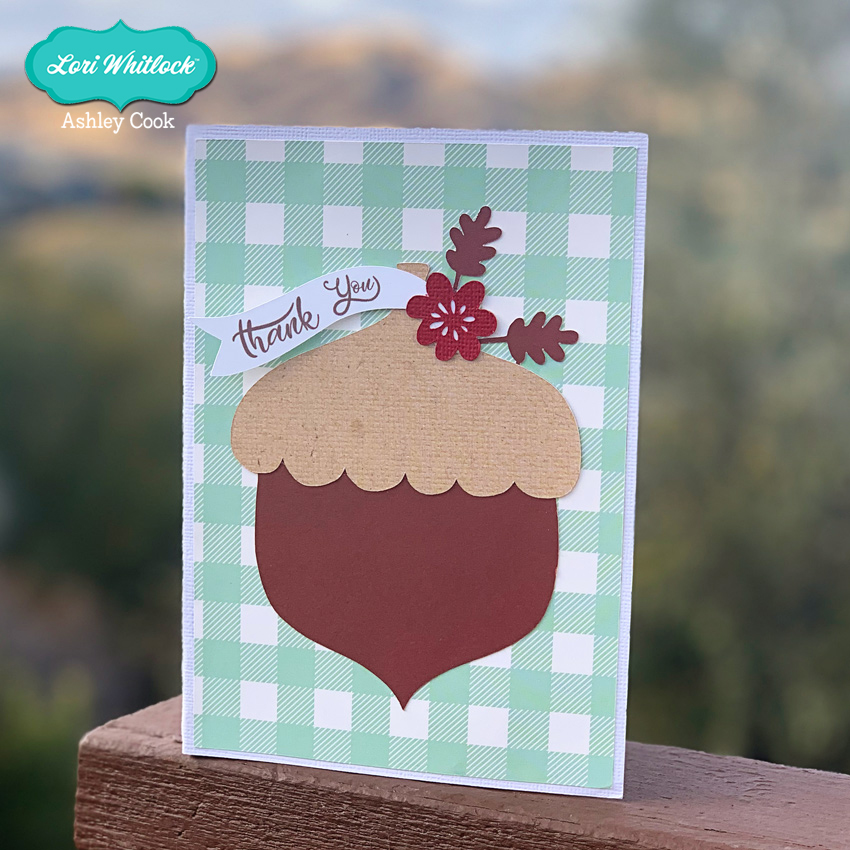
“My Favorite Fall” Flip Flap Card

I love making cards seasonal cards to send to my family friends. I’d like to share my go-to card that wows them every time. Meet one of the Flip Flap Cards!
This A2 Scalloped Circle Flip Flap Card is a Lori Whitlock classic! You can find it at the Lori Whitlock SVG Shop as well as at the Silhouette Design Store.  Silhouette users, this card is both Cameo and Portrait compatible! There’s Flip Flap cards like this one, so be sure to search for them all. They’re like swing cards, but they also open up to provide additional space for a person note or letter. 
You can use your 6X6 papers for all of decorative panels. I used Lori’s “My Favorite Fall” collection. Isn’t it pretty? It’s perfect for my favorite style of card!

Have a crafty day!

Michelle Zerull

Stickers, Not Just For Planners!

Have you seen the new sticker sets?  There are 2 new Birthday Sets (Birthday Stickers (SVGSilhouette), Birthday Stickers 2 (SVGSilhouette)) and a new set of Fall Stickers (SVGSilhouette).  These stickers can be used for a number of different projects… in addition to planners, you can use them on cards, gift bags, etc.  Individual stickers can be resized… larger for a gift bag for instance or you can print a few of the same stickers to make cards in multiples.  I used the new fall stickers to decorate a little gift bag.  Take a peek…

I started with The Gift Bag with Scalloped Handles (SVG, Silhouette).  I resized the bag to make it a bit larger. (11.75″ wide)  When resizing make sure that you do it uniformly by clicking the Lock Aspect Ratio in the top tool bar.  I pieced the bag together using some papers from Echo Park’s My Favorite Fall Collection.

I loaded the Fall Stickers into Silhouette Studio.  I only wanted to use some of them for the bag, so I started by ungrouping the stickers. (Lori has a print and cut tutorial for Cricut here)

For this group of stickers, ungrouping also ungrouped the individual designs on each sticker.  I zoomed in on the stickers I wanted to keep, selected all of the sticker pieces, right mouse clicked and selected group.  I did this for each sticker I planned on using and deleted the rest.

I knew I wanted to make a little scene, so I placed the bag file on my cutting mat and arranged the stickers as I wanted.  Some stickers I resized like the leaves and the acorn to make them smaller.  This allowed me to make sure everything would fit.

Once everything was sized as I wanted, I moved everything from my mat and set it up for print and cut.  First, using the page set up I set the media size to 8.5×11.  This is the size of my sticker paper.  I used Matte White Sticker Paper from Staples.

Next I turned on the registration marks.

I then moved the stickers I wanted printed onto the mat, making sure each sticker was inside the registration mark area, then sent it to print.   It would be easy to make multiples of this bag by simply copying the stickers and fitting them on the page.

Once the stickers were printed I added the paper to my Silhouette mat and fed it into my machine.

In my Silhouette software I clicked send then set up the cutting for Sticker Paper.  Make sure that Cut Edge is selected, so that only the edges are cut.  Then hit send.

A couple of notes if you’re having difficulty with the print and cut.  First, if your machine is not reading your registration marks, make sure you are running the most current version of Silhouette and that the paper you’re using is not colored. You can also try coloring over the square a bit with a black marker.  You may also have problems if the registration marks are smudged.   Some colored papers cause the marks to not be read.  Also, you can try shutting down your machine and computer and unplugging your Silhouette then start it all up again.  You would be amazed at the issues this can fix.  I also recommend the shut down process if your cut lines are out of sync with the designs.  Any time I have ever had issues with print and cut, the shutdown method has worked.

Once I had my stickers cut, all that was left was to add them to my bag!

If you use Lori’s stickers for any projects, make sure to tag her on Facebook and Instagram.  We would love to see your creations!  That’s it for me today, thanks for stopping by to peek!

BLOG * INSTAGRAM

New Changing Scene Cards!

Have you seen the new Changing Scene Cards in the shop?  There are a variety of new styles, including Fall & Halloween.  These cards are so fun, just pull the tab, and the front of the card changes before your eyes!  Take a peek at the new styles available…

Halloween
Before…

And After…

Changing Scene Card Halloween Spider (SVG, Silhouette)
Changing Scene Card Halloween House (SVG, Silhouette)
Changing Scene Card Happy Halloween (SVG, Silhouette)
Changing Scene Card Halloween Witch (SVG, Silhouette)

Fall 
Before…

And After…

Changing Scene Card Farmer’s Market (SVG, Silhouette)
Changing Scene Card Autumn (SVG, Silhouette)
Changing Scene Card Thanksgiving (SVG, Silhouette)

There are also a whole bunch of Changing Scene Birthday designs as well.  They can be found here in my shop as well as in my gallery in the Silhouette Store.  For an assembly tutorial, head over to my YouTube Channel here.

Be on the lookout for more styles soon!

Have a great day!