A New Friday $5 Bundle!

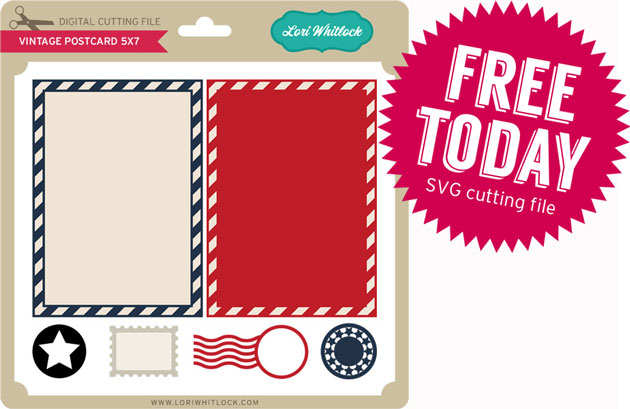
Hi Everyone! Today we have a new Friday $5 Bundle! It will ONLY be available until Midnight Sunday and when it’s gone it’s gone. These SVG files can be used with Cricut Explore, Silhouette Studio (with the Designer Edition upgrade), Scan N Cut, and any other cutter that will work with SVG files. Help spread the word by telling your friends and announcing it on social media!

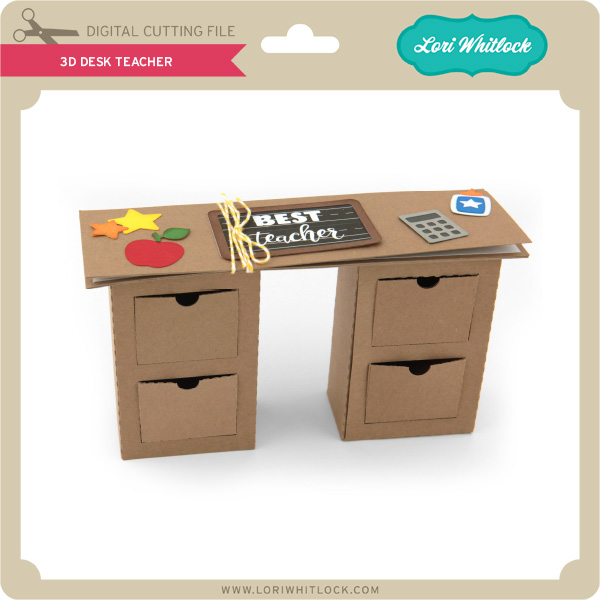
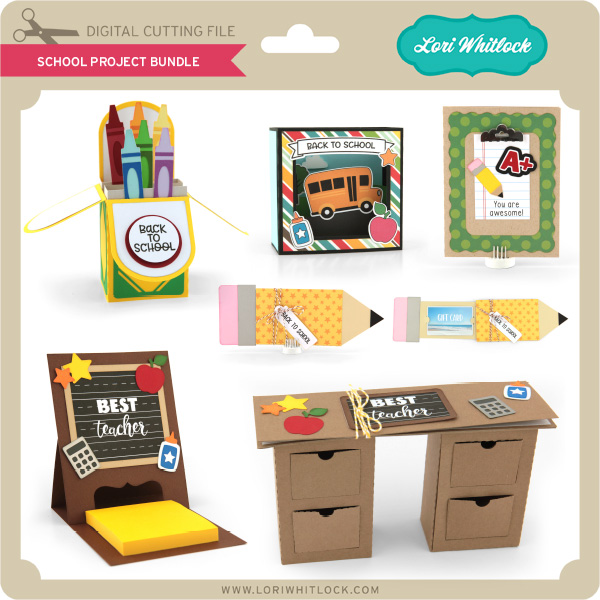
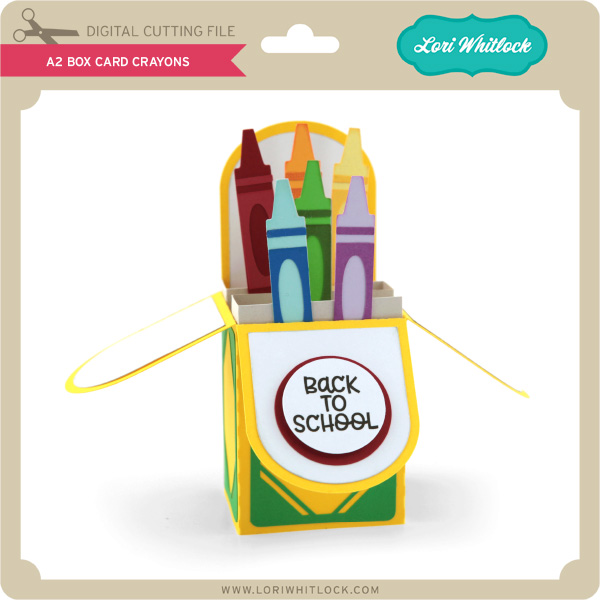
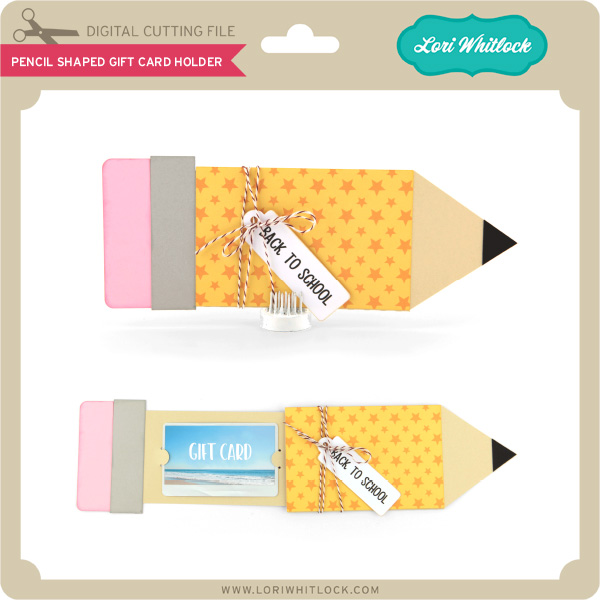
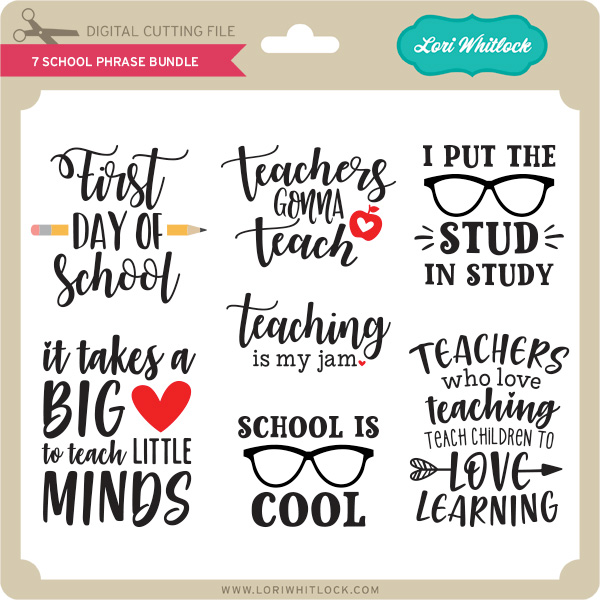
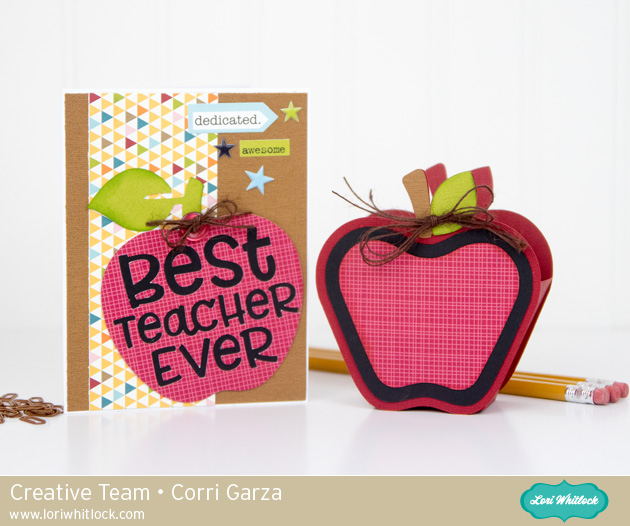
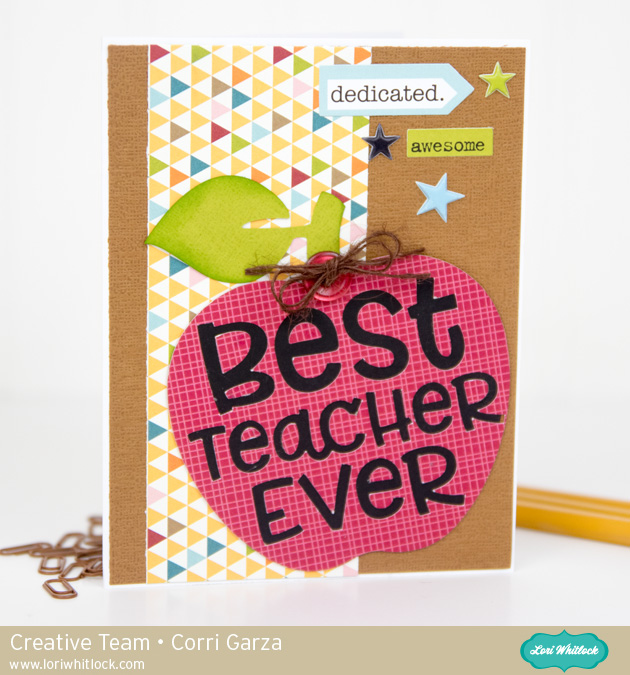
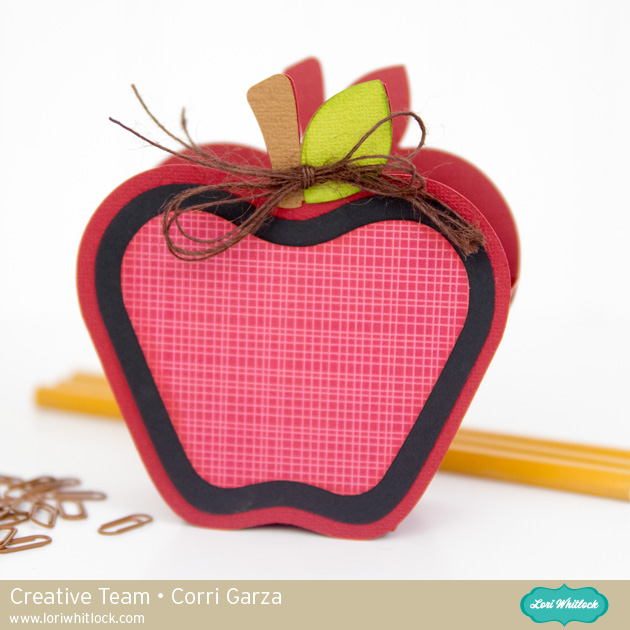
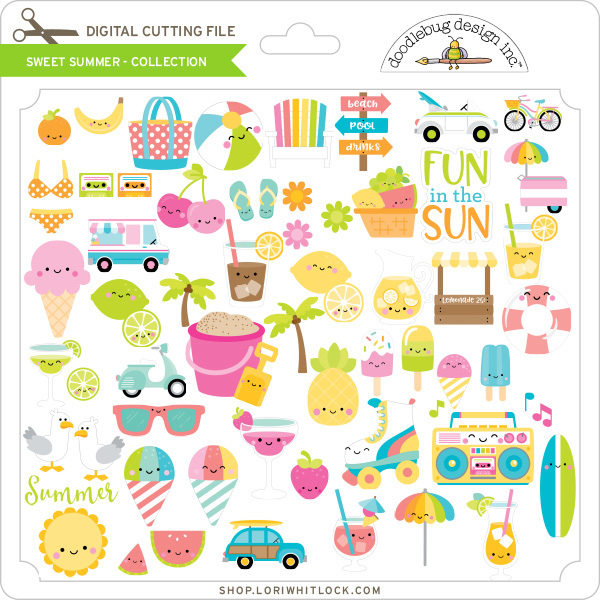
Now through Sunday, you can pick up this Back to School bundle including 5 SVG files for just $5!


The cost of this bundle is $5, for $9.95 worth of SVG files, over a 49% savings!  But don’t wait, this bundle will only be around until Sunday at midnight!

Have a great day!
Instax Photo Banner Using Build A Banner Dingbats Font with Kathy

Hi Everyone!  Today I have a tutorial showing you how to create a fun banner using the Build a Banner Dingbats Font (Lori Whitlock SVG Shop, Silhouette)  My daughter is headed off to study in Scotland for her Junior year and I wanted to make her a little something to decorate her room, that wouldn’t take up too much suitcase space!  I thought a banner with some of her favorite photos would be fun.  She loves her Instax camera so I made the banner to hold some of these cute instant photos!

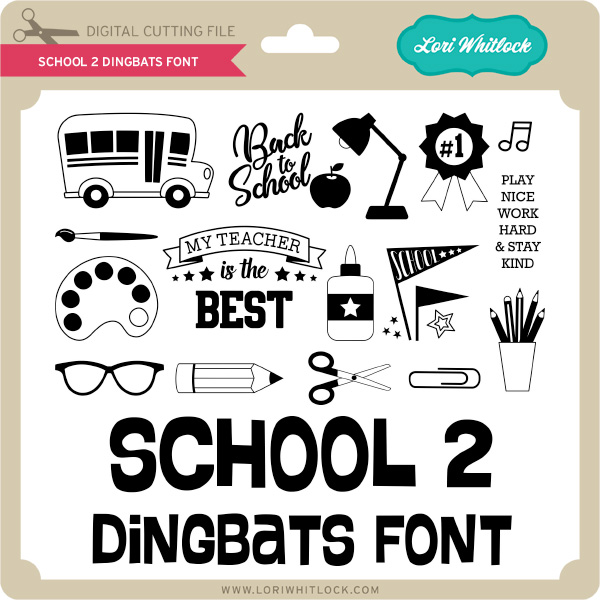
If you’re not familiar with Dingbat Fonts, they are fonts that have pictures and shapes in place of the letters.  Lori has a lot of them in her shop, and they really can be used for almost anything including vinyl, HTV and cutting projects like mine.  If you look at the picture below, I’ve typed out A through Z using the Build a Banner Dingbats Font and the Text tool.

To create my banner I started by choosing 3 of the banner pieces (A, X and U)  I resized each piece to be 5″H x 3.25″W so that each piece would be large enough to hold a picture.

I wanted to make the banner so that my daughter could swap out the pictures if she wanted, so I set out to add small cut lines on the banner pieces to hold just the corners of the picture.  To do this I needed first to know the size of the pictures being used.  Instax pictures are approximately 3.39″H x 2.13″W so I created a rectangle that size using the shape tool.

I placed the rectangle on one of the banner pieces and centered it using the Transform tool.

I drew a line 0.5″ long and then moved it to one corner of the picture.  Using the green dot, I slanted the line so that it covered one of the corners.

Next, I copied the small line, clicked on the copy, right mouse clicked and selected flip horizontally.  This gave me a line to add to the opposite corner.   I made sure the two lines were properly aligned by using the transform tool.  Once I was happy with the placement, I selected both lines and grouped them.

To create the bottom lines, I made a copy of the grouped top lines, right mouse clicked on the copy and selected flip vertically.  I positioned those lines along the bottom of the rectangle.

Again I made sure that all the lines were aligned correctly within the banner piece using the transform tool.

Once they were all in place, I removed the rectangle, and grouped the slot lines along with the banner piece to make them one.

I copied the lines before grouping and added them to the other banner pieces, centering them using the transform tool.

Once they were all ready, I sent them to cut!  I added the pictures to the cut pieces, and decorated them using some Rosettes from the Build a Rosette Set 1.5″ (SVG, Silhouette) and Build a Rosette Set 2″(SVG, Silhouette).  I strung all of the banner pieces together on a piece of twine, holding them in place with small clothespins.  Some quick hints: 1)  Hot Glue is your friend when making rosettes, and 2) before threading the pieces on the twine, add a little glue to the ends of the twine and let them dry.  This will prevent fraying.

That’s it for me today, thanks for stopping by to peek!


*BLOG * INSTAGRAM *

August 2018 Kit of the Month

We have a brand new special for the entire month of August ! You can get this Free Kit of the Month with any $20 purchase (Purchase must be in one transaction.) Simply add the 2018 August Kit of the Month to your shopping cart along with ANY $20.00+ purchase from the SVG Shop and this file is yours FREE. Be sure to use Coupon Code: AUG18KOTM (case sensitive) at checkout. This offer is good through August 31, 2018.


(Your cart must reach at least $27.95 before the coupon will be applied and then $7.95 will be subtracted from your total at checkout. The files will be available for immediate download after you pay for your order by visiting MY ACCOUNT>COMPLETED ORDERS>ORDER DETAILS inside of your account. Only one discount code per order allowed.)

Thanks for visiting the blog today! Please let us know if you need any help with your files. We want to make sure everyone is happy with their purchase. Have a great day!
Back to School Backpack with Michelle

Soon the school buses will be packed with children heading back to school. Make their first day special with this adorable Backpack treat bag.

Backpack Treat Bag

You can find the files to make this at the Silhouette Design Store, or right here at the Lori Whitlock SVG Shop. When combined with the “Back To School” Collection from Echo Park Paper Co., you’re certain to get an A+ and start the school year with fun!

Have a crafty day!

Michelle


Reindeer Petal Box Tutorial with Brigit

Hello everyone, I have a Silhouette Studio tutorial to share with you today on how I created this reindeer box. To make this I combined the Bunny Petal Box and Christmas Tag Reindeer svg files from Lori’s shop. You can also get both of these files here and here from the Silhouette Design Store.

I started with the box, ungrouped and did a release compound path to get rid of the bunny face.

I grouped the box together again and rotated 45 degrees, added the tag and resized it to fit one of the box flaps.

I ungrouped the tag and separated the black layer and with the knife tool I cut off the antlers. I also cut off the ears from the brown and dark brown layer. (I always duplicate my piece first before I do any slicing just in case I mess up).

I duplicated the box and cut off one of the flaps with the handle and enlarged the deer’s muzzle from the tag placing it over the box flap and selected both and cropped.

For the ear, I selected both pieces and subtracted under modify menu, I wanted the bottom part as a layer instead of the top so I could weld the top piece to the box, you will see that below.

If you have little points left you can double-click on the piece and delete points.

Last I rotated the ears and welded them to the box as shown below. Now when I put the box together I just have to fold the ears out. I did make new solid score lines, I have the Silhouette Studio Business Edition and save my files as an svg so I can import them into Cricut Design Space and cut them out on my Cricut Maker.

It seems like a lot of steps but it really went together very quickly, makes a nice Christmas treat box!

Thanks for stopping by and have a wonderful day!
Blog – Pinterest – Instagram