Canning Jar Label Tutorial

Hello friends!

I plant a large garden every year and then every fall I do a lot of canning. As you remember I did a cute tutorial awhile back for a canning jar box  and so I thought I would elaborate on the way I use my Cricut with my canning.  For everything I can, I made labels for the lids so I thought I would share how I do that.

First, I went and downloaded the Circle 1 Dingbats Font (Silhouette) [you could also use Circle 2 Dingats Font (Silhouette)] and install it on my computer.

I then open a new project on my Cricut and add a circle shape. 2.4 inches for wide mouth and 2 inches for regular mouth. I also like to turn the color to a light color so I can see my dingbat over top.

Then I add text and change my font to LW Circle 1 Dingbats. I selected the letter E for my dingbat.


I then shrink my dingbat down to fit within my circle. This ended up being 1.845 x 1.868 on a regular mouth sized label.

Then I change my Operation from basic cut to pen. I use the .4 mm fine point pen.

I then go in and add text as to what’s in my jar. The top font is LW Thankful and the bottom is LW Longhand.

Make sure to change your operation again to pen.

I will add the year as well. Once I have everything on my label and laid out how I want it, and everything except the circle (shown in pink) is changed to pen, I select the entire label, circle, words, dingbat, and on the bottom right, I click “attach”.


This keeps everything in place on the label when cutting and drawing the label.

At this point, you can select the label you have created and copy and paste it to make more of that same label. You can also copy and paste it and increase or decrease the size the make both regular mouth and wide mouth labels.

If you would rather have a cute label for the jar instead of the lid, the Label Shape Bundles 1-5 would make great jar labels (instead of using the circle). I also used the Mason Jar Dingbats on the label from the labels shape bundle below.


This is what it looks like all drawn and cut and on my jars.


Thanks for stopping by and happy crafting!

November Creative Team Blog Hop

Can you believe how quickly the year is flying by? We’re soaking up the cozy vibes of fall and getting ready for all the creative fun this season brings! Our talented design team has put together a beautiful collection of projects to inspire your holiday crafting. Be sure to hop along to each blog and see what everyone has created — you’re sure to find something you’ll want to make next!

Mark your calendar!
Join me for the next edition of “Lori Whitlock LIVE” on YouTube on Wednesday, November 20 at 5 PM (MT). I’ll be crafting with Carina Gardner and sharing new projects, creative tips, and answering your questions live. It’s always such a fun time together — you won’t want to miss it!

Lori Whitlock <<<(you are here)

🍂 Fall into Savings! 🍂
Now through November 15, enjoy 30% OFF all digital files at Lori’s SVG Shop — including digital files and commercial licenses! Use code NOV2025 (case-sensitive) at checkout and stock up on creative goodies for your Thanksgiving, Christmas, and winter projects. SHOP HERE.

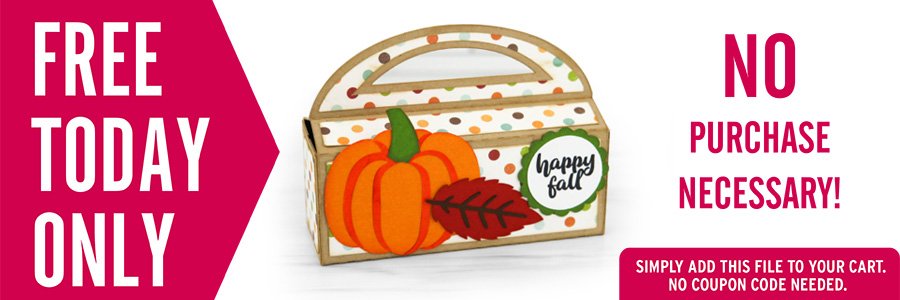
As a thank-you for hopping along with us, we’ve got something special to share. For today only, you can download the Handle Box Fall Pumpkin SVG file absolutely FREE! Just add it to your cart and complete checkout—no codes, no catches, just a fun little treat from us to you.

🎉 New This Week! Big Money Roll Gift Box SVGs 💸

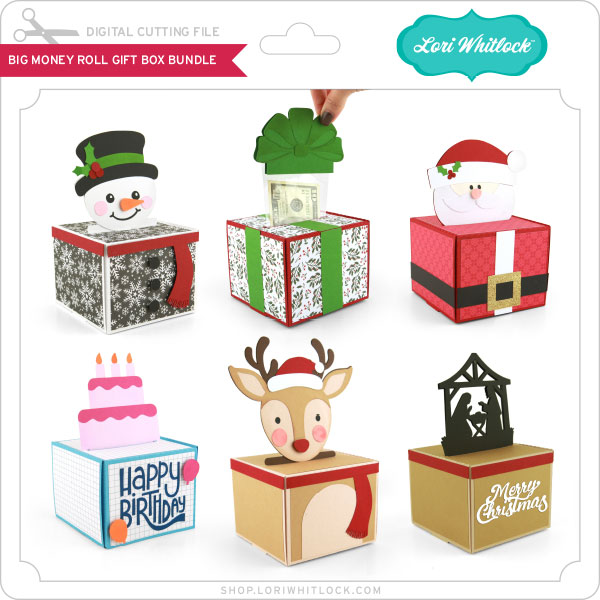
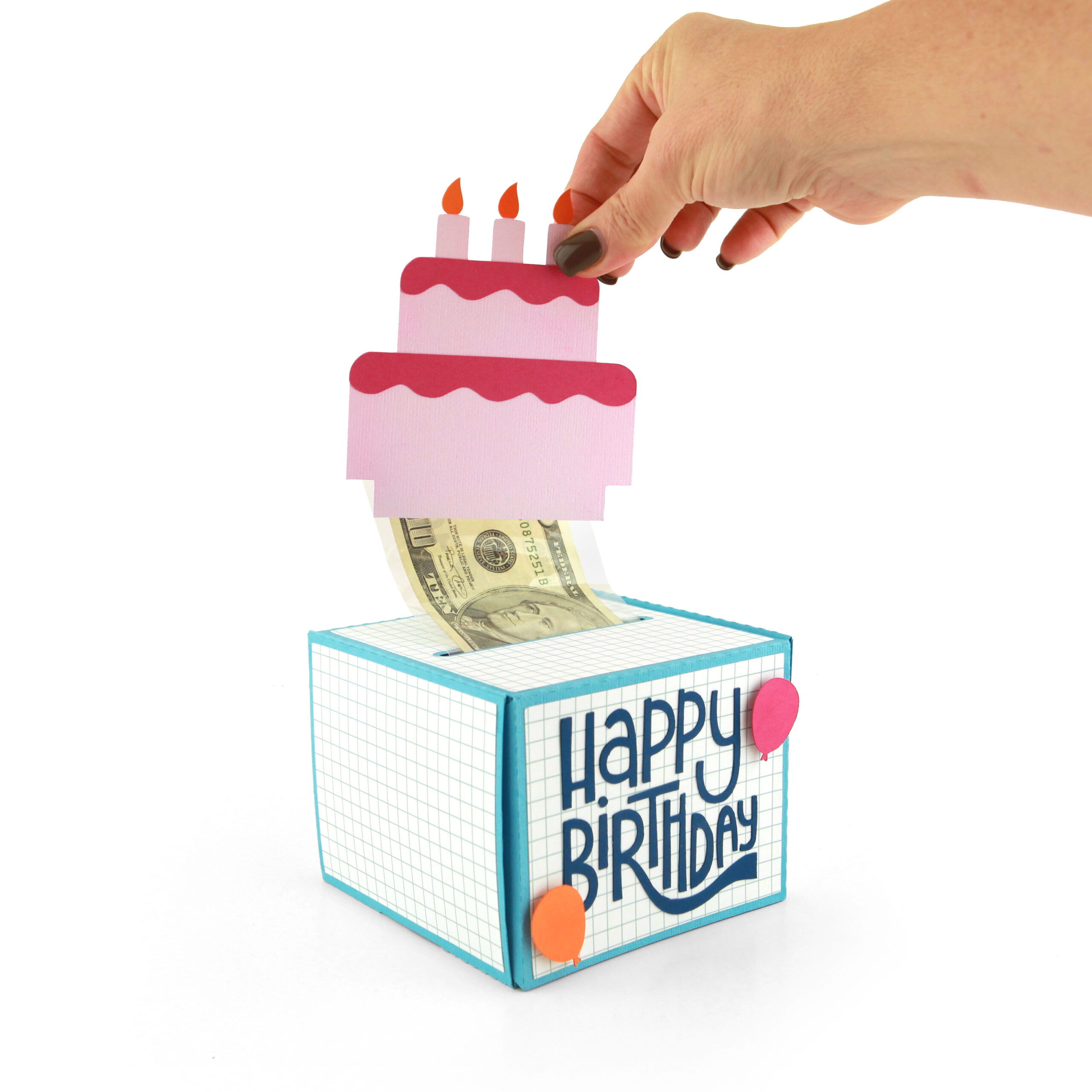
Make your cash gifts for Christmas or birthdays unforgettable with Lori Whitlock’s brand-new Big Money Roll Gift Box Bundle! Each box is designed to hold rolled-up bills inside a clear money pouch, creating a fun “pull and reveal” surprise for any occasion. This week’s release includes individual files and a bundle which includes six adorable designs — perfect for Christmas, birthdays, and beyond:
☃️ Snowman • 🎁 Gift with Bow • 🎅 Santa • 🎂 Birthday Cake • 🦌 Reindeer • ✨ Nativity

Each box cuts and assembles easily with your cutting machine, and the finished projects look amazing as a gift presentation. Your recipient will be “wow’d” for sure!

***CLICK HERE TO GO TO THE SHOP***

How about a giveaway? You’re in luck! Enter our giveaway below, and we’ll announce the winner on the entry form right here on this blog post. Keep an eye on your inbox—you might be the lucky winner!

Be sure to check out the CT member blogs listed at the top of this post! Thanks again for dropping by! Have a GREAT day!

~Lori

Gaming Remote Mini Album

Hi crafty friends! I’m excited to be sharing my latest project tutorial!  I used Lori’s Pop Up Video Game Card to create a mini album in the shape of a gaming controller. This unique little scrapbook is perfect for photos of gaming with friends, a birthday party, or everyday pictures of your little gamer. 

Game Controller Shaped Scrapbook Mini Album

I started with the cutting file called 5×7 Pop Up Card Father’s Day Video Game (SVG, Silhouette).

5x7 Pop Up Card Father's Day Video Game

This card is so adorable! I only used the game controller part to create my album but I’ll definitely use the entire card file again sometime.  

Let’s take a look at some of the pages, then I’ll explain exactly how I made it.

Game Controller Shaped Scrapbook Album Page with polka dots and enamel dots

Game Controller Shaped Scrapbook Album Page with a television, stars, and a gingham paper

Game Controller Shaped Scrapbook Album Page with baseball hats and a geometric green paper

Game Controller Shaped Scrapbook Album Page with a polka dot paper and directional arrow buttons
Game Controller Shaped Scrapbook Album Page with 2 photo mats and enamel dots

It’s fun, right? Ok, now for the tutorial … 

1.  I brought the card into my Silhouette software and ungrouped all of the pieces.  

2.  I kept only the game controller and hit ungroup again so that I could separate the pieces.  

3. With the pieces separated, I duplicated the base shape to create a front and back cover.  Since I only wanted the game buttons on the front cover, I released the compound path. 

4. I deleted the buttons from one of the base shapes.  

5. Now I added a .25” binding hole to the corner and hit “make compound path”.  

6.  Once I had my front and back covers, I cut the colored buttons out and adhered everything together.

Game Controller Shaped Scrapbook Album sitting on a clear acrylic display stand

Now you have a fun mini album that looks great sitting out in a kids room, dad’s office, or a college student’s apartment. Lori has so many great SVG files and I hope you’ll give her 5×7 Pop Up Card Father’s Day Video Game a try.


A2 Santa Claus Card

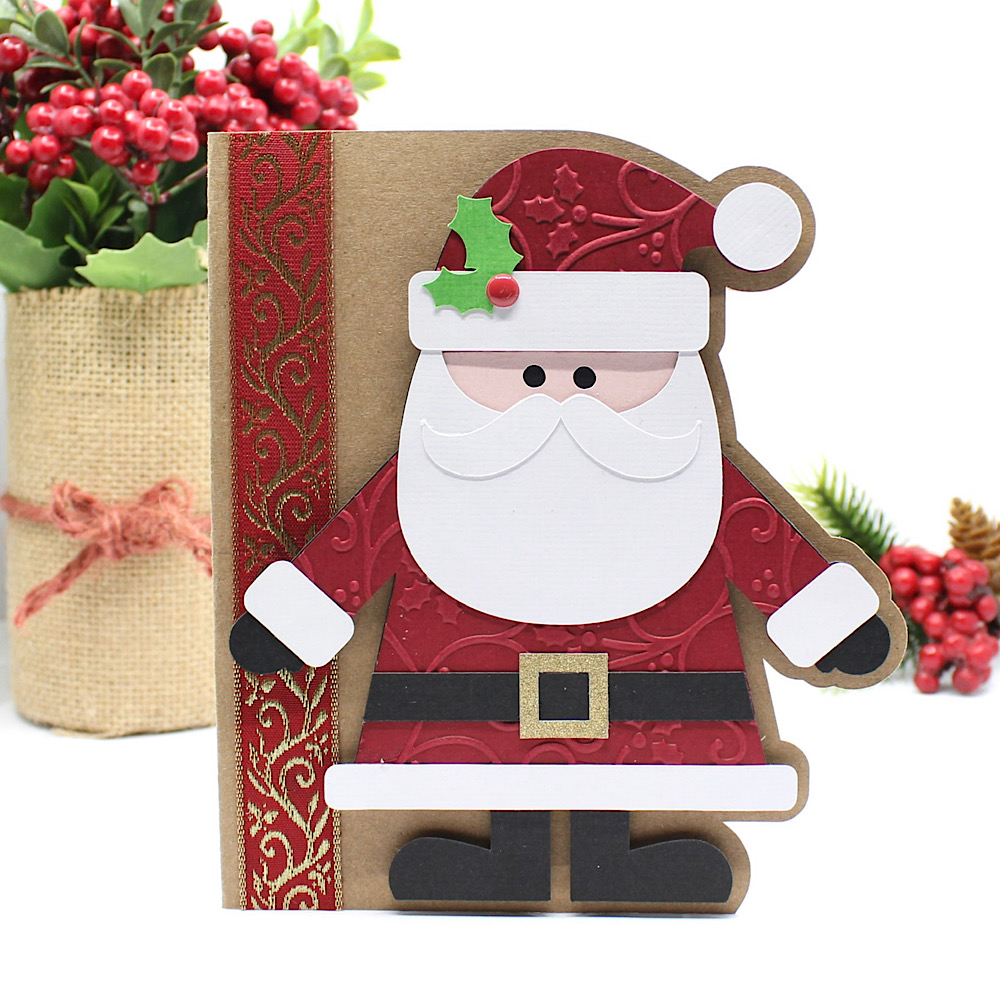
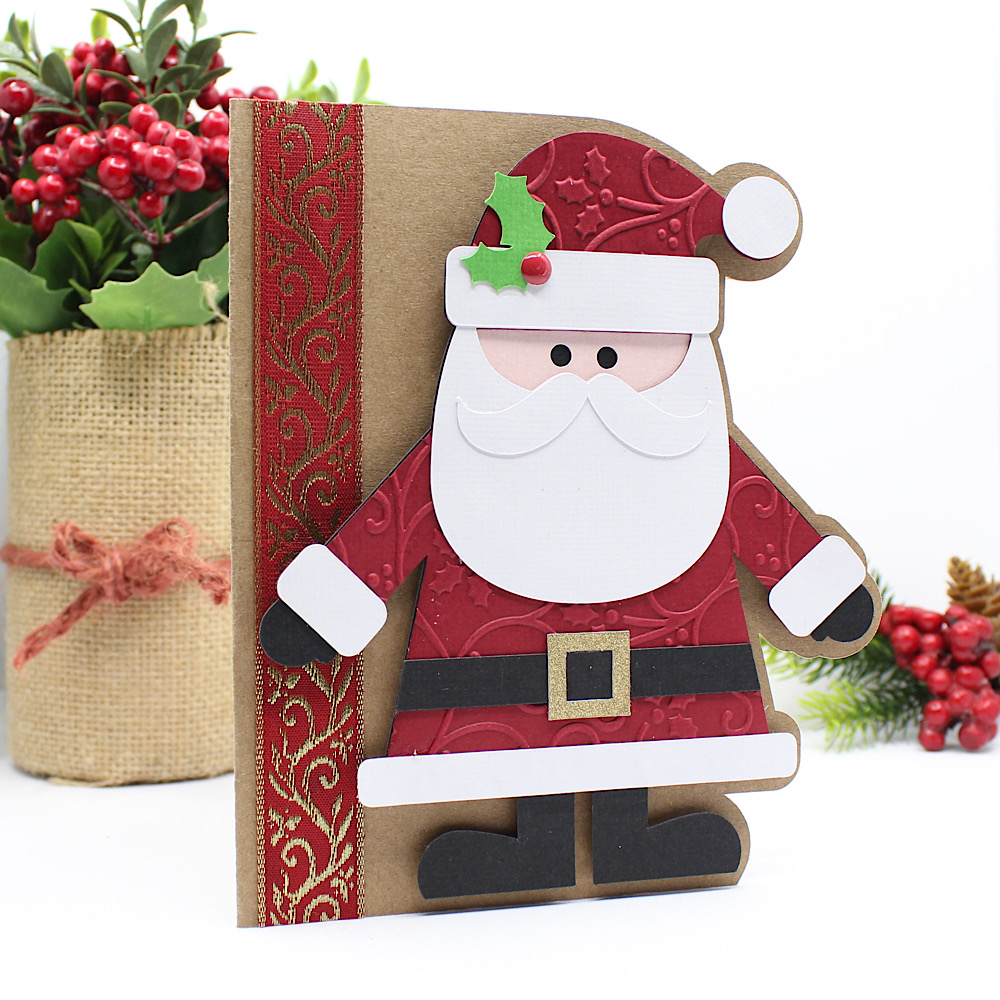
Hello crafty friends, Noelene here today! I want to share with you a cute Christmas card from the Lori Whitlock file called A2 Santa Claus Card ( SVG, Silhouette). This is such a cute fun card to make.
Once I cut all my pieces I embellished the red layer (including his hat and suit) with a Christmas holly swirl embossing folder. This was a simple step, but effective I think. Then I glued my pieces in place. I cut a strip of gold & red Christmas ribbon & glued it down onto the base of my card. Lastly, I glued everything into place, and used foam squares to pop Santa up for some fun dimension.

For more inspiration, check out my Instagram!

Thanks for stopping by!
Hugs,
Noelene 🙂

3D Pocket Explosion Box Tutorial

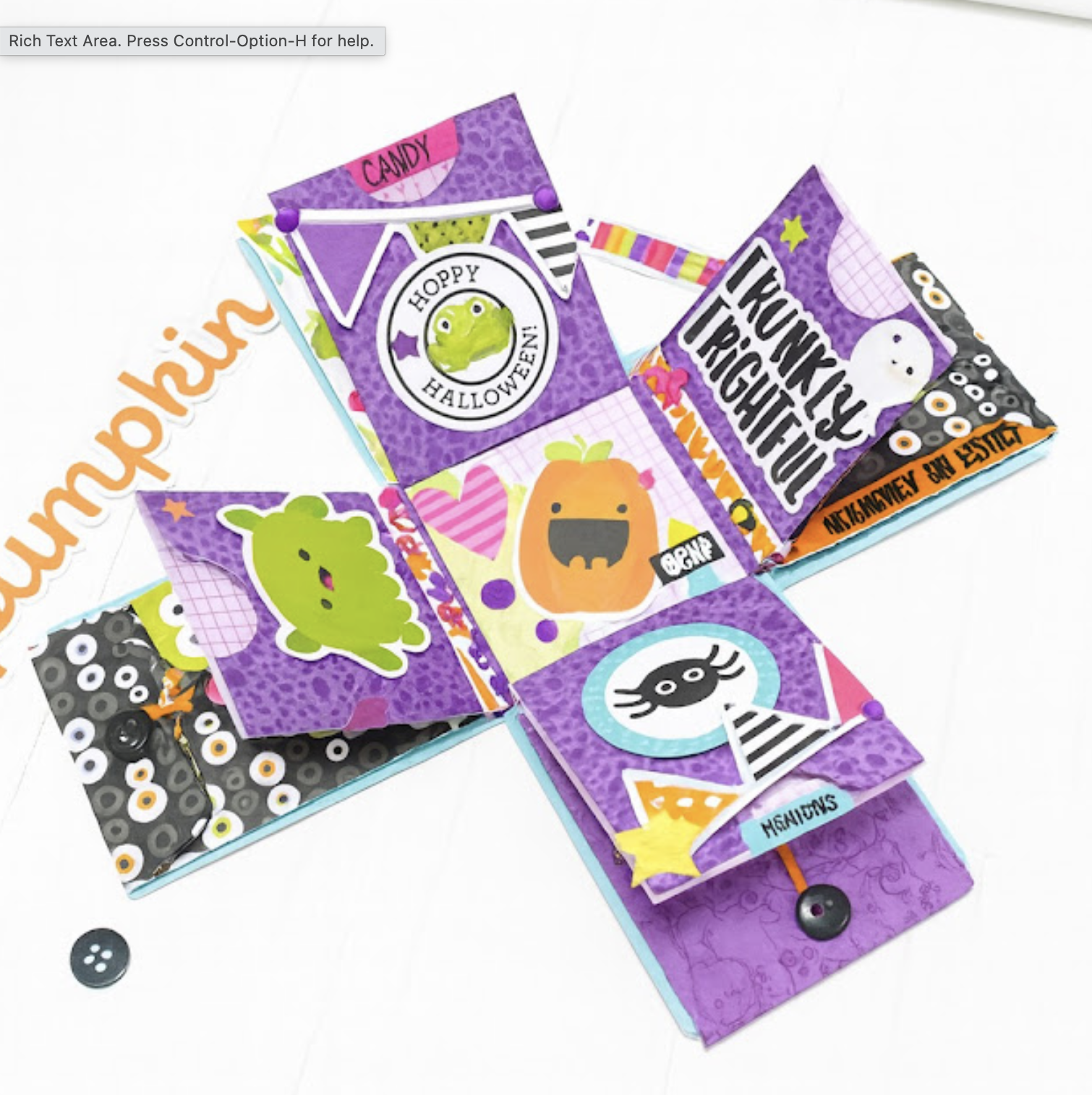
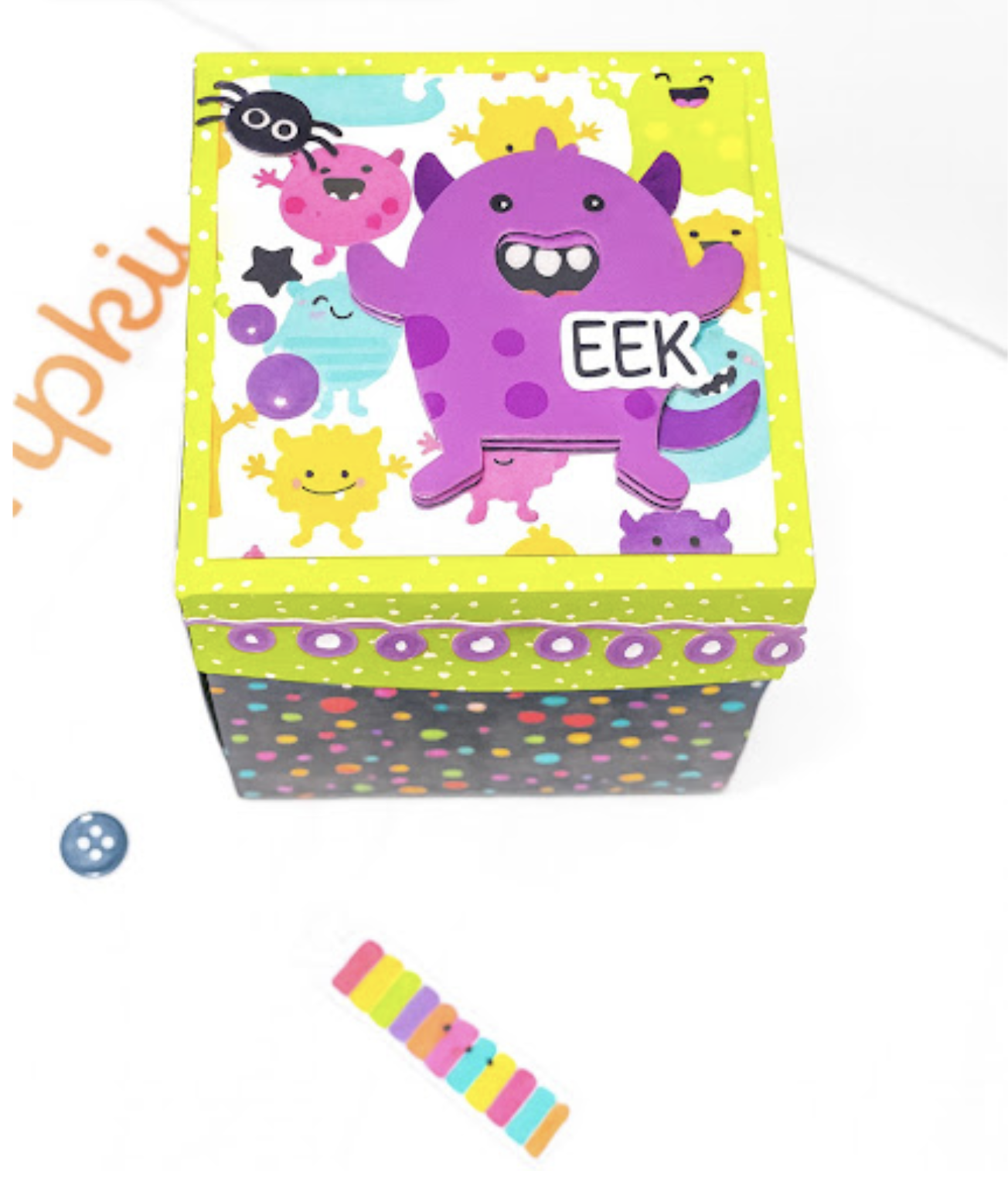
Happy almost Halloween, everyone!  Yes, my very favorite time of the year to create. Today I’m sharing a fun tutorial for one of Lori’s adorable designs — the Pocket Explosion Box (SVG, Silhouette)  I love how quickly and easily this project comes together.

EEEEK!  It’s so cute!
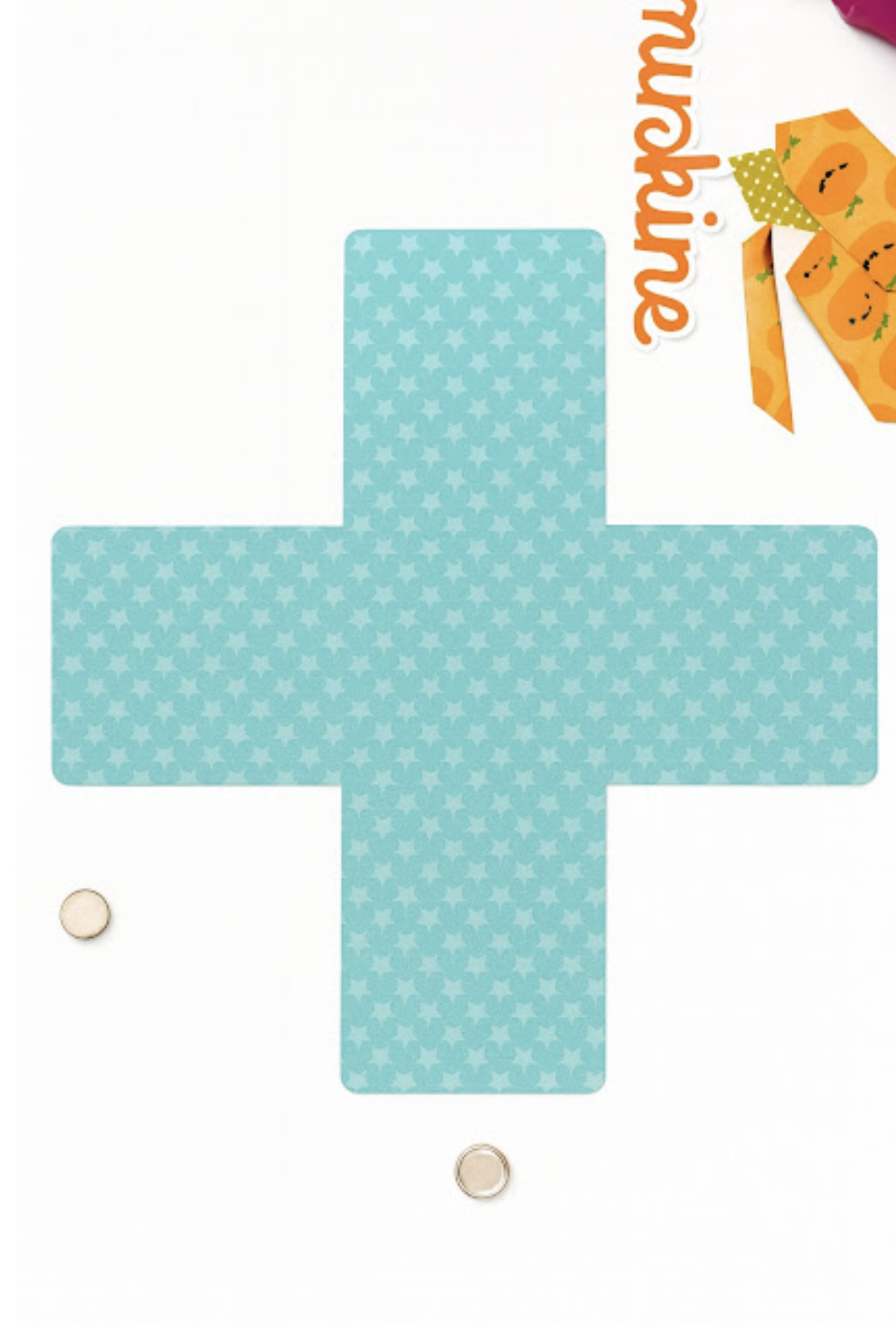
First, start with cutting all your pieces.  Here is the outside of the box and the lid.
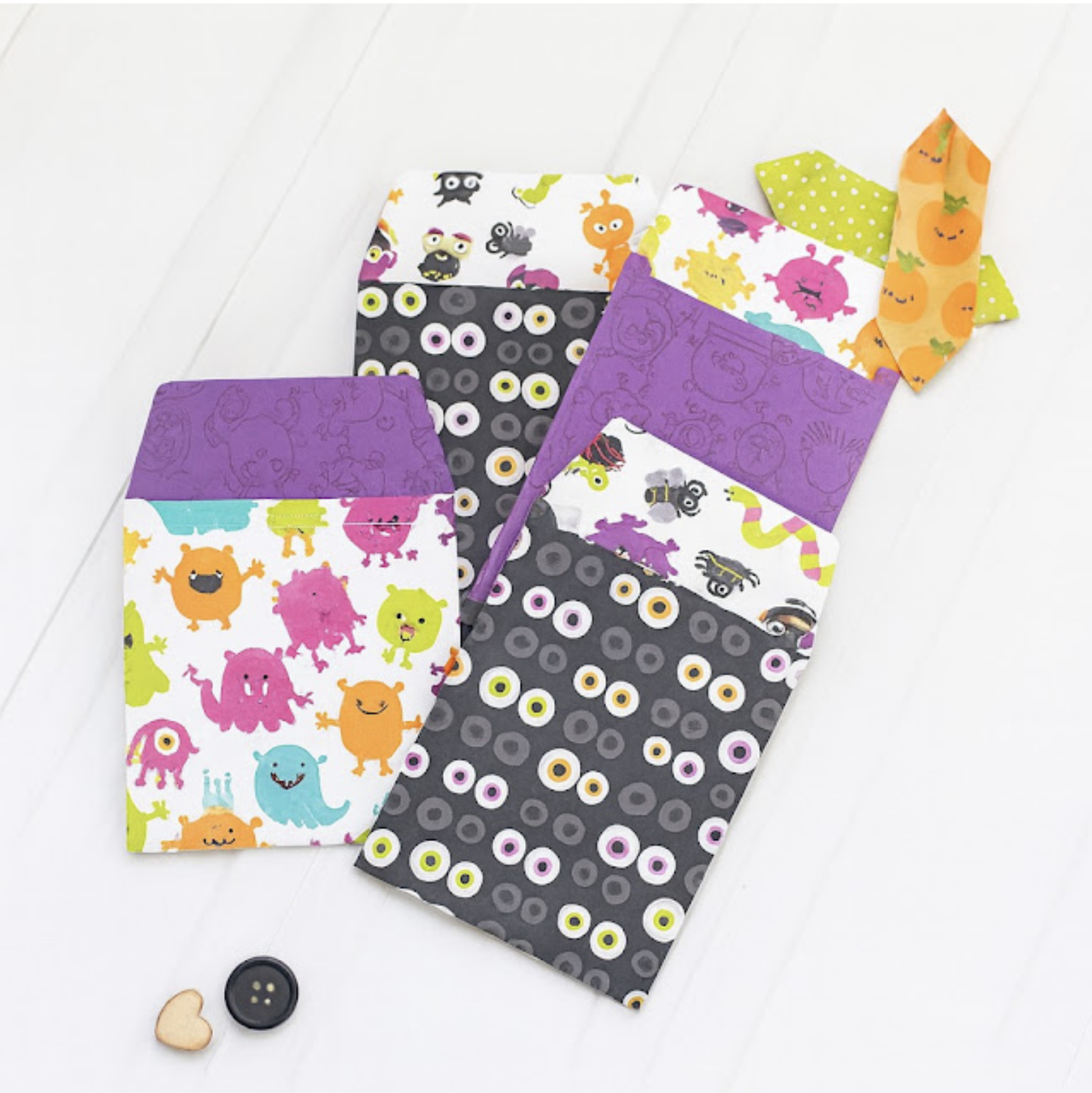
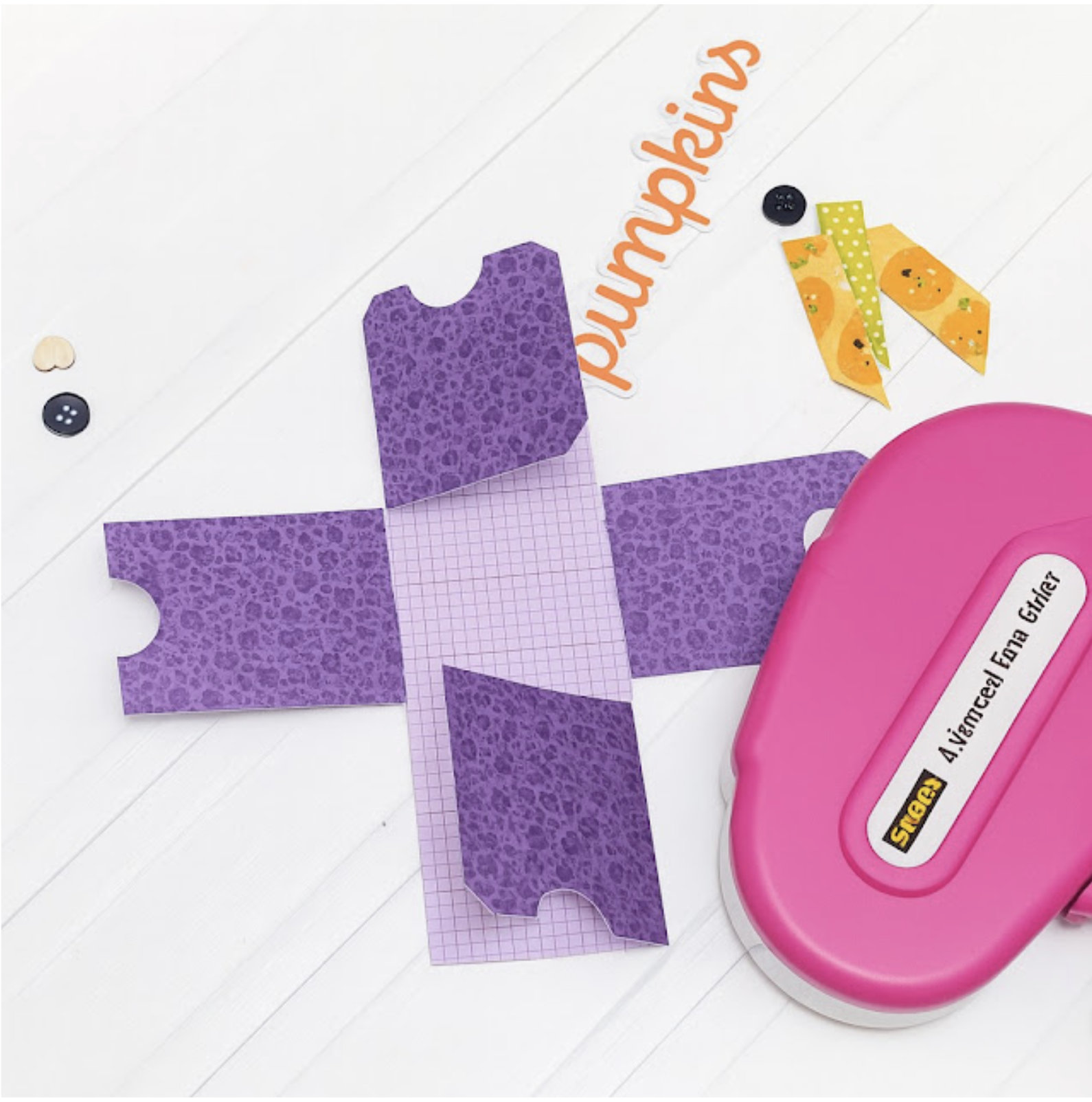
This is the inside layer of the box, the little purple pocket like folders.
And the lid.

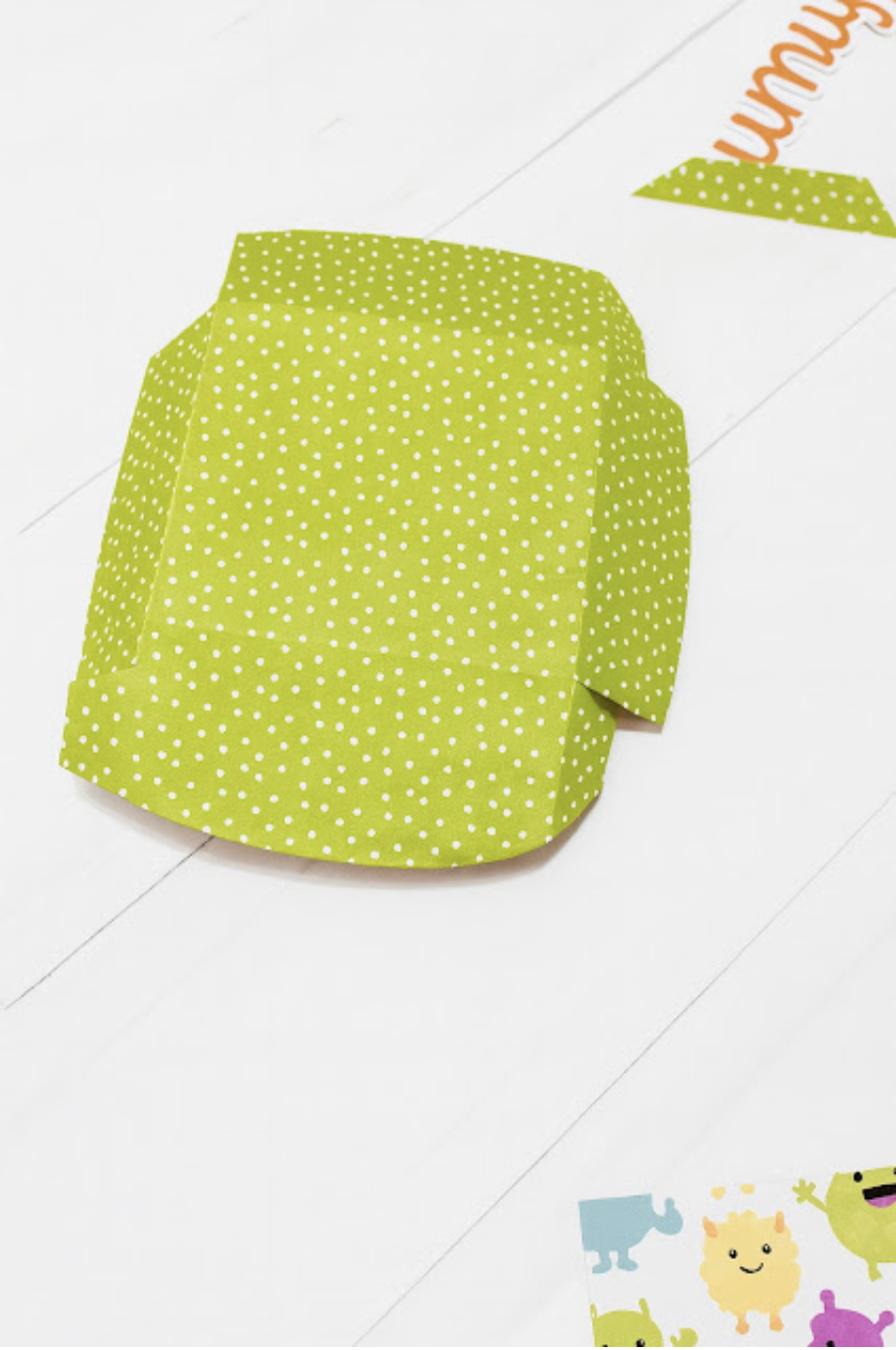
After cutting all your pieces, start assembling.  I started with the little file folders, just fold on the score lines and just use your regular adhesive to put them together.
There are 4 total of these little cuties.
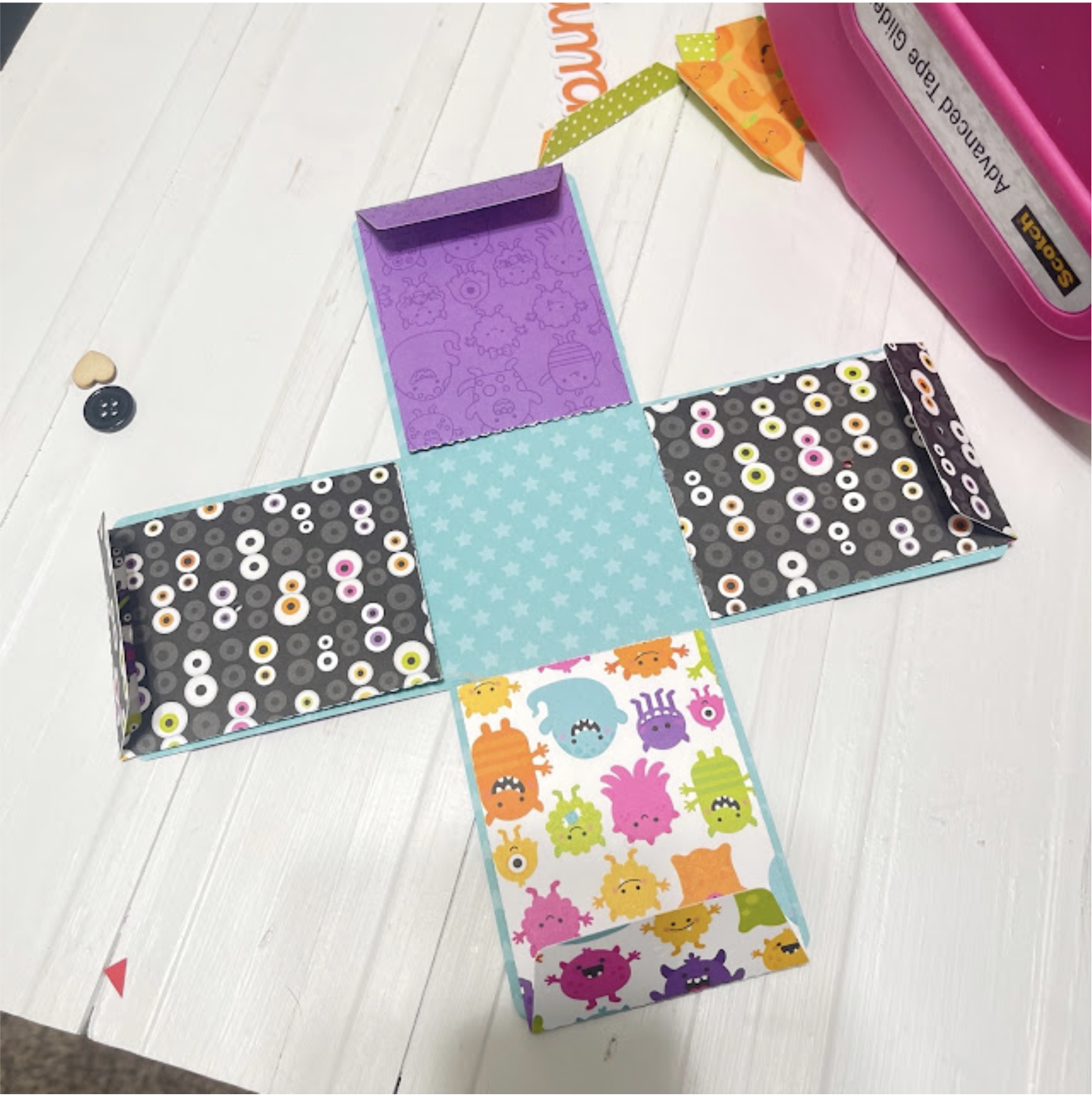
This is the inside of the first layer, the black star print is on the other side. Adhere a folder to each side.
So it looks like this!
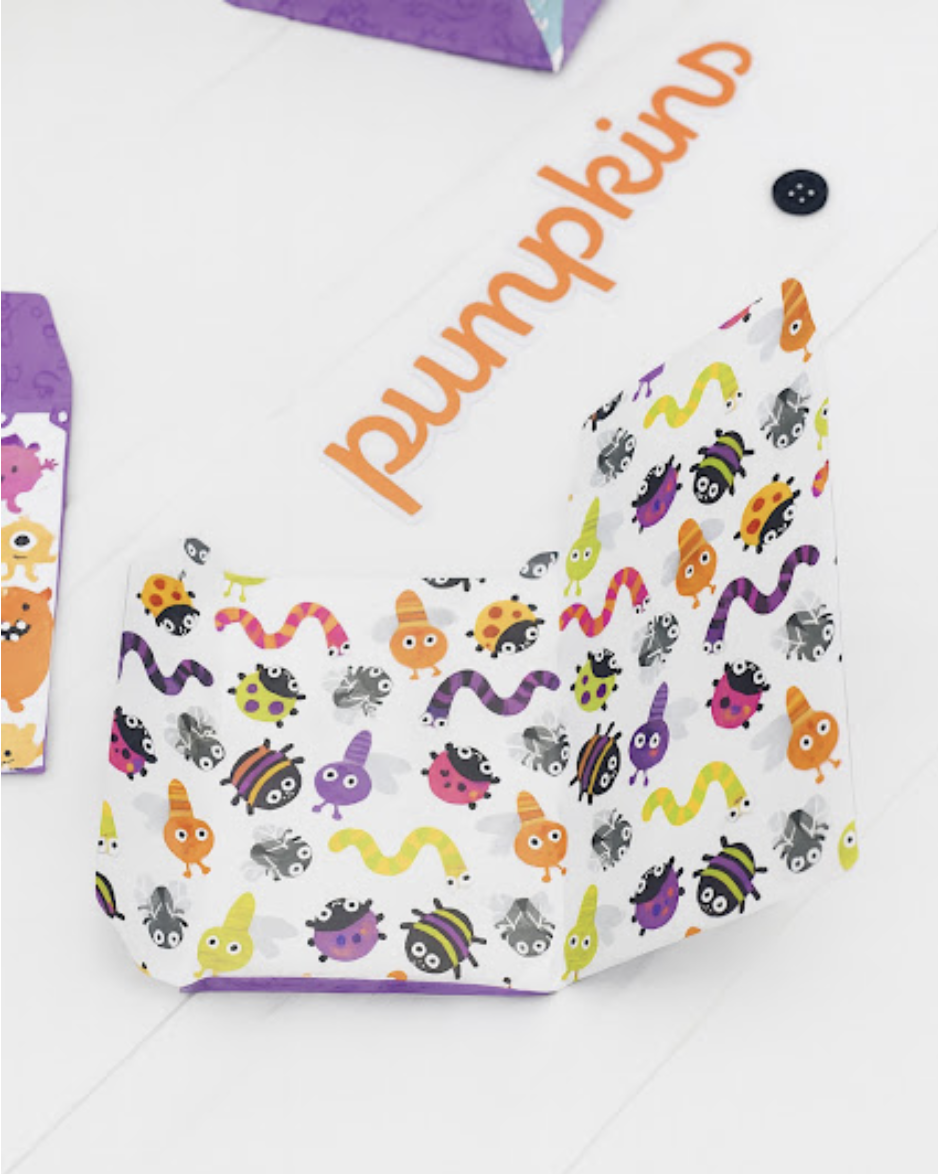
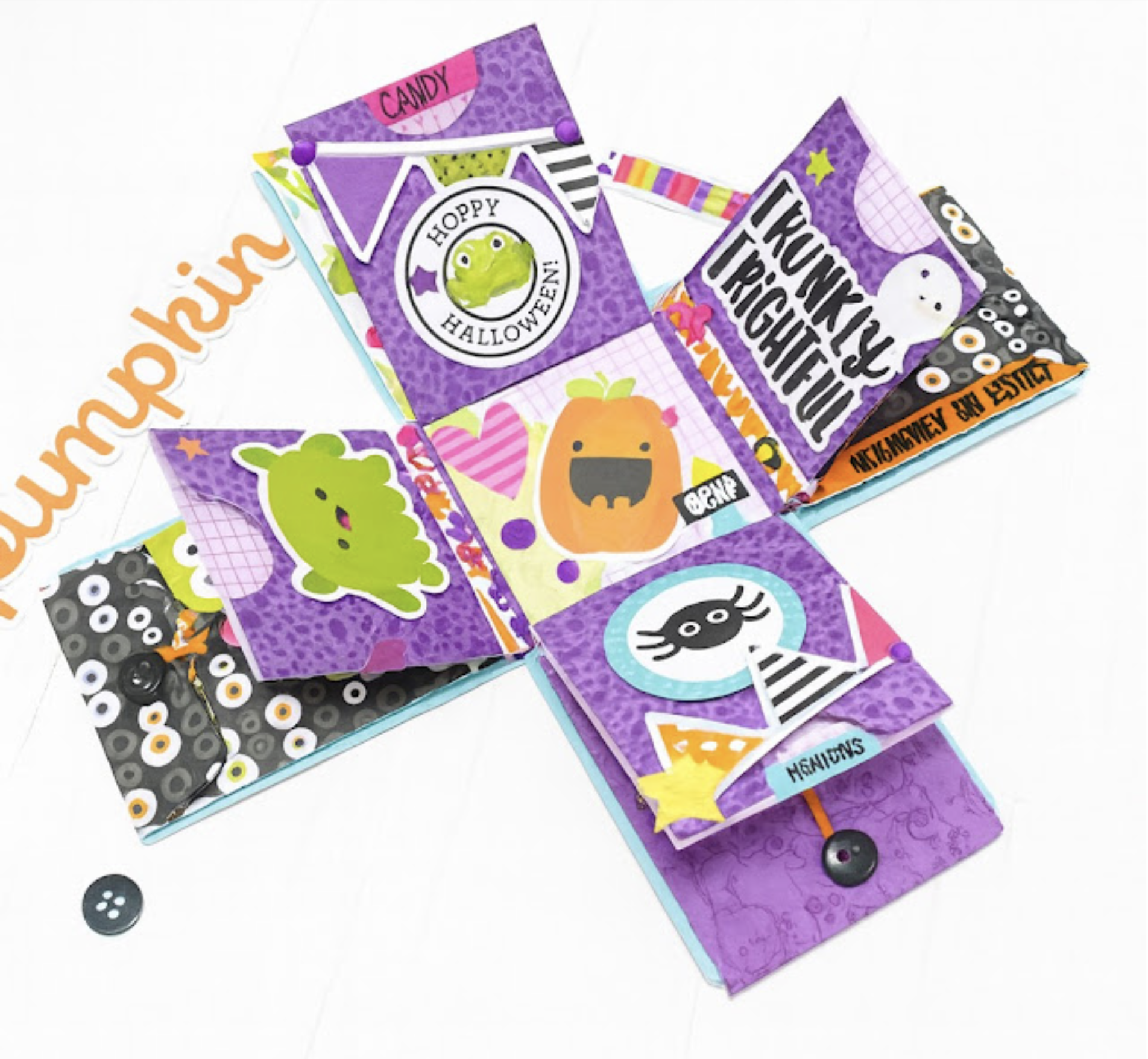
Next, create the inside layer of your box.  You just fold over and adhere, it makes the cutest little library type pockets.  Just add adhesive to the bottom square on the opposite side and adhere to your first layer.
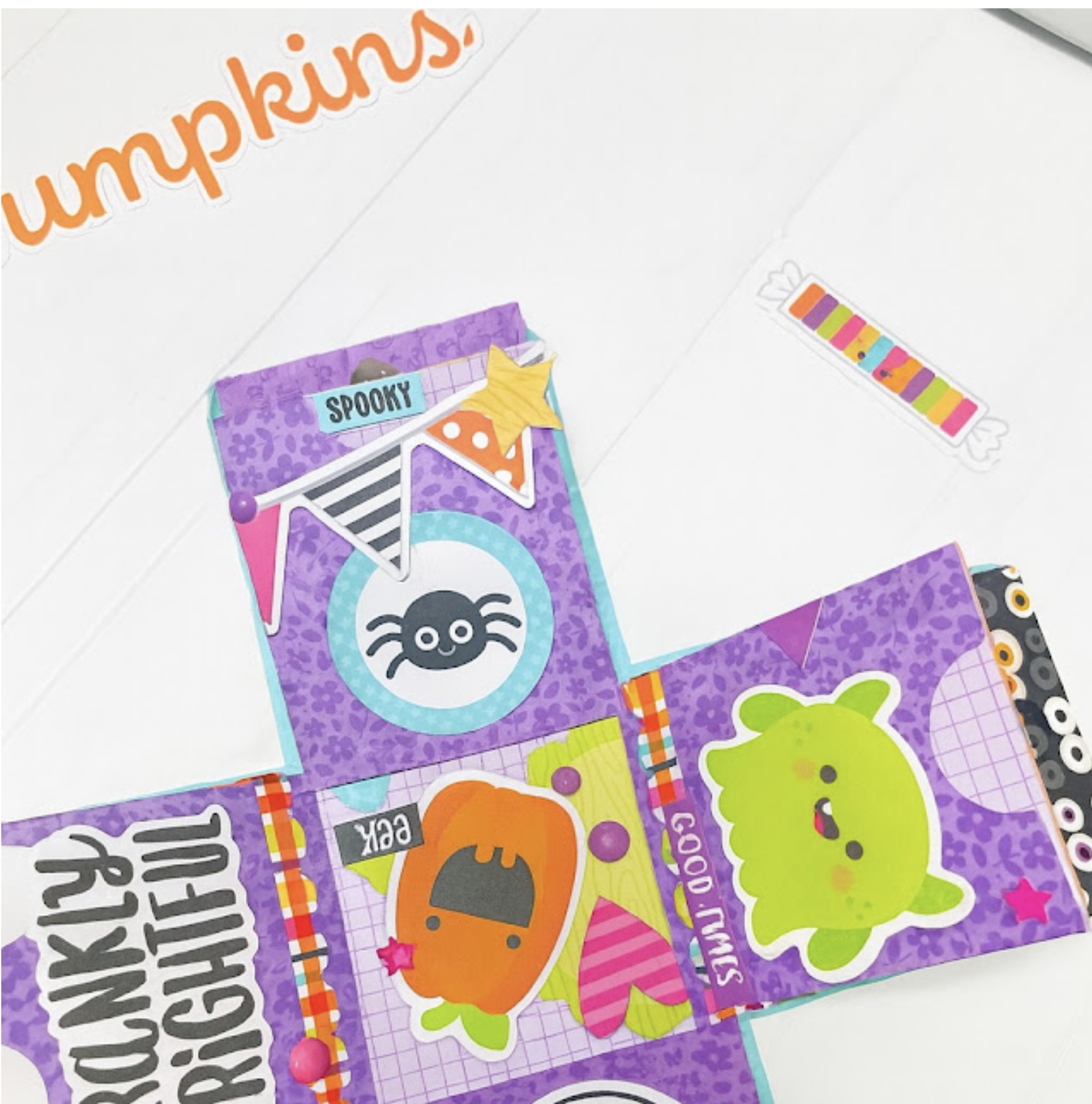
Now you just get to have fun and go to town with all the little embellishments.
Just open and this little box just explodes with fun!  Adorable!
Thank you for joining us today!