Starting a Business With Your Silhouette + Giveaway!

Over the years I’ve had MANY customers ask me about my advise on how to start a business with their cutting machine. So, when I saw that Melissa over at Silhouette School had a book all about it, I wanted to share it with you. It’s a great resource for those just starting their business and even for those with a business already going. Stick around because at the bottom of this post I’m giving away one digital copy of this awesome book I’m going to tell you about…

Are you ready to start having your Silhouette machine work for you?  If you’re looking to turn your crafting hobby into a successful business, Cutting a ProfitThe Ultimate Silhouette Guide to Running a Successful Business is exactly what you need!

From naming to branding to marketing to working with customers (even the difficult ones) to taxeslicensing, and watermarking – the latest ebook from Melissa Viscount, the author of the Silhouette School blog (and former Etsy shop owner) is stuffed full of information and resources every small handmade business owner needs to be successful, legal, and profitable.

  • Not sure if you need to register your business?
  • Unclear what taxes you should be paying?
  • Have questions on if you really need an EIN or Business Tax ID and separate bank accounts?
  • Still unclear tax write offs and if you’re taking advantage of the self employment and small business tax laws?
  • Confused about the differences in commercial and personal licenses, copyrights and trademarks?

    Cutting a Profit
    includes more than 100 pages of instruction, screen shots, and images, along with 10 worksheets to take you step by step through starting, growing, and running your Silhouette business successfully.

I really hope you take a look at this book, Cutting a ProfitThe Ultimate Silhouette Guide to Running a Successful Business

It will be a valuable resource for you as you turn your cutting matching into a successful business!

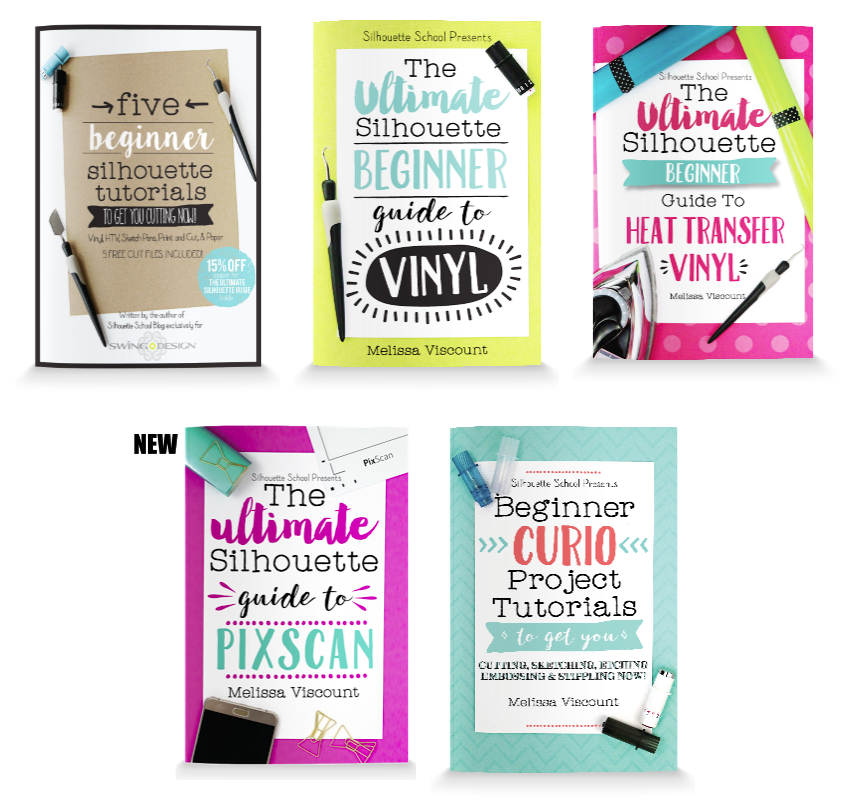
AND… Just so you’re aware, Melissa also has some other awesome Silhouette books and mini guides that she’s previously released that you’ll surely find useful. She even offers them in bundles!!

The Ultimate Silhouette Guide

The Ultimate Silhouette Sticker Guide (Print + Cut)


So, NOW for the fun part!!! Melissa has offered to let me give away one digital download of her brand NEW Cutting a ProfitThe Ultimate Silhouette Guide to Running a Successful Business. Simply leave a comment here on this post to be entered to win. A winner will be announced here on the blog on Tuesday, August, 2. Best of luck!

How to Design Word Art in Silhouette Studio

Don’t you just love all the adorable word art you see everywhere you go? Take a look at Pinterest or a trip to the local store and there are fun phrases, quotes and sayings all over the place. Some are cut out of vinyl, others are printed, and some are an online graphic. You can create these fun phrases in Silhouette Studio (even if you don’t have a Silhouette machine). You can download the software for FREE and use it to create printable projects! Once you have this amazing program all you need is some fun fonts to work with. I have to admit, I collect a lot of fonts so I have plenty of options when I start working on a project. I like to get them at a good price like the ones over at FontBundles.

While word art may look easy to create, it can be time consuming and a little overwhelming with when you actually start working on one. How do you combine fonts effectually to create hierarchy and visual interest? There are some graphic design rules to follow that can help you combine fonts in a pleasing way. Hopefully these tips will help when you tackle your next typography project!

Be sure to watch the video tutorial HERE as I demonstrate how to design this cute word art…

Contrast

Create contrast by combining fonts that are different but compliment each other. However, remember that one of the fonts should take the lead and the other should be a supporting font.

  • Combine different styles like serif/san serif.
  • Combine fonts with different moods like modern/classic or formal/informal.
  • Combine different font weights such as a heavy headline with a lighter body font.

Harmony

Create harmony by combining fonts with similar elements.

  • Combine fonts with similar moods.
  • Combine fonts with similar proportions such as x-height, ascenders /descenders, and kerning (the space between the letters).
  • Limit the color scheme to a range of harmonious colors (use the color wheel).

A couple of rules of thumb: 

  • Avoid combining multiple san serif fonts unless they are very different from one another.
  • Avoid combining multiple script fonts because they are so strong that they will compete with each other.

Creating your own word art can be so rewarding! You can really make some fun projects out of phrases and words when fonts are combined properly. Follow these tips I’ve given you, use your own creative judgment, and have fun!

Do you like the fonts I’m showcasing here in this blog post? They come from the awesome Majestic Font Bundle that is available the next 20 days. It includes 40 magnificent fonts for $29. That makes them 72¢ per font. REALLY?? That’s a deal for a gorgeous set of fonts. Also, be sure to check out the Road to Summer Font Bundle while you’re there. And, at the very lest… be SURE to pick up the FREE font of the week HERE.

Majestic Font Bundle

Road to Summer Font Bundle

Have a great day!

Memorial Day 40% OFF Flash Sale!

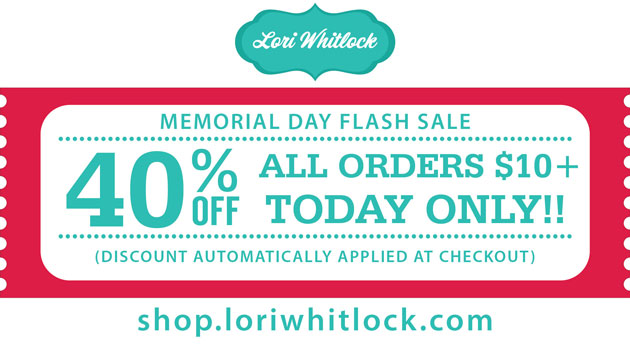
It’s Memorial Day and I’m having a ONE DAY flash sale in my SVG Shop! Spend at least $10 and get a 40% discount on your entire purchase from now until MIDNIGHT!! I rarely do 40% OFF sales, so this is your chance to save BIG.

NO CODES NECESSARY, just add $10 (or more) of product to your cart and the discount will automatically be applied! This is the perfect time to get all of those goodies on your wish list! Don’t miss out, sale is TODAY ONLY! shop.loriwhitlock.com

Have fun crafting!

Craftsy Class Sale: 50% OFF

Have you ever taken a Craftsy Class? They are truly the best way to learn new skills in the creative field! And, they are celebrating their birthday with the best birthday sale ever!

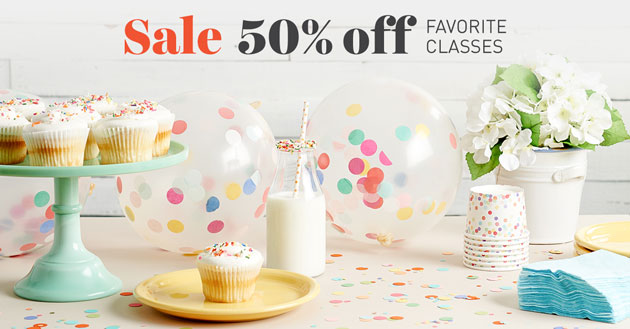
Get 50% off most-loved Craftsy classes to celebrate turning five! Save today through my affiliate link HERE . This includes my Silhouette Class, too! HURRY THIS OFFER ENDS AT MIDNIGHT TODAY!

How to Use Special Font Characters (Glyphs) in Silhouette Studio

I’m a self proclaimed font junkie! I admit it, I love fonts. Have you seen all the gorgeous fonts out there these days? You can buy some pretty awesome fonts like the ones offered by FontBundles (you must go check out the freebies there). Many of them come with extra characters, glyphs, and swashes. However, when you go to use them in Silhouette Studio you can only see the regular version of the font while there are often hundreds of additional characters (glyphs) included in the font. How do you access those?? In order to take full advantage of the extra characters included in these beautiful fonts in Silhouette Studio you need to know a few tricks.

MAC
Below is a video tutorial showing you how to use the gorgeous extra characters included with Michael, one of the fonts included in the lovely Calligraphy Font Bundle. This technique can be used with any properly coded font that includes glyphs and extra characters on a Mac.

PC
Below is a video tutorial showing you how to use the gorgeous extra characters included with Lovely Melissa. This technique can be used with any properly coded font that includes glyphs and extra characters on a PC.

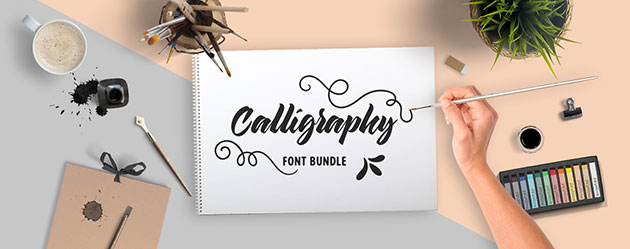
If you have not had a chance to check out FontBundles, I highly recommend that you do. They offer beautiful fonts at AFFORDABLE prices! Seriously, the Calligraphy Font Bundle has 40 absolutely amazing fonts worth over $500 for only $29. That is less than a dollar per font. Who can resists… SERIOUSLY? But, you better hurry because this bundle is available for a short time. Once it’s gone… it’s gone.

The techniques taught in this post will are applicable to any properly coded font that includes extra characters, glyphs, or swashes. If for some reason you run into a font that won’t work, it was probably not coded properly. However, I’ve tested several from FontBundles and they do work…and as I mentioned before they offer several fonts for FREE. Go give them a try.

Designing with fonts in Silhouette Studio can be super fun you can really make some awesome vinyl wall art, heat transfer projects, or print and cut files quickly and easily. Once you learn how to access and use all the beautiful extra characters in Silhouette Studio you can really take your artwork to the next level.

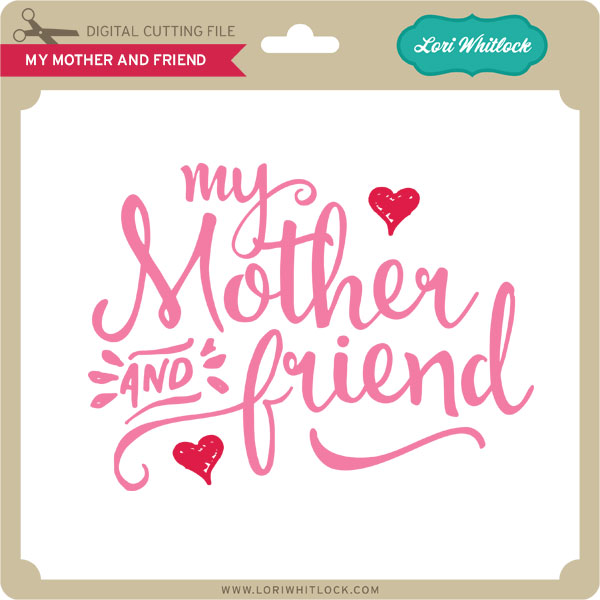
If you watched the Mac video I walked you through how to design the above artwork. Click HERE to download the FREE Silhouette Studio and SVG file for the “My Mother and Friend” phrase. It’s my gift to you for sticking around for this tutorial. I hope you enjoy this FREE file… and be sure to go pick up the Calligraphy Font Bundle while it’s still available.

Have a great day!